 FieldCamp
Department people, service areas and rules
Set up a FieldCamp department's people, service areas, default warehouse and assignment rule, and see which job types, forms and workflows apply to it.
Every department in FieldCamp has its own page under Settings > Company > Departments. This guide covers the settings on that page beyond the two setup requirements: people, service areas, stock, the assignment rule and the job setup summary. To create a department and activate it, see create and activate a department.
The department page has four tabs: Overview, People, Service areas and Job setup.
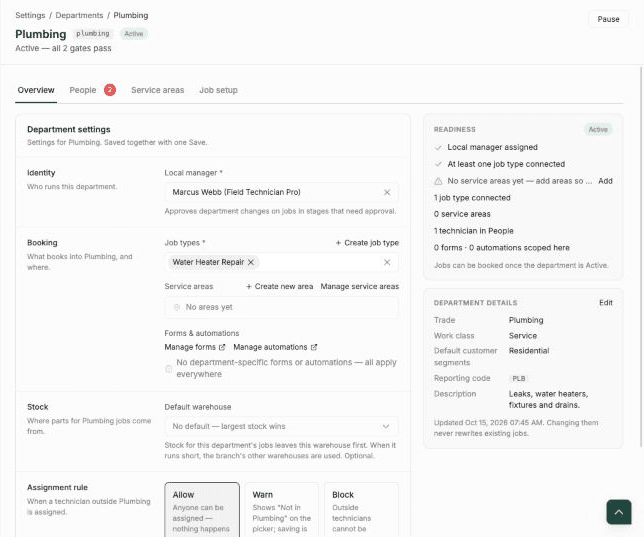
Overview tab
The Overview tab holds the department's settings. They're saved together: change what you need, then click Save changes, or Discard to undo. The footnote reminds you that changing a value never rewrites existing jobs.
Identity
Local manager is required. The manager approves department changes on jobs in pipeline stages that need approval.
Booking
- Job types (required): the job types that book into this department.
- Service areas: shows the areas this department covers. Use Create new area or Manage service areas to work with your areas, or add coverage on the Service areas tab.
- Forms & automations: shows how many job forms and automations are scoped to this department. If none are, the page says "No department-specific forms or automations — all apply everywhere". Use Manage forms and Manage automations to open those settings.
Stock
Default warehouse is optional. Stock for this department's jobs leaves this warehouse first. When it runs short, your other warehouses are used. With no default, the warehouse with the largest stock is used. To set up warehouses, see inventory management.
Assignment rule
The assignment rule decides what happens when a technician who isn't in this department is assigned to its work. People are in the department when they're listed on its People tab.
| Option | What happens |
|---|---|
| Allow | Anyone can be assigned. Nothing happens. This is the default. |
| Warn | The picker shows "Not in Plumbing" (with your department's name), but saving is allowed. |
| Block | Outside technicians can't be picked, and the assignment is refused. |
People tab
The People tab lists who works in the department, with their role, whether it's their primary department, and the date they were added.
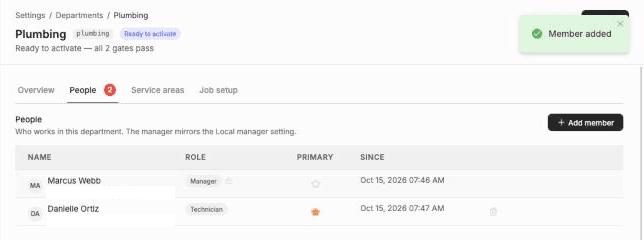
The manager row mirrors the Local manager setting. To change the manager, change Local manager on the Overview tab.
To add someone:
Open Add member
Click + Add member.
Choose the person and role
Pick a Team member, then choose a Role: Dispatcher or Technician.
Mark their primary department
Optionally, tick Make this their primary department. A filled star in the Primary column marks it.
Add them
Click Add. FieldCamp confirms with Member added.
To remove someone other than the manager, use the delete icon at the end of their row.
Watch: how jobs get their department
Job types and service areas are what let FieldCamp pick a job's department for you. This video shows how a job gets its department, and how the Inferred label and Why? link explain the choice.
Service areas tab
When a job's address falls inside one of the department's service areas, booking narrows to that department. Until you add service areas, the job address isn't used to pick a department. The area's geometry, schedule and capacity stay on the service area itself. For how service areas work, see service areas in the data model.
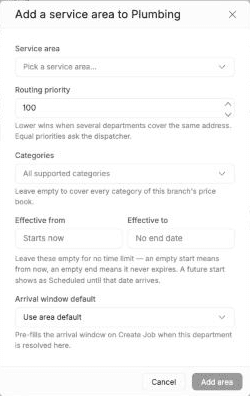
To add coverage, click + Add service area and fill in:
| Field | What it does |
|---|---|
| Service area | The area this department covers. |
| Routing priority | Default 100. Lower wins when several departments cover the same address. Equal priorities ask the dispatcher. |
| Effective from and Effective to | Leave empty for no time limit. An empty start means from now, and an empty end means it never expires. A future start shows as Scheduled until that date arrives. |
| Arrival window default | Pre-fills the arrival window on Create Job when this department is picked through this area. |
Click Add area to save the coverage. Use + Create new area if the area doesn't exist yet.
Job setup tab
The Job setup tab lists everything that applies to the department in one place: Job types, Job forms, Workflows, Document templates and Skills. Each item is tagged Targeted here when it's scoped to this department, or Every department when it applies everywhere.
If you run several branches with Franchise HQ, a technician from another branch can also work here through a shared technician.
Related articles
How to create and activate a department
Create a department in FieldCamp, assign its local manager and job types, then activate it and choose whether to apply it to jobs that are already open.
Pause, rename and manage department access
Pause and resume a FieldCamp department, rename it safely, and use the role permissions that control department records and booking into paused departments.