 FieldCamp
Recurring Jobs | FieldCamp
Set up weekly, bi-weekly, monthly, or custom recurring jobs in FieldCamp. Visits are created automatically so your field service schedule stays on track.
Under the hood — see how Jobs work in the FieldCamp data model: the fields they hold, how they connect to your other records, and how to customize them.
Recurring jobs handle work that repeats on a regular cycle. Lawn care every Thursday, monthly HVAC filter changes, weekly office cleaning -- set it up once and FieldCamp creates each visit automatically.
The Fastest Way: Ask the Command Centre
Open the Command Centre and describe what you need:
- "Create a weekly HVAC maintenance job for City Hospital every Monday at 9am"
- "Set up bi-weekly pool cleaning for the Smith Residence starting next week"
- "Schedule monthly pest control for ABC Plumbing's warehouse"
- "Create a quarterly fire extinguisher inspection for all 4 office locations"
The Command Centre builds the recurring job, assigns the team, and confirms the schedule in one conversation.
When you tell the Command Centre the frequency and start date, it fills in the recurring pattern automatically. You can always adjust before confirming.
What Is a Recurring Job?
A recurring job is a single job record that generates multiple visits based on a schedule you define. Each visit appears on the calendar and can be managed independently -- reassigned, rescheduled, or skipped -- without affecting the rest of the series.
Frequency Options
FieldCamp supports a range of frequencies to match any service pattern:
| Frequency | How It Works | Example |
|---|---|---|
| Daily | Every day or every X days | Fire alarm checks at a hotel, every weekday |
| Weekly | Same day(s) every week | Lawn mowing every Thursday |
| Bi-weekly | Every other week on the same day | Pool service every other Monday |
| Monthly | Specific date or position each month | HVAC filter change on the 1st, or third Tuesday |
| Quarterly | Every 3 months | Fire extinguisher inspection in Jan/Apr/Jul/Oct |
| Yearly | Once per year | Annual boiler inspection, seasonal startup |
| Custom | Any interval or pattern | Every 6 weeks, every 10 days, or specific day combinations |
Real-World Examples
Here is how different field service businesses use recurring jobs:
| Business | Recurring Job | Frequency | Typical Setup |
|---|---|---|---|
| Pool service | Weekly pool cleaning | Every Monday at 9am | Same tech (Mike Torres), same route every week |
| HVAC company | Monthly filter change | First Wednesday of each month | Rotate among 3 technicians |
| Lawn care | Bi-weekly mowing | Every other Thursday | Same crew, adjusts seasonally |
| Fire safety | Quarterly extinguisher inspection | Jan 15, Apr 15, Jul 15, Oct 15 | Specialized tech with certification |
| Cleaning service | Weekly office cleaning | Every Monday, Wednesday, and Friday | 2-person crew, evening hours |
| Pest control | Monthly treatment | Last Friday of each month | Same tech for client relationship |
Setting Up a Recurring Job
Step 1: Start a New Job
Navigate to Jobs and click Create Job, or ask the Command Centre. Fill in the client details, service address, and line items just like a one-time job.
Step 2: Choose Recurring
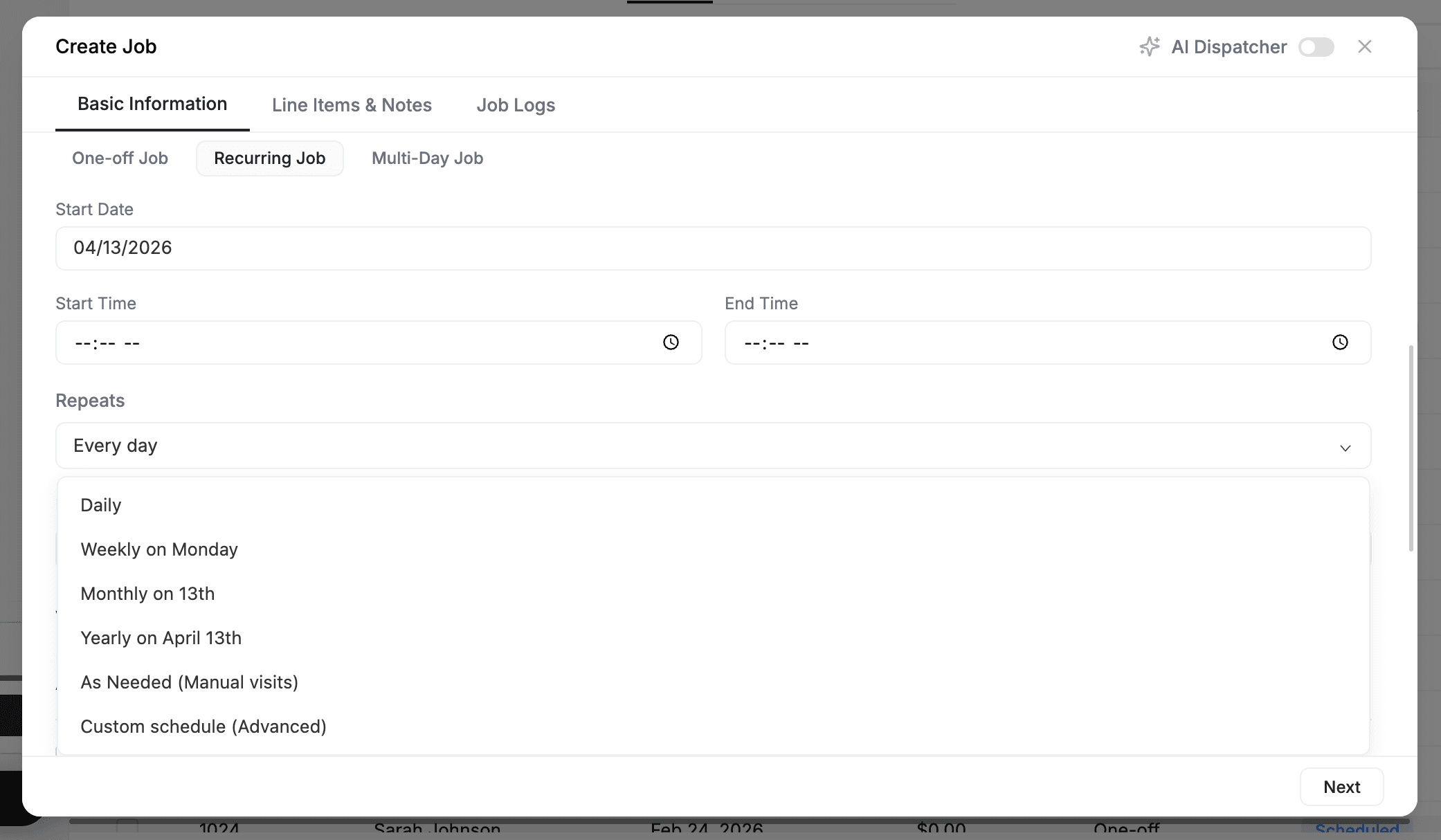
In the scheduling section, select the Recurring Job tab instead of One-Off Job.
Step 3: Configure the Frequency
Pick from the standard options:
- Daily -- Every day or every X days
- Weekly -- Select which days of the week (e.g., Monday and Wednesday)
- Monthly -- Choose a specific date (the 15th) or a position (third Tuesday)
- Quarterly -- Select the months and dates
- Yearly -- For annual inspections or seasonal startups
Step 4: Set an End Condition
Decide when the series should stop:
| End Condition | Best For | Example |
|---|---|---|
| After X visits | Fixed-term contracts | "Stop after 12 visits" for a one-year monthly contract |
| On a specific date | Contracts with an expiry | "Run until December 31, 2026" |
| No end date | Ongoing relationships | Continues until you manually stop it |
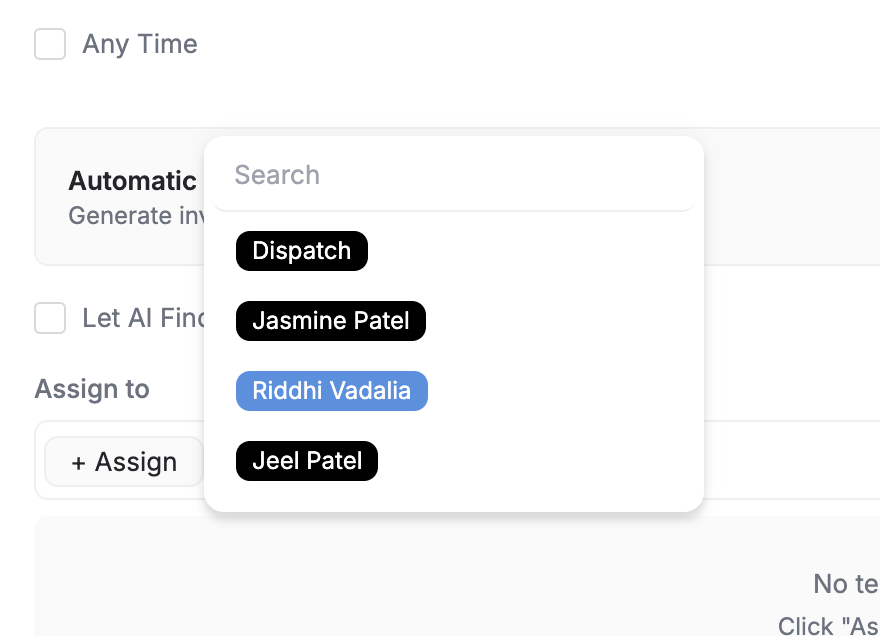
Step 5: Assign a Technician
Choose the default technician or crew for all visits. This person is assigned to every generated visit unless you change individual visits later.
Step 6: Save
Click Create. FieldCamp generates the upcoming visits and adds them to the calendar and dispatch board.
Custom Schedule Modal
For patterns that do not fit the standard frequency options, use the Custom Schedule modal. This opens when you select Custom in the frequency dropdown.
With the custom modal you can build complex patterns:
| Pattern Type | How to Set It | Example |
|---|---|---|
| Multiple days per week | Select several days in the day picker | Every Monday, Wednesday, and Friday |
| Custom intervals | Set "every X days" or "every X weeks" | Every 6 weeks, every 10 days |
| Position-based monthly | Pick a weekday position | First Tuesday of each month, last Friday of each month |
| Seasonal restrictions | Limit to specific months | April through October only (for lawn care) |
| Exceptions | Define blackout dates | Skip the week of July 4th, skip December holidays |
The modal shows a preview calendar so you can see exactly when visits will fall before saving.
For patterns like "every Monday and Wednesday" — you do not need the custom modal. The standard weekly frequency lets you select multiple days of the week.
How Visits Are Auto-Created
Each recurrence generates a new visit automatically. Here is how the process works:
-
FieldCamp generates visits ahead of time — The system creates visits for a configurable horizon (typically 4-8 weeks into the future). As time passes, new visits are generated automatically to maintain the horizon.
-
Visits inherit job defaults — Each visit gets the job's default team assignment, line items, instructions, and forms.
-
Each visit is independent — Once created, a visit can be adjusted without changing the template or other visits. Reassign one visit, reschedule another, cancel a third — the rest of the series continues unaffected.
Example: Sarah Johnson is assigned to a weekly cleaning job at City Hospital every Thursday at 9am. She is on leave next Thursday. You reassign just that single visit to Mike Torres. The week after, the visit is back with Sarah automatically because the recurring pattern still assigns her by default.
Managing a Recurring Job
Edit the Schedule
Open the job detail page and click Edit Job. When you change the frequency, days, or end date, you will see two options:
- Update future visits only — Past and in-progress visits stay as they are. Only upcoming visits reflect the new schedule.
- Update all future visits — All visits that have not started yet are regenerated based on the new pattern.
Skip a Single Visit
Open the specific visit from the Visits tab and click Cancel Visit. The rest of the series continues on schedule. Use this for holidays, one-off schedule changes, or when the customer requests a skip.
End the Recurrence
From the job detail page, open Edit Job and set an end date or change the status to Completed. No further visits are generated. Existing scheduled visits remain on the calendar unless you cancel them separately.
Add a One-Off Extra Visit
Need an unscheduled visit for this job? Click Add Visit from the Actions menu and pick the date. This does not change the recurring pattern — it is a one-time addition.
Change the Assigned Technician
For one visit — Open the specific visit and reassign it. The rest of the series stays with the original tech.
For all future visits — Edit the job and change the default assignment. All future visits are updated; past visits keep their original assignment.
Editing a recurring job only affects future visits. Completed or in-progress visits are never modified retroactively. This protects your historical records and job logs.
Recurring Jobs and AI Dispatch
The AI scheduling engine is aware of recurring patterns and uses them to make smarter decisions:
- Consistency preference — If Mike Torres handles the Monday pool cleaning visits, AI tries to keep assigning him for consistency. Customers appreciate seeing the same face.
- Conflict avoidance — AI checks the recurring pattern against all other schedules to prevent conflicts. If a new job would overlap with an existing recurring visit, AI suggests a different time.
- Workload distribution — When multiple recurring jobs pile up on the same day, AI can suggest redistribution across the week.
- The AI Dispatcher sees recurring visits in the dispatch queue and optimizes them alongside one-time jobs for the best overall route and schedule.
Recurring Invoicing
Recurring jobs pair naturally with recurring invoicing. Two common patterns:
Invoice per visit — Each time a visit is completed, an invoice is generated automatically (or manually). The invoice includes that visit's labor, materials, and charges.
Invoice per period — At the end of the month (or billing period), one invoice is created for all completed visits in that period. This reduces paperwork for the customer and your team.
Configure recurring invoice preferences in the job's billing settings. When workflow automation is enabled, invoices can be generated and sent automatically after each completed visit.
Recurring Jobs and Online Booking
Customers can book recurring services through Online Booking. When a customer selects a service and chooses a recurring frequency, the booking creates a recurring job automatically.
For example, a customer visits your online booking page, selects "Pool Cleaning," picks "Weekly" as the frequency, and chooses Monday mornings. FieldCamp creates the recurring job and generates visits based on the selected pattern. See Recurring Booking for the customer-facing setup.
When the recurring work is part of a maintenance plan, model the plan as a Service Agreement: the booked job can be linked back to the plan record automatically, so all of that customer's plan work stays grouped in one place.
Recurring vs Multi-Day: Which to Use
| Question | If Yes → | If No → |
|---|---|---|
| Is it the same work repeated on a schedule? | Recurring job | Check multi-day |
| Does Day 2's work depend on Day 1 being finished? | Multi-day job | Probably recurring |
| Are the days consecutive? | Multi-day job | Recurring or separate jobs |
| Should one invoice cover all visits? | Multi-day job | Recurring (invoice per visit) |
| Can different techs handle different visits? | Recurring job | Multi-day job (same crew) |
Related Articles
Job Types & Job Templates | FieldCamp
Use FieldCamp job types and templates to pre-fill technicians, skills, products, forms, and log templates every time you create a job.
Multi-Day Jobs | FieldCamp
Schedule, manage, and track jobs that span multiple consecutive days in FieldCamp with unified crew commitments, calendar blocks, and profitability tracking.