 FieldCamp
Job Forms & Checklists | FieldCamp
Create digital job forms and checklists in FieldCamp to standardize field operations, capture signatures, and ensure compliance with mobile-ready forms.
Under the hood — see how Jobs work in the FieldCamp data model: the fields they hold, how they connect to your other records, and how to customize them.
Job Forms turn paper checklists into digital workflows that your field team completes on their phone. They standardize service delivery, capture required data in real time, and give office staff instant visibility into what happened on-site.
Ask the AI
Use the Command Centre to work with forms:
- "Show me all job forms"
- "Which forms are attached to HVAC maintenance jobs?"
- "Create a new inspection checklist form"
See AI Skills for more examples.
Key Features
- Customizable templates — build forms that match your exact service procedures
- Diverse field types — text, dropdowns, checkboxes, dates, signatures, photos, tables, and more
- Auto-attach to job types — link specific forms to job categories so the right form is always there
- Mobile-ready — technicians fill out forms on-the-go using the FieldCamp mobile app
- Offline sync — forms work without internet and sync automatically when connectivity returns
Creating a Job Form
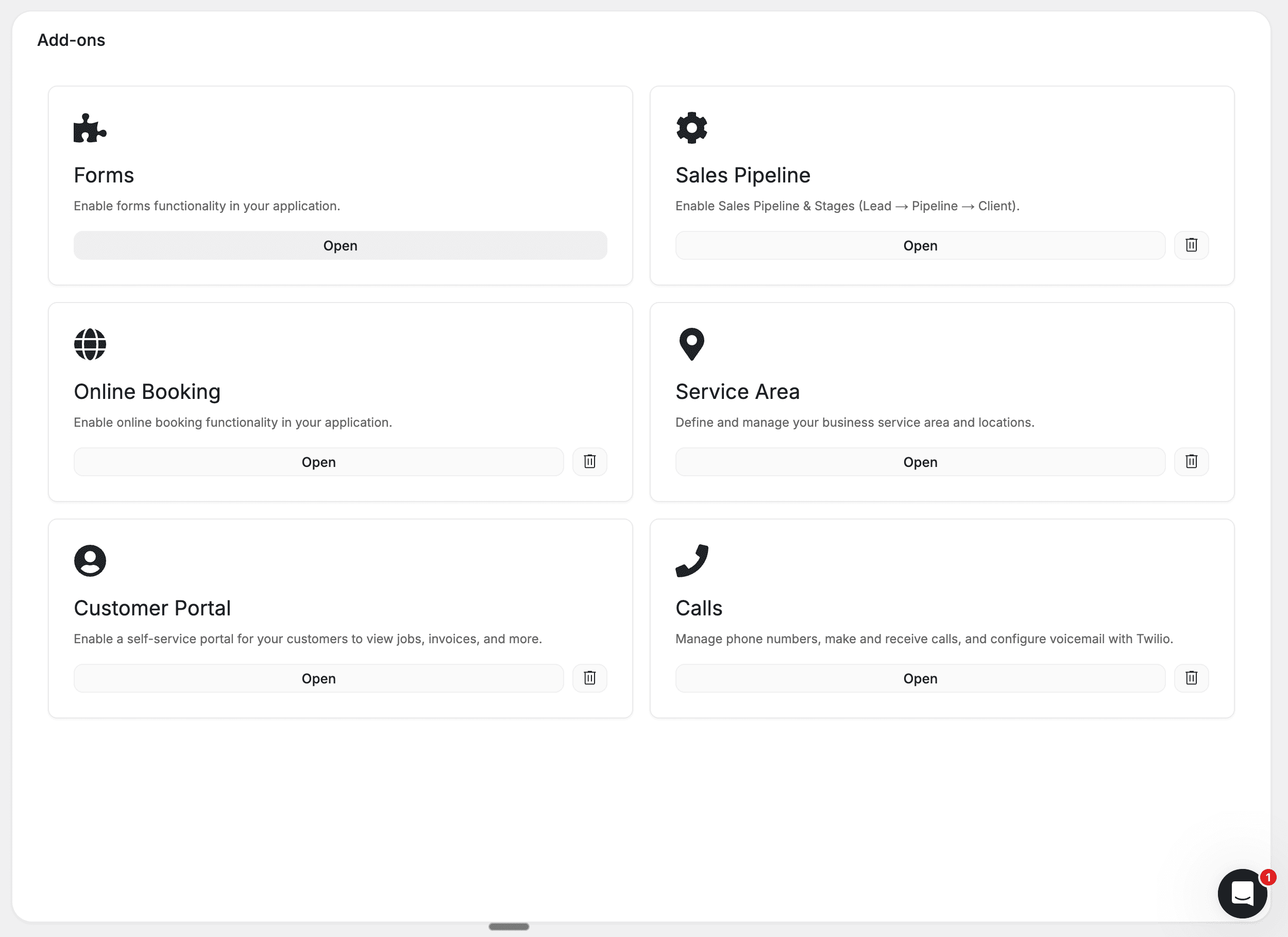
Navigate to Job Forms
- Click your username (top-right) → Company Settings
- Click Add Ons in the left menu
- Select Job Forms
Build Your Form
- Click "+ New Job Form"
- Enter a Form Name — use a descriptive name like "HVAC Maintenance Checklist - Residential"
- Select a Form Type: Jobs for service checklists, or Products and Services for inventory/product forms
- Add an optional Description explaining when to use the form
Add Form Fields
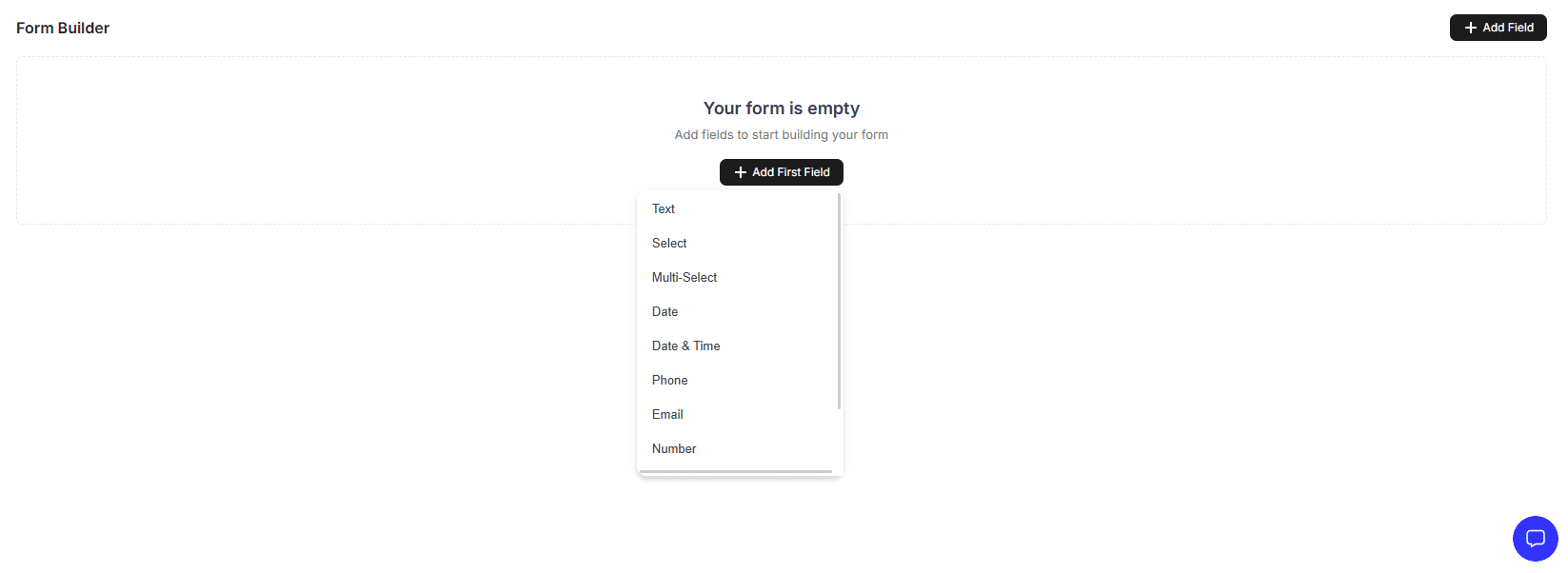
Click "Add First Field" and choose from the available field types:
| Field Type | Best For | Example |
|---|---|---|
| Text | Short open-ended responses | Serial numbers, brief notes |
| Select (Dropdown) | Standardized single-choice answers | Pass/Fail, condition rating |
| Multi-Select | Multiple applicable choices | Services performed, equipment checked |
| Checkbox | Binary confirmations | Task completion, acknowledgments |
| Radio Button | Mutually exclusive options | Yes/No/N/A |
| Number | Measurements and quantities | Temperature readings, PSI levels |
| Date | Calendar-based data points | Warranty expiration, next service date |
| Date & Time | Precise timestamps | Completion time, arrival time |
| Phone | Contact capture | Emergency contact, callback number |
| Digital communication | Report recipient address | |
| Signature | Customer or tech sign-off | Approval signature, acceptance |
| Attachment | Photos and documents | Before/after photos, receipts |
| Table | Structured multi-row data | Equipment inventory, room-by-room readings |
| Matrix | Grid-based assessments | Condition ratings across multiple items |
| Repeater | Repeatable field groups | Multiple units inspected, line-item details |
| Address | Location capture | Secondary service addresses |
| Content | Read-only instructions | Safety warnings, procedure reminders |
For each field, configure:
- Field Label — clear, descriptive name
- Default Value — pre-filled content (optional)
- Required — toggle on for mandatory fields
Drag and drop to reorder fields. Group related items together and place signature fields at the end.
Auto-Attach Forms to Job Types
Link a form to a specific job type (e.g., "HVAC Maintenance") and it automatically appears on every job of that type. No manual selection needed.
Preview, Save, and Activate
Click Preview to test the form as a technician would see it. Click "Create Form" to save — the form is immediately available.
Using Forms in Jobs
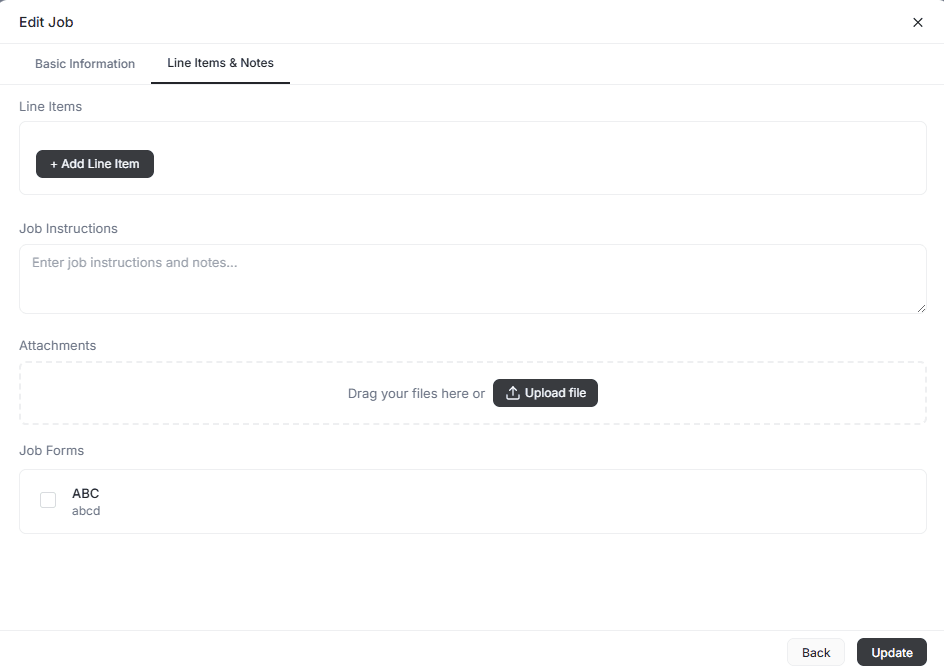
After creating a job, navigate to Line Items and Notes within the job. Under Job Forms, select the form you need. Auto-attached forms appear automatically.
Technicians access forms via the FieldCamp mobile app. They fill them out in real time, and submitted data syncs to the office immediately.
Viewing Completed Forms
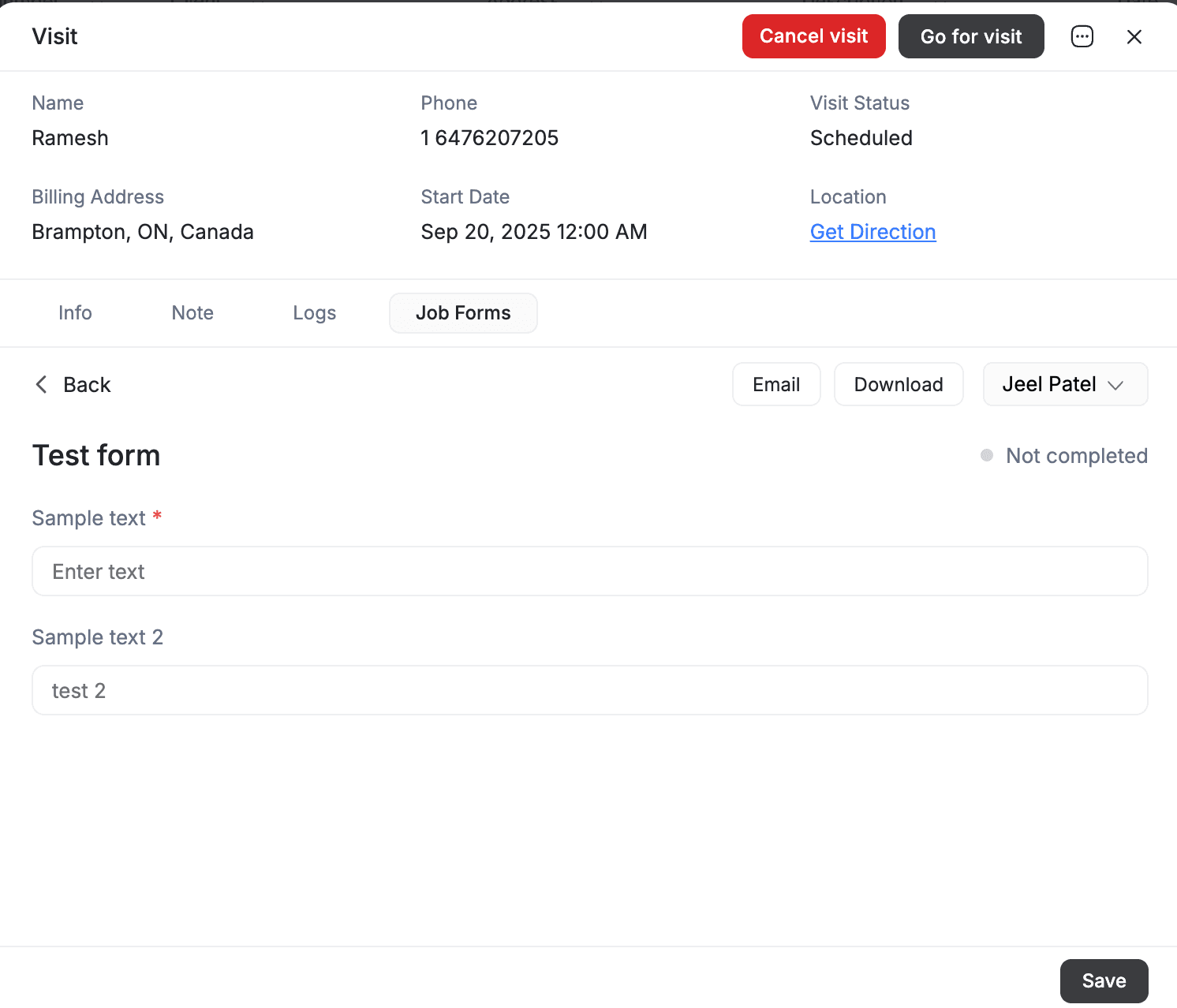
- Open the job → Visits tab → Job Forms section
- View completed forms with timestamps, technician names, and scores
- Available actions: View (read-only), Email (send to client or team), Download (PDF export)
Review and update your forms periodically to reflect changes in procedures, regulations, or client requirements.
Related Articles
Schedule Conflicts | FieldCamp
Learn how FieldCamp detects double-bookings and overlapping visits automatically, and how to resolve scheduling conflicts with reassign or reschedule.
Forms Management for Job Forms | FieldCamp
Admin guide to forms management in FieldCamp — create, organize, preview, bulk-delete, and auto-attach digital job forms across your business.