 FieldCamp
Clients & CRM Overview | FieldCamp
FieldCamp's built-in CRM centralizes client contacts, jobs, invoices, emails, and communication history. Manage leads, pipeline, and active clients in one place.
Under the hood — see how Customers work in the FieldCamp data model: the fields they hold, how they connect to your other records, and how to customize them.
FieldCamp includes a built-in CRM that brings all your client information into one central hub. Whether you are managing leads, active clients, or past customers, the CRM keeps everything organized and connected to your jobs, estimates, invoices, and communications.
AI-powered CRM: The Command Centre lets you manage clients using plain language. Type "Add client John Smith, email john@email.com" or "Show me all active clients in Austin" and the AI handles it instantly.
What the CRM Does
The FieldCamp CRM centralizes everything about your clients in one place:
- Contact details — name, email, phone, website, addresses
- Lead source, client type, and preferred technician
- Full job history and past work
- Email threads, call logs, and SMS messages
- Uploaded files, documents, and Drive storage
- Billing information and saved payment methods
- Custom fields you define for your business
- Colored tags to label and categorize clients at a glance
- All linked jobs, requests, estimates, and invoices
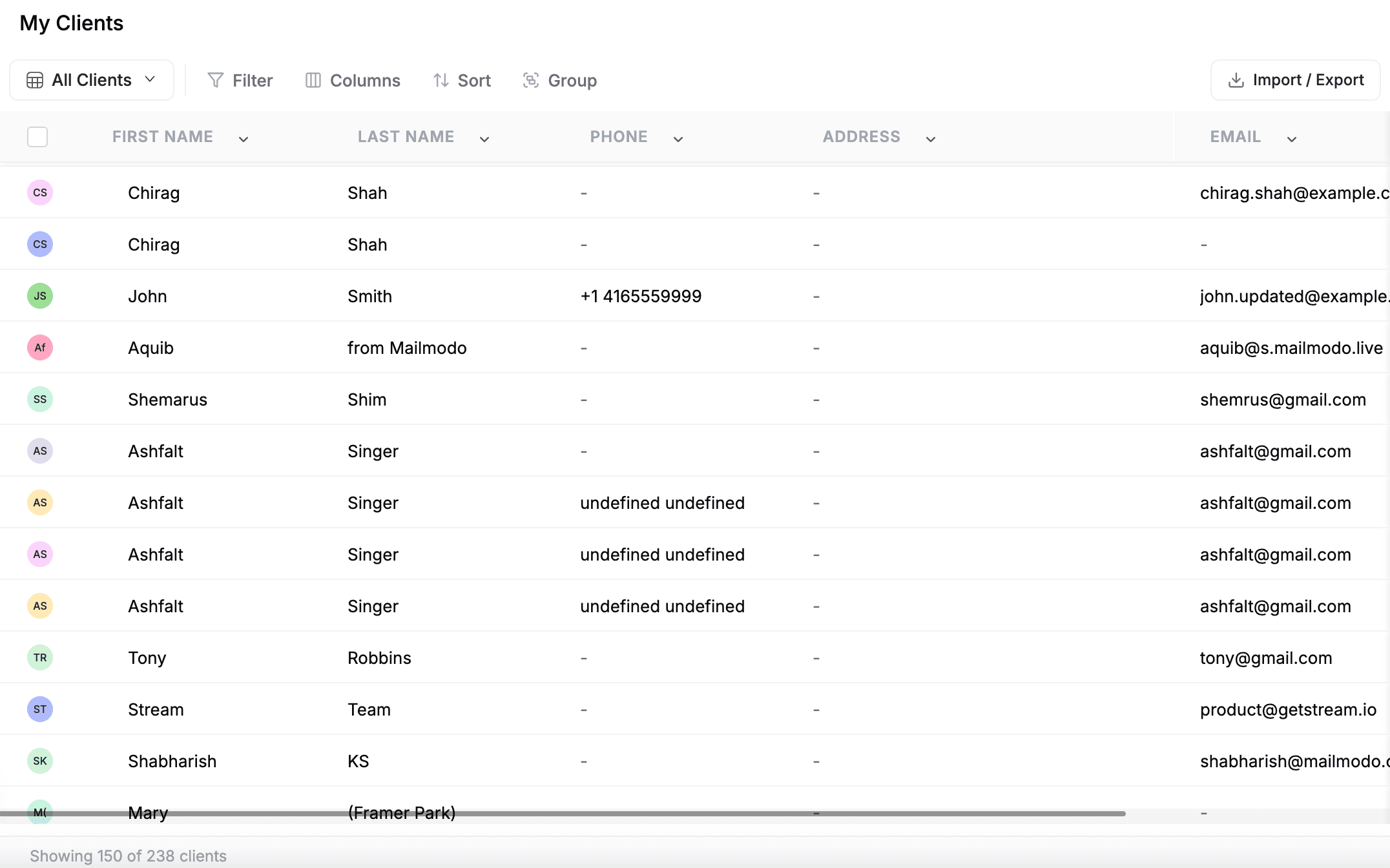
Click Clients in the left sidebar to access your full client list.
Get Started in 3 Steps
1. Add your first client
Open the Command Centre and type "Add client Sarah Johnson, 555-1234, sarah@johnson.com" — or click + New Client in the top-right corner and fill in the form manually. Only the client's name is required to save a record.
2. Assign a stage
Every client has a stage that shows where they are in your business relationship. When you create a client, assign them to the stage that fits — New Lead, Active Client, or any custom stage your team has set up. You can move them as the relationship progresses.
3. Connect a job
From the client's detail page, click Actions > Add Job to create work for that client. For example, open Sarah Johnson's record and add a plumbing inspection job for ABC Plumbing. All jobs, estimates, and invoices you create are automatically linked back to their record.
Client Categories & Stages
FieldCamp organizes clients into three categories:
| Category | Who it's for | Default Stages |
|---|---|---|
| Leads | New contacts who haven't become paying clients yet | New Lead |
| Pipeline | Prospects you are actively working to convert | Customizable |
| Clients | People or businesses you have worked with | Active Client, Inactive Client, Archived |
Within each category, stages track exactly where a client is in your process. FieldCamp ships with four default stages — New Lead, Active Client, Inactive Client, and Archived — and admins can create custom stages with their own labels, colors, and transition rules.
See Categories & Stages for the full guide.
Views
FieldCamp gives you four ways to look at your client list:
- Table View — A spreadsheet-style list with sortable columns. Best for searching and scanning quickly.
- Kanban View — Cards organized by any property you choose. Good for a visual overview.
- Stage Kanban View — Cards grouped by stage with drag-and-drop. Best for managing your pipeline.
- Property Kanban — Kanban columns based on a custom Select property you define. Useful for organizing clients by a field like "Service Type" or "Lead Source".
You can save any combination of filters, sorts, and column settings as a named custom view for quick access later. See Client Views.
The Client Detail Page
Click any client to open their detail page. At the top you will see summary widgets — Total Jobs, Open Requests, Total Invoiced, and Outstanding Amount — plus quick-action buttons for Call and SMS.
Below that, tabs give you access to everything connected to that client:
- Details — Contact info, addresses, custom fields, notes, and tags (tags appear as their own TAGS group in the sidebar when a client has tags assigned)
- Activity — Linked jobs, requests, tasks, and events
- Emails / Calls / Messages — Full communication history
- Files / Documents / Drive — All files and cloud storage
- Payments / Billing Info — Payment history and saved cards
- Assets / Job Forms / Products — Equipment, checklists, and services
Which tabs appear depends on your role, permissions, and connected add-ons.
What Connects to the CRM
The CRM is the central record — everything else in FieldCamp links back to it:
- Jobs — All work is tracked and tied to the client
- Estimates & Invoices — Billing documents are pre-filled with client info and stored on the record
- Emails, Calls & SMS — Every conversation is logged automatically
- Voice agents — FieldCamp Voice agents can look up a caller's client record and create a request during a call. See Look up clients and jobs during a call
- AI Summaries — One-click AI snapshot of any client record
Best Practices
- Use Archive instead of Delete when a client goes quiet — their full history is preserved and they can be restored anytime
- Add a service address when creating a client so jobs are automatically geocoded for routing
- Set up custom fields early — referral source, industry, or preferred service window — so you can filter and report on them later
- Save custom views for your most-used filters (e.g., "Active clients in my city") to avoid repeating the same setup every time
- Use bulk import when migrating from another system — map your columns once and bring everything in at once
Explore the CRM
Add clients manually, via AI, or in bulk from CSV or Excel.
View and manage everything about a client from one page.
Organize clients into Leads, Pipeline, and Clients with custom stages.
Narrow down your client list and save custom views.
Bring in your existing client database from CSV or Excel.
Track business-specific data with fields you define.
Related Articles
- Client Views — Table, kanban, and saved custom views
- Edit Client Information — Update client details inline or in bulk
- Delete or Archive a Client — Remove or hide clients safely
- AI Summaries — Instant AI snapshots of any client record
- Custom Objects — Create your own data types beyond standard clients
- AI Skills — Everything you can do with the Command Centre
Converting Requests | FieldCamp
Convert qualified service requests into jobs, estimates, or invoices in FieldCamp. Learn what data carries over, what happens after conversion, and best practices.
Using the Command Centre for Client Management | FieldCamp
Use FieldCamp's AI Command Centre to find, create, update, and manage clients with plain language. Search by stage, run complex queries, and pull CRM reports.