 FieldCamp
Two-Way Text Messaging | FieldCamp
Send and receive two-way SMS and MMS in FieldCamp. Manage texts, A2P 10DLC compliance, STOP/HELP keywords, templates, and delivery status.
Under the hood — see how Customers work in the FieldCamp data model: the fields they hold, how they connect to your other records, and how to customize them.
FieldCamp's two-way text messaging lets you send and receive SMS from Calls > SMS and work with connected conversation channels in the Inbox. Conversations can be linked to client records so the team shares context.
AI shortcut: Open the Command Centre and type "Send a text to John Smith: Your technician is on the way" — the AI sends it instantly and logs the message to the client's record.
What You Need Before Starting
- Calls Add-on enabled in your account (Messages uses the same add-on as Calls — see Calls — Setup & Usage)
- At least one SMS-enabled phone number purchased through Twilio inside FieldCamp
- A2P 10DLC registration completed for any US long code, or toll-free verification if you use a toll-free number — covered in A2P 10DLC and Toll-Free Verification Setup
- Admin or messaging-permitted role — see Roles & Permissions for how to grant access
If you haven't set up the add-on yet, start with Calls — Setup & Usage. For an overview of how the unified inbox ties calls, emails, and texts together, see the Inbox Overview or the getting-started walkthrough on Inbox — Email, Calls & Messages.
A2P 10DLC, Toll-Free Verification, and Number Types
US carriers require every business that sends application-to-person (A2P) SMS to register the brand and use case. FieldCamp surfaces the right path based on the number type you buy. The full registration walkthrough lives in A2P 10DLC and Toll-Free Verification Setup.
Local 10-digit US numbers. Requires A2P 10DLC brand + campaign registration before high-volume sending.
Higher throughput, supports MMS. Requires toll-free verification (1-3 business days).
Choose your number type during purchase
In Settings > Apps & Integrations > Calls, choose the supported number type for your region.
Submit your brand
Provide your legal business name, EIN/registration number, address, and a website URL. FieldCamp forwards this to The Campaign Registry via Twilio.
Register a campaign or use case
Pick "Customer Care / Field Service" with example messages (appointment confirmations, on-my-way texts, invoice reminders).
Wait for approval
Brand verification usually completes in minutes; campaign approval can take 1-3 business days. Toll-free verification can take up to 5 business days.
Send your first compliant text
Once approved, the Send button unlocks for that number and throughput limits move from trial caps to production tier (T-Mobile MNO assigns a class).
Sending unregistered A2P traffic in the US can result in messages being silently filtered, blocked, or incurring carrier fees (typically $10 per message in extreme cases). Always complete registration before bulk reminders or marketing texts.
Accessing Messages
- Open Calls.
- Select SMS.
- If you have multiple numbers, choose the number you want to send from.
Each number keeps its own separate message history so you can route residential vs. commercial conversations, or separate brands sharing one FieldCamp account.
Sending a New Message
- Open Calls > SMS and start a new message
- Fill in the fields:
| Field | What to Enter |
|---|---|
| From | Select which phone number to send from |
| To | Enter the client's phone number (E.164 international format accepted, e.g. +14155551234) |
| Message | Type your text (up to 1,600 characters; messages over 160 chars are segmented) |
| Attachment | Optional — drop an image, PDF, or short video for MMS-supported numbers |
- Click Send
Your message appears in the conversation thread with a "Sending" or "Sent" status, then transitions to "Delivered" once the carrier confirms handoff.
Long messages are split into 160-character segments (or 70 chars if any emoji is included). Each segment is billed separately by Twilio, so keeping messages tight saves money at scale.
MMS and Media Attachments
On supported numbers (toll-free and most 10DLC after 10DLC approval), you can send images, PDFs, and short clips. This is useful for sharing before/after photos, branded estimate previews, or a signed invoice.
- Supported types: JPG, PNG, GIF, PDF, MP4 (under 5 MB total per message)
- How to attach: click the paperclip icon in the message composer or drag a file onto the thread
- Inbound MMS: photos clients send back (e.g. a picture of a broken unit) appear inline and are saved to the client's communication records so technicians can view them on mobile before arrival
- International limits: MMS is US/Canada only. For other regions use WhatsApp or send a link to a hosted image
Watch the segment counter
Carriers bill SMS per segment, not per message, so the composer counts as you type. Below the box you see the character count and how many segments the message currently costs — for example 212 chars · 2 SMS — with the remaining characters in the current segment.
- A plain message fits 160 characters in one segment and 153 per segment after that.
- One emoji or a curly quote switches the whole message to Unicode, which cuts each segment from 153 to 67 characters. The counter warns you when that happens.
- At two segments the counter turns amber; at three or more it turns red.
A message of three segments or more is sent as a single MMS instead of a chain of texts, which is usually cheaper and arrives as one message on the customer's phone. You do not have to do anything — FieldCamp switches automatically, and falls back to plain SMS if the carrier rejects it.
Edit or cancel a scheduled text
A message you scheduled is still editable while it sits in the queue.
- Open the conversation and find the message, marked Scheduled with its send time.
- Use the message's actions to change the text, pick a new send time, or cancel it.
Once the message has sent it can no longer be edited.
Reusing SMS Templates from Estimates and Invoices
FieldCamp shares its template library across SMS, email, and the document tools. Any saved text snippet from an estimate or invoice — for example "Your estimate is ready to review" or "Friendly reminder: invoice #{{invoice_number}} is due tomorrow" — can be inserted into a text conversation. For the email-side equivalent see Email Templates.
Open a conversation
Pick the client thread you want to reply in.
Click Templates in the composer
Browse by category: Appointment, Estimate, Invoice, Follow-up, Custom.
Pick a template and merge fields auto-fill
Variables like {{client_first_name}}, {{appointment_window}}, {{technician_name}}, and {{invoice_url}} populate from the linked job, estimate, or invoice record.
Edit if needed and send
You can tweak before sending — templates are a starting point, not a lock.
Workflows can also trigger templated SMS automatically. See workflow templates for examples like "Send confirmation SMS when job is scheduled" or "Send payment receipt SMS after Stripe charge succeeds." For a step-by-step build on top of those, see Building Workflows.
STOP, HELP, and Opt-Out Lifecycle
Two-way SMS in FieldCamp respects the standard carrier-mandated keywords. Handling is automatic — you do not need to write code or configure responses.
| Keyword | Carrier Behavior | What FieldCamp Does |
|---|---|---|
| STOP, UNSUBSCRIBE, END, CANCEL, QUIT | Carrier blocks all future SMS from that number to the recipient | Marks the client as sms_opted_out, surfaces a red banner on the client page, hides the Send button for that thread |
| START, UNSTOP, YES | Carrier re-enables messaging | Clears the opt-out flag and resumes normal sending |
| HELP, INFO | Carrier expects a help reply | FieldCamp auto-replies with your business name, support email, and a link to opt out |
Once a client texts STOP, you cannot programmatically override it — the carrier enforces the block at the network level. The client must text START themselves to re-subscribe. Manually-typed messages from the FieldCamp composer to an opted-out number will fail with a "Blocked by carrier" error.
If your business needs separate opt-in for transactional vs. marketing texts, segment those into different campaigns during 10DLC registration. FieldCamp respects the opt-out at the campaign level.
Replying to a Conversation
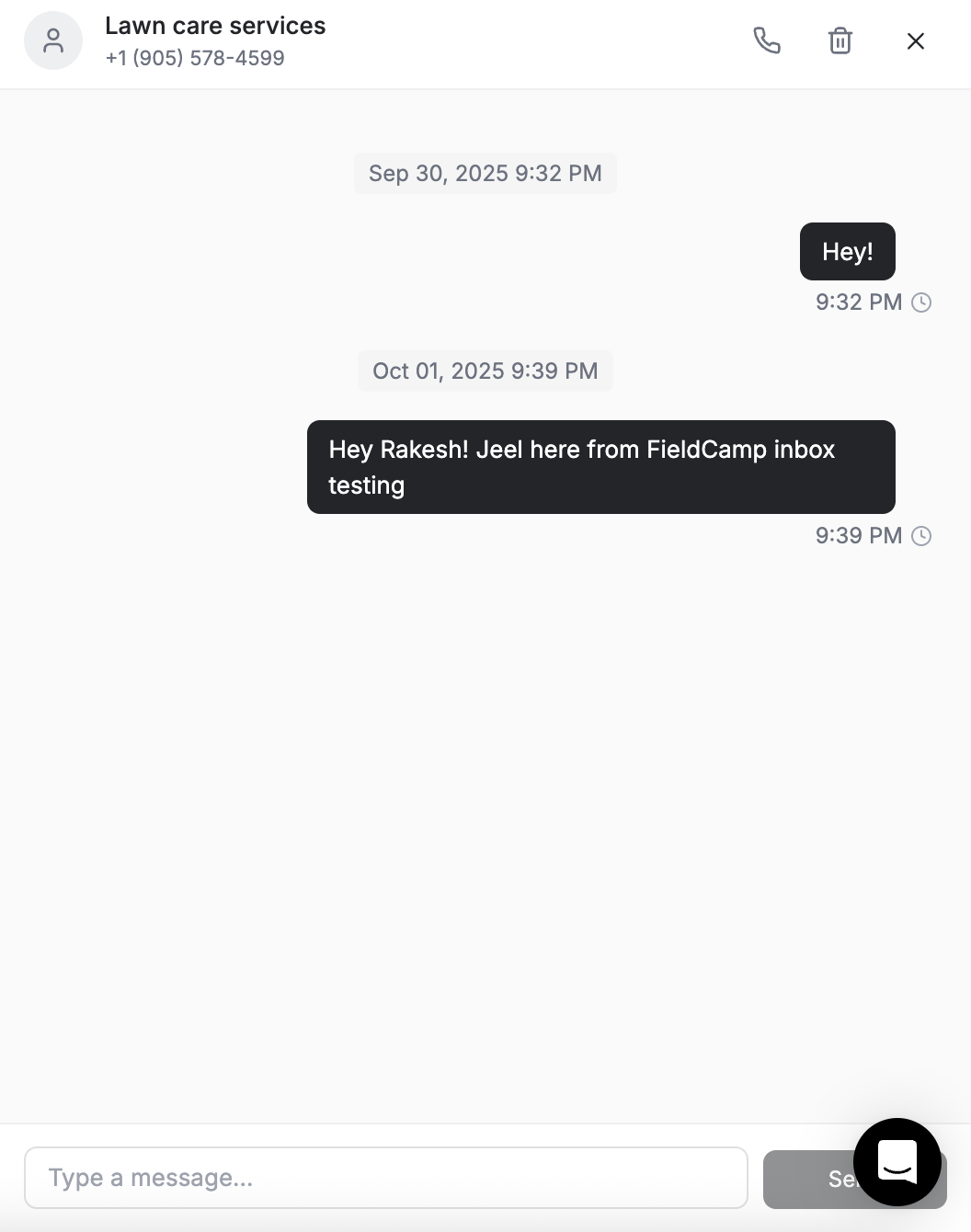
- Click an SMS conversation to open it
- Type your response in the message field at the bottom
- Press Enter or click Send
Use Shift + Enter to add a new line without sending.
Viewing Conversations
Each conversation tile in the list shows:
- Contact name or number — displays the client name if the number is linked
- Message preview — the most recent message
- Timestamp — when the last message was sent or received
- Unread badge — a blue dot for unread messages
- Status icon — sent, delivered, read, pending, or failed
Click any conversation to see the full message thread, timestamps, status indicators, and linked client information. The conversation is also visible on the client detail page under Communications, and on the cross-channel Manage Client Calls, Emails & SMS view.
Message Status Indicators and Retry Behavior
Outbound (Sent by You)
| Status | Meaning | Retry Behavior |
|---|---|---|
| Sending | Message is being processed by Twilio | None — held in queue up to 4 hours |
| Sent | Delivered to the carrier | None — handoff confirmed |
| Delivered | Reached the client's device | None — terminal success state |
| Undelivered | Carrier accepted but device unreachable | Auto-retry once after 5 minutes |
| Failed | Could not be sent (hover for Twilio error code) | No retry — review error and resend manually |
Common failure codes:
- 30003 — unreachable destination (out of service, off, no signal)
- 30004 — message blocked (carrier filter or recipient block)
- 30005 — unknown destination number
- 30007 — message filtered (often A2P 10DLC not registered)
- 30008 — unknown error (transient — manual resend usually works)
Inbound (Received)
| Status | Meaning |
|---|---|
| New | Unread message |
| Read | You have viewed the message |
FieldCamp marks messages as read automatically when you open a conversation.
WhatsApp as an Alternative for International Clients
SMS pricing and deliverability vary wildly outside North America. For clients in Europe, Latin America, or APAC, WhatsApp Business is often cheaper, supports media reliably, and is the channel customers already use.
- Enable WhatsApp: open Settings > Apps & Integrations > WhatsApp and connect a supported sender. Full setup steps are in the WhatsApp messaging guide.
- Template approval: WhatsApp requires templates to be pre-approved for the first message to a contact (outside a 24-hour window). FieldCamp ships starter templates for appointment confirmation, on-my-way, and payment reminders.
- In-app experience: WhatsApp is a separate connected channel in the omnichannel Inbox. It does not use the Calls > SMS tab.
- Limitations: read receipts depend on the client's privacy settings, and you can't mix WhatsApp and SMS in the same thread — they are separate channels per contact.
Linking Unknown Numbers to Clients
When you receive a message from a number that is not in your system:
- Open the conversation
- Click Add Client in the conversation header
- Fill in the client details, or search to merge with an existing record
- Click Save
FieldCamp links all past and future messages from that number to the client record, and the client name replaces the phone number in the conversation list. See how to create a client for the full client-record fields.
Managing Conversations
Delete a Single Conversation
- Hover over the conversation
- Click the trash icon
- Click Confirm
Bulk Delete
- Select checkboxes beside the conversations you want to remove
- Click Delete in the header
- Click Confirm
Deleted conversations cannot be restored. The underlying carrier logs remain on the Twilio side for compliance, but the FieldCamp UI history is wiped.
Troubleshooting
Most messaging issues trace back to A2P 10DLC registration or opt-out flags. Check those first.
| Issue | Solution |
|---|---|
| "No phone numbers available" | Purchase an SMS-enabled number in Settings > Apps & Integrations > Calls |
| Send button is greyed out | A2P 10DLC or toll-free verification is still pending — check the Registration status in Settings |
| Messages stuck in "Sending" | Twilio queue is backed up or the destination is unreachable — wait 4 hours; failures auto-fall to "Failed" status |
| Recipient says they never got it but status is "Delivered" | Check spam filtering on their end; resend as MMS if the original was SMS to break out of carrier filters |
| "Message delivery failed" with code 30007 | Carrier filter triggered — verify 10DLC campaign is approved and message doesn't include public URLs or shorteners that aren't whitelisted |
| STOP didn't trigger opt-out flag | Make sure the keyword was sent exactly as listed — variations like "stop please" are forwarded to you but don't auto-opt-out |
| MMS not sending | Confirm the file is under 5 MB and the destination is US or Canada; international MMS is not supported |
| Cannot delete conversations | Confirm you have admin access, verify conversations are selected, refresh if the button is unresponsive |
If you hit a broader app issue (not specific to texts), see Troubleshooting: Common Issues & Fixes.
FAQs
Do I need A2P 10DLC if I only send a few texts per day? Yes. US carriers require registration regardless of volume. Unregistered traffic is increasingly filtered even at very low volume.
Can technicians send texts from the mobile app? Yes — if their role has messaging permission. The mobile composer respects the same templates and opt-out lifecycle as the web app.
Are texts billed separately from the Calls Add-on? The add-on covers the platform feature. Per-message and per-minute usage is billed at Twilio pass-through rates, visible in Settings > Billing. For broader plan questions, see Plans & Pricing.
Can I export message history from Calls > SMS? The current Calls > SMS page does not provide a CSV export control.
What happens to scheduled SMS if a client opts out before the send time? FieldCamp checks the opt-out flag at send time, not schedule time. Any reminder workflow targeting an opted-out number is automatically skipped and logged.
Best Practices
- Keep texts short and on-brand — clients expect SMS to be brief and identifiable
- Use the AI Command Centre to send quick one-off texts without opening the Inbox
- Link unknown numbers to client records immediately so the history stays organized
- For US numbers, complete A2P 10DLC registration before launching any reminder workflow
- Use WhatsApp for international clients to avoid SMS deliverability headaches
- Save your most-used responses as templates and reuse them from estimates, invoices, and ad-hoc threads
Related Articles
- Inbox Overview
- Calls — Setup & Usage
- A2P 10DLC and Toll-Free Verification Setup
- Setting Up WhatsApp Messaging in FieldCamp
- Communication Records
- Manage Client Calls, Emails & SMS
- Command Centre — AI Chat for Field Service Management
- How to Create a Client
- Client Detail Page Actions Menu
- Creating Invoices
- Workflow Templates
- Roles & Permissions
- Export Client Data to Excel and CSV
Calls — Setup & Usage | FieldCamp
Set up FieldCamp Twilio voice calls, SMS, dynamic FCM-to-number routing, voicemail greetings, business hours, and AI call summaries.
Managing Tasks | FieldCamp
Create, assign, and track internal tasks linked to clients, jobs, estimates, or invoices. Set due dates, reminders, and priorities to keep your team on schedule.