 FieldCamp
Workflow — From Lead to Payment | FieldCamp
See how FieldCamp's workflow connects from client inquiry to payment. Create jobs, dispatch technicians, send invoices, and collect payment step by step.
Under the hood — the FieldCamp data model shows how every record connects, how you can customize it, and how it maps to your trade.
FieldCamp is designed around the way field service businesses actually work. This article shows how the complete workflow connects — from the moment a client reaches out to the moment you get paid.
AI-first approach: Every step in this workflow can be done from the Command Centre using natural language. You do not need to navigate through menus — just type what you need and the AI handles it.
New to FieldCamp? Start with Key Concepts to understand the building blocks before diving into the workflow.
The complete flow
Here's the typical lifecycle of a job in FieldCamp:
Client inquiry → Estimate → Client approves → Job → Visit(s) → Work completed → Invoice → Payment
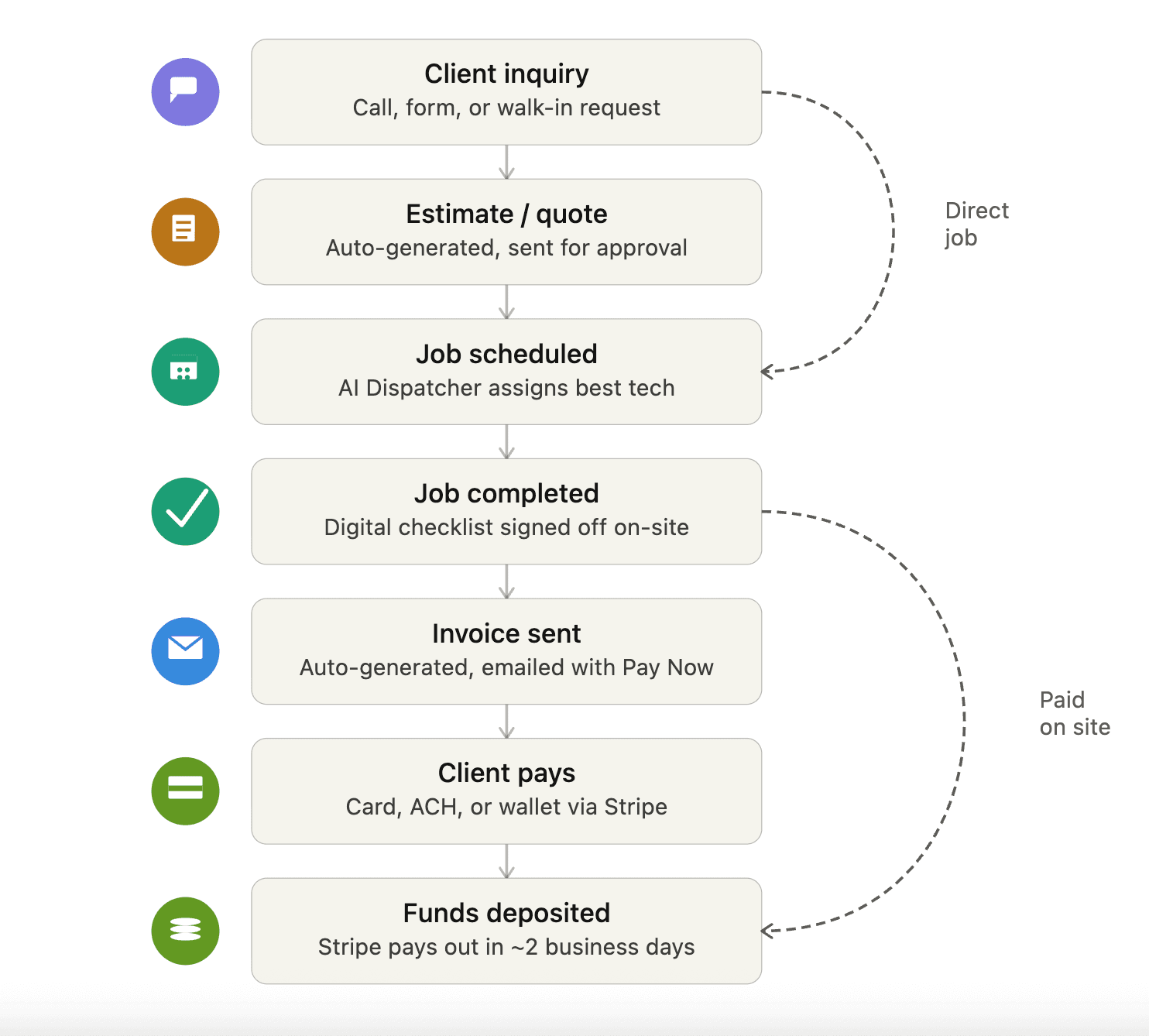
Not every job follows this exact path — FieldCamp is flexible. You can skip steps, start at any point, or use alternative flows depending on your business.
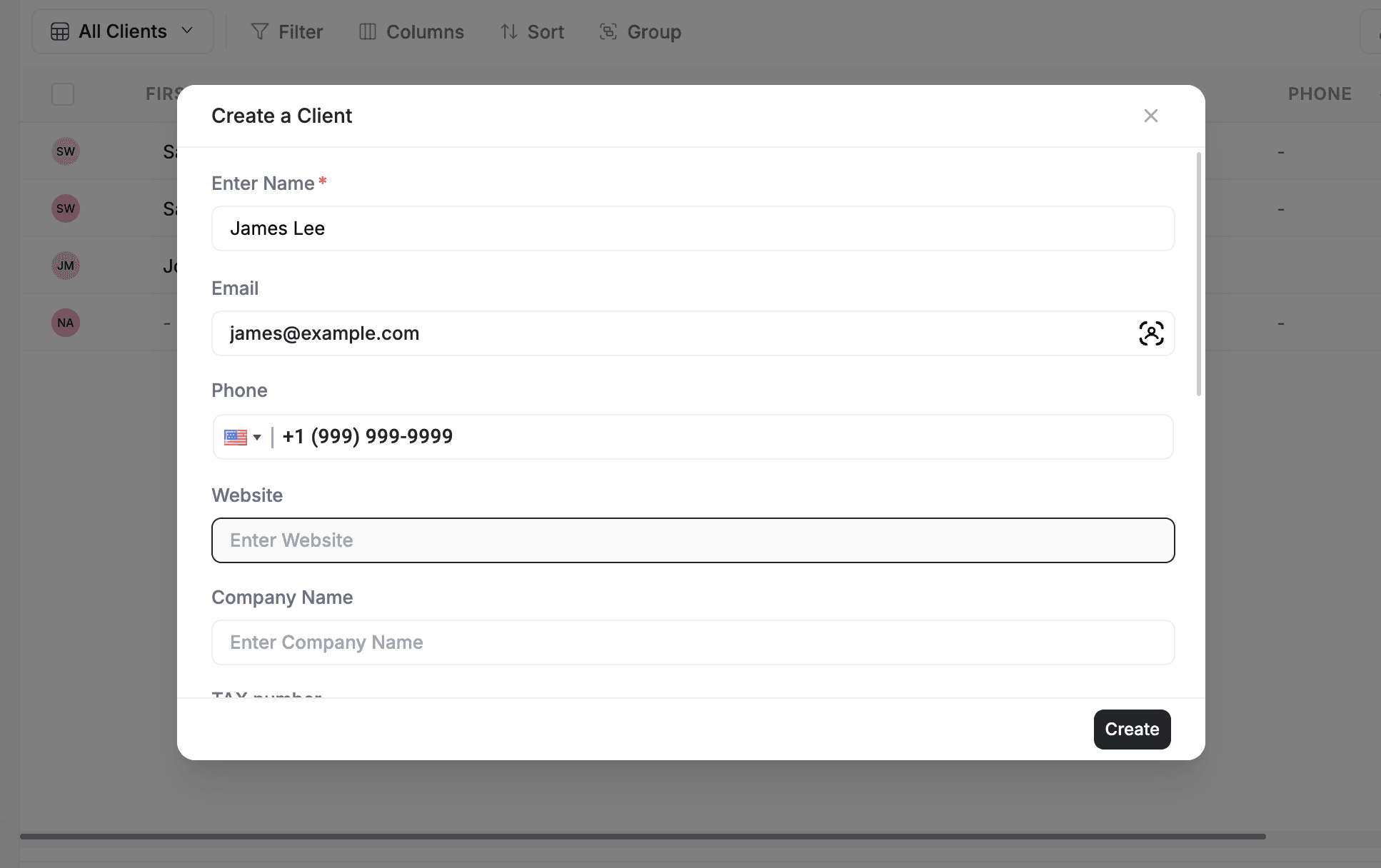
1. A client comes in
With the Command Centre: Type "Create a new client named Sarah Wilson, email sarah@example.com" and the AI adds them instantly.
Manually, clients can reach you in several ways:
-
Go to Clients → + Add Client to add them by hand
-
They book online — If you have enabled the Online Booking add-on, clients book from your website and a Request is created
-
They call or email — Log the inquiry as a Request, or add them as a client directly
-
They're imported — Use CSV import from Clients → Import / Export
2. Send an estimate
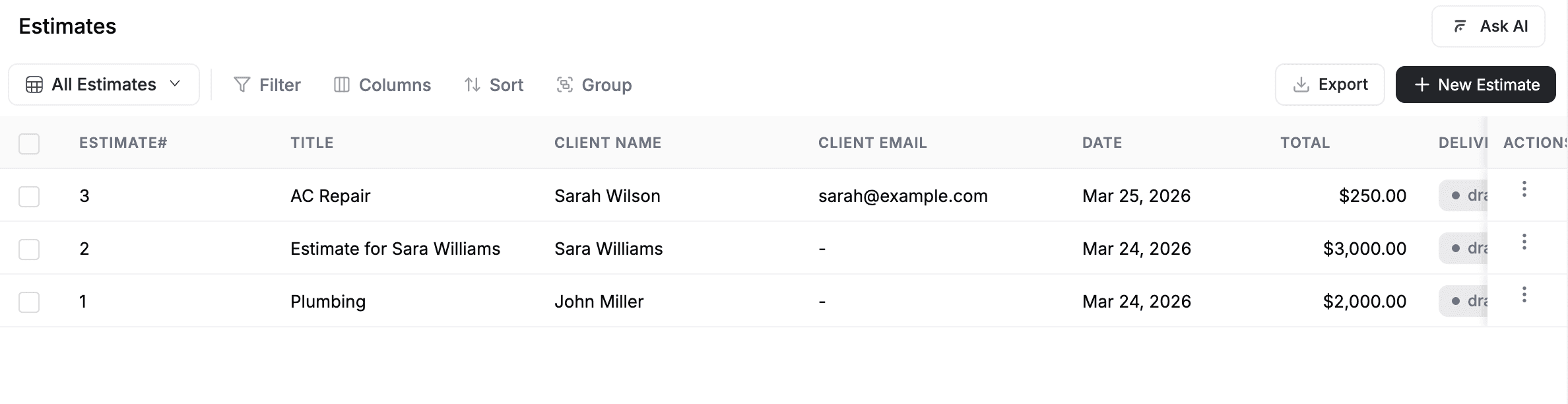
With the Command Centre: Type "Create an estimate for Sarah for AC repair, $250" and the AI builds and sends it.
Manually:
-
Go to Estimates → + Add Estimate
-
Select the client, add line items from your Products & Services, set pricing
-
Send the estimate to the client via email
Some businesses skip this step and go straight to creating a job — that works too.
3. Client approves
When the client approves your estimate, you can convert it into a job with one click. The estimate details (line items, pricing) carry over to the job automatically.
4. Schedule the job
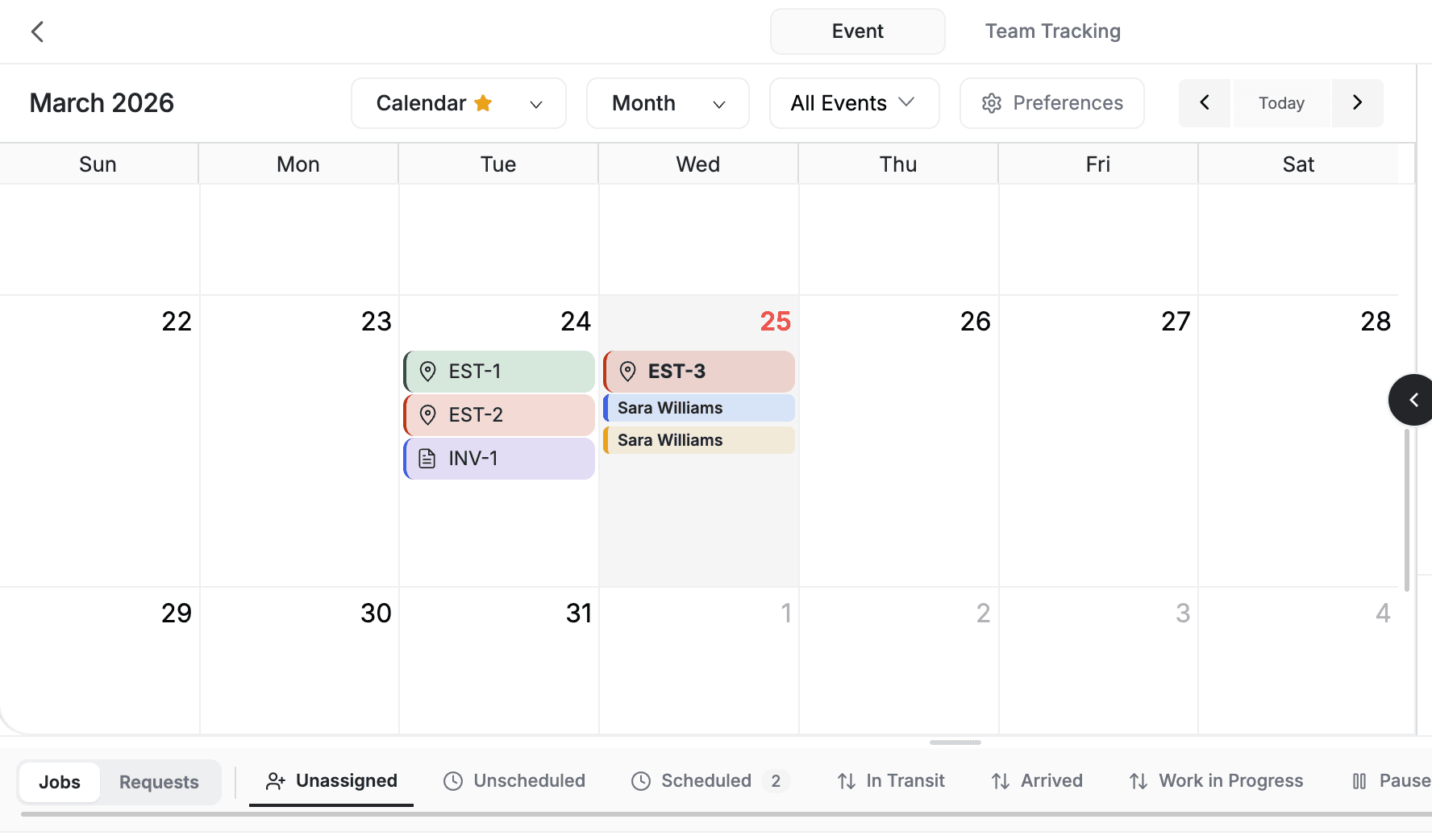
With the Command Centre: Type "Schedule the job for next Tuesday at 10am, assign to Mike" or use /newjob for a guided flow. Use /dispatch to have the AI find the best available technician.
Manually, create a job with a date, time, and assigned team member. The job appears on the Calendar and the assigned team member is notified.
-
Each job can have one or more visits — individual appointments on specific dates
-
Team members see their assigned visits on their dashboard and mobile app
-
You can also use AI Dispatcher (Pro plan add-on) to auto-assign jobs to the best team member based on skills, location, and availability. See Add-ons for details.
Tip: Sync your calendar with Google Calendar so jobs appear in both FieldCamp and your personal calendar. See Connecting Google Calendar.
5. Complete the work
With the Command Centre: Technicians can type /arrive when they reach the site and /complete when the work is done. Type /eod at the end of the day for a full summary.
Manually, your team goes on-site and completes the job. During the visit, they can:
-
Update the visit status (In Progress → Completed)
-
Fill out job forms and checklists (if Job Forms add-on is enabled)
-
Upload photos and notes
-
Log time and materials (if Job Cost Tracking is enabled)
6. Send the invoice
With the Command Centre: Type "Create an invoice for Sarah's AC repair job" and the AI generates it with the correct line items.
Manually:
-
Create from the job detail page (line items pre-fill from the job)
-
Or go to Invoices → + Add Invoice and create from scratch
-
Send the invoice to the client via email
7. Collect payment
With the Command Centre: Type /overdue to see all unpaid invoices and send payment reminders in bulk.
If you have connected Stripe, clients can pay the invoice online with a credit card. You can also record manual payments (cash, check, bank transfer). See Connecting Stripe to set up online payments.
FieldCamp tracks payment status automatically: Unpaid, Partial, Paid, Overdue.
Pro tip: Connect your accounting software (QuickBooks, Xero, or Wave) to automatically sync invoices and payments. See Connecting Your Accounting Software.
Alternative flows
The flow above is the most common, but FieldCamp supports many variations:
Flow
When to Use
What Changes
Direct job (no estimate)
Repeat clients or straightforward work
Skip steps 2-3, create a job directly from the client record
Recurring jobs
Weekly, monthly, or custom-schedule work
Set up once, visits auto-generate on schedule
Walk-in clients
Client needs immediate service
Add client and create job on the spot — skip estimate and scheduling lead time
Invoice without a job
Ad-hoc billing, consulting, or one-off charges
Skip steps 2-5, create invoice directly from Invoices
Using the Command Centre for the whole flow
You can manage the entire workflow through the Command Centre's AI chat. For example:
-
"Add a new client named Sarah Wilson, email sarah@example.com"
-
"Create an estimate for Sarah for AC repair, $250"
-
"Schedule the job for next Tuesday at 10am, assign to Mike"
-
"Create an invoice for Sarah's AC repair job"
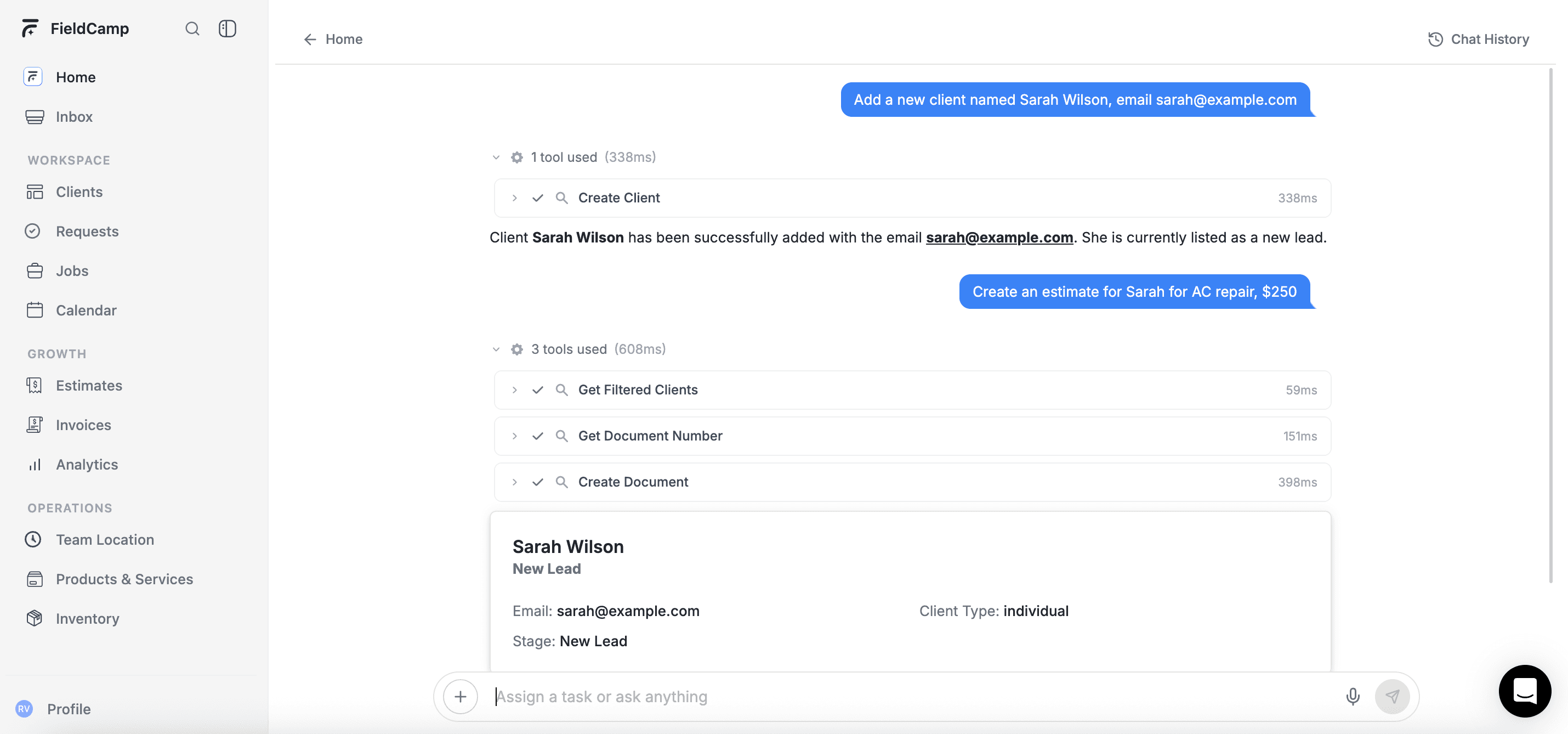
For detailed step-by-step guides on each module, browse the individual documentation for Clients, Estimates, Jobs, and Invoices in this help center.
Related Articles
FAQ's
Do I have to follow all 7 steps for every job?
No. FieldCamp is flexible — you can start at any step and skip what you don't need. Many businesses skip the estimate for repeat clients and go straight to creating a job. Others skip the job entirely and create invoices directly for ad-hoc billing. The 7-step flow is the most complete path, but use whatever subset fits your workflow.
Where do deposits fit into the workflow?
Deposits fit between the estimate and the job. After sending an estimate, you can require a deposit before starting work. The client pays the deposit (via Stripe or manually), then you approve the estimate and convert it to a job. When you later create an invoice, the deposit is automatically applied and the client only owes the remaining balance. See Deposits for the full guide.
Can I automate parts of this workflow?
Yes. FieldCamp's Workflow Automation feature lets you set up rules that trigger automatically — for example, "When a job is marked Completed, automatically send a thank-you email" or "When an estimate is approved, automatically create a job." See Workflow Overview for details. You can also use AI Dispatcher to automate the job assignment step entirely.
How do I track where each client is in the workflow?
Every record type in FieldCamp has pipeline stages that track progress. Requests move through stages like New → Contacted → Quoted. Jobs move through Scheduled → In Progress → Completed. Invoices track Unpaid → Paid. You can see all of this at a glance from the Calendar, the pipeline views, and the Analytics dashboard.
Plans & Pricing | FieldCamp
Compare FieldCamp's Pro, Growth, Scale, and Enterprise plans. See included users, AI features, and what each tier covers. Pricing is custom to your team and workflow. Manage your subscription in Settings.
Get Started with FieldCamp Inbox
Set up FieldCamp Inbox channels, understand folders and assignments, and find the separate Calls, SMS, and Tasks workspaces.