 FieldCamp
QuickBooks, Xero & Wave | FieldCamp
Sync invoices and payments between FieldCamp and QuickBooks, Xero, or Wave. Keep your accounting books accurate without any manual double data entry needed.
FieldCamp integrates with QuickBooks, Xero, and Wave so your invoices and payments stay in sync with your accounting software -- no manual data entry needed.
Pro plan required. QuickBooks, Xero, and Wave integrations are only available on the Pro plan or higher.
Connect QuickBooks
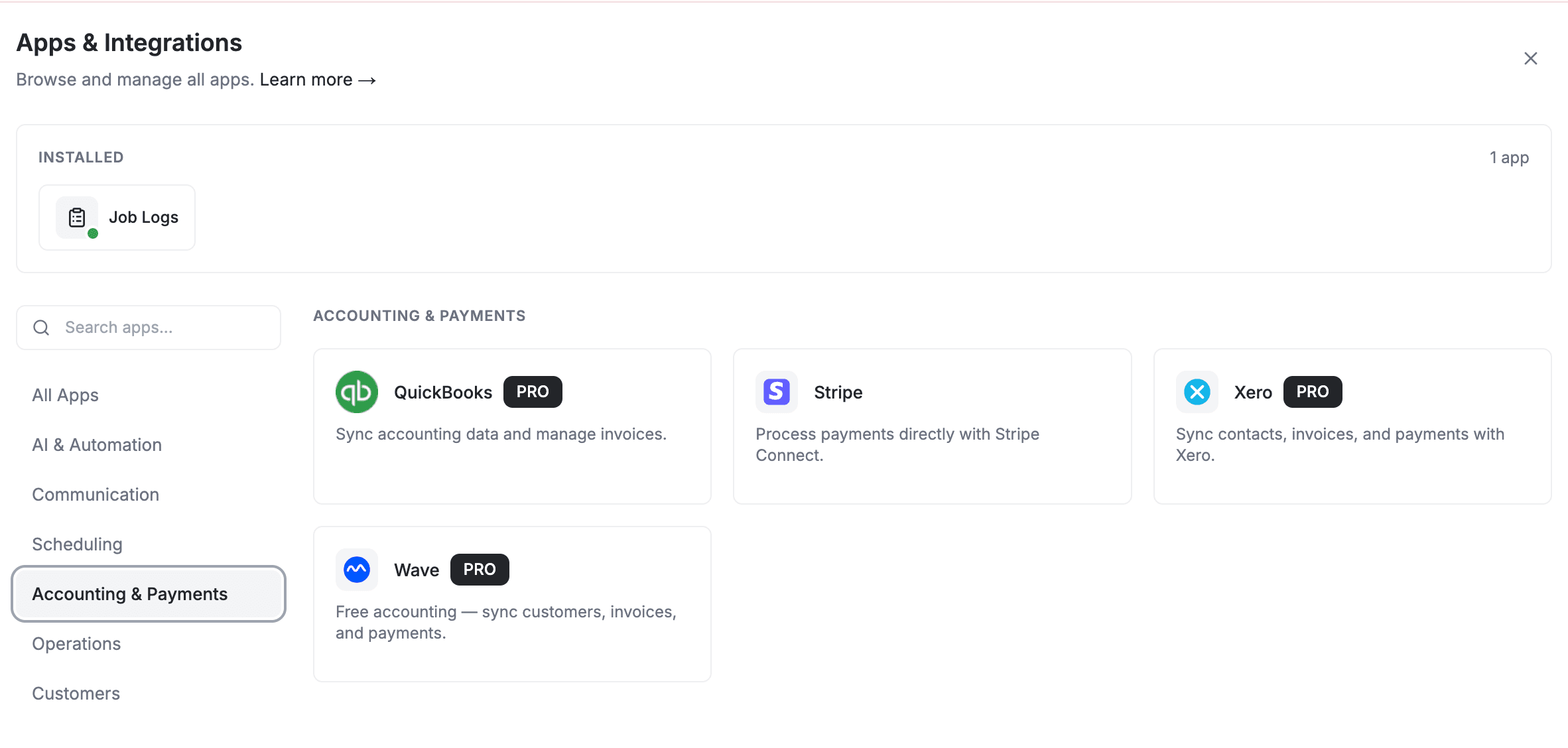
- Go to Settings → Apps & Integrations.
- Find QuickBooks and click Connect.
- Sign in to your QuickBooks Online account.
- Grant FieldCamp permission to access your QuickBooks data.
- Select which QuickBooks company to connect (if you have multiple).
- Click Save.
After connecting, go to Settings → QuickBooks to set up category mapping -- match your FieldCamp line items with QuickBooks categories so invoices land in the right accounts. QuickBooks also supports tax sync so your tax rates stay consistent between the two systems.
Connect Xero
- Go to Settings → Apps & Integrations.
- Find Xero and click Connect.
- Sign in to your Xero account and authorize FieldCamp.
- Click Save.
Connect Wave
- Go to Settings → Apps & Integrations.
- Find Wave and click Connect.
- Sign in to your Wave account and authorize FieldCamp.
- Click Save.
What Syncs Between FieldCamp and Your Accounting Software
- Invoices -- invoices created in FieldCamp are automatically sent to your accounting software
- Payments -- payment records sync both ways so your books stay up to date, including Stripe payments
- Clients -- client information is matched by email address between systems
- Tax rates (QuickBooks only) -- tax rates can be synced between FieldCamp and QuickBooks
How the Sync Works
- Manual trigger -- syncs are started from the integration settings page; click the Sync button at any time
- Sync history -- FieldCamp logs every sync so you can see what was sent and when, including the direction of each entry and the payment rows it created
- No duplicates -- FieldCamp checks for already-synced records before creating new ones
- Automatic matching -- invoice amounts, dates, references, and account categories are mapped between systems automatically
Import changes back from QuickBooks
QuickBooks also supports a two-way sync, so edits made in QuickBooks come back into FieldCamp.
- Open Settings > Integrations > QuickBooks.
- Find the Two-Way Sync card.
- Turn on Import changes from QuickBooks.
- Under What to import, choose the records to bring back: Customers, Products & Services, Invoices, Estimates, Payments.
- Save.
When it is enabled the import runs automatically every 15 minutes. Pull Now runs it on demand and reports how many records were updated and created; the card also shows Last pull. The import runs in the background, so you can leave the page.
The first pull imports your complete QuickBooks history for the entities you selected. Start with the entities you actually need.
Sync one client to Xero
You do not have to run a full sync to push a single customer.
- Open the client.
- In the actions menu, select Sync to Xero.
Once the client is linked, the action becomes Re-sync to Xero. The action is only available when Xero is connected and contact sync is enabled in your Xero settings; if it is off, FieldCamp says so instead of failing silently. When a matching Xero contact already exists, FieldCamp links to it rather than creating a duplicate.
Invoices sync going forward. FieldCamp syncs invoices created after you connect your accounting software. Previously created invoices are not retroactively synced. You can trigger a manual sync for specific invoices from the invoice detail page if needed.
Troubleshooting
- Sync not working -- verify the integration is still connected in Settings → Apps & Integrations and that your accounting subscription is active
- Duplicate records -- FieldCamp matches clients by email address; if a client exists in both systems with different emails, duplicates may appear. Merge them in your accounting software.
- Invoice not syncing -- make sure the invoice has been finalized in FieldCamp before expecting it to sync
- Error messages -- check the sync history log for details on what went wrong
For more help, see Troubleshooting -- Common Issues & Fixes.
Related Articles
- Creating Invoices -- set up invoices that sync to your accounting software
- Stripe Payments -- accept online payments that sync with your books
- Creating Estimates -- send estimates and convert them to invoices
- Apps & Integrations Overview -- see all available connections
- Plan & Billing -- understand which features require the Pro plan
FAQs
Do I need the Pro plan to use accounting integrations?
Yes. QuickBooks, Xero, and Wave integrations are only available on the Pro plan or higher. If you want to see accounting sync in action first, book a demo.
Does FieldCamp support QuickBooks Desktop?
FieldCamp integrates with QuickBooks Online only. QuickBooks Desktop is not supported. Intuit offers a migration path from Desktop to Online -- once migrated, you can connect it to FieldCamp.
How do I set up category mapping for QuickBooks?
After connecting QuickBooks, go to Settings → QuickBooks. You will see a mapping screen where you can match each FieldCamp product or service line item to a QuickBooks income account. This ensures invoices land in the correct account in your chart of accounts. If you skip this step, FieldCamp uses a default account.
Can I sync older invoices created before connecting?
FieldCamp syncs invoices going forward from the date you connect. Previously created invoices are not retroactively synced. If you need to sync older invoices, you can trigger a manual sync for specific invoices from the invoice detail page.