 FieldCamp
Key Concepts — Core Building Blocks | FieldCamp
Understand FieldCamp's core building blocks: Command Centre, Clients, Jobs, Estimates, Invoices, Calendar, Pipelines, Analytics, and AI-powered add-ons.
Go deeper — the data model behind these building blocks shows how every record connects, how to customize it, and how it maps to your trade.
The Building Blocks of FieldCamp
FieldCamp is built around a few core concepts that connect together. Understanding these will help you get the most out of the platform. Here is how every piece fits together.
How it all connects: A Client submits a Request → you convert it to a Job → the job appears on the Calendar → when finished, you create an Invoice → the client pays via Stripe.

Command Centre
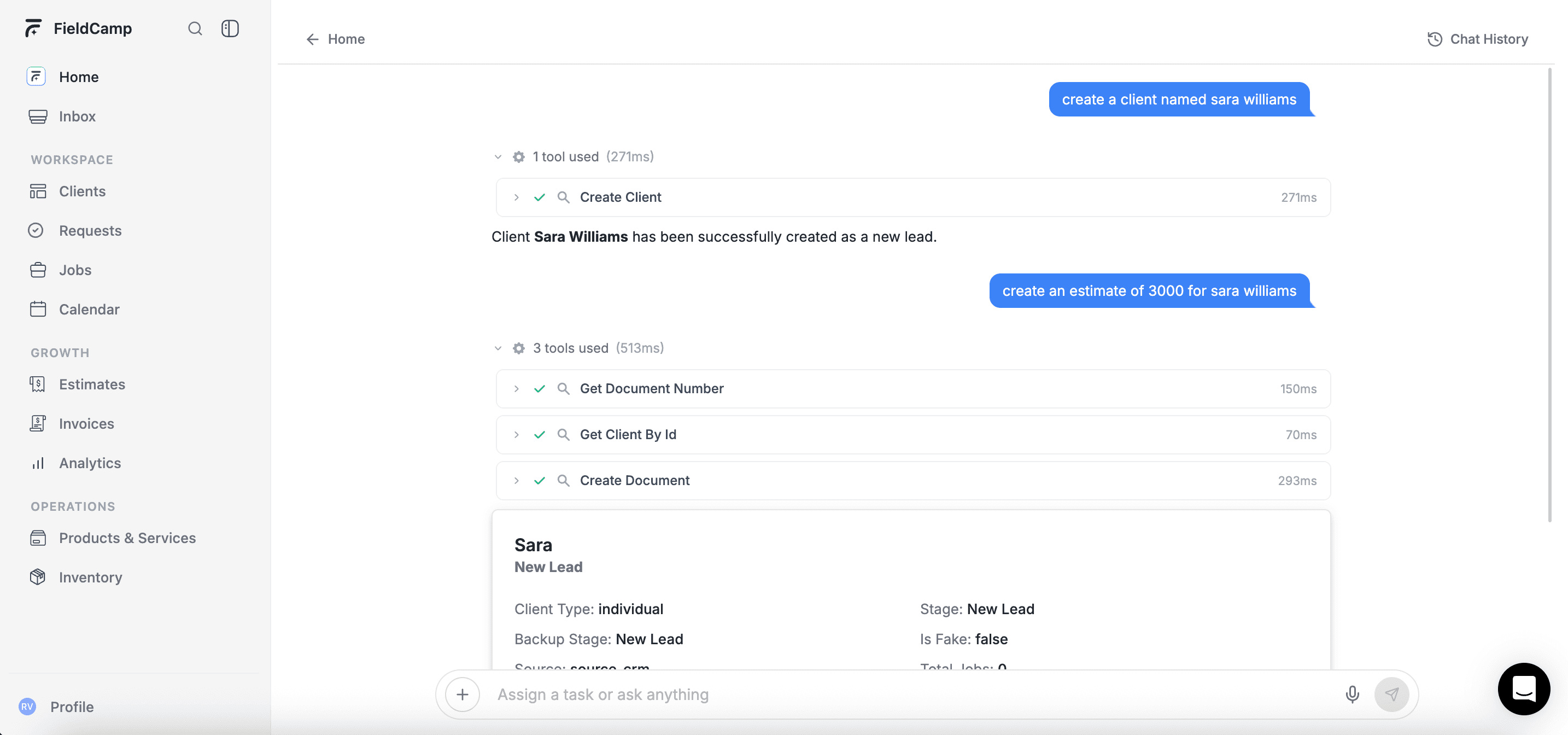
The Command Centre is FieldCamp's AI-powered chat interface — and the primary way to interact with every concept on this page. Type plain-language commands like "Create a new client" or "Show me today's jobs" and the AI handles it for you. It supports 9 built-in slash commands (/today, /newjob, /dispatch, /overdue, and more), file attachments, custom AI skills, and rich visual responses like charts and tables.
You can manage clients, jobs, invoices, estimates, and your calendar entirely from the Command Centre without navigating to individual modules. Learn more in Command Centre — AI Chat, and see all available commands in AI Skills.
Inbox
The Inbox is your unified communications hub. It consolidates emails, calls, tasks, and messages in one place — so you can manage all customer communications without switching between apps. The Inbox has tabs for Email, Calls, Tasks, Messages, and Important items.
The Inbox lives at the top of the sidebar, just below the Command Center.
Clients
A Client is any person or company you do work for. Each client record stores contact details, service address, and a complete history of every request, job, estimate, and invoice associated with them.
You can add clients from the Command Centre by typing "Create a new client named John Smith" — or manually from the Clients section under WORKSPACE in the sidebar. You can also import clients from a CSV, or let them be created automatically when a new request comes in through Online Booking.
Related: Navigating FieldCamp explains where each module lives in the sidebar.
Requests
A Request is an incoming service inquiry — before it becomes a scheduled job. Requests can come from phone calls, emails, your website's Online Booking page, or manual entry by your team.
Every request moves through customizable stages (like "New", "Contacted", "Quoted"). When a request is ready to be scheduled, you convert it into a Job or an Estimate with one click.
Jobs
A Job is a scheduled piece of work assigned to one or more team members. Jobs have a start date/time, duration, location, assigned technicians, and a status that tracks progress (like "Scheduled", "In Progress", "Completed").
You can create a job from the Command Centre by typing "Schedule an HVAC repair for Smith Residence tomorrow at 2pm" or by using the /newjob command. Jobs appear on the Calendar and can include line items (products and services), notes, photos, and attached forms. When a job is completed, you can generate an Invoice directly from it.
Tip: Use /dispatch in the Command Centre to have the AI find the best available technician for any job. Or enable the AI Dispatcher add-on for fully automatic assignment.
Estimates
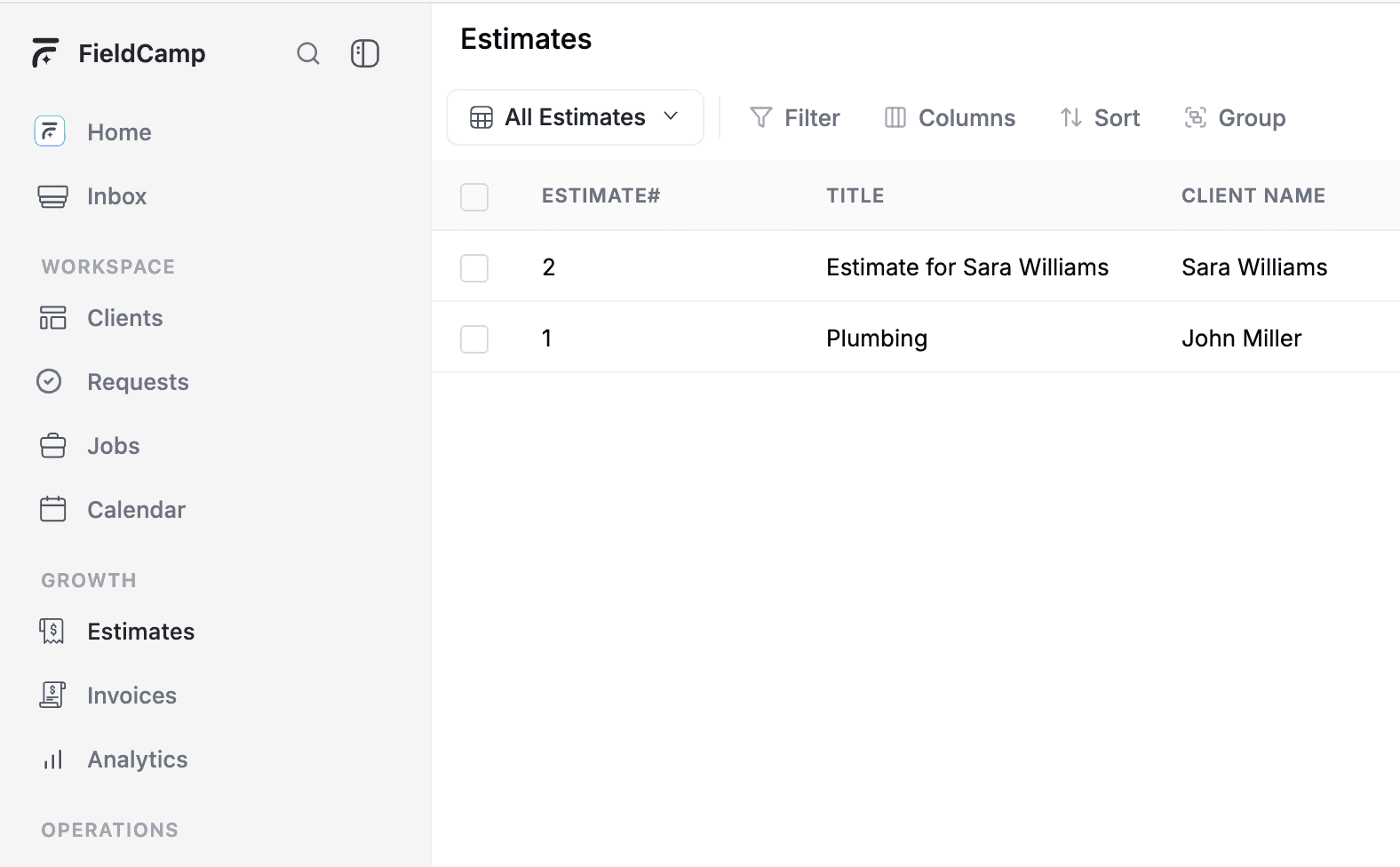
An Estimate (also called a quote) is a price proposal you send to a client before starting work. Estimates include line items with quantities and prices, terms and conditions, and an expiration date.
Clients can view and approve estimates through the Customer Portal. Once approved, you can convert an estimate into a Job with one click — all the details carry over automatically.
Invoices
An Invoice is a bill you send to a client for completed work. Invoices can be created from scratch, generated from a completed job, or converted from an approved estimate. You can also create invoices from the Command Centre by typing "Send an invoice for the Johnson AC repair."
Use /overdue in the Command Centre to see all unpaid invoices and send payment reminders. With Stripe connected, clients can pay invoices online with a credit card. You can also sync invoices with QuickBooks, Xero, or Wave to keep your accounting software up to date.
Calendar
The Calendar is your visual command center for scheduling. It shows all jobs, visits, and events across your team. FieldCamp offers multiple calendar views:
-
Calendar view — traditional day/week/month grid
-
Timeline view — horizontal timeline showing jobs per team member
-
Map view — jobs plotted on a map by location
-
Resource view — see team member availability and workload at a glance
Pipeline
A Pipeline defines the lifecycle stages that records move through — for example, a Job might go from "Scheduled" → "In Progress" → "Completed". Pipelines are configurable for all core objects (Jobs, Visits, Clients, Requests, Estimates, Invoices) and Custom Objects.
You can customize pipeline stages, define transition rules (which stages can move to which), and set requirements that must be met before a transition is allowed. Configure pipelines in Settings → Pipeline Config.
Products & Services
A Product or Service is a predefined line item you can add to jobs, estimates, and invoices. Each has a name, description, price, and optional tax rate. Defining your products and services once saves time when creating quotes and bills.
Visits
A Visit represents a single trip to a job site. One job can have multiple visits — for example, an initial inspection visit and a follow-up repair visit. Visits track arrival time, departure time, and work performed on each trip.
Analytics
Analytics gives you a dashboard view of your business performance. It includes an overview with key metrics, performance reports, custom reports, and analytics boards. Track visit completion rates, job volumes, revenue trends, and more — data populates automatically as you complete jobs and send invoices.
You can also get analytics from the Command Centre by typing /dashboard or asking questions like "How many jobs did we complete last month?" or "Show me revenue by service type."
Custom Objects
Custom Objects let you create your own data structures beyond the built-in ones. If you need to track something that doesn't fit into Clients, Jobs, or Invoices — like equipment, vehicles, or contracts — you can define a Custom Object with its own fields, relations, and optional pipeline stages.
Manage Custom Objects in Settings → Custom Objects. Once created, they appear in the sidebar under their own section.
Live Pulse
Live Pulse is FieldCamp's real-time team tracking feature. It displays your field technicians' live locations on an interactive map, with GPS position updates, connection status, and activity monitoring. Live Pulse helps dispatchers see where their team is at any moment and optimize routing.
Live Pulse is available on the Pro plan and above. Access it from Team Location in the sidebar under OPERATIONS.
Team Members & Roles
A Team Member is anyone on your staff who uses FieldCamp. Each team member has a Role that controls what they can see and do. FieldCamp includes four built-in roles: Admin, Dispatcher, Field Technician Pro, and Field Technician Lite. Learn more in Roles & Permissions.
Workflows
A Workflow is an automation rule that triggers actions when certain events happen. For example: "When a job is marked Completed, automatically send a thank-you email to the client." Workflows save time by eliminating repetitive manual tasks. See Workflow Overview for details.
Add-ons
Add-ons are optional features you can enable to extend FieldCamp's capabilities. Examples include Job Forms (on-site checklists), Online Booking (customer self-scheduling), Customer Portal, AI Dispatcher, and more. See the complete list in the Add-ons Guide.
How Everything Connects
Here is the typical flow from first contact to getting paid:
-
A customer calls or submits a form — you create a Client record with their contact details and service address.
-
They need work done — log it as a Request to track the inquiry, or skip straight to creating a Job if you are ready to schedule.
-
Schedule the work — assign a technician, pick a date and time, and the job appears on the Calendar for your whole team to see.
-
Send a quote first (optional) — create an Estimate and send it to the client. Once approved, convert it to a Job with one click.
-
Do the work — your technician completes the Visit, logs arrival and departure times, and updates the job status on site.
-
Get paid — generate an Invoice from the completed job and collect Payment online through Stripe.
-
Track your results — check Analytics to see revenue trends, job completion rates, and team performance.
Or skip all of this and just tell the Command Centre what you need — it can handle every step above through a single chat conversation.
Next Steps
-
Command Centre — AI Chat — manage your business with AI
-
AI Skills — Chat Commands — all 9 slash commands explained
-
Navigating FieldCamp — learn where everything lives in the sidebar
-
Quick Start — set up your business in 15 minutes
-
Settings Overview — reference for every setting in FieldCamp
FAQ's
What's the difference between a Job and a Visit in FieldCamp?
A Job is the full piece of scheduled work — it has a client, location, assigned technicians, line items, and a status. A Visit is a single trip to the job site within that job. One job can have multiple visits. For example, an HVAC installation job might have a Visit 1 for the initial inspection and a Visit 2 for the installation itself. Jobs track the overall scope and billing; Visits track individual on-site time (arrival, departure, work performed).
Do I need to use all of FieldCamp's modules, or can I start with just a few?
No — you can use as much or as little as you need. Most businesses start with Clients, Jobs, and Calendar to manage scheduling, then add Estimates and Invoices when they're ready to handle billing inside FieldCamp. Modules like Analytics, Custom Objects, and AI Dispatcher are there when you need them, but they're not required. Your sidebar only shows modules relevant to your role and plan.
What are Custom Objects and when should I use them?
Custom Objects let you create your own data structures for things FieldCamp doesn't have a built-in module for — like equipment, vehicles, contracts, or service agreements. Each Custom Object gets its own fields, relationships to other records, and optional pipeline stages. Use them when you find yourself tracking important business data in spreadsheets or notes outside of FieldCamp. Configure them in Settings → Custom Objects.
Which FieldCamp features require a Pro plan?
The Pro plan unlocks Live Pulse (real-time team GPS tracking), AI Dispatcher (automatic job assignment), and higher usage limits. Most core features — Clients, Jobs, Calendar, Estimates, Invoices, Analytics, and Workflows — are available on all plans. Some add-ons like Job Forms and Online Booking are available across plans, while AI Dispatcher specifically requires Pro or higher. Check the Plan & Billing page for the full feature comparison.
Quick Start — Set Up Your Business | FieldCamp
Set up FieldCamp in 15 minutes. Configure your company profile, connect email and Stripe, invite your team, and start scheduling field service jobs step by step.
Navigating FieldCamp — Interface Guide
Learn how to navigate FieldCamp's sidebar, workspace sections, page layout, keyboard shortcuts, and conditional menu items based on your role and plan.