 FieldCamp
AI Summaries for Clients | FieldCamp
FieldCamp generates AI-powered summaries for clients, jobs, requests, and visits. Get instant insights on contact history, revenue, and job status with one click.
Under the hood — see how Customers work in the FieldCamp data model: the fields they hold, how they connect to your other records, and how to customize them.
FieldCamp can generate an AI-powered summary for any client, job, request, or visit record. These summaries give you a quick snapshot of key information without having to read through every detail manually.
AI everywhere: AI Summaries are just one part of FieldCamp's AI features. The Command Centre can answer questions about your clients, create records, and run your business with plain language. See AI Skills for everything the AI can do.
Overview
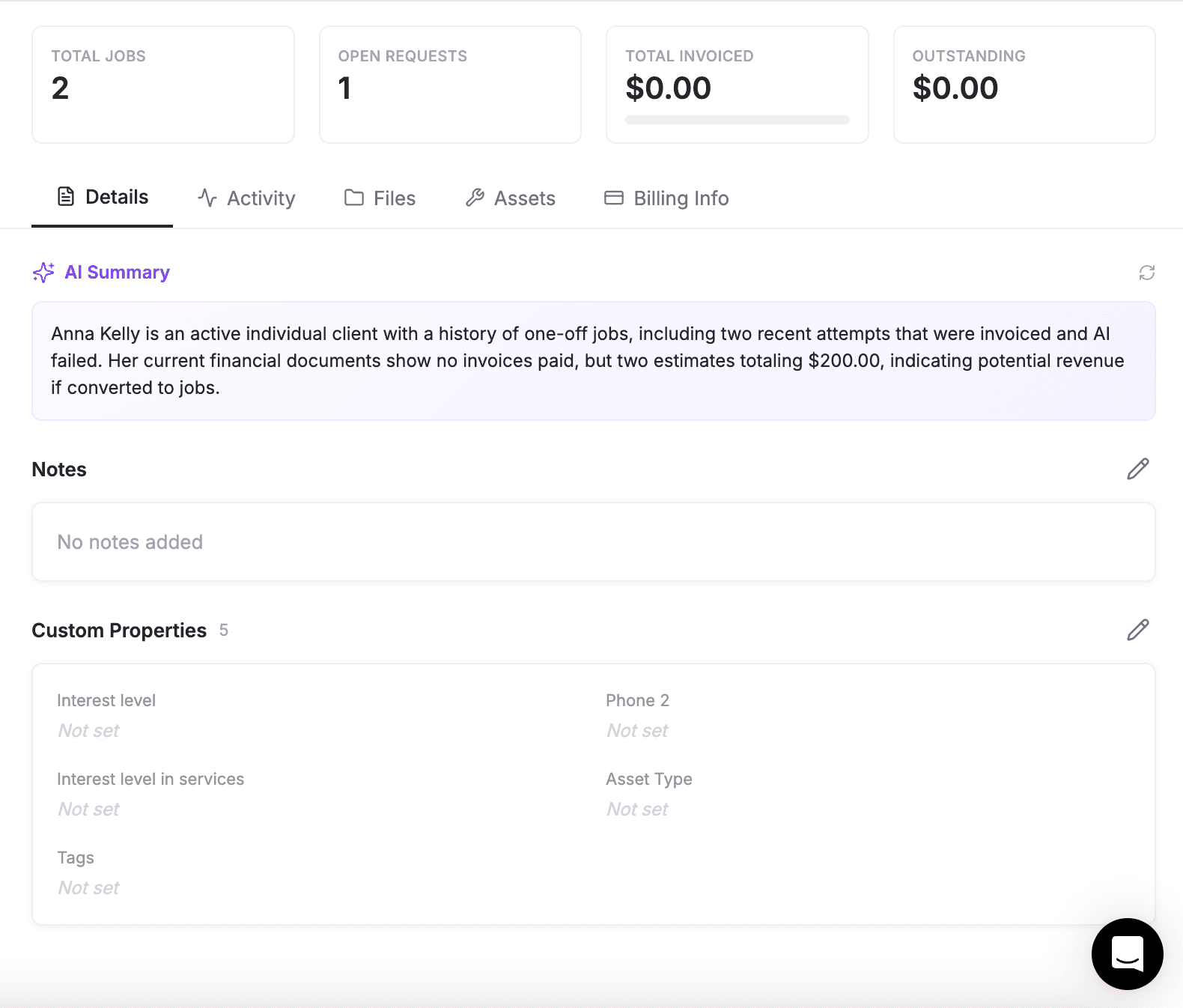
Where AI Summaries Appear
AI summaries appear as a purple-accented card at the top of the Details tab (or Info tab for Visits) on four record types:
- Clients — Summary of contact info, job history, revenue, and notes
- Jobs — Summary of job status, line items, visits, assigned team, and totals
- Requests — Summary of request status, description, line items, and client details
- Visits — Summary of visit date, status, times, confirmation, and team members
The card displays with a purple sparkles icon and the label AI Summary.
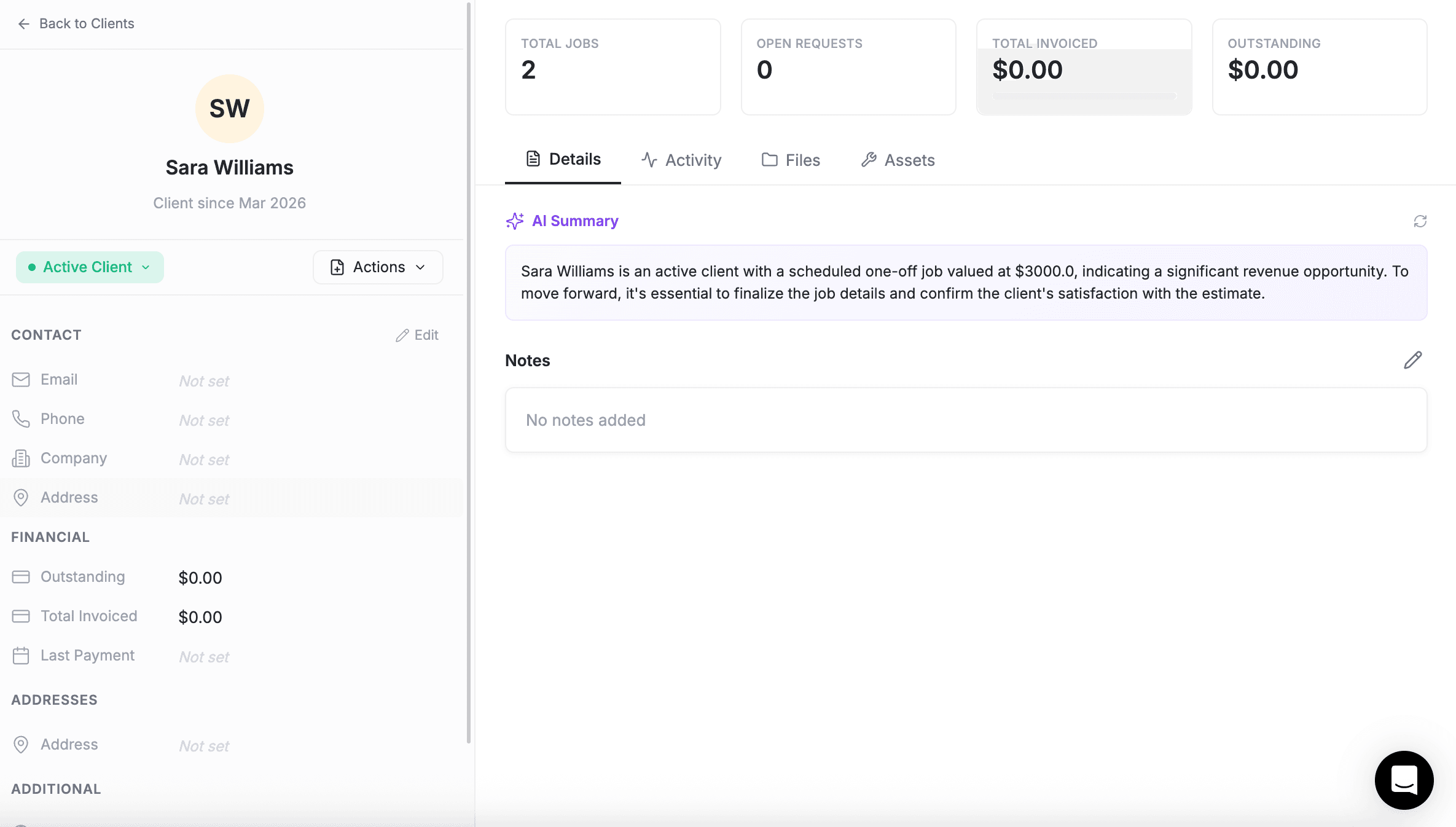
Using AI Summaries
How It Works
When you open a client detail page, job, request, or visit, FieldCamp automatically fetches a precomputed summary. If one is available, it displays immediately — no waiting required. For example, opening Sarah Johnson's client record might show: "Sarah Johnson is an active residential client with 12 completed jobs totaling $4,800 in revenue. Last service was a plumbing repair on March 15."
If no precomputed summary exists yet, you will see a message: "No AI summary generated yet"
Regenerating a Summary
To get a fresh summary or generate one for the first time:
- Open the record (client, job, request, or visit)
- Find the AI Summary card at the top of the Details tab (or Info tab for Visits)
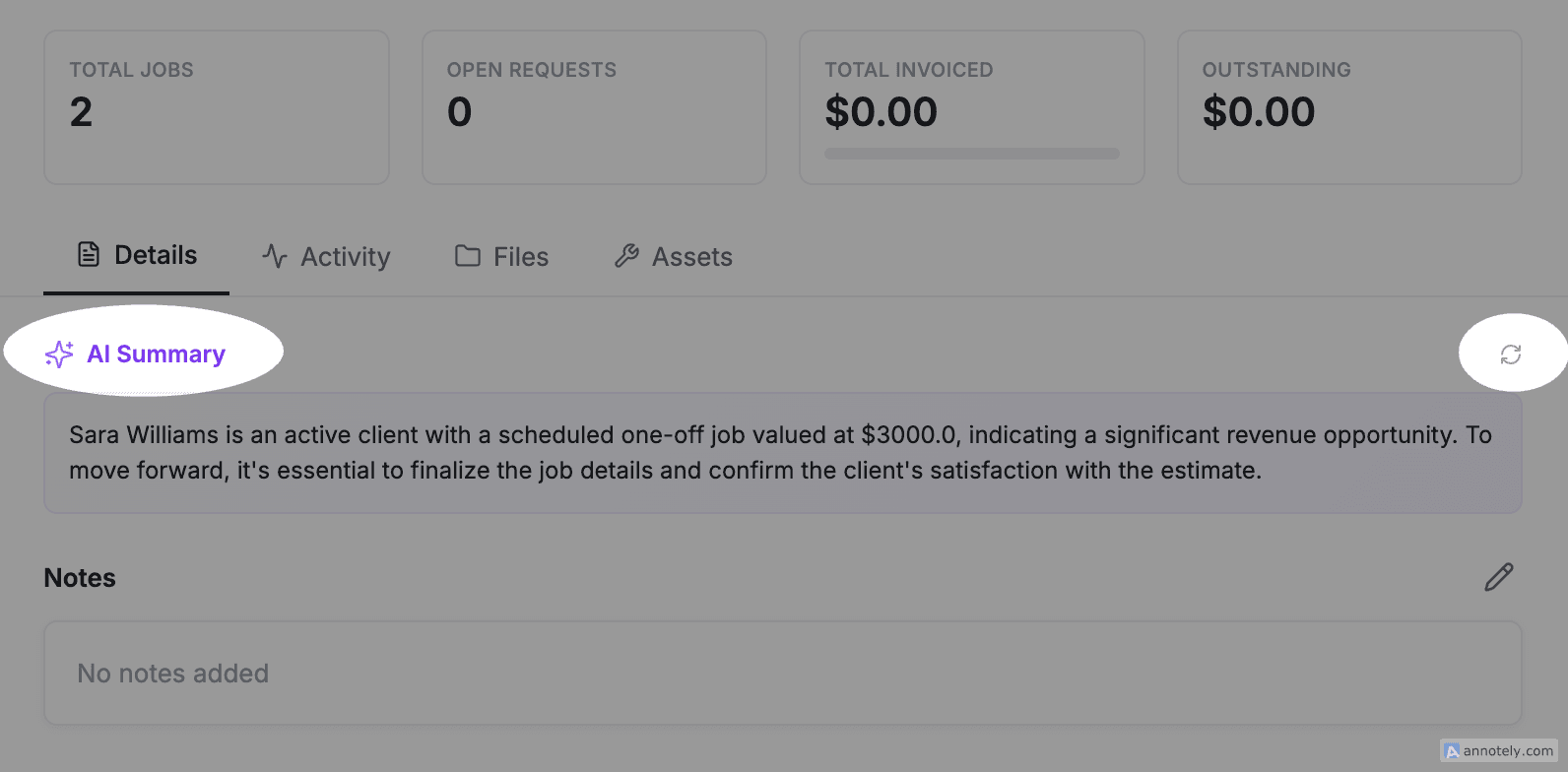
- Click the refresh icon (circular arrow) on the right side of the card
- The icon will spin while the summary is being generated
- The new summary replaces the previous one once ready
While generating, you will see a spinning animation with the text "Generating summary..."
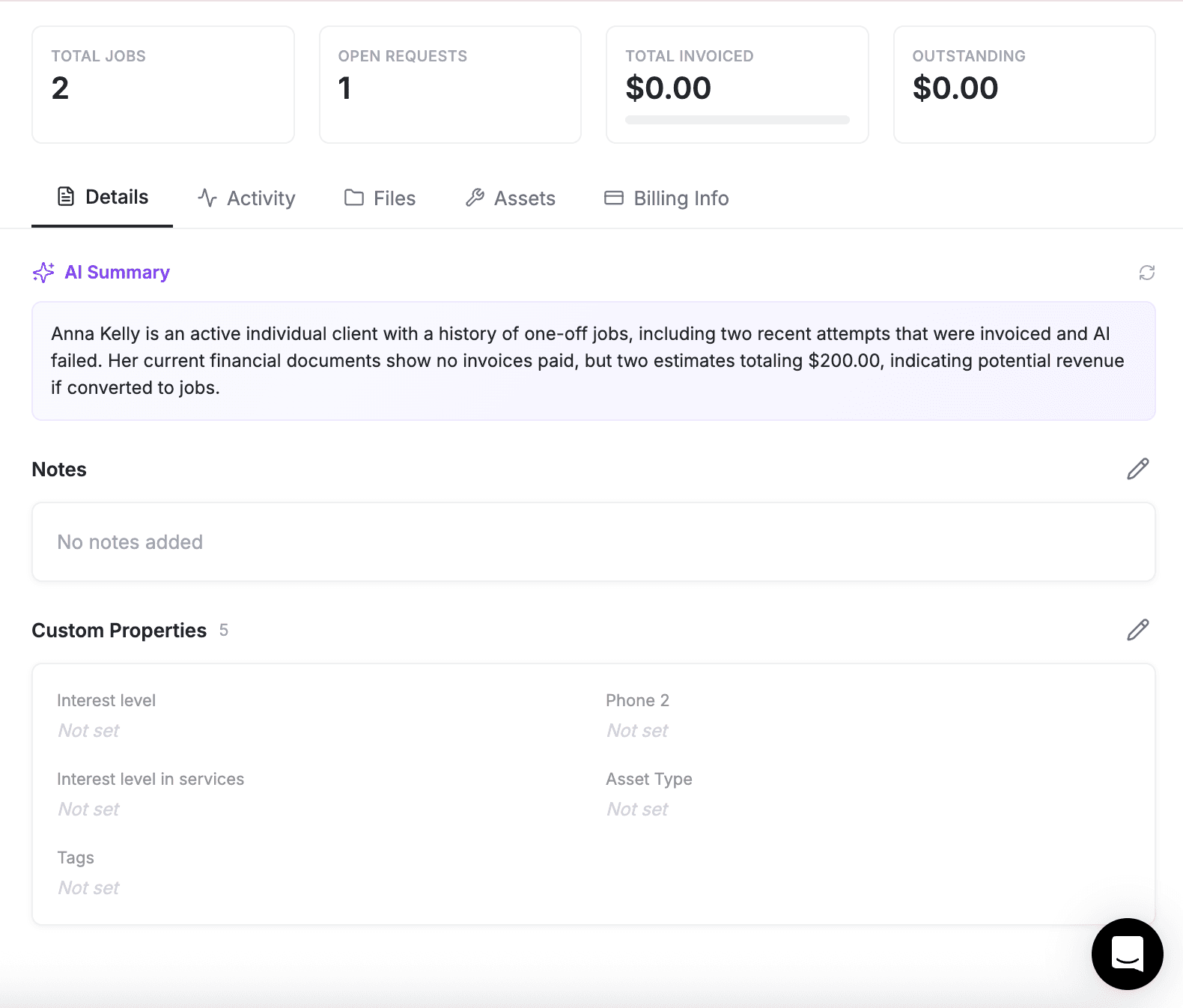
After clicking refresh, FieldCamp processes the latest record data and generates an updated summary. For example, regenerating Sarah Johnson's summary would reflect any new jobs, payments, or communication logged since the last summary was created.
What Each Summary Includes
| Record Type | Summary Covers |
|---|---|
| Client | Company name, contact details, current stage, addresses, notes, creation date, number of active/completed/in-progress jobs, and total revenue |
| Job | Job number, status, type, client details, address, scheduled and completion dates, totals, discounts, notes, line items, visits, and assigned team members |
| Request | Request number, status, client, address, description, line items, and contact phone |
| Visit | Date, status, associated job and client, scheduled start/end times, actual start/end times, confirmation status, notes, and assigned team members |
Who Can See AI Summaries
AI summaries are visible to all authenticated users who have access to the record. If you can view a client card, job, request, or visit, you can see its AI summary and regenerate it. There is no separate permission for AI summaries.
Good to know: Summaries are generated based on the data in the record at the time of generation. If you update client details or add new jobs, regenerate the summary to reflect the latest information. AI summaries do not modify any of your data — they are read-only insights.
FAQs
How do I regenerate an AI summary?
Open any client, job, request, or visit record and find the AI Summary card at the top of the Details tab. Click the refresh icon (circular arrow) on the right side. The new summary replaces the previous one once ready.
Do AI summaries update automatically when I change a record?
No. Summaries are generated based on the data at the time of generation. Click the refresh icon to regenerate with the latest information.
Are AI summaries visible to all team members?
Yes. AI summaries are visible to all authenticated users who have access to the record. There is no separate permission for AI summaries.
What data does the AI summary include for a client?
Client summaries cover: company name, contact details, current stage, addresses, notes, creation date, number of active/completed/in-progress jobs, and total revenue — condensed into 2-3 sentences.
Other AI Features on the Client Page
Beyond AI Summaries, two more AI tools are available directly on the client detail page.
AI Document Chat
On the Documents tab, you can chat with any estimate or invoice PDF linked to a client. Click the chat icon next to a document to open the AI Document Chat panel. The panel shows the document on the right and a chat interface on the left — ask questions like "What are the line items on this estimate?" or "What is the total on invoice #1042?" The AI reads the document and responds in real time. A document summary is also shown in the panel and can be edited and saved.
AI Note Generator
When adding or editing a note on the Details tab, a chatbot prompt appears below the notes field. Describe what happened in plain language — for example, "Client called to confirm the appointment next Tuesday, mentioned they want the kitchen sink replaced too" — and the AI generates a clean, professional note you can review and save. This saves time when you need to quickly log a conversation or follow-up.
Related Articles
- Client Detail Page — Where client AI summaries appear
- Client Files, Documents & Drive — Managing documents and using AI Document Chat
- Command Centre — Ask AI questions about your clients and data
- AI Skills — Everything the AI can do in FieldCamp
- CRM Overview — How the FieldCamp CRM works
- Job Management — AI summaries also work on job records
Client Files, Documents & Drive | FieldCamp
Upload client files, view estimates and invoices, and manage cloud storage with FieldCamp's Files, Documents, and Drive tabs on the client detail page.
Job Management Overview | FieldCamp
Learn how FieldCamp organizes field service work into jobs (work orders) and visits, with AI-powered scheduling, financial tracking, and team coordination built in.