 FieldCamp
Using the Command Centre for Client Management | FieldCamp
Use FieldCamp's AI Command Centre to find, create, update, and manage clients with plain language. Search by stage, run complex queries, and pull CRM reports.
Under the hood — see how Customers work in the FieldCamp data model: the fields they hold, how they connect to your other records, and how to customize them.
The Command Centre is FieldCamp's built-in AI assistant — and it's the fastest way to manage your CRM. Instead of clicking through menus to find a client, update a record, or pull a report, you type what you need in plain language and the AI handles it instantly. Open it with Cmd+/ (Mac) / Ctrl+/ (Windows), or select Home in the sidebar.
This guide covers everything you can do with the Command Centre specifically for client management — from searching and filtering to creating records and pulling summaries.
What the Command Centre Can Do for Clients
Before diving in, here's a quick overview of what's possible:
- Find clients by name, stage, status, assigned team member, or any combination
- Filter by stage — leads, pipeline, active, inactive, or archived
- Run complex queries — clients with overdue invoices, clients scheduled next week, clients with no jobs in 30 days
- Create new clients in seconds using plain language — the AI fills in what you give it and asks for anything missing
- Update client records without opening the record — change a phone number, email, or stage from chat
- Get summaries and stats — a snapshot of a single client or a count across your whole CRM
- Chain commands — after pulling a list, tell the AI to act on one of the results
Finding and Searching Clients
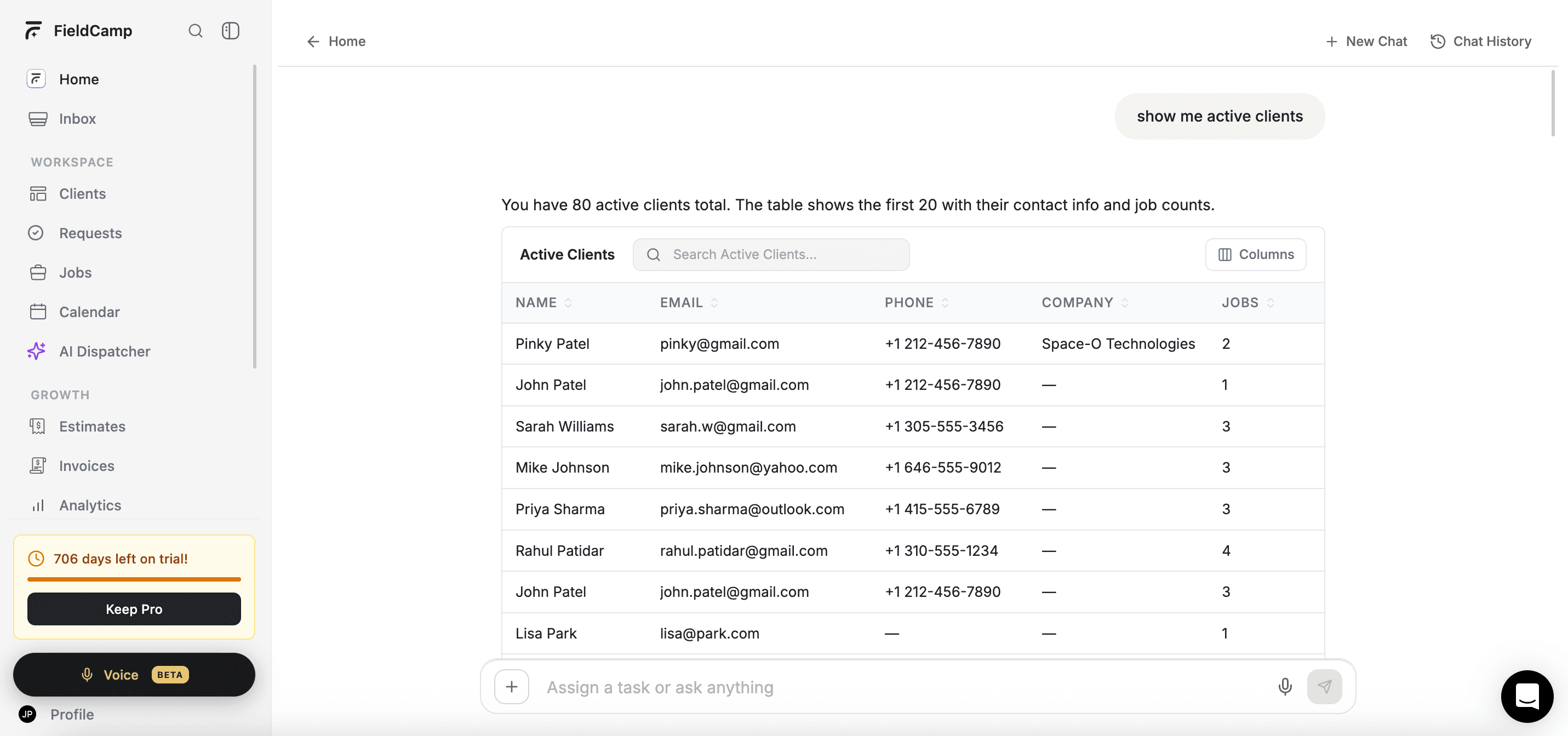
Type what you're looking for in plain language. The AI returns results as an interactive table you can sort, filter further, and click into.
Basic searches:
- "Find [client name]" — pulls up that specific client
- "Show me all active clients" — full list of clients in Active status
- "Show me all archived clients" — clients you've archived
- "Show clients created this month" — new additions to your CRM
- "Show me all clients" — your complete client list
Searching by team:
- "Show me clients assigned to [team member name]" — filter by account manager or owner
- "Show clients with [technician name] as their preferred tech" — useful for coverage planning
Searching by relationship:
- "Find clients in the pipeline" — everyone in your active pipeline
- "Show me my leads" — all contacts in the Leads category
Results come back as a table with sortable columns. You can click any row to open the full client record, or follow up with a refining command like "sort by last name" or "only show the ones in Austin."
Filtering by Stage and Status
The Command Centre understands your CRM stages and categories. Use these commands to slice your client list exactly the way you need it.
By stage:
- "Show me all leads" — contacts in the Leads category
- "Show clients in the pipeline stage" — contacts being actively worked
- "List inactive clients" — clients marked as Inactive
- "Show me archived clients" — records you've hidden from the main view
Complex filters across multiple data sources:
- "Show active clients with pending jobs" — clients with open work
- "Show clients scheduled next week" — clients with visits or jobs in the next 7 days
- "Show clients with overdue invoices" — clients who owe you money
- "Show me clients with no jobs in the last 30 days" — contacts who have gone quiet
Complex queries — like "clients with overdue invoices" or "clients scheduled next week" — pull from multiple data sources at once. Give the AI a moment to compile the results. You'll see a loading indicator while it works.
Creating a New Client
You can create a client directly from the Command Centre without opening a form. Give the AI whatever details you have — it fills in what you provide and asks follow-up questions if anything required is missing.
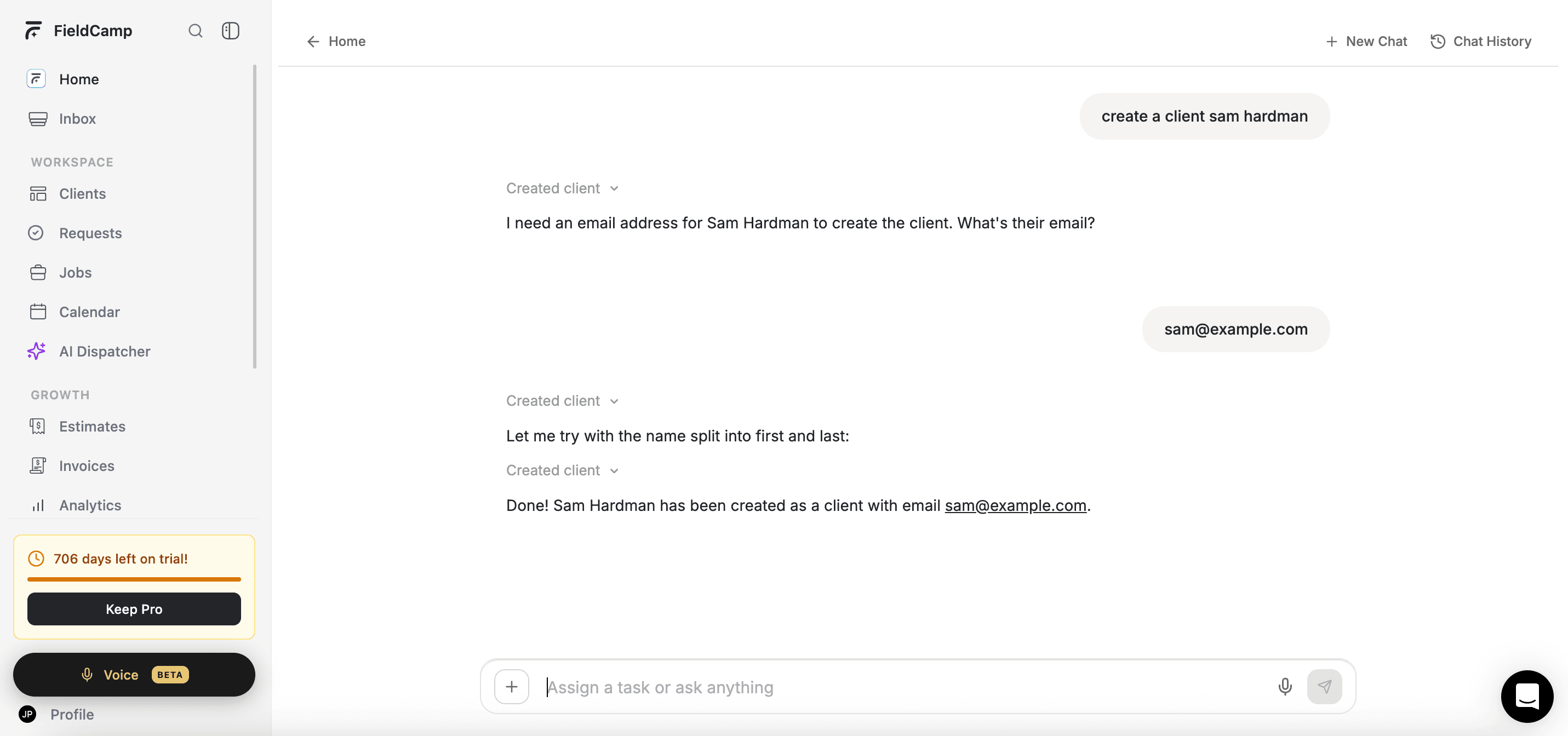
Example commands:
- "Create a new client — John Smith, john@email.com, 555-0123" — name, email, and phone in one line
- "Add a new client for ABC Plumbing company" — company name only; the AI will ask for contact details
- "New client: Maria Garcia, she's a lead from a referral" — includes stage context so the AI sets the category correctly
- "Add client: David Chen, mobile 555-8844, he's in the pipeline" — includes stage assignment
The AI confirms what it created with a summary card. If a client with the same email already exists, FieldCamp updates that record instead of creating a duplicate — it will let you know when this happens.
Updating Client Information
You don't need to open a client record to make changes. Use the Command Centre to update details on the fly — useful when you're in the middle of a busy day and just need to make a quick change.
Update contact details:
- "Update John Smith's phone number to 555-9999"
- "Update the email for ABC Company to contact@abcplumbing.com"
- "Change the address for Sarah Johnson to 412 Oak Street"
Move clients through stages:
- "Change ABC Company's stage to Active Client"
- "Move Sarah Johnson to the pipeline"
- "Archive the client record for Old Customer LLC"
- "Mark David Chen as inactive"
The AI confirms the change after it's made. If it can't find the client — for example, if the name is ambiguous — it will ask you to clarify before making any updates.
Getting Summaries and Reports
The Command Centre can pull together client insights as stats cards or a formatted summary — helpful for a quick check before a call, an end-of-day review, or just knowing where your pipeline stands.
Single-client summaries:
- "Give me a summary of ABC Company" — overview of contact info, job history, and revenue
- "What's the status of the Smith account?" — recent activity and open jobs
CRM-wide stats:
- "How many active clients do I have?" — quick count
- "Show me my top clients by revenue" — ranked list based on invoiced amounts
- "Give me a client overview for this week" — new clients, stage movements, and activity
- "Show me clients with no jobs in the last 30 days" — find contacts to follow up with
Results come back as stat cards, a table, or a formatted text summary depending on the type of query.
Remembering Context
The Command Centre remembers context within a conversation. If you ask about a client and then follow up with "create a job for them" or "what's their email?", the AI knows who you mean without you repeating the name.
You can also add notes that persist. Saying "add a note that John Smith prefers morning appointments" saves that detail to the client record — it'll be there next time you or your team opens that record.
Start a new chat session when you want a clean slate. Each session keeps its own context.
Best Practices
- Be specific with names when searching. "John Smith at ABC Corp" beats just "John" — especially if you have multiple clients with similar names.
- Chain commands to move fast. Pull a client list, then tell the AI "create a job for the first one" and it picks up the context without you repeating anything.
- Use the Command Centre to move clients through stages during a busy day. Typing "move Garcia Plumbing to active" is faster than opening the record and changing the dropdown.
- Give complex queries a moment. Queries that pull from jobs, invoices, and the CRM at the same time take a little longer — that's normal.
- If a result looks off, follow up with a refining command. "Sort by last name," "only show the pipeline ones," or "narrow it down to this month" all work.
- Use it to stay on top of your pipeline. A quick "show me leads with no activity this week" takes seconds and can surface contacts that need follow-up before they go cold.
How the FieldCamp CRM is structured — stages, categories, and the client record.
Add clients manually, via AI, or in bulk from a spreadsheet.
Understand Leads, Pipeline, and Clients — and how to move people between them.
Build and save custom views for your most-used client filters.
One-click AI snapshots of any client, job, or visit record.
Related Articles
- CRM Overview — How the FieldCamp CRM is structured
- How to Create a Client — All the ways to add clients to FieldCamp
- Client Categories and Stages — Leads, pipeline, and active client stages explained
- Filter, Sort and Group Clients — Build and save custom views
- AI Summaries for Clients, Jobs and Visits — AI-powered record snapshots
Clients & CRM Overview | FieldCamp
FieldCamp's built-in CRM centralizes client contacts, jobs, invoices, emails, and communication history. Manage leads, pipeline, and active clients in one place.
How to Create a Client | FieldCamp
Add new clients to FieldCamp using the AI Command Centre, the manual form, or CSV import. Learn required fields, optional details, and automatic creation.