 FieldCamp
Creating a Job | FieldCamp
Learn how to create one-time and recurring jobs (work orders) in FieldCamp using the AI Command Centre or the manual stepped modal with client, schedule, and team details.
Under the hood — see how Jobs work in the FieldCamp data model: the fields they hold, how they connect to your other records, and how to customize them.
Creating a new job (work order) is how you turn a client request into scheduled, trackable work. FieldCamp gives you two paths: ask the AI to do it in plain English, or walk through the manual creation modal step by step.
Create a Job with the Command Centre
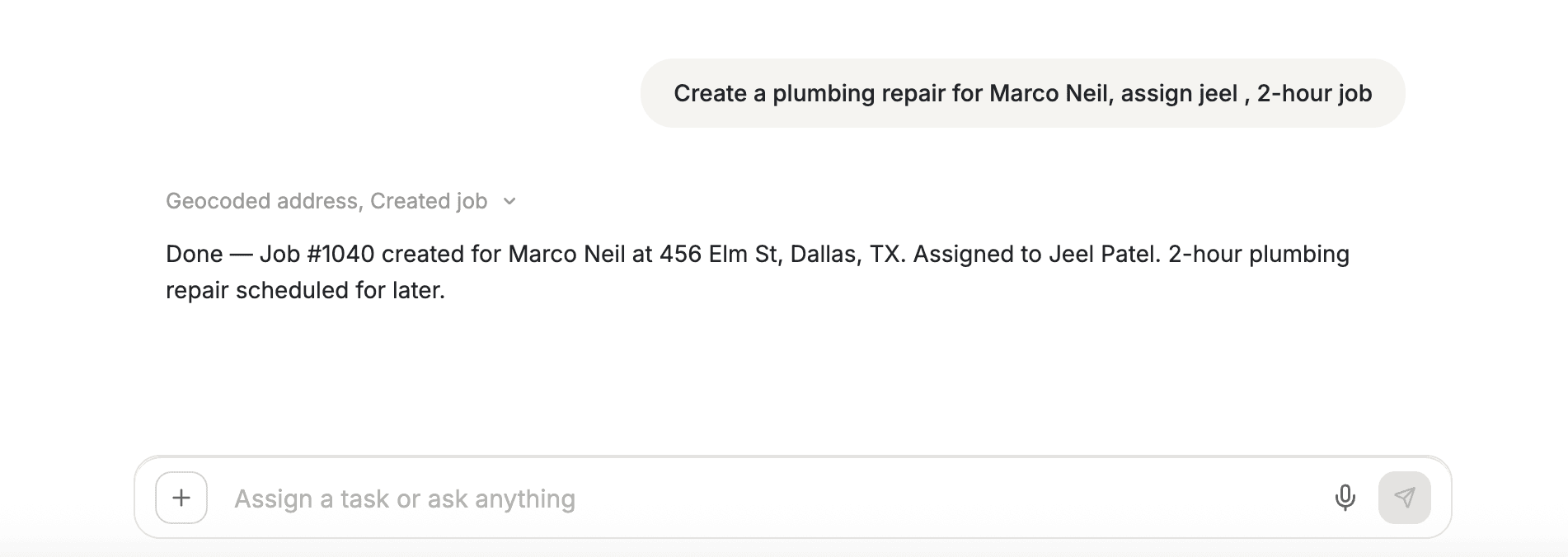
Open the Command Centre and describe what you need. The AI creates the job, assigns a team, and schedules the visit automatically.
Examples you can type or say:
- "Schedule an HVAC inspection for Sarah Johnson this Friday at 10am"
- "Create a plumbing repair for 456 Elm Street, assign Mike, 2-hour job"
- "Set up a weekly lawn care job for Smith Residence starting next Monday"
The AI pulls client details from your CRM, checks team availability, and suggests the best time slot. You review and confirm.
Create a Job Manually
Where to Start
| Method | How | Best For |
|---|---|---|
| Jobs menu | Click Create Job from the Jobs dashboard | Standard workflow |
| Client card | Open a client, click + New Job — client auto-fills | Repeat clients |
| Calendar | Drag a time slot, select Create Job — date/time auto-fills | Schedule-first planning |
| Duplicate | Click Duplicate on an existing job | Repeat services |
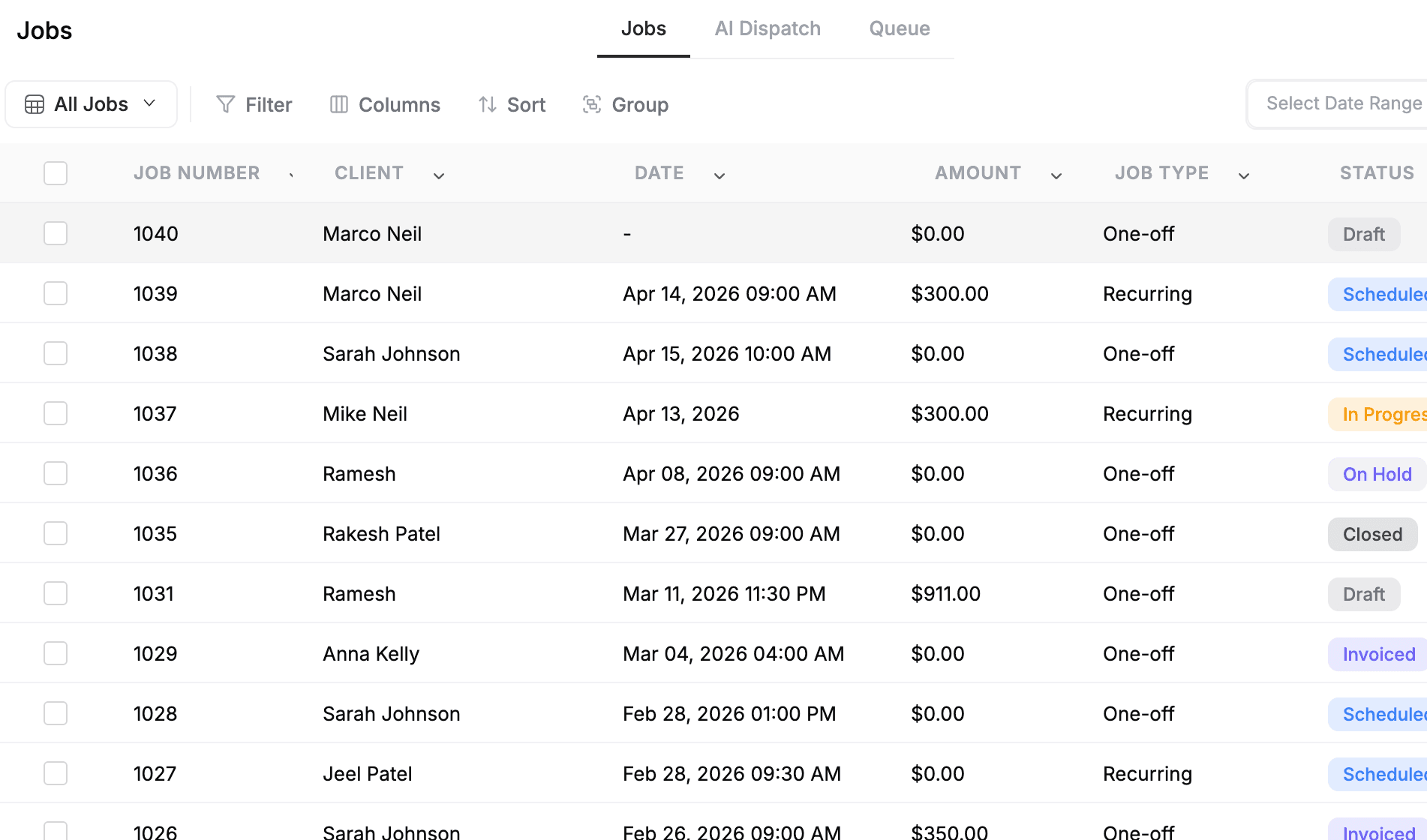
Step 1: Client Details
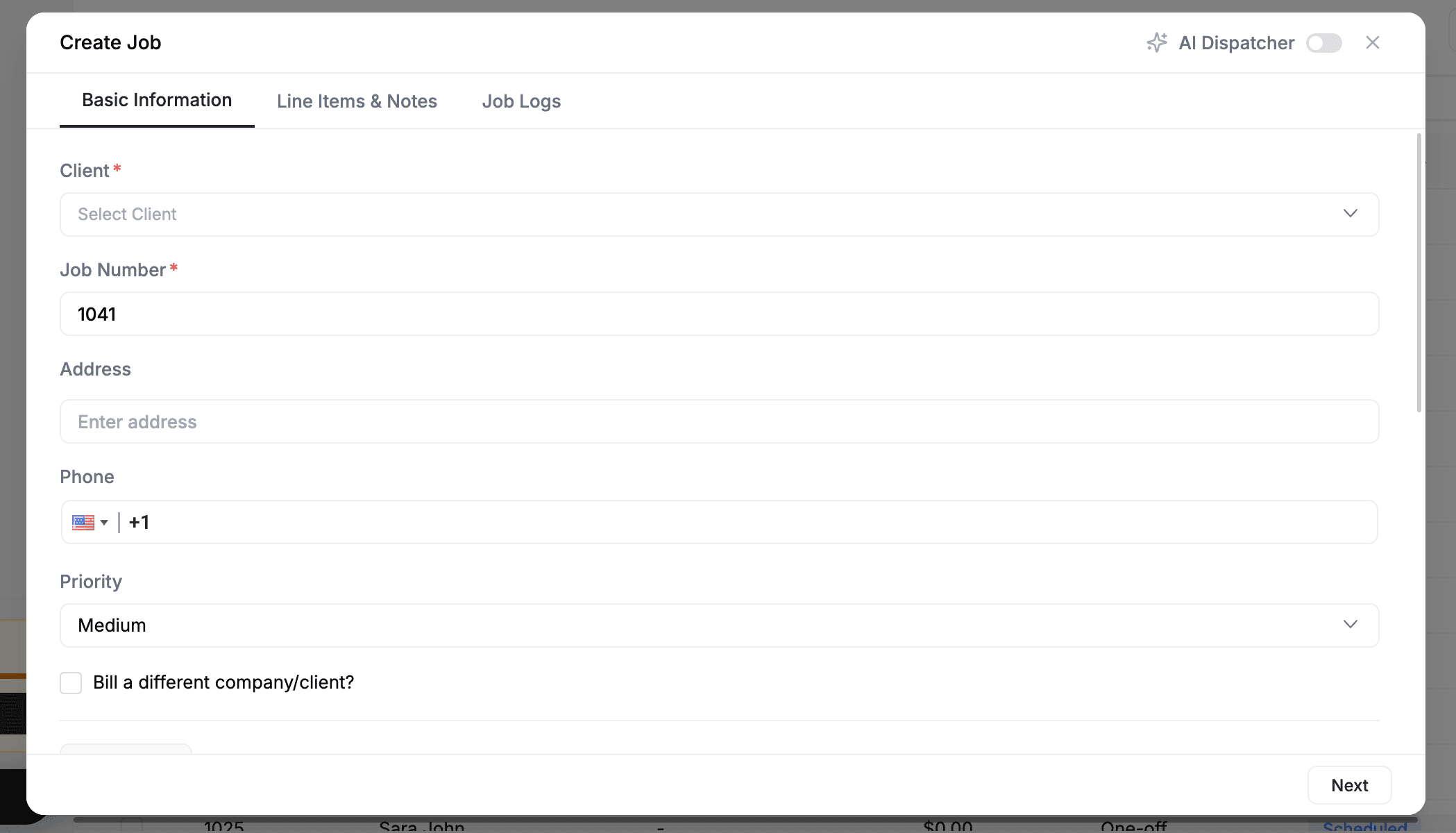
Select an existing client from the dropdown or create a new one on the spot. FieldCamp auto-fills the billing address, phone number, and service address from the client record. A unique job number is assigned automatically.
Every job must belong to a client. If the client does not exist yet, click + New Client to add them without leaving the creation flow. See Creating a Client.
Step 2: Schedule
Choose the job type:
One-off job — set a start date, start time, and optional end date. Use Schedule Later if you are waiting on parts or approvals, or Any Time for flexible-window work like routine maintenance.
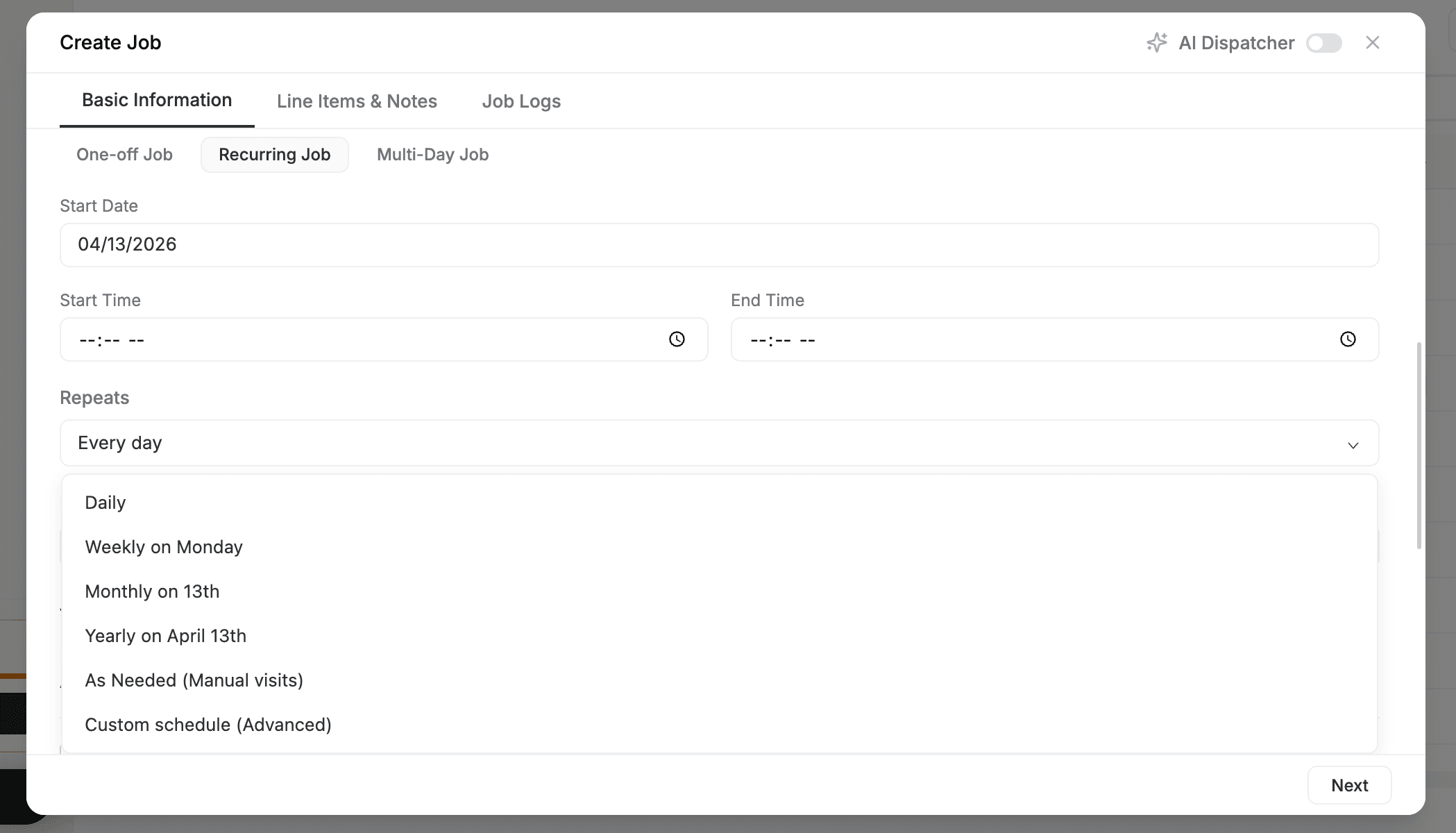
Recurring job — set a start date, then pick a frequency:
- Daily — every day or every X days
- Weekly — specific days (e.g., Monday and Thursday)
- Monthly — by date (15th) or position (third Tuesday)
- Annually — same date each year
Set an end condition: number of visits, end date, or ongoing. See Recurring Jobs for advanced patterns.
AI-powered scheduling — check "Let AI Find The Best Time" and FieldCamp analyzes team availability, travel routes, and workload to suggest the best slot. See AI Job Scheduling for the full walkthrough.
Priority — set a priority level (low, medium, high, emergency) to help dispatchers and the AI rank work.
Step 3: Team & Skills
Click + Assign to pick team members. The list shows each person's availability, current workload, and skill certifications. Use the Handy AI Suggestion button for smart crew recommendations based on job location, required skills, and balanced workload.
Step 4: Line Items
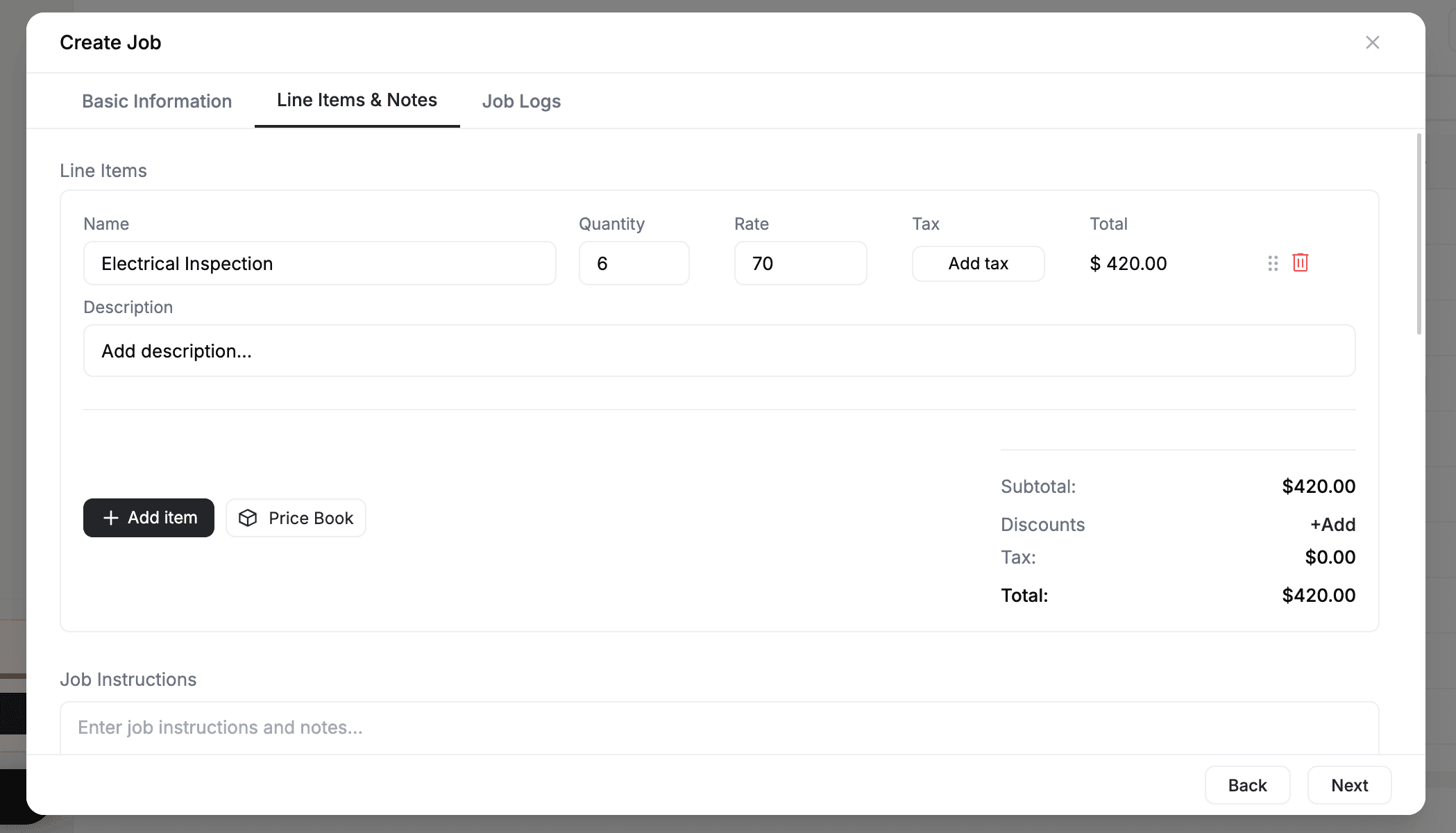
Click + Add Line Item and choose from your products and services catalog. Set the quantity, unit price, and optional description for each item. Line items drive job pricing and flow into invoices.
Step 5: Instructions & Attachments
Add job notes for your field team — access codes, safety requirements, client preferences, or step-by-step instructions. Attach supporting files (PDFs, photos, spreadsheets) for additional context.
Step 6: Job Logs
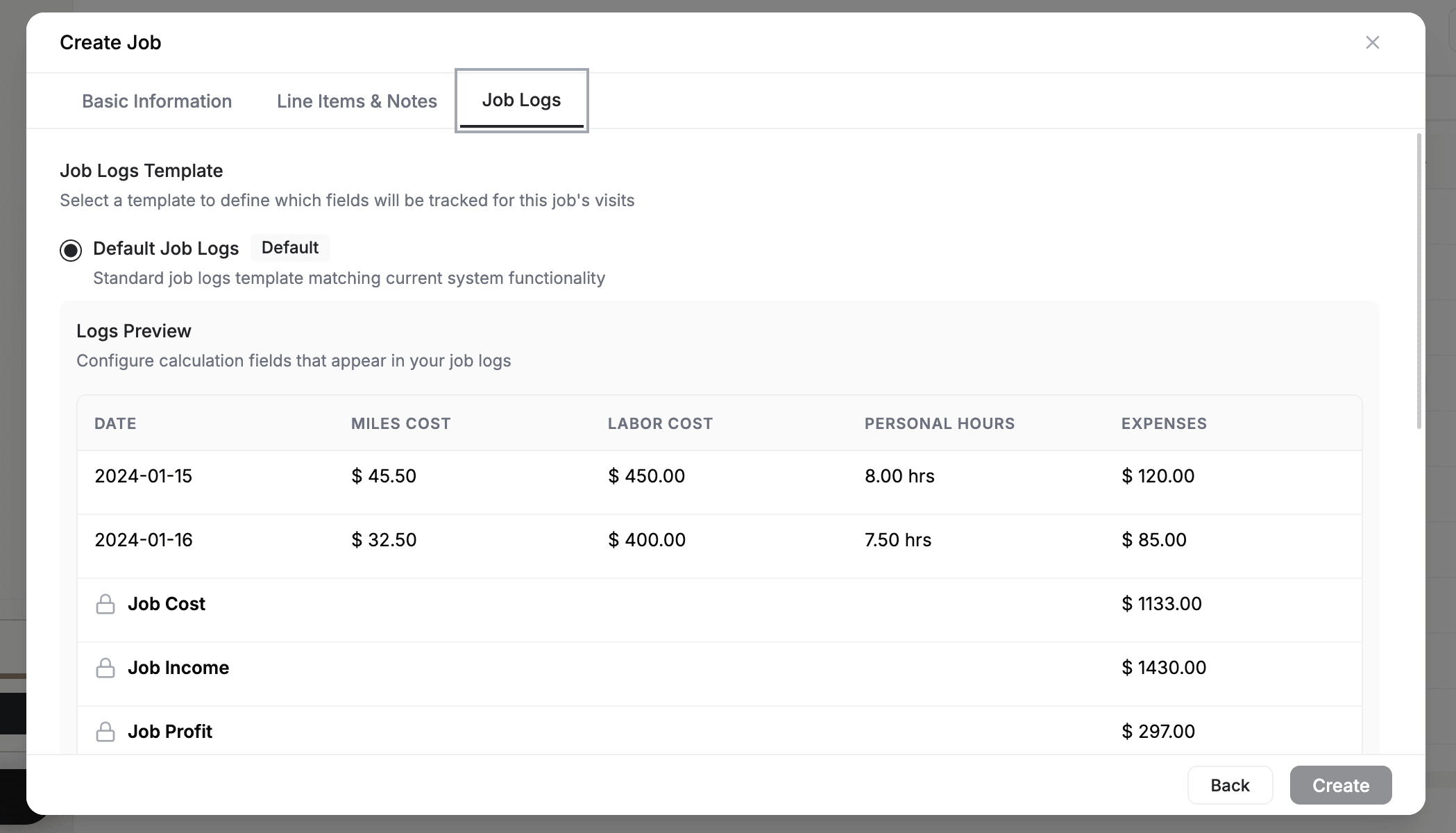
Configure default log tracking for this job: miles, expenses, labor cost, and personal hours. These defaults apply to every visit and can be adjusted later.
Step 7: Review & Create
Review all details and click Create. The job appears on the Jobs dashboard, the calendar, and assigned team members receive a notification.
After Creation
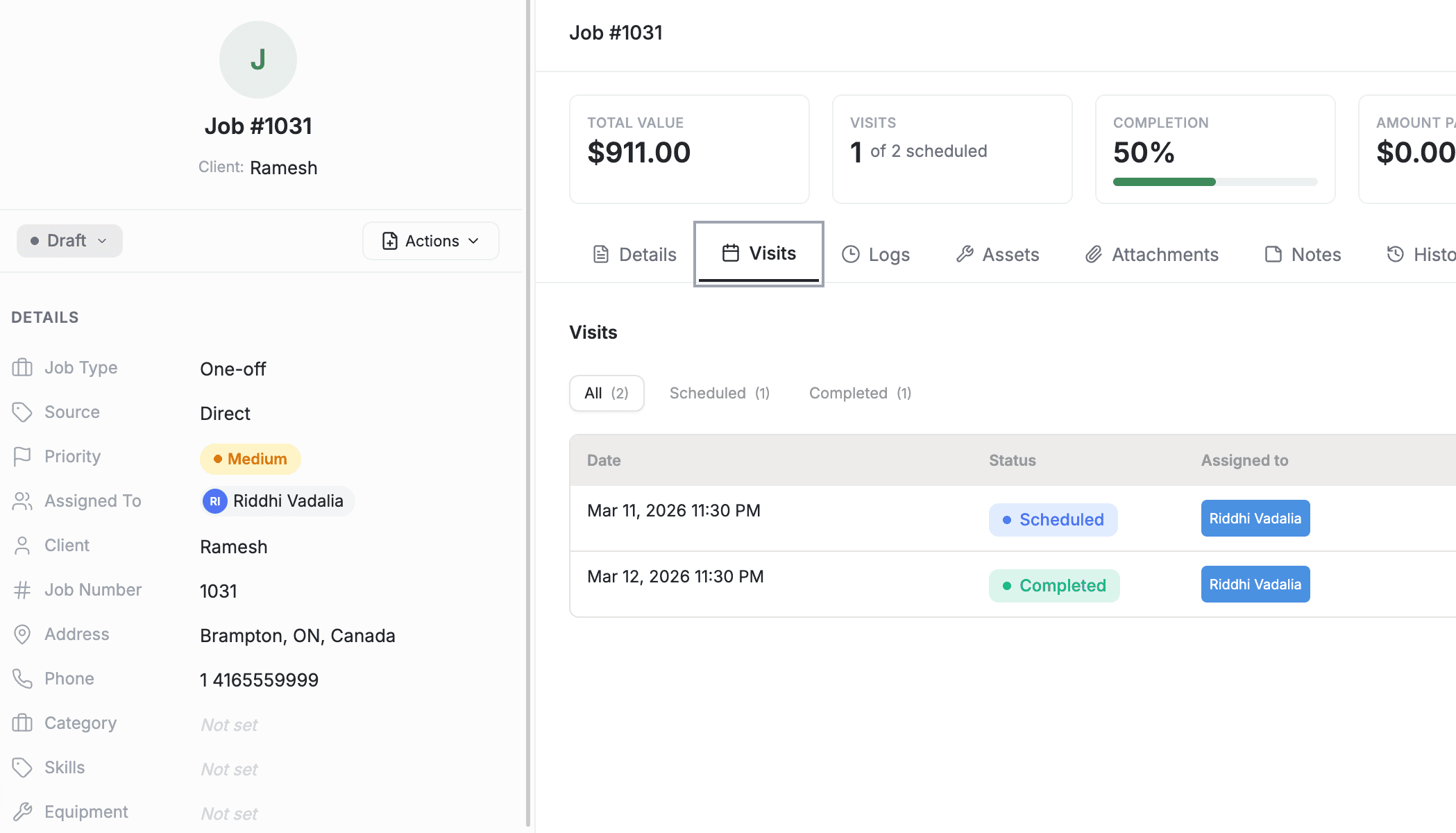
- One-off jobs create a single visit on the scheduled date
- Recurring jobs auto-generate visits according to the recurrence pattern
- Edit any job from the Job Detail Page — reschedule, reassign, add visits, or update line items
- Track progress through job and visit statuses
Related Articles
Job & Visit Statuses | FieldCamp
Understand FieldCamp's two-level job and visit statuses, the Unscheduled and On Hold branches, visit filter tabs, and how pricing or email visibility is gated.
Job Detail Page | FieldCamp
Navigate the job (work order) detail page in FieldCamp — view the sidebar, tabs, AI summary, visit history, and quick actions for managing field service jobs.