 FieldCamp
Understanding Visits | FieldCamp
Learn what visits are in FieldCamp, how they relate to jobs, visit statuses, charges, signature capture, and how to manage your daily field service schedule.
Under the hood — see how Jobs work in the FieldCamp data model: the fields they hold, how they connect to your other records, and how to customize them.
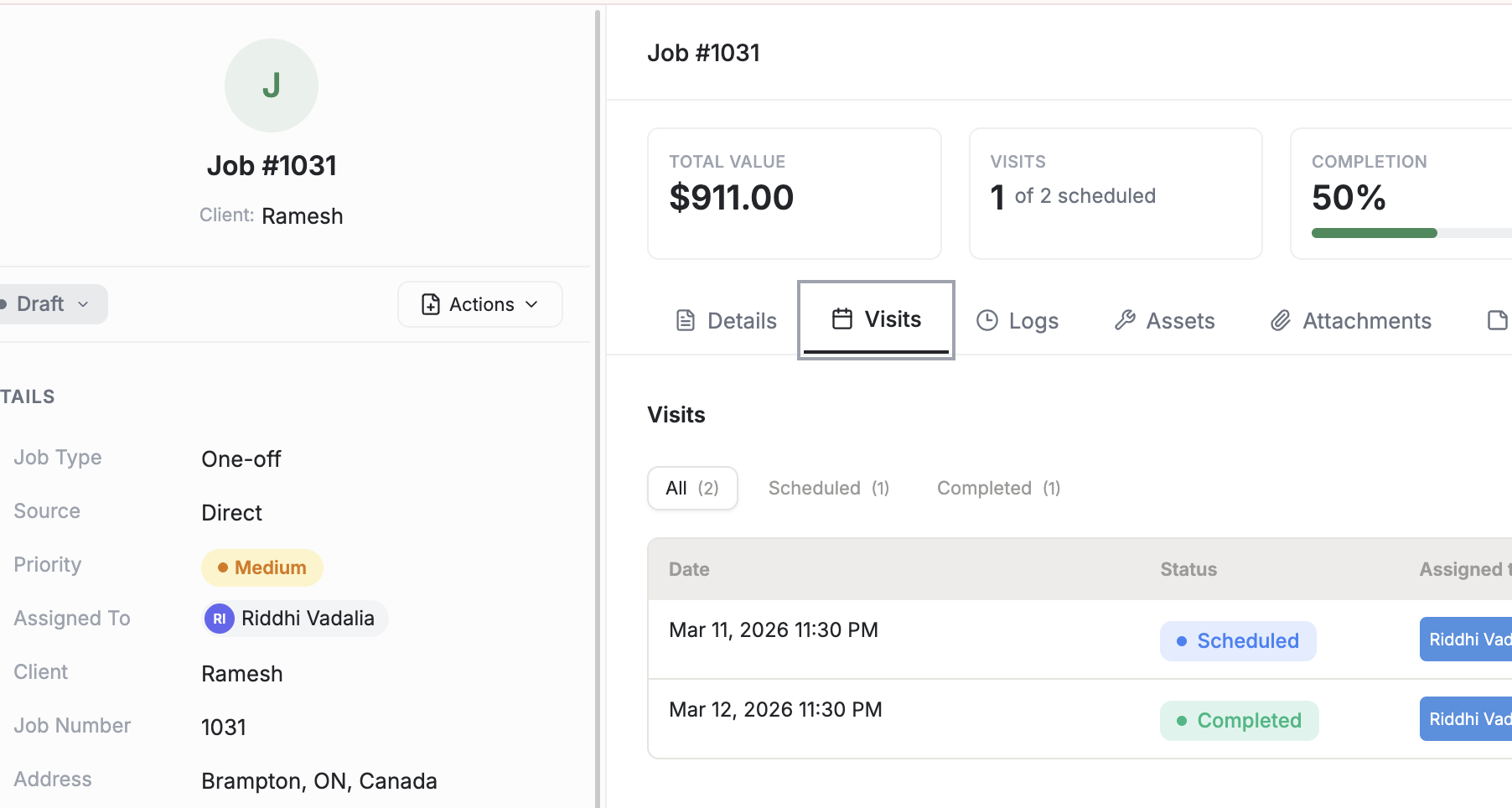
A visit is a single scheduled appointment within a job (work order) — the basic unit of work in FieldCamp. Think of the job as the project and the visit as one trip to the customer's location. A simple faucet repair has one visit. An HVAC annual maintenance contract has four visits (one per quarter). A three-day commercial installation has three visits (one per day). The job is always the container; visits are the individual work sessions inside it.
The Fastest Way: Ask the Command Centre
Open the Command Centre to check on visits instantly:
- "Show me today's visits"
- "What's the status of the Smith Residence visit?"
- "Who's assigned to the 2pm job at City Hospital?"
- "How many visits are scheduled this week?"
- "Reassign tomorrow's visit at ABC Plumbing to Mike Torres"
The Command Centre returns visit details, statuses, and assigned technicians without you needing to navigate anywhere.
You can also ask the Command Centre to update a visit. Try "Mark the Johnson visit as completed" or "Reschedule tomorrow's visit at ABC Plumbing to Friday."
Visit vs Job: Understanding the Difference
This is the most important concept in FieldCamp scheduling. A job is the overall work order — it holds client info, service address, line items, and pricing. A visit is each time someone physically goes to that site to do the work.
Example: Sarah Johnson creates a job called "HVAC Annual Maintenance" for City Hospital. The contract calls for quarterly inspections. FieldCamp creates four visits:
| Visit | Date | Technician | Status |
|---|---|---|---|
| Visit 1 — Q1 Inspection | January 15 | Mike Torres | Completed |
| Visit 2 — Q2 Inspection | April 15 | Mike Torres | Completed |
| Visit 3 — Q3 Inspection | July 15 | Sarah Johnson | Scheduled |
| Visit 4 — Q4 Inspection | October 15 | Unassigned | Scheduled |
Each visit has its own date, assigned technician, status, logs, and charges. Completing Visit 1 does not affect Visit 2. Reassigning Visit 3 to a different tech does not change Visit 4.
How Visits Relate to Jobs
Every job in FieldCamp contains one or more visits:
| Job Type | Visits Created | Example |
|---|---|---|
| One-time job | A single visit on the scheduled date | Faucet repair at Smith Residence |
| Multi-day job | One visit per scheduled day | 3-day spray foam install (Day 1, Day 2, Day 3) |
| Recurring job | A new visit for each recurrence (weekly, monthly, etc.) | Weekly pool cleaning every Thursday |
| Follow-up work | Extra visits added manually from the job detail page | Callback to fix a leak found during the initial repair |
Each visit is independent. You can reassign, reschedule, or cancel one visit without affecting the others in the same job.
Creating Visits
There are several ways a visit gets created in FieldCamp:
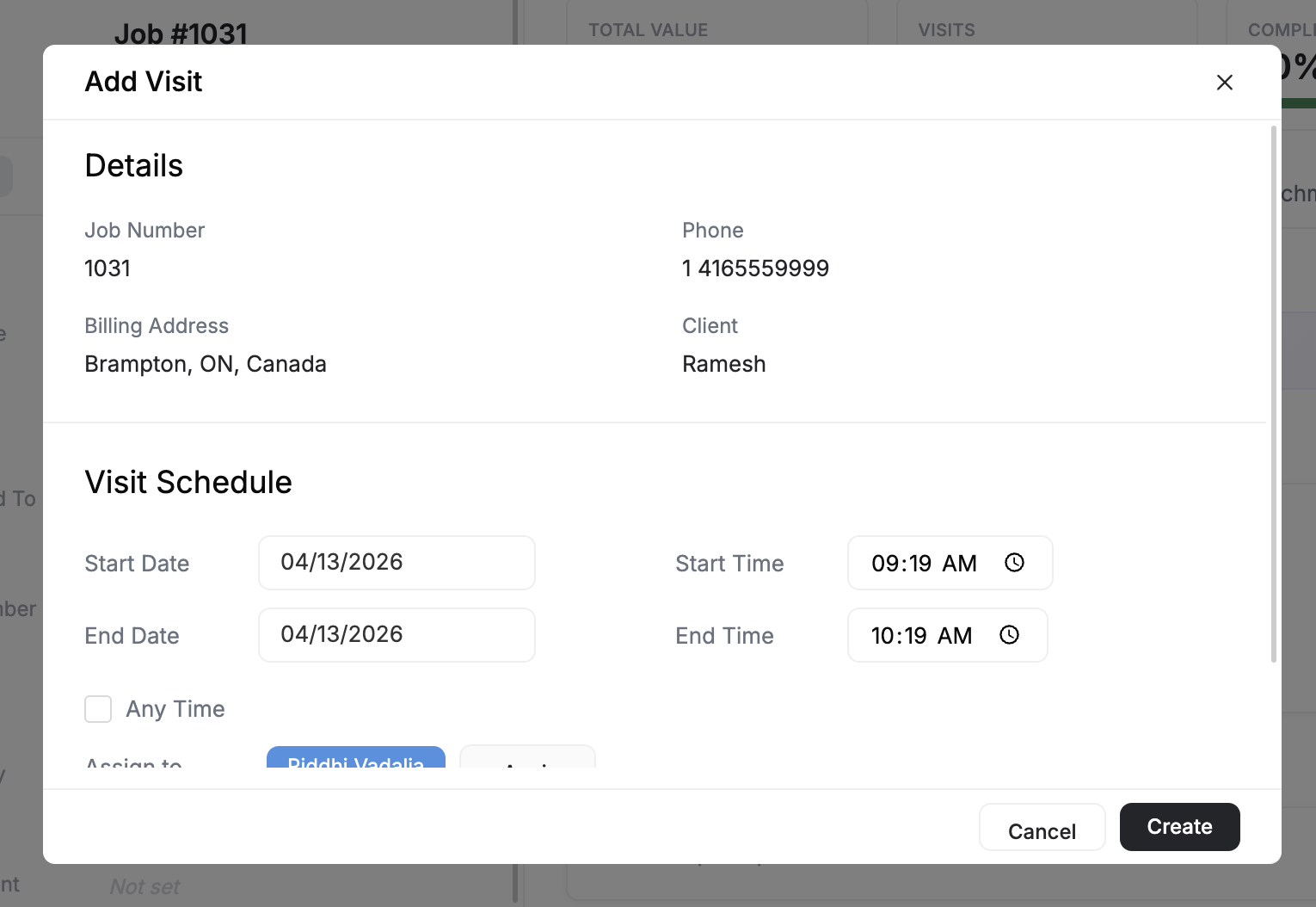
From the job detail page — Open any job and click Add Visit from the Actions menu. Pick a date, assign a technician, and save. This is how you add follow-up visits or extra trips.
During job creation — When you create a new job, the first visit is created automatically based on the date and time you set.
Via AI Dispatch — Enable "Let AI Find The Best Time" during job creation and the AI scheduling engine creates the visit at the optimal time, assigned to the best-fit technician.
Drag from the Job Tray — Unscheduled jobs appear in the Job Tray on the calendar. Drag a job onto a time slot and a visit is created instantly with that date and technician.
Recurring schedule — Recurring jobs auto-create visits on their configured frequency. A weekly job creates a new visit every week without any manual action.
Multi-day scheduling — Multi-day jobs generate one visit per day automatically when you set the start date and duration.
Visit Statuses Deep Dive
Visits move through a clear lifecycle. Each status means something specific:
| Status | What It Means | Who Changes It |
|---|---|---|
| Scheduled | The visit is confirmed and on the calendar. No work has started. | Created automatically or by a dispatcher |
| In Transit | The technician has left for the job site. GPS tracking begins if Live Pulse is enabled. | Technician taps "Start Travel" on mobile |
| Arrived | The technician is on site. The clock starts for labor tracking. | Technician taps "Arrived" on mobile or auto-detected via geofence |
| In Progress | Active work is happening. Forms and checklists become available. | Technician taps "Start Work" on mobile |
| Completed | The visit is finished. Charges are finalized and ready for invoicing. | Technician taps "Complete" after collecting signature |
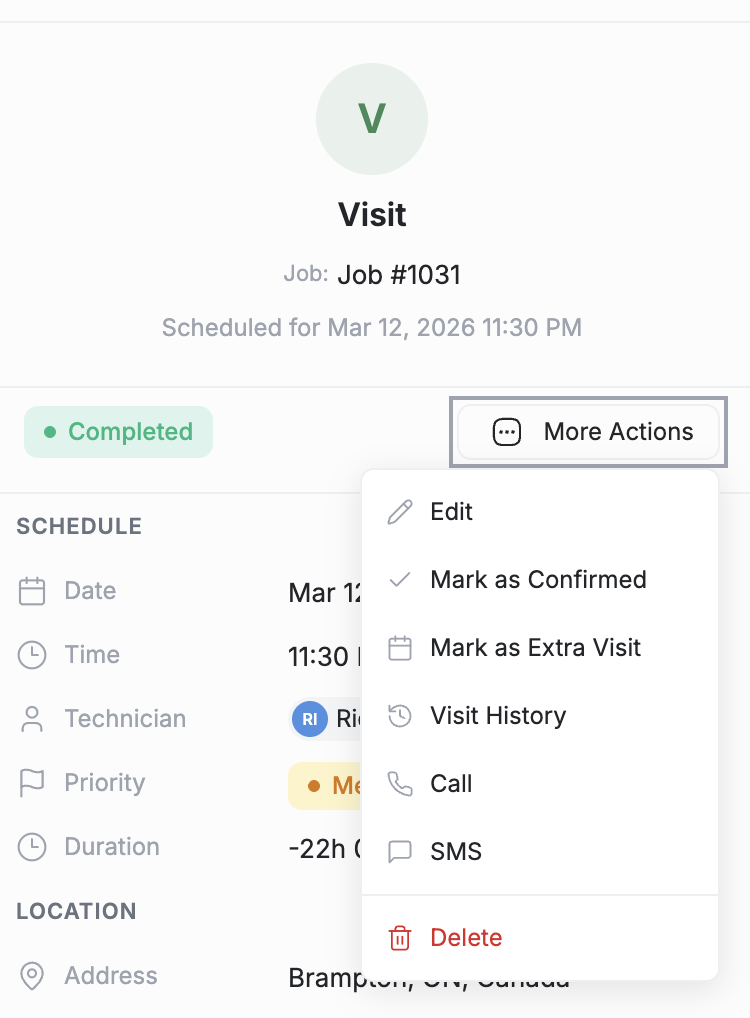
| Cancelled | The visit was removed from the schedule. Does not affect other visits in the job. | Dispatcher or manager from the visit detail page |
| On Hold | Work is paused — waiting for parts, customer availability, or approval. | Dispatcher or manager |
Statuses update in real time across the calendar, the dispatch board, and the mobile app. Managers see live progress without calling technicians for updates.
For a full breakdown of every status and what triggers transitions, see Job and Visit Statuses in FieldCamp.
Visit Detail Page
Click any visit to open its detail view. Here is what each section contains:
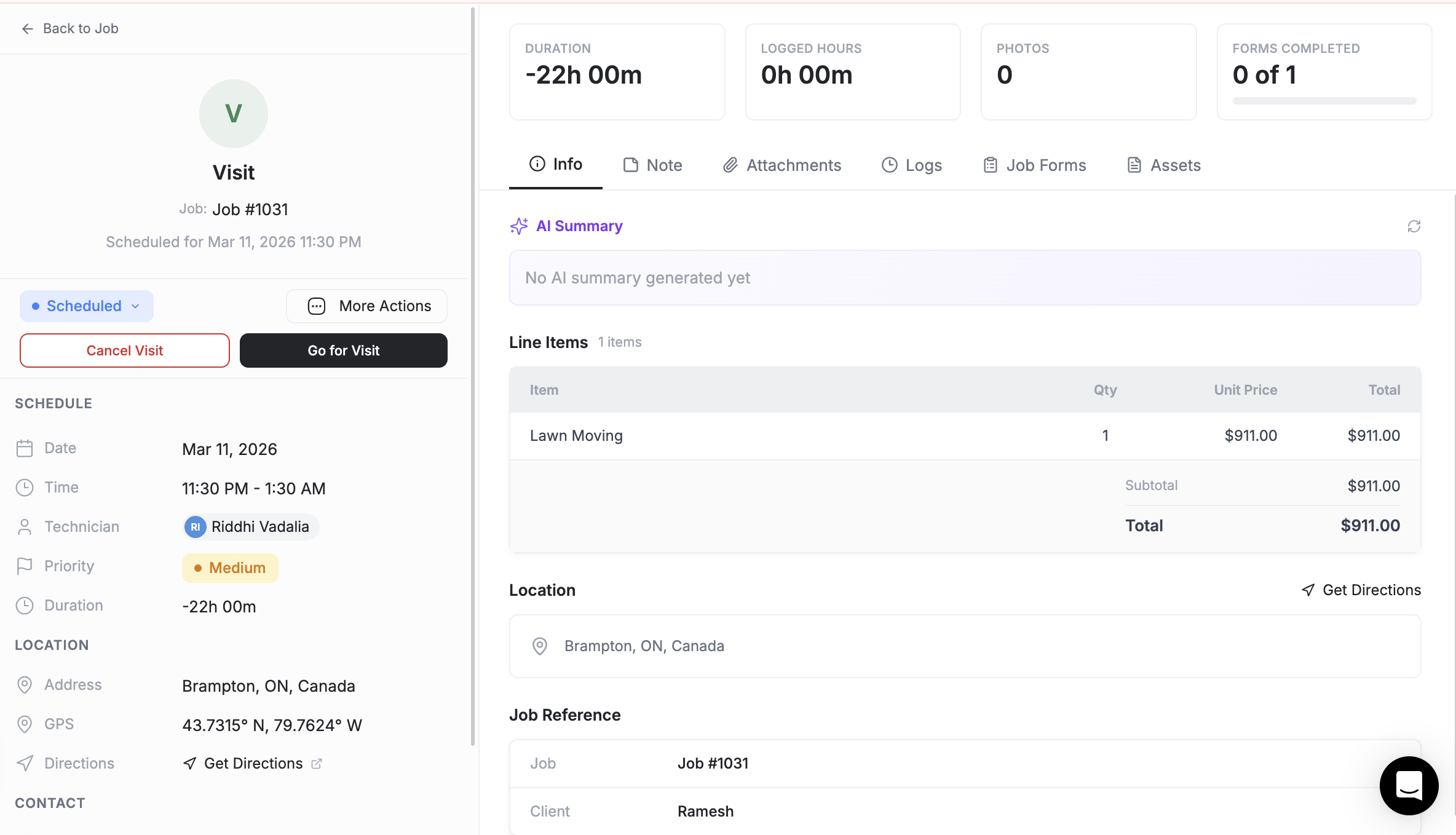
Overview section — Date and time, assigned technician, current status, service address with a link to directions, and the parent job reference.
Logs tab — Per-visit cost tracking including miles driven, expenses, labor hours, and material costs. Each visit has its own cost data separate from the overall job total.
Forms tab — Digital checklists assigned to this visit. Technicians fill these out on-site. Completed forms show check marks; incomplete forms show progress indicators.
Notes section — Instructions carried over from the parent job plus visit-specific notes added by the technician or dispatcher.
Charges panel — Line items and totals for billing this specific visit. See the charges section below for details.
Activity timeline — A log of every status change, reassignment, and edit made to this visit, with timestamps and who made each change.
Visit Charges
Each visit can carry its own charges, separate from the overall job total. Charges are calculated in two ways:
Auto-calculated — FieldCamp adds up labor hours (from the Logs tab) multiplied by the technician's hourly rate (from their team member profile), plus materials and line items. The formula:
- Labor cost = Hours logged x Technician hourly rate
- Materials cost = Sum of line item quantities x unit prices
- Visit total = Labor cost + Materials cost + any additional expenses
Manual override — You can enter a flat amount if the auto-calculation does not apply. This is common for fixed-price visits like "Monthly maintenance — $150 flat fee."
Visit-level charges feed into the job's financial summary and can be pulled directly into an invoice. When you create an invoice from a job, you choose which visits to include.
If a job has multiple visits, the job total is the sum of all visit charges. You can invoice visits individually (one invoice per visit) or together (one invoice for the whole job).
On-Site Actions: What Technicians Do During a Visit
When a technician arrives at the job site, they work through these actions on the mobile app:
- Check in (Arrived) — Tap "Arrived" to update the status. This starts the labor timer and notifies the office.
- Fill job forms — Complete any digital checklists assigned to the visit. Safety inspections, equipment checks, service reports.
- Add photos — Take before/during/after photos directly from the app. Photos attach to the visit record.
- Record voice notes — Describe site conditions, unexpected issues, or instructions for the next visit. Voice recordings are stored on the visit and accessible from the job detail page.
- Log materials — Record any parts or materials used. This updates the visit charges.
- Capture customer signature — See signature capture section below.
- Mark complete — Tap "Complete" to finalize the visit. Charges lock and the visit is ready for invoicing.
Visit List Page
The Visits section in the main navigation shows all visits across every job. Use the tabs to filter:
- Today — What is happening right now. Use this for morning dispatch and route planning.
- This Week — A broader view for capacity planning and workload balancing.
- Upcoming — Everything scheduled in the near future.
- Completed — A historical record for review and reporting.
Toggle the Map View to see visit locations plotted on a map. This helps dispatchers identify clusters, plan efficient routes, and spot gaps in the schedule.
Bulk Operations
When managing a busy schedule, you can act on multiple visits at once:
- Bulk reassign — Select several visits and reassign them all to a different technician. Useful when someone calls in sick and their visits need to be covered.
- Bulk status update — Mark multiple visits as completed or cancelled in one action.
- Bulk reschedule — Move a group of visits to different dates when weather or circumstances change plans.
Access bulk operations from the Visits list page by selecting the checkbox next to each visit, then choosing an action from the toolbar.
How Visits Connect to Everything
Visits are the central scheduling unit that ties FieldCamp together:
| Feature | How Visits Connect |
|---|---|
| Calendar | Each visit is a calendar event. The calendar shows visits by day, week, or month. |
| Job Tray | Unassigned visits appear in the Job Tray for drag-and-drop scheduling. |
| Route Optimization | Visits are the stops on a technician's daily route. Optimization reorders them for shortest drive time. |
| AI Dispatch | AI assigns visits to the best technician based on skills, location, and availability. |
| Invoicing | Completed visit charges flow into invoices. Each visit's labor and materials become invoice line items. |
| Conflict Detection | The system checks for overlapping visits and flags double-bookings before they happen. |
| Recurring Jobs | Recurring patterns auto-create visits on schedule without manual work. |
| Multi-Day Jobs | Each day of a multi-day project is a separate visit linked to one job. |
Signature Capture
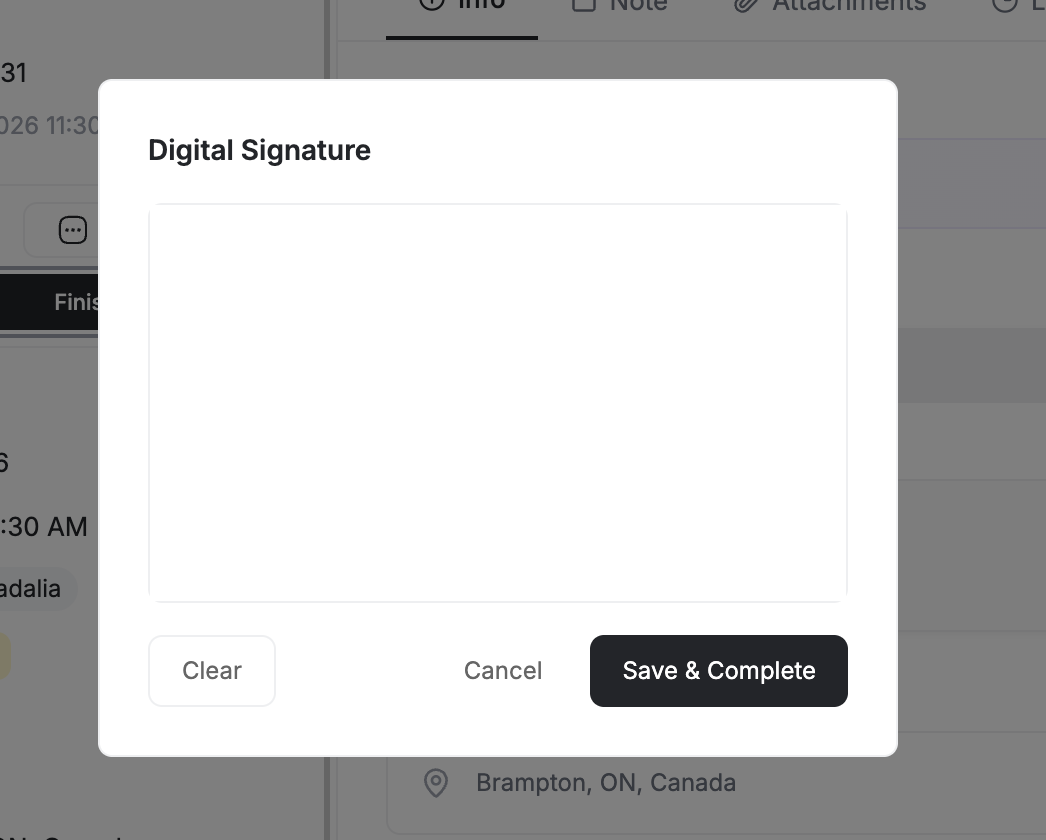
When a visit is complete, technicians can collect a customer signature directly on the mobile app. The signature is attached to the visit record and can appear on the resulting invoice or completion report.
To capture a signature:
- Open the visit on the mobile app
- Tap Collect Signature
- The customer signs on the screen
- The signature saves to the visit automatically
Voice Recording
Technicians can also record voice notes during a visit. This is useful for documenting site conditions, describing unexpected issues, or leaving instructions for the next visit. Voice recordings are stored on the visit record and accessible from the job detail page.
Signatures and voice recordings are stored securely and linked to the visit. They cannot be edited after capture, providing a reliable record for disputes or warranty claims.
Mobile Experience
Technicians interact with visits primarily through the FieldCamp mobile app. On their phone, they see:
- Today's schedule — All visits for the day in chronological order, with addresses, client names, and estimated durations.
- Navigation — Tap an address to open directions in their preferred maps app.
- Status controls — Large buttons to update status (In Transit, Arrived, In Progress, Completed).
- Forms and checklists — Fill out assigned forms with checkboxes, text fields, photos, and signatures.
- Visit history — Review notes and photos from previous visits on the same job, so they know what happened last time.
Visits in Recurring and Multi-Day Jobs
Visits behave slightly differently depending on the job type:
Recurring jobs — Each recurrence generates a new visit automatically. A weekly lawn care job creates 52 visits per year, one for each week. Each visit inherits the job's defaults (technician, line items, instructions) but can be adjusted independently. Cancel one visit for a holiday without affecting the others.
Multi-day jobs — Each day of a multi-day project is a separate visit, but they are linked together. All visits share the same crew and move as a block when rescheduled. On the calendar, multi-day visits appear as connected blocks across consecutive days. Each day's visit can have its own label (e.g., "Day 1 — Prep & Masking") and its own forms.
One-time jobs — The simplest case. One job, one visit. When the visit is completed, the job is done.
No matter how a visit is created — manually, via AI, drag-and-drop, recurring schedule, or multi-day template — it works the same way. Every visit has the same status lifecycle, charge tracking, forms, and mobile experience described above.
Related Articles
Duplicating & Importing Jobs | FieldCamp
Duplicate existing jobs or import jobs in bulk from CSV and Excel files in FieldCamp. Export your job data anytime for reporting, backup, or migration.
AI Job Scheduling | FieldCamp
Use FieldCamp's AI to find the best time slot, match the right technician, and reduce travel costs — schedule field service jobs in seconds instead of minutes.