 FieldCamp
Filter, Sort & Group Clients | FieldCamp
Filter clients by stage, custom fields, and location in FieldCamp. Sort by any column, group by city or property, and save combinations as reusable custom views.
Under the hood — see how Customers work in the FieldCamp data model: the fields they hold, how they connect to your other records, and how to customize them.
FieldCamp gives you powerful tools to organize your client list exactly how you need it. Filter clients by specific criteria, sort them in different ways, and group them together for better visibility.
With the Command Centre: Type "Show me all active clients in New York" or "Find clients added this month" in the Command Centre to instantly pull up the clients you need — no manual filtering required. See AI Skills for more.
How to Access These Tools
- Click Clients in the left sidebar
- Look at the toolbar above your client list
- You will see tabs for Filter, Sort, and Group By options
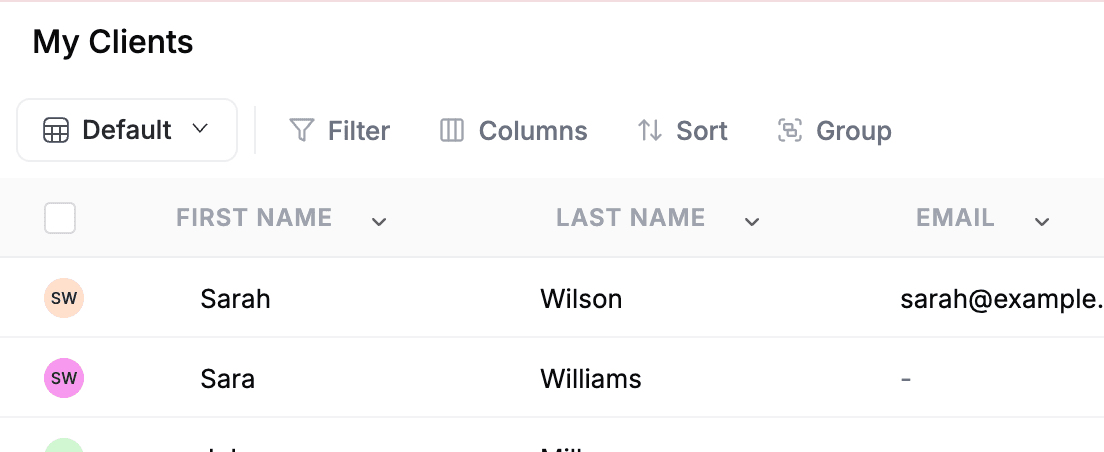
Filtering Your Clients
Filters help you find exactly the clients you are looking for. You can filter by many different fields and combine multiple filters to narrow down your list.
Available Filter Fields
You can filter by any of these client information fields:
- First Name, Last Name, Email, Phone
- Stage (pipeline stage)
- Address, Billing Address, Business Address
- Company Name, Client Type
- Tax Number, Website
- Created Date, Updated Date
- Any custom fields you have created
Filter Operators by Field Type
The operators available depend on the field type:
| Field Type | Available Operators |
|---|---|
| Text fields (Name, Email, Company, etc.) | Contains, Does not contain, Is, Is not, Starts with, Ends with, Is empty, Is not empty |
| Date fields (Created Date, Updated Date) | Equal to, Less than, Greater than, Date range |
| Stage / Client Type (Single-select) | Is, Is not |
| Multi-select (Custom properties) | Contains, Does not contain |
Combining Filters
When you add multiple filters, choose whether they work with AND or OR logic:
- AND — Clients must match ALL filters (more restrictive). Example: "Stage is Active Client AND City is New York" shows only active New York clients.
- OR — Clients can match ANY filter (less restrictive). Example: "City is New York OR City is London" shows clients in either city.
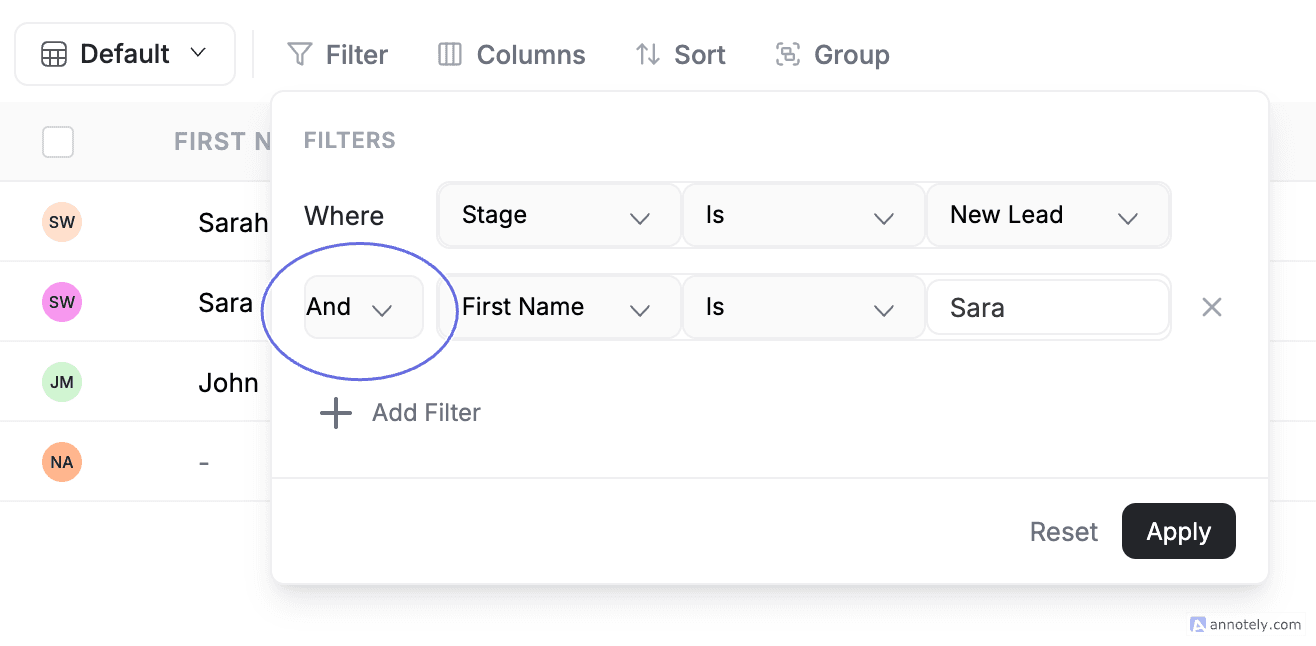
Tip: Use AND when you need very specific results. Use OR when you want broader results.
Sorting Your Clients
Sorting arranges your client list in a specific order. You can sort by one field or combine multiple sorts.
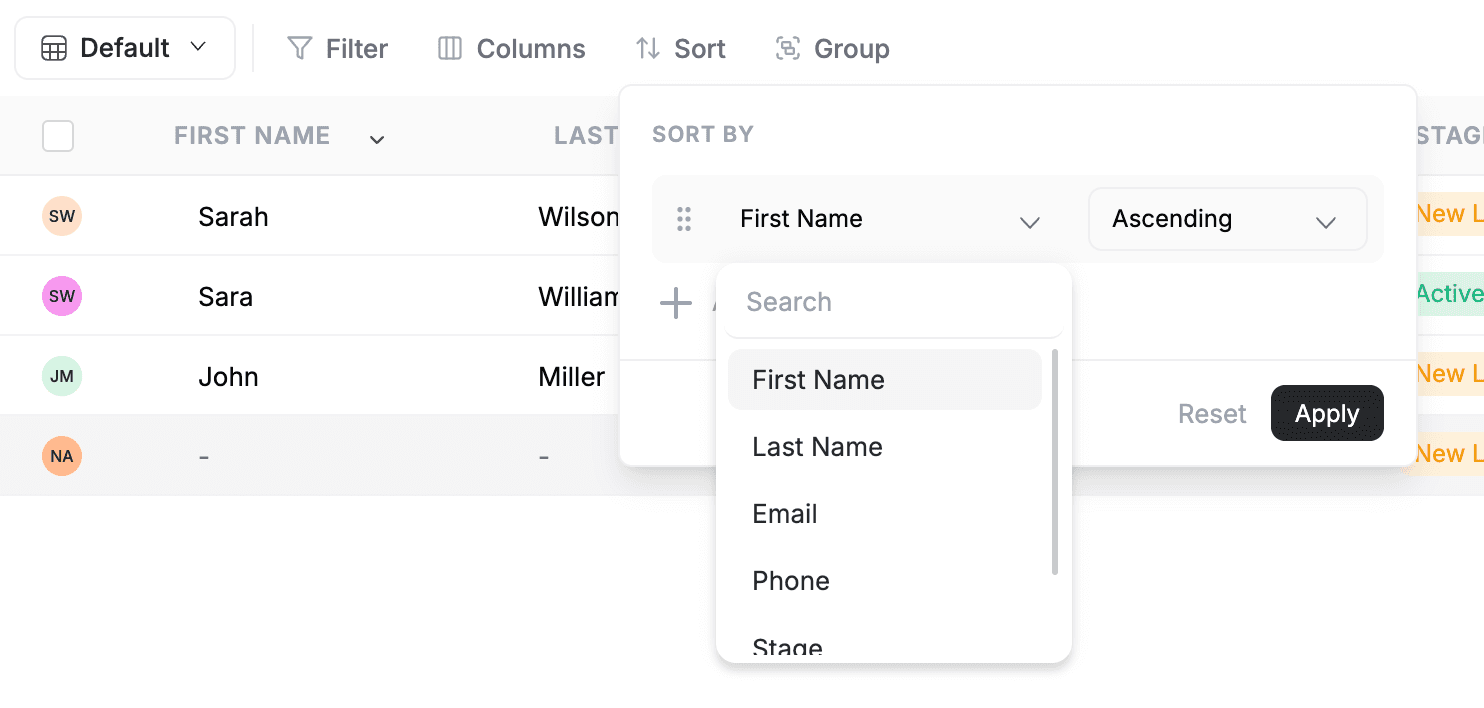
Sortable Fields
You can sort by: First Name, Last Name, Email, Stage, Phone, Address, Billing Address, Business Address, Company Name, Client Type, Tax Number, Website, and any custom fields.
Sort Directions
- Ascending — A to Z, smallest to largest, oldest to newest
- Descending — Z to A, largest to smallest, newest to oldest
Multi-Column Sorting
You can add multiple sort levels. For example: sort by Stage first, then by Last Name within each stage. Drag-and-drop to reorder which sort happens first.
Grouping Your Clients
Grouping organizes your client list into collapsible sections based on a field you choose.
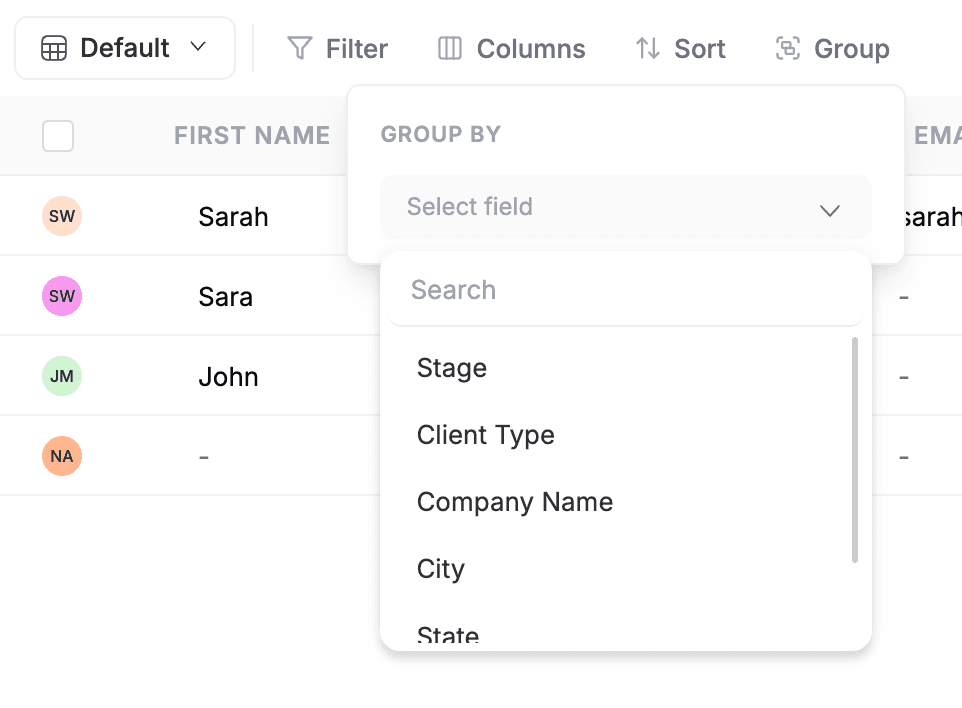
Group-By Options
| Group-By Field | What It Does |
|---|---|
| City | Organizes clients by their city |
| State | Organizes clients by their state/province |
| Country | Organizes clients by their country |
| Custom Select properties | Groups by any custom dropdown/select field |
| Custom Multi-Select properties | Groups by any custom multi-select field |
When grouping is active, clients are organized into collapsible sections. Click the group header to expand or collapse. The count shows how many clients are in each group. Filters and sorts still work within the grouped view.
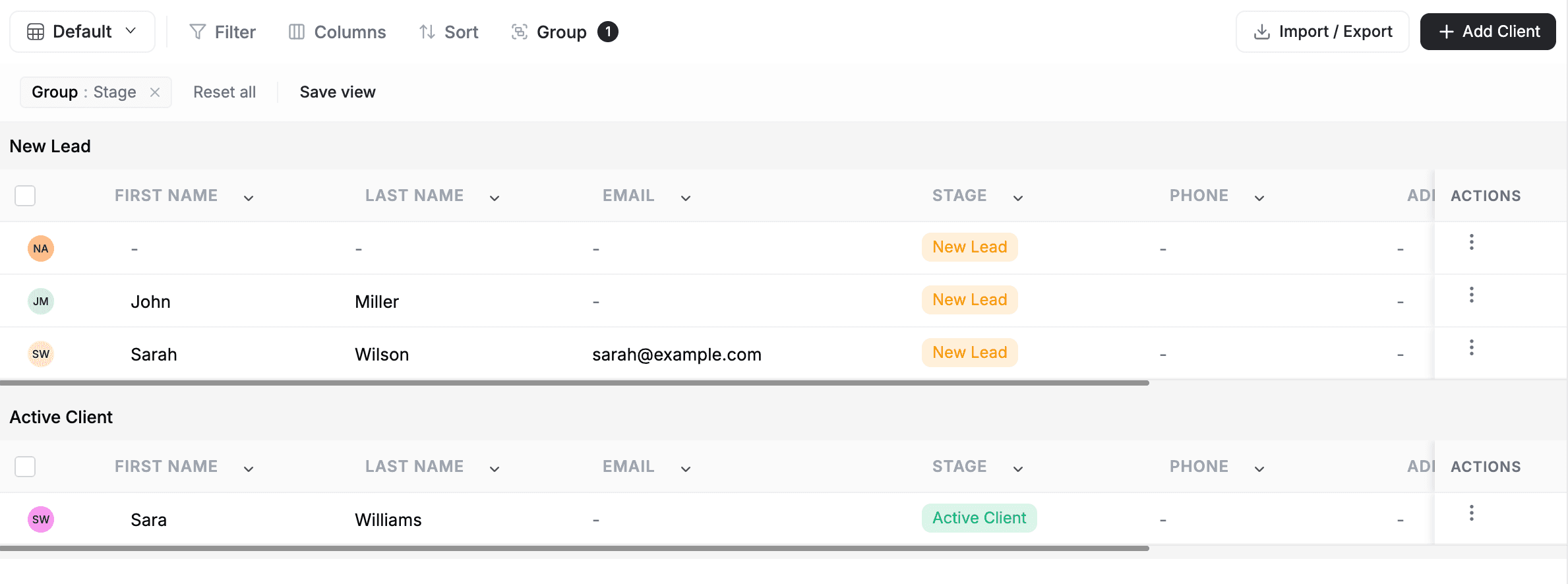
Combining Filters, Sorts & Grouping
All three tools work together. For example, you might:
- Filter to show only clients in the "Active Client" stage
- Sort by Last Name (A-Z)
- Group by City
Your client list will be organized by city, with clients in each city sorted alphabetically, showing only active clients.
Saving as a Custom View
Once you have set up filters, sorts, and grouping the way you like, save this as a custom view so you do not have to set it up again.

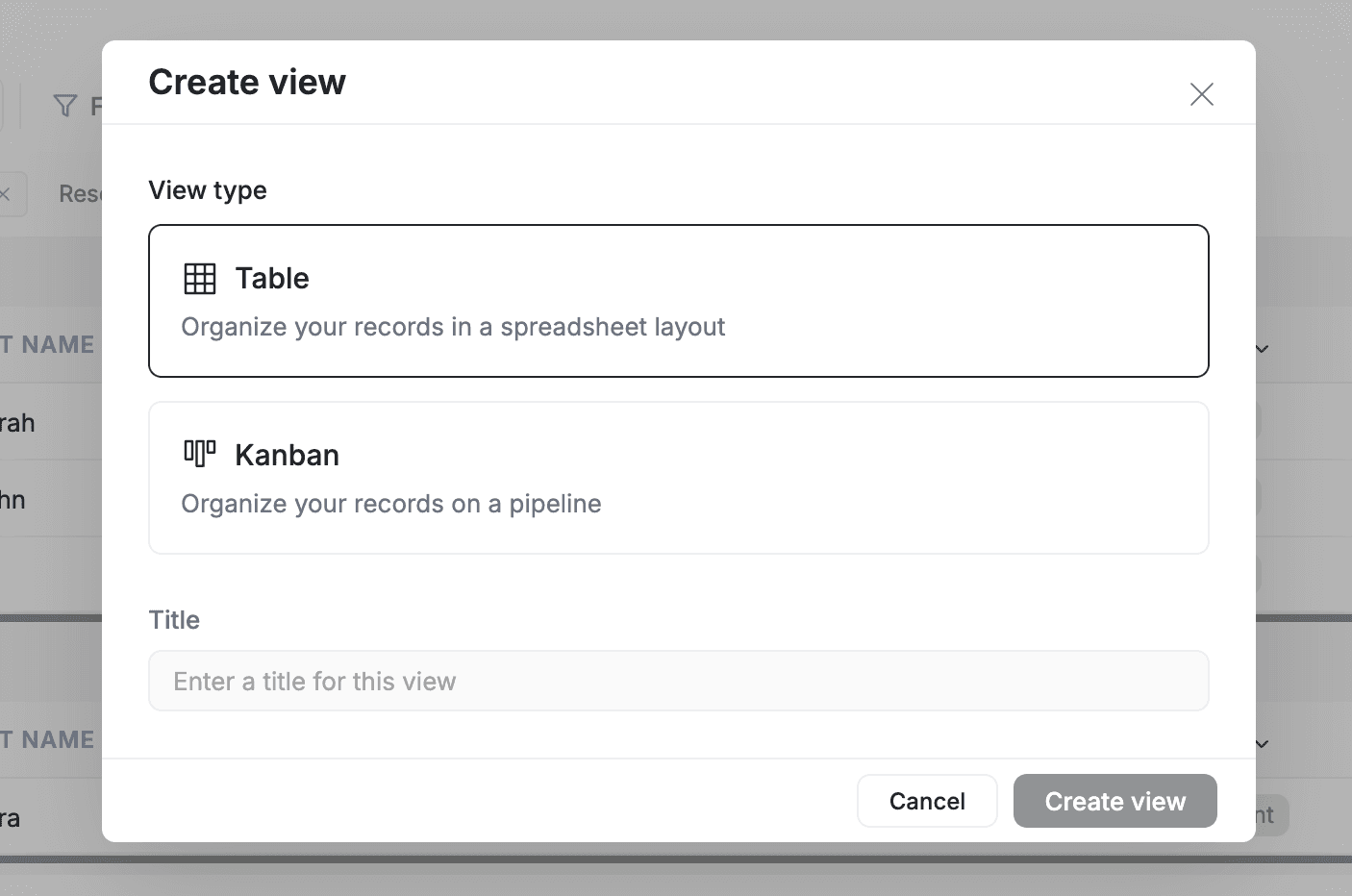
After clicking Save View, a dialog lets you name your view and choose between Table and Kanban layouts. Your saved view appears in the view dropdown for quick access anytime.
FAQs
Can I filter clients by custom properties I have created?
Yes. Any custom property you have added to clients — including text fields, dropdowns, multi-selects, and date fields — appears in the filter field list. The available operators depend on the field type.
What is the difference between AND and OR when combining filters?
AND means a client must match every filter to appear in results — it narrows your list. OR means a client only needs to match one of the filters — it broadens your list.
Can I save a filter so I do not have to set it up every time?
Yes. Once you have configured your filters, sorts, and grouping, click Save View to create a custom view. The view appears in your view dropdown for quick access.
Why can I not group by First Name or Email?
Grouping only works with fields that have a limited set of values — like City, State, Country, and custom Select or Multi-Select properties. Text fields like First Name or Email have too many unique values to create meaningful groups.
Related Articles
- Client Views — Save your favorite filter, sort, and grouping combinations
- Categories & Stages — Understand Leads, Pipeline, and Clients categories
- Custom Fields — Create custom fields to filter and group by
- Export Client Data — Export filtered client lists to CSV or Excel
- Import Clients — Add clients in bulk from spreadsheets
Sales Pipeline Kanban Board for Field Service Leads in FieldCamp
Use the sales pipeline Kanban board in FieldCamp to track field service leads, drag deals between stages, and convert opportunities into jobs.
Import Clients (CSV & Excel) | FieldCamp
Import clients into FieldCamp from CSV or Excel files. Map spreadsheet columns to client fields automatically, track import progress, and bring custom fields along.