 FieldCamp
Create Custom Objects | FieldCamp
Create your own data types in FieldCamp to track equipment, properties, vehicles, or anything unique to your business with custom fields and pipelines.
Under the hood — see how Custom Objects & Fields work in the FieldCamp data model: the fields they hold, how they connect to your other records, and how to customize them.
Custom Objects let you create your own data types in FieldCamp. If you need to track something beyond clients, jobs, and requests — like equipment, properties, vehicles, or contracts — you can build a custom object for it with its own fields, pipeline stages, and relationships.
Example: A pool service company could create a "Pool" object linked to clients, tracking pool type, size, chemical readings, and equipment installed. An HVAC company might create an "Equipment" object to track units, warranty dates, and service history.
You can ask the Command Centre about your custom objects — for example, "Show me all properties in downtown" or "List equipment due for service." See AI Skills for more commands.
Getting Started
Accessing Custom Objects
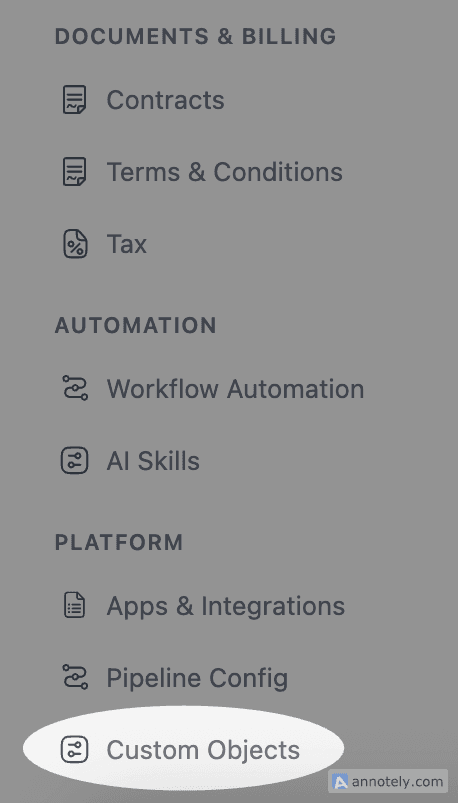
Go to Settings > Custom Objects. This page lists all custom objects in your organization. Only admins and superadmins can create and manage custom object types.
Creating a Custom Object
- Click New Object
- Enter a singular name and plural name (e.g., "Asset" / "Assets")
- Choose an icon from the available options (box, building, briefcase, wrench, truck, home, map-pin, tag, layers, shield, and more)
- Select a color (10 options including emerald, amber, red, purple, pink, cyan, orange, indigo, and teal)
- Optionally set a parent object if this object should be a child of another object
- Optionally add relationships to link this object to system objects (Clients, Jobs, Invoices, Quotes, Visits, Team Members) or other custom objects
- Toggle Show in Sidebar to make it visible in the left navigation
- Toggle Enable Pipeline if you want status stages for this object
- Click Create Object
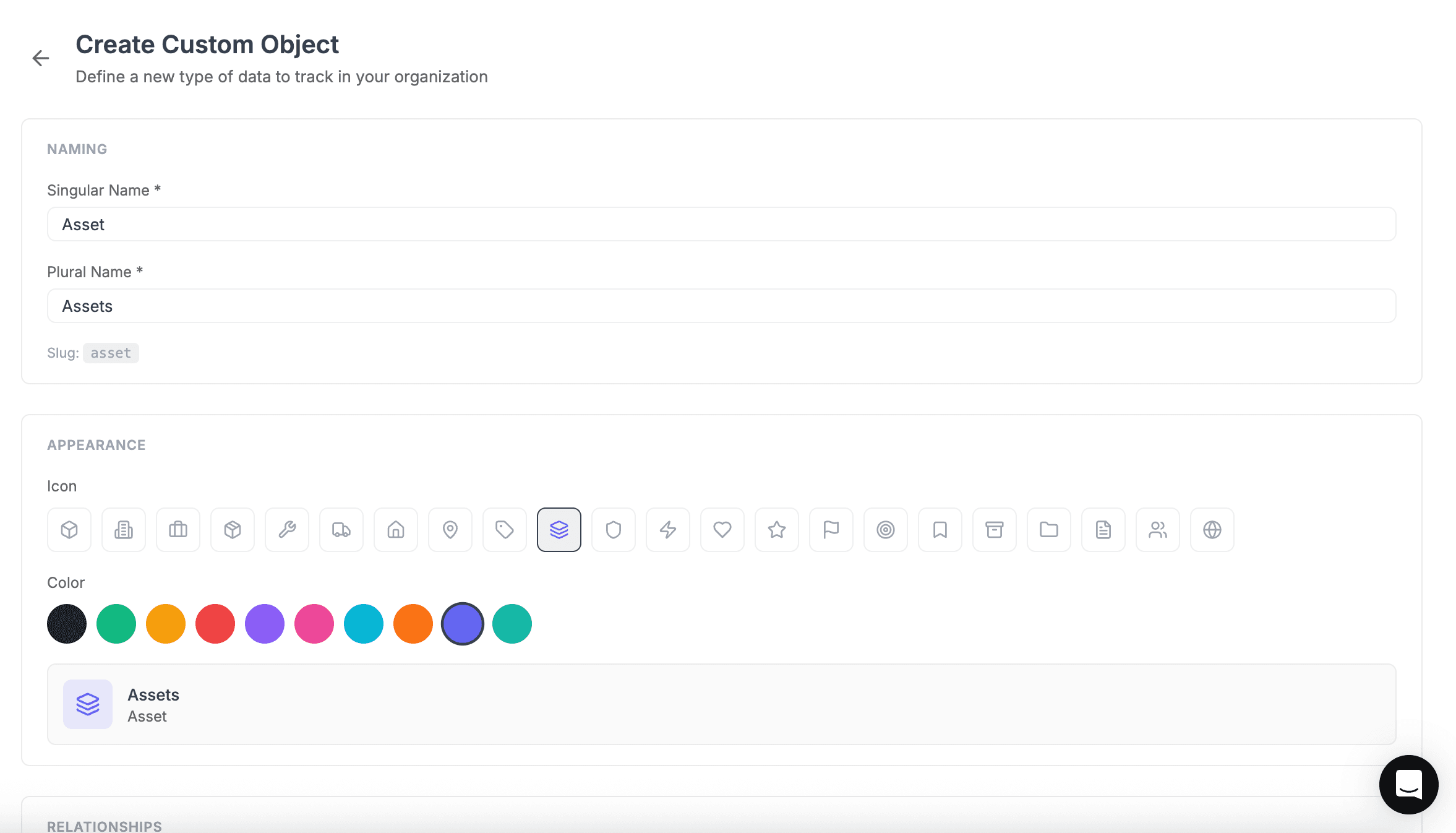
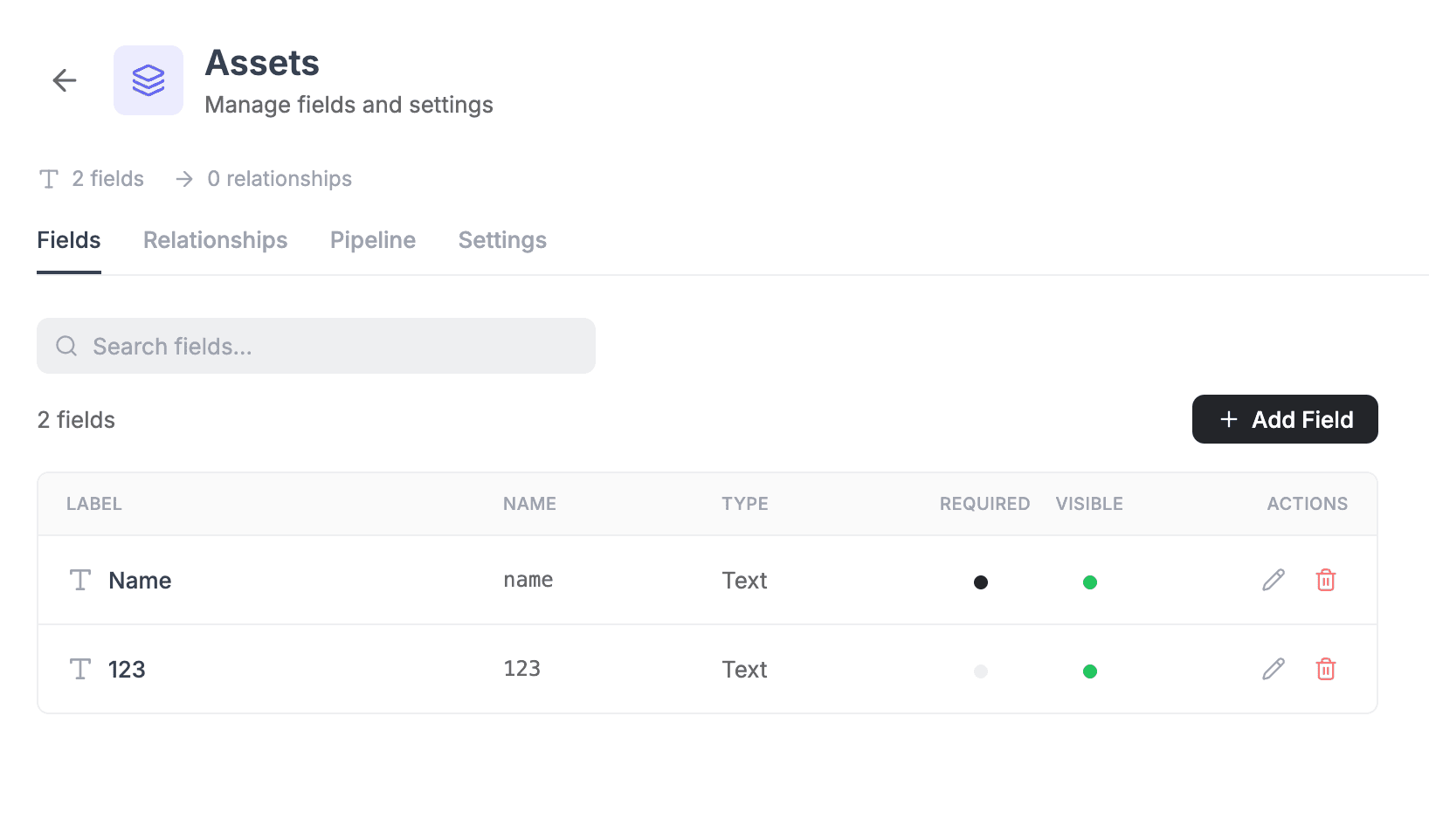
FieldCamp automatically adds a default "name" field and, if pipeline is enabled, creates default "Active" and "Inactive" stages.
Fields & Relationships
Adding Fields
Each custom object can have as many fields as you need. Click Add Field to open the field configuration modal.
| Field Type | Description |
|---|---|
| Text | Single-line text (names, titles, codes) |
| Textarea | Multi-line text (descriptions, notes) |
| Number | Numeric values (quantity, size) |
| Currency | Formatted monetary amounts (price, budget) |
| Date | Calendar date |
| Boolean | Yes/No toggle |
| Select | Single option from a dropdown list |
| Email address with validation | |
| Phone | Phone number |
| URL | Web address |
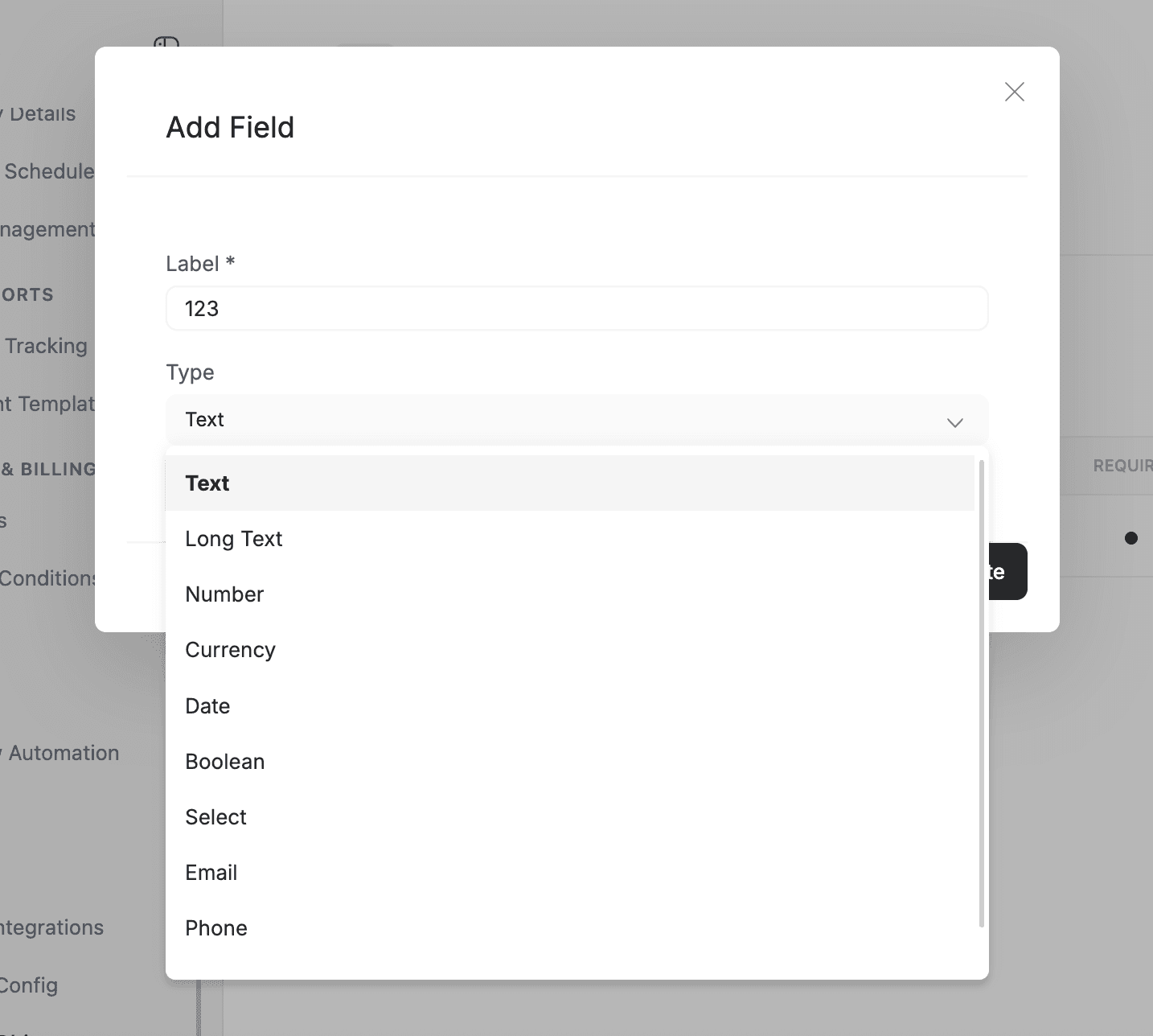
For each field, you can configure whether it is required, visible in forms, and read-only. Fields are displayed in position order, which you can adjust.
Note: Relation fields are not added manually. They are created automatically when you set up relationships during object type creation (see Relationships below).
Relationships
Custom objects can be linked to other objects — both system objects (Clients, Jobs, Invoices, Visits, Quotes, Team Members) and other custom objects. Three relationship types are available:
| Type | Description | Example |
|---|---|---|
| One-to-Many | One parent record links to many child records | One client has many assets |
| Many-to-One | Many records link to one parent | Many tasks belong to one job |
| Many-to-Many | Records on both sides can link to many | Team members work on many projects, and each project has many team members |
When you create a relationship, FieldCamp automatically adds relation fields to both objects. In forms, these appear as searchable dropdowns.
Parent-Child Objects
Setting a parent object during creation makes this a child object. Child objects appear nested under the parent in the sidebar, and their records are automatically filtered by parent.
Sub-Records Tab
When a custom object has child relationships, a sub-records tab appears on parent record detail pages (including client detail pages). This tab shows linked child records in a table and includes an inline Add button so you can create child records directly from the parent view.
Managing Records
Pipeline Stages
If you enabled a pipeline, each record has a status field. Click the stage dropdown and select a new stage from the available transitions. Pipeline stages can be fully customized in Settings > Pipeline Config — similar to client stages.
Records
- Viewing: Click the custom object in the sidebar to see all records in a paginated table (25 per page by default, configurable to 50 or 100). Use the search bar to filter by any field value.
- Creating: Click the "Add [Object Name]" button, fill in the required fields, and click Create. Relation fields appear as searchable dropdowns.
- Editing: Click the pencil icon on a record row to open the edit modal. Make your changes and click Update.
- Deleting: Click the trash icon and confirm. Records are soft-deleted (hidden but preserved for audit purposes). Only admins can delete records.
Limitations
| Limitation | Details |
|---|---|
| No bulk import or export | Records must be created, edited, and deleted individually |
| Field types cannot be changed | Once a field is created, its type is locked |
| Object names are permanent | Singular and plural names cannot be renamed after creation |
| No bulk edit or delete | Records must be managed one at a time |
| Relation dropdown limit | Relation field dropdowns show a maximum of 100 records |
FAQs
What field types are available for custom objects?
FieldCamp custom objects support ten field types: Text, Textarea, Number, Currency, Date, Boolean, Select, Email, Phone, and URL. For each field, you can set whether it is required, visible in forms, or read-only.
Can I link a custom object to clients or jobs?
Yes. Custom objects support three relationship types — one-to-many, many-to-one, and many-to-many. You can link them to system objects like Clients, Jobs, Visits, Invoices, Quotes, and Team Members, or to other custom objects.
Who can create custom objects?
Only users with the Admin, SuperAdmin, or Account Owner role can create and manage custom object types in Settings > Custom Objects. All authenticated users can create, view, and edit records within custom objects, but only admins can delete records.
Can I import or export custom object records?
No. Custom object records do not currently support bulk import or export. Records must be created, edited, and deleted individually through the FieldCamp interface.
Related Articles
- Custom Client Fields — Add custom fields to client records
- Client Detail Page — Custom object tabs appear on client detail pages
- Categories & Stages — Pipeline stages work similarly for custom objects
- CRM Overview — How clients connect to everything in FieldCamp
- Job Management — Link custom objects to jobs
Create Custom Client Fields | FieldCamp
Create custom client fields in FieldCamp to track business-specific information like industry, referral source, budget, and service preferences with eight field types.
Custom Objects, Fields, and Pipelines | FieldCamp
Design custom objects, fields, and pipelines in FieldCamp with validation rules, stage transitions, and saved custom views across every record type.