 FieldCamp
Command Centre — AI Chat | FieldCamp
Manage your field service business with AI chat. Create jobs, dispatch technicians, check invoices, and get reports using natural language in FieldCamp.
Under the hood — the FieldCamp data model shows how every record connects, how you can customize it, and how it maps to your trade.
What Is the Command Centre?
The Command Centre is FieldCamp's built-in AI assistant. Instead of clicking through menus and filling out forms, you type what you need in plain language and the AI handles it — create jobs, dispatch technicians, send invoices, pull reports, manage your schedule, all from one chat window.
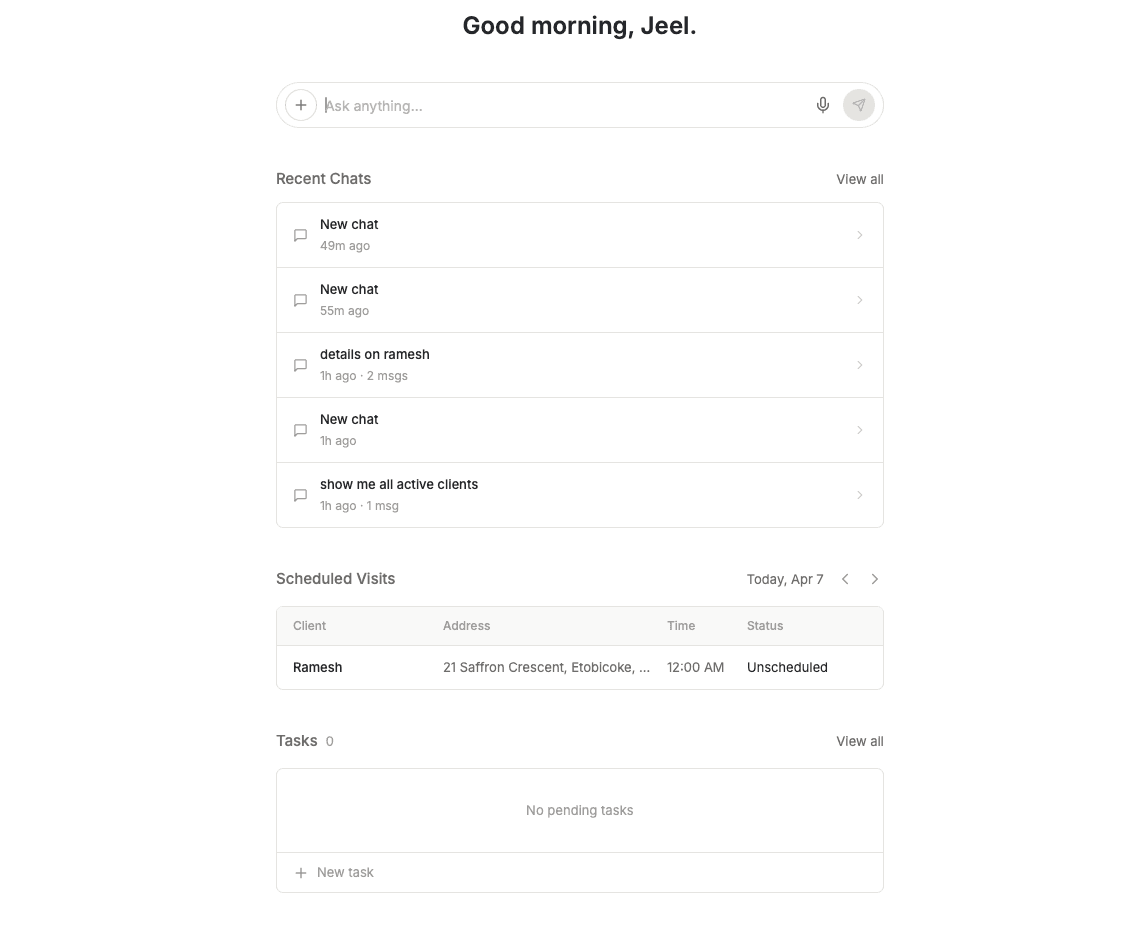
The home screen shows your recent chats, upcoming scheduled visits, and pending tasks. The chat input at the bottom lets you type commands or ask questions in plain language.
How to Open the Command Centre
- Click Home in the sidebar — the Command Centre is your default landing page
- Or press Cmd+/ (Mac) / Ctrl+/ (Windows) from any screen
Home is available to authenticated users when chat is enabled for the workspace. Your role and permissions still control which records and actions the Command Centre can access.
Cmd+K (Mac) or Ctrl+K (Windows) opens Global Search, not the Command Centre. Global Search is available to Account Owners, Admins, Super Admins, and Dispatchers.
What You Can Do
Type what you need — the AI understands everyday language:
- "Create a new client named Sarah Wilson" — adds a client record
- "Schedule an HVAC repair for Smith Residence tomorrow at 2pm" — creates and schedules a job
- "Who is available this afternoon?" — checks team availability
- "Show me this week's revenue" — pulls a revenue report
- "What jobs are overdue?" — shows jobs past their due date
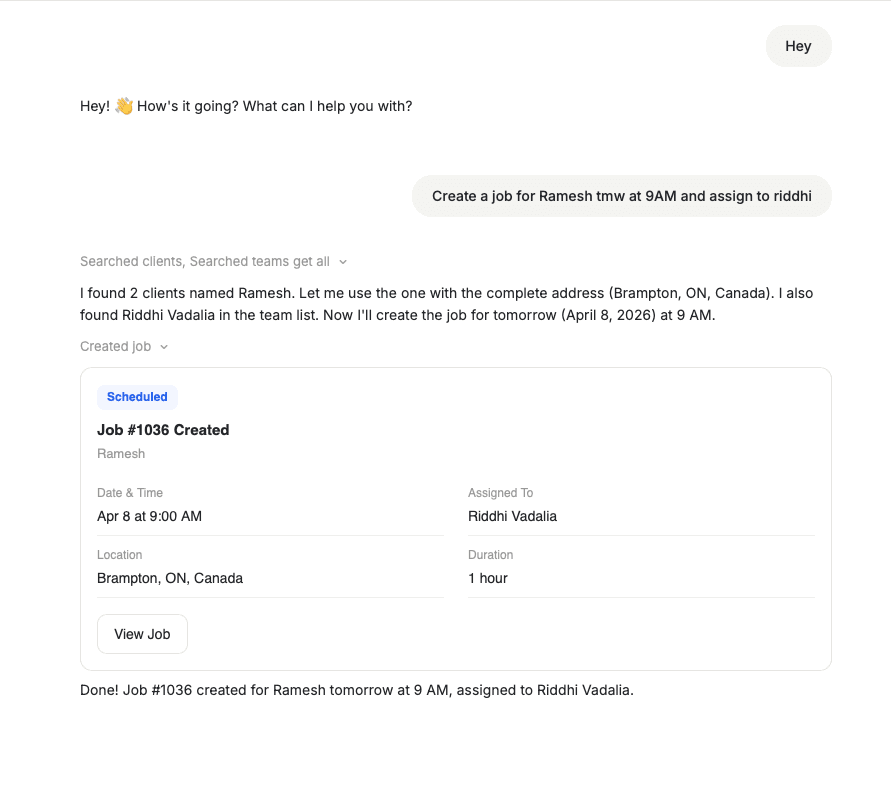
The AI responds with rich cards — job details, stat summaries, and action buttons — so you can take action right from the chat.
Slash Commands
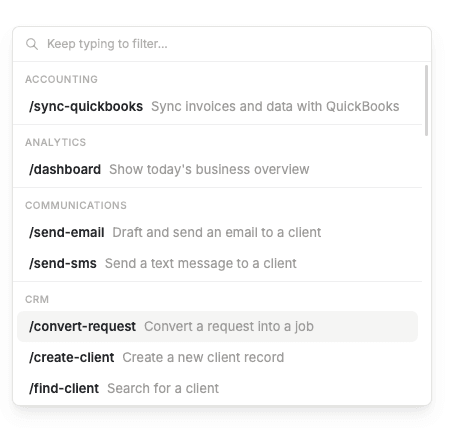
Type / in the chat to see all available commands. These are shortcuts for common tasks:
| Command | What It Does |
|---|---|
/today | Shows today's schedule, visits, and priorities |
/arrive | Checks you in at a job site |
/complete | Marks the current visit as done |
/eod | End-of-day summary with hours worked and tomorrow's preview |
/newjob | Creates a job with guided step-by-step prompts |
/dispatch | Finds and assigns the best available technician |
/overdue | Shows overdue invoices with follow-up actions |
/dashboard | Business KPI dashboard with jobs, revenue, and team performance |
/skill-creator | Builds custom AI skills interactively |
You don't need to memorize these. Natural language works just as well — typing "Show me today's schedule" does the same thing as /today.
Type / to browse all commands, including custom skills you've created. Built-in commands show a green badge; custom skills show a purple badge.
Natural Language — Just Type What You Need

No special syntax needed. The Command Centre understands how you naturally talk about your business:
- "Show me today's schedule" → same as
/today - "Create a plumbing job for Smith Residence tomorrow at 2pm" → same as
/newjob - "Find the best tech for the Henderson job" → same as
/dispatch - "Which invoices are overdue?" → same as
/overdue
Be specific for better results. "Show me unpaid invoices from this month" gives more useful results than "Show invoices."
AI Dispatch Suggestions
Ask the Command Centre to find the best technician for a job. It considers skills, location, workload, and availability — then gives you options:
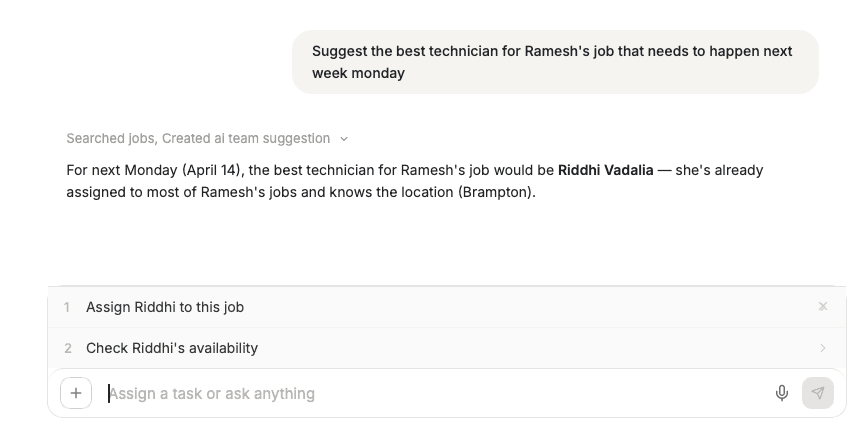
You can accept the suggestion directly from the chat or check the technician's availability first.
Business Dashboard
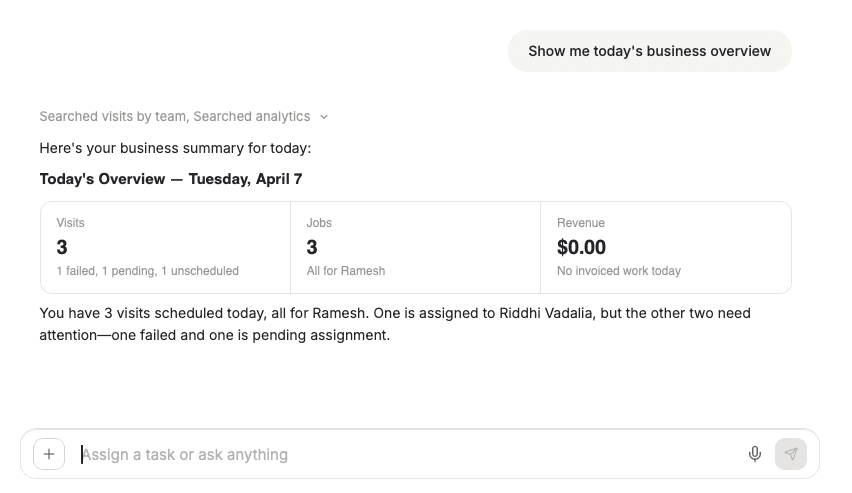
Ask "Show me today's business overview" to get a snapshot of your day — visits, jobs, revenue, and what needs attention:
The chat toolbar
The chat header carries the controls you reach for most, plus a … menu for the rest:
| Control | What it opens |
|---|---|
| Recipes | The Recipes list, where guided flows are built and published as slash commands. See Recipes — guided flows in chat |
| Custom context | A box for teaching the AI a fact without leaving the chat — it is saved as a memory |
| Memories | Everything the AI has been told to remember about your business |
| View my usage | Your AI usage and credit balance. See AI usage |
Memory
The Command Centre remembers context within your conversation. If you're discussing a client, you can follow up with "schedule a job for them" without repeating the client name. Start a new chat session for a fresh context.
Longer-lived facts are stored as memories. Add one from the Custom context entry in the … menu, and review or remove them from Memories.
Custom AI Skills
Create your own slash commands for tasks you repeat often. Type /skill-creator or describe what you want: "Create a skill that generates a weekly job completion report." The AI builds it for you.
For a full guide to all commands and custom skills, see AI Skills — Chat Commands.
Chat History
The Command Centre saves your conversation history. Your recent chats appear on the home screen. Each session is preserved separately so you can pick up where you left off.
Tips
- Be specific — "Show me unpaid invoices from this month" beats "Show invoices"
- Use slash commands for common actions — faster than typing full sentences
- Create custom skills for tasks you repeat often
- Start new chats for unrelated topics — keeps context clean
Related articles
Navigating FieldCamp — Interface Guide
Learn how to navigate FieldCamp's sidebar, workspace sections, page layout, keyboard shortcuts, and conditional menu items based on your role and plan.
AI Skills — Chat Commands | FieldCamp
Master FieldCamp's 9 built-in slash commands and custom AI skills. Schedule jobs, dispatch technicians, track invoices, and generate reports from AI chat.