 FieldCamp
FieldCamp Roles & Permissions: Who Can See What
Control access in FieldCamp with 4 roles: Admin, Dispatcher, Field Tech Pro, Field Tech Lite. See what each role can view, create, edit, and delete.
Under the hood — the FieldCamp data model shows how every record connects, how you can customize it, and how it maps to your trade.
How Roles Work in FieldCamp
Every team member in FieldCamp is assigned a role. The role determines what that person can see, create, edit, and delete across every module in the platform. Roles are assigned when you add a team member.
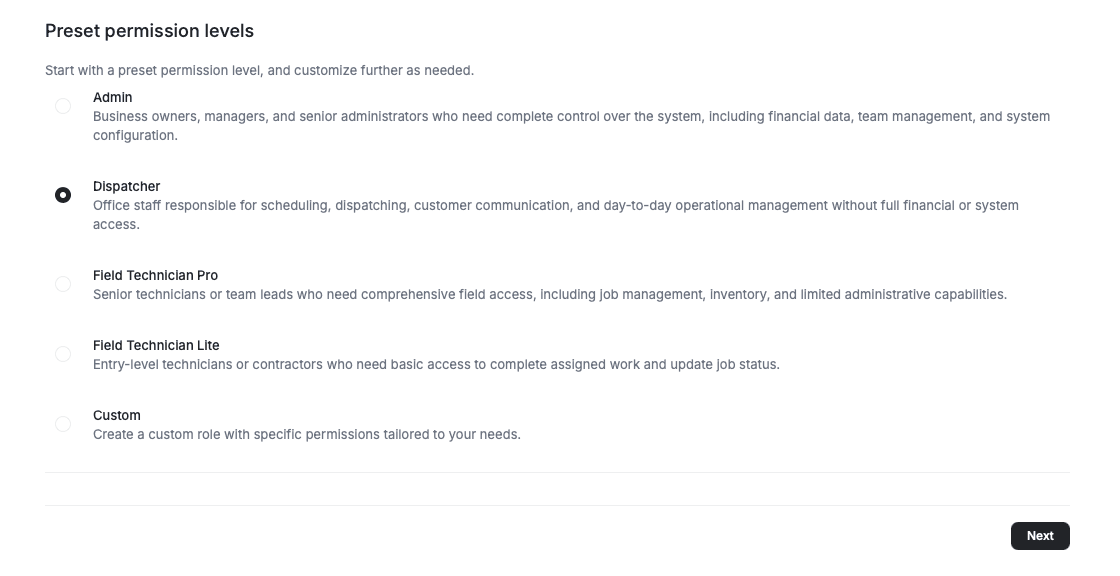
FieldCamp includes four built-in roles. You can also create custom roles if the defaults don't fit your team structure (custom roles require the Growth plan or higher).
The Four Built-In Roles
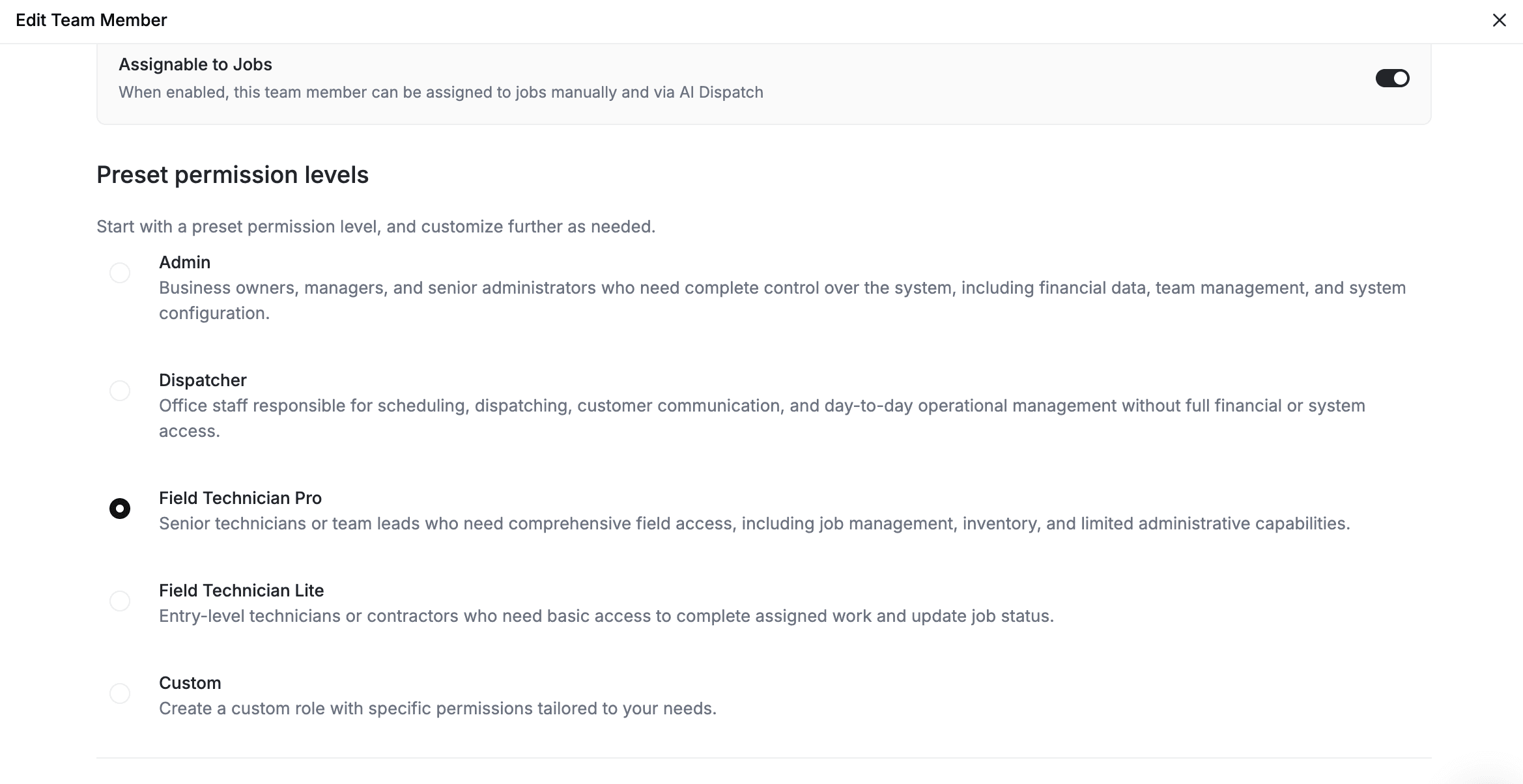
| Role | Access Level | Best For | Key Limitation |
|---|---|---|---|
| Admin | Full access to everything | Business owners, operations managers | None — unrestricted |
| Dispatcher | Broad operational access | Office staff, scheduling managers | Cannot delete most records or manage integrations |
| Field Technician Pro | Mid-level field access | Senior technicians, team leads | No analytics, settings, or inbox management |
| Field Technician Lite | Basic assigned-work access | Entry-level techs, subcontractors | Calendar and Visits only |
Tip: The sidebar automatically adjusts based on the team member's role. If a module shows "no access", it won't appear in their sidebar at all. See Navigating FieldCamp for more on the sidebar.
Module-by-Module Permissions
Each role has a specific permission level for every module in FieldCamp. Permission levels range from no access to full access, with several levels in between.
Clients
-
No access — Cannot see any client records
-
View own — See only clients you created
-
View assigned — See clients assigned to you, with details
-
Create & edit assigned — Add new clients and edit those assigned to you
-
Full management — Manage all clients except delete
-
Full access — Complete control including delete and property management
Jobs
-
No access — Cannot see any jobs
-
View own — See only jobs you created
-
View unassigned — See jobs not yet assigned to anyone
-
View assigned & create — See assigned jobs, create and edit your own
-
Full management — Manage all jobs except delete, assign to team members
-
Full access — Complete control including delete
Requests
-
No access — Cannot see any requests
-
View assigned — See requests assigned to you, change stage
-
View all — See all requests (read-only)
-
Create & edit — Create requests for assigned clients, convert to job or estimate
-
Full management — Manage all requests except delete, assign to team
-
Full access — Complete control including delete
Estimates & Invoices (Grow)
-
No access — Cannot see estimates or invoices
-
View own — See only your own estimates and invoices
-
View all — See all estimates and invoices (read-only)
-
Create & edit own — Create estimates/invoices, generate invoices from jobs
-
Full management — Manage all estimates and invoices except delete
-
Full access — Complete control including delete and accounting sync
Calendar
-
No access — Cannot see the calendar
-
View own events — See your own events in Calendar and Map view
-
View own + create — See your events in Timeline view, create new events
-
View all events — See all team events, Timeline, Map, and Resource view
-
Full access — All views plus team tracking, location tracking, and route optimization
Products & Services
-
No access — Cannot see products
-
View only — See products, services, and categories (read-only)
-
View + export — View all products with export capability
-
Full management — Manage products and categories except delete
-
Full access — Complete control including delete
Inventory
-
No access — Cannot see inventory
-
View only — See inventory levels (read-only)
-
View all — See inventory and purchase orders
-
Manage & transfer — Transfer inventory between locations, manage pricing
-
Full management — Full inventory management except delete
-
Full access — Complete control including vendors and warehouses
Inbox
-
No access — Cannot see the inbox
-
View only — Read messages and view tasks assigned to you
-
View & send — Read and send messages, view assigned tasks
-
Full management — View all messages, create tasks, manage calls, assign to team
-
Full access — Complete control including delete
Visits
-
No access — Cannot see visits
-
View own — See only visits assigned to you
-
View all — See all visits, full access except delete
-
Full access — Complete control including delete
Analytics
-
No access — Cannot see analytics
-
Full access — Dashboard, performance reports, custom reports, and export
Settings
-
No access — Cannot see settings
-
View general — See general settings only
-
General + company — Access general and company settings
-
Manage settings — Configure settings, terms and conditions, and system preferences
-
Full management — All settings except integrations and add-ons, cannot delete workflows
-
Full access — Complete settings control. See Settings Overview for every setting explained.
Default Permissions by Role
Here is a quick reference showing what each built-in role can access by default:
| Module | Admin | Dispatcher | Tech Pro | Tech Lite |
|---|---|---|---|---|
| Clients | Full access | Full management | View assigned | No access |
| Jobs | Full access | Full management | View assigned & create | No access |
| Requests | Full access | Full management | View assigned | No access |
| Estimates & Invoices | Full access | Full management | View own | No access |
| Calendar | Full access | Full access | View own events | View own events |
| Products | Full access | Full management | View only | No access |
| Inventory | Full access | Full management | View only | No access |
| Inbox | Full access | Full management | View only | No access |
| Visits | Full access | View all | View own | View own |
| Analytics | Full access | Full access | No access | No access |
| Settings | Full access | Full management | No access | No access |
| Teams | Full access | Full management | No access | No access |
How to Assign a Role
-
Go to Settings → Team Management.
-
Click on the team member you want to update.
-
In the Preset permission levels, select the appropriate role.
-
Click Save Changes.
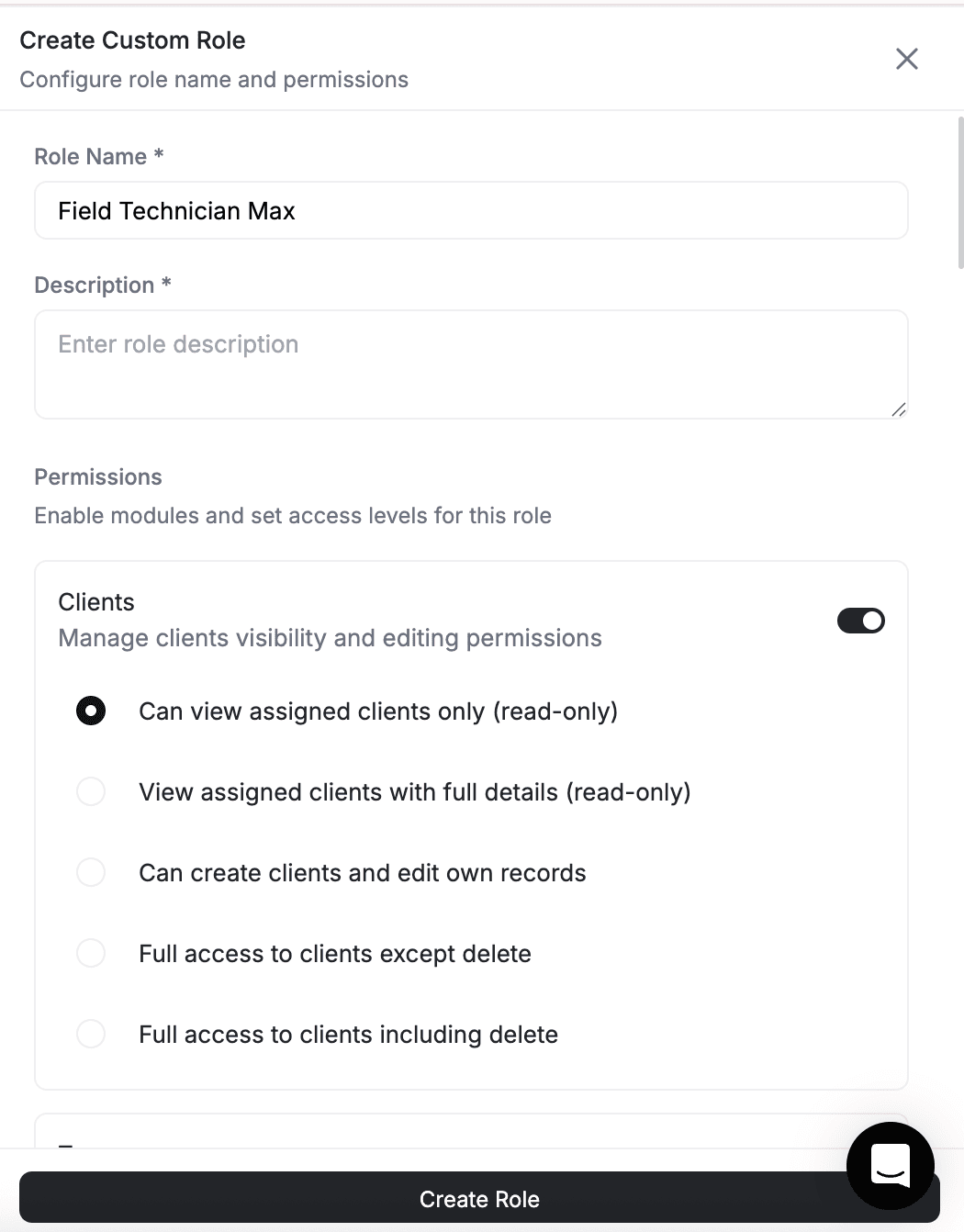
The team member's access updates immediately. They will only see sidebar items and pages that their role allows.
Creating a Custom Role
Growth plan required: Custom roles are available on the Growth plan or higher. Workspaces below Growth use the four built-in roles.
If the four built-in roles don't match your needs, you can create a custom role with specific permissions for each module.
-
Go to Settings → Team Management.
-
Click Manage Roles (or the roles icon at the top).
-
Click + Create Role.
-
Name your role (for example, "Office Manager" or "Senior Tech").
-
For each module, choose the permission level that fits.
-
Click Save.
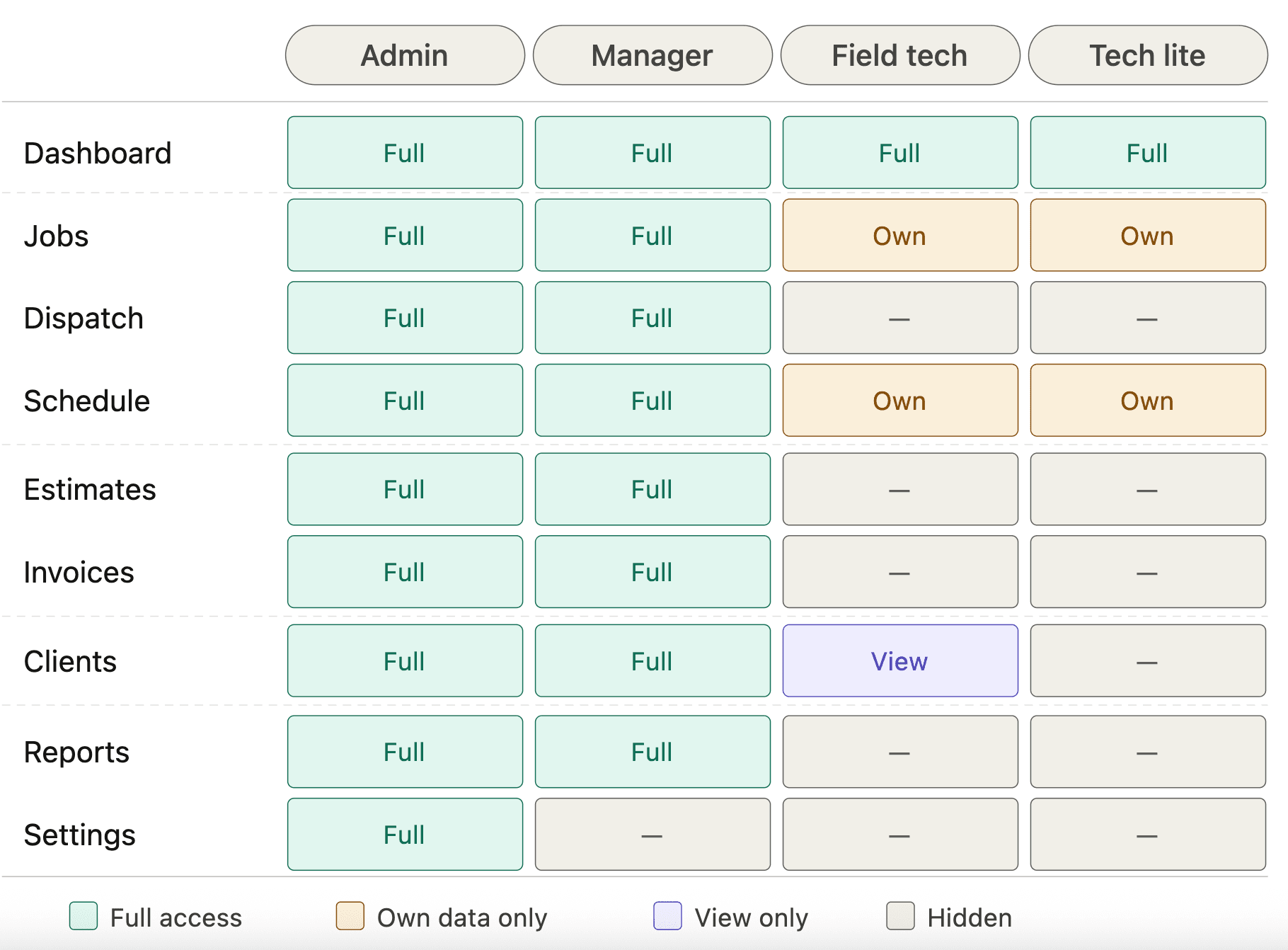
Your custom role is now available when assigning roles to team members.
How Permissions Affect the Sidebar
The FieldCamp sidebar automatically adjusts based on the team member's role. If a team member has no access to a module, that module will not appear in their sidebar. For example, a Field Technician Lite will only see Calendar and Visits in their sidebar because those are the only modules they can access.
Common Permission Setups
| Scenario | Recommended Setup | Details |
|---|---|---|
| Office manager who shouldn't delete records | Use Dispatcher role | Broad access to clients, jobs, requests, and scheduling without delete permissions on most modules |
| Technician who needs to create estimates in the field | Custom role based on Field Technician Pro | Upgrade the Estimates & Invoices module to "Create & edit own" level |
| Subcontractor with minimal access | Use Field Technician Lite | Calendar events and assigned visits only — nothing else visible |
| Team lead who manages a crew | Custom role based on Field Technician Pro | Upgrade Teams to "Full management" and Jobs to "Full management" for crew assignment |
Important Notes
-
The Account Owner always has full access to everything and cannot be restricted.
-
Built-in roles cannot be edited or deleted. Create a custom role if you need different permission combinations.
-
Role changes take effect immediately — the team member does not need to log out and back in.
-
A team member can only have one role at a time.
Related articles
FAQ's
Can I edit or rename the four built-in roles?
No. The four built-in roles (Admin, Dispatcher, Field Technician Pro, Field Technician Lite) are system defaults and cannot be edited, renamed, or deleted. If the defaults don't fit your needs, create a custom role on the Growth plan or higher. You can name it anything you want and set each module's permission level individually.
What happens to a team member's data if I change their role?
Nothing is lost. Changing a role only changes what the team member can see and do going forward — it doesn't delete or reassign any records they previously created. Jobs, visits, notes, and client records they made remain in the system under their name.
Can a team member have more than one role?
No. Each team member can only have one role at a time. If someone needs permissions that span two built-in roles (for example, Dispatcher-level access to jobs but also field-level calendar access), create a custom role that combines the permission levels you need.
How do I know what a specific team member can currently access?
Go to Settings → Team Management, click on the team member's name, and check their assigned role. Then go to Manage Roles to see the full permission breakdown for that role. The sidebar comparison is also a quick visual check — if a module doesn't appear in their sidebar, they don't have access to it.
Universal Search | FieldCamp
Use FieldCamp's universal search to instantly find clients, jobs, invoices, and estimates or create new records without navigating through sidebar menus.
Adding & Managing Team Members in FieldCamp
Invite team members to FieldCamp, assign roles, set skills and labor rates, and manage permissions. Step-by-step guide for admins and dispatchers.