 FieldCamp
Pause, rename and manage department access
Pause and resume a FieldCamp department, rename it safely, and use the role permissions that control department records and booking into paused departments.
After a department is live, you can pause it, resume it and rename it from Settings > Company > Departments. This guide also covers the two role permissions that relate to departments. To set up a department first, see create and activate a department.
Watch: people, assignment rules and pausing
This video covers adding people to a department, choosing an assignment rule and pausing a department. For the people and assignment rule settings in writing, see department people, service areas and assignment rules.
Pause a department
Pausing stops new bookings into a department. Existing jobs and visits continue as they are.
Find the department
Go to Settings > Company > Departments. You can pause from the department's row in the list, or from the top of its page.
Click Pause
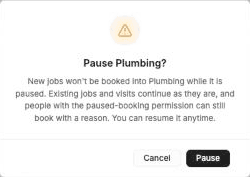
Click Pause. A confirmation explains that new jobs won't be booked into the department while it's paused, and that people with the paused-booking permission can still book with a reason.
Confirm
Click Pause.
FieldCamp confirms with Department paused — no new work will book into it. The department shows Paused, with the note "No new bookings go into this department while paused — existing jobs continue."
Resume a department
Click Resume on the paused department's row. FieldCamp confirms with Department resumed, and the department shows Active again.
Rename a department
You can rename a department at any time. Its Network key never changes, so renaming doesn't break reports, filters or integrations. Changing a department's details never rewrites jobs that already exist.
Open the department
Go to Settings > Company > Departments and open the department.
Edit its details
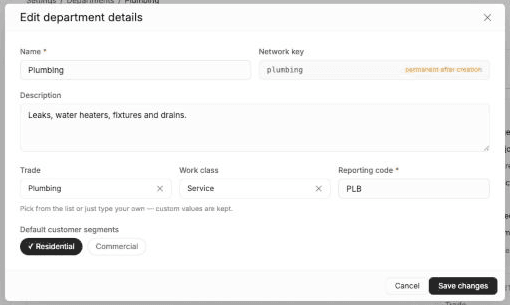
In the Department details card, click Edit.
Change what you need
Update the Name, Description, Trade, Work class, Reporting code or Default customer segments. The Network key is shown for reference and can't be edited.
Save
Click Save changes. FieldCamp confirms with Department saved.
You can't delete a department after you create it. If you no longer need one, pause it so nothing new books into it.
Department permissions for roles
Two permissions on custom roles relate to departments. To find them, go to Settings > Team Management, open a team member, choose Custom under Preset permission levels, and look in the Create Custom Role panel.
| Permission | What it allows |
|---|---|
| Sees every department's records | Custom object records limited to departments stay hidden from people outside those departments. Turn this on for roles, such as dispatchers, who work across all departments. Admins always see everything. |
| Can book into paused departments | Lets the role book a job into a paused department, or move a job to one, with a reason. Admins always can. |
Everything else about who can open and edit jobs, estimates and invoices still follows your normal role permissions.
Related articles
Department people, service areas and rules
Set up a FieldCamp department's people, service areas, default warehouse and assignment rule, and see which job types, forms and workflows apply to it.
Workflow — From Lead to Payment | FieldCamp
See how FieldCamp's workflow connects from client inquiry to payment. Create jobs, dispatch technicians, send invoices, and collect payment step by step.