 FieldCamp
Workflow Templates | FieldCamp
Browse pre-built workflow templates for field service automation. Install and customize templates for invoicing, client updates, payment reminders, and more.
Under the hood — see how Automations work in the FieldCamp data model: the fields they hold, how they connect to your other records, and how to customize them.
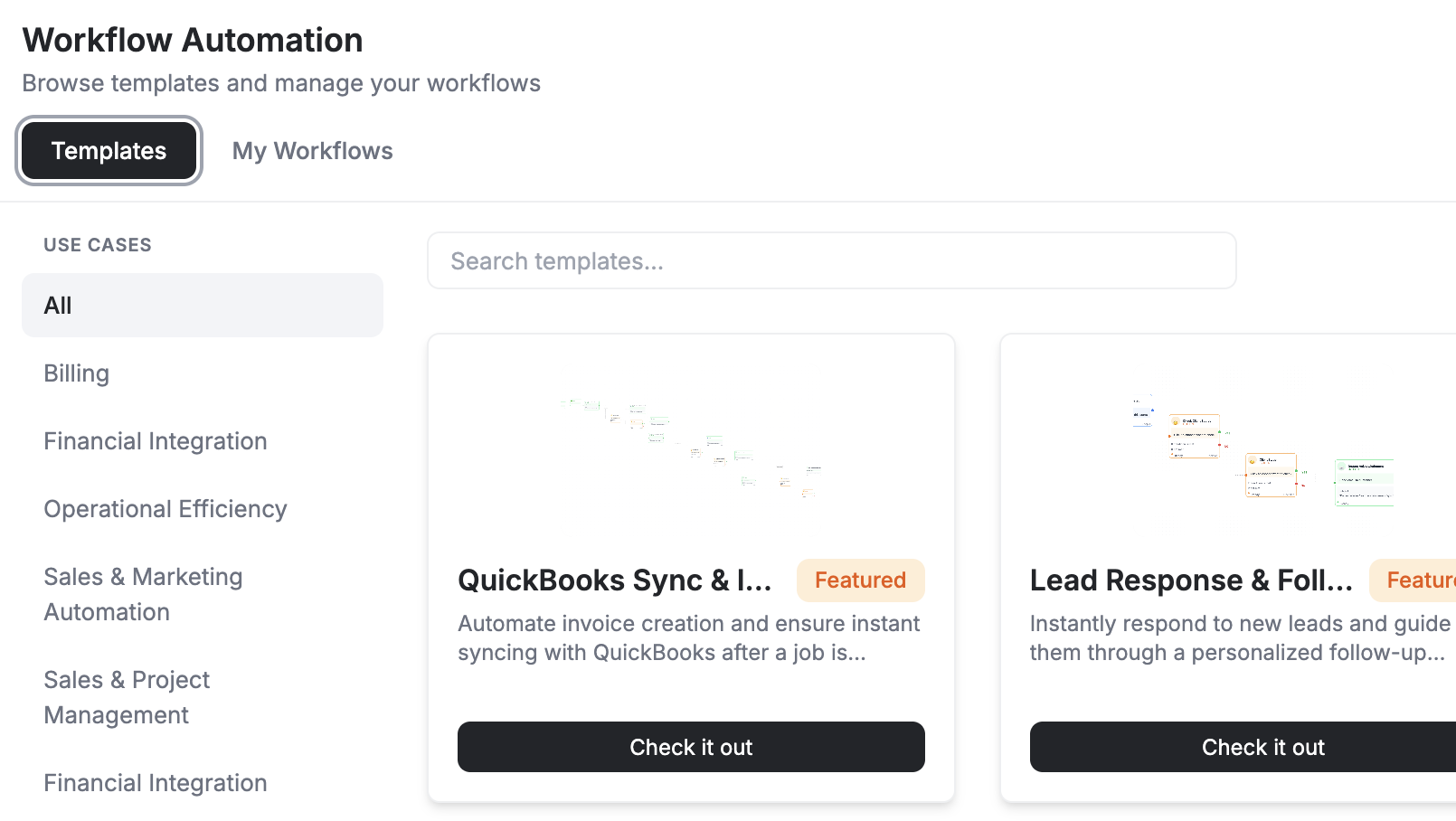
Workflow templates are pre-built automations you can activate with a few clicks. Instead of building a workflow from scratch, pick a template that matches your needs, customize it, and turn it on. You can also ask the Command Centre to set up a workflow for you using natural language — see AI Skills for the full list of commands.
How to Install a Template
- Go to Settings → Workflow Automation
- Click Templates to browse the template library
- Click Check it out on any template to preview it
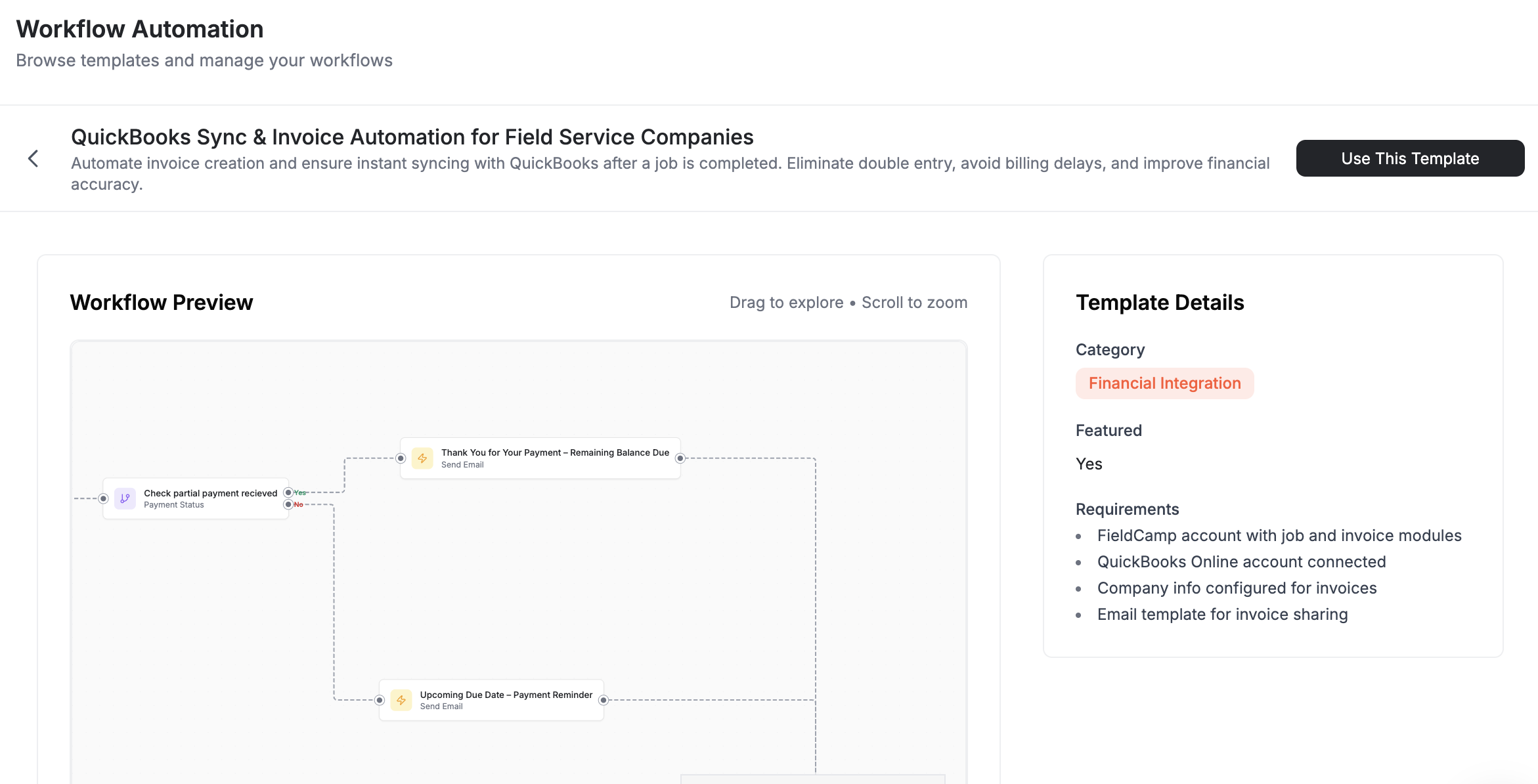
- Review the trigger, conditions, and actions
- Customize any settings (message text, timing, recipients)
- Click Activate to start using the workflow
The template appears in your workflow list like any other workflow. You can enable, disable, or edit it at any time.
All workflow templates are free to use on any FieldCamp plan that includes the Workflow Automation add-on. You can install as many templates as you need.
Template Categories
Job Management
Templates that automate tasks around job creation, updates, and completion.
| Template | What It Does |
|---|---|
| Real-Time Customer Updates | Sends clients a notification at every job stage — scheduled, technician on the way, in progress, and completed |
| No-Show Prevention | Sends appointment reminders 24 hours before and the morning of the visit, then alerts the office if the client does not confirm |
| Estimate-to-Cash | Follows up on sent estimates, reminds clients about expiring estimates, and converts approved estimates into jobs automatically |
Client Communication
Templates that keep your clients informed without manual follow-up.
| Template | What It Does |
|---|---|
| Appointment Confirmation | Sends an email and SMS when a visit is scheduled, with date, time, and technician details |
| Post-Job Follow-Up | Sends a thank-you message and review request 2 days after job completion |
| Lead Response Automation | Instantly acknowledges new requests, provides service information, and assigns the lead to the right team member |
Billing and Payments
Templates that speed up your invoicing and reduce late payments.
| Template | What It Does |
|---|---|
| QuickBooks Integration | Automatically creates invoices in QuickBooks when jobs are completed and syncs payment status in real time |
| Automated Payment Collection | Sends invoices on job completion, follows up at set intervals, and escalates overdue accounts |
| Payment Receipt Confirmation | Sends a confirmation email to the client when a payment is recorded |
Team Notifications
Templates that keep your team in the loop.
| Template | What It Does |
|---|---|
| High-Priority Job Alert | Notifies managers immediately when a high-priority job is created |
| Schedule Change Notification | Alerts technicians when their calendar shifts change |
| Daily Job Summary | Sends each technician a summary of their assigned jobs for the day every morning |
Customizing a Template After Installing
Every template is fully editable once installed. Here is what you can change:
Message Content
- Edit email and SMS text to match your brand voice
- Add dynamic fields (client name, job address, technician name, scheduled time)
- Update subject lines and greeting text
Timing
- Change when reminders are sent (e.g., move the reminder from 24 hours before to 48 hours before)
- Adjust follow-up intervals (e.g., send payment reminders every 5 days instead of every 7)
- Set business hours so messages only go out during work hours
Conditions
- Add filters to narrow which jobs or clients the workflow applies to
- Restrict by service type, location, or priority level
- Exclude specific client types or job categories
Actions
- Add extra steps (e.g., add "create task" after "send email")
- Remove steps you do not need
- Change recipients or notification channels
Templates are a starting point. After installing one, open it in the workflow builder and adjust it to fit how your business actually operates.
Combining Templates
Many businesses get the most value by running several templates together:
- Lead Response + Estimate-to-Cash — covers the entire sales cycle from first contact to booked job
- Real-Time Updates + No-Show Prevention — keeps clients fully informed and reduces missed appointments
- QuickBooks Integration + Automated Payment Collection — handles invoicing from creation through payment collection
Each template runs independently, so there is no conflict when multiple workflows are active at the same time.
Next Steps
- Build a custom workflow when templates do not cover your exact use case
- See real-world examples for step-by-step setup guides
- Return to the workflow overview for the big picture
Build and Test Workflows | FieldCamp
Create a FieldCamp workflow with record, schedule, or Inbox triggers; add object-specific actions and AI steps; then validate and run a safe test.
Automation recipes and renewals | FieldCamp
Apply a FieldCamp automation recipe to a custom object to auto-extend recurring work, invoice for activation, and send customers a one-tap renew link.