 FieldCamp
Calendar Overview | FieldCamp
Use FieldCamp's Event calendar, Team Tracking route tools, four scheduling views, Job Tray, and separate Team Location live map.
Under the hood — see how Visits work in the FieldCamp data model: the fields they hold, how they connect to your other records, and how to customize them.
The Calendar is the operational hub of FieldCamp. Every job, every technician, every route — it all comes together here. Whether you're planning the week ahead or dispatching an emergency job in the next hour, the calendar gives you the visibility and control to run your field operations with confidence.
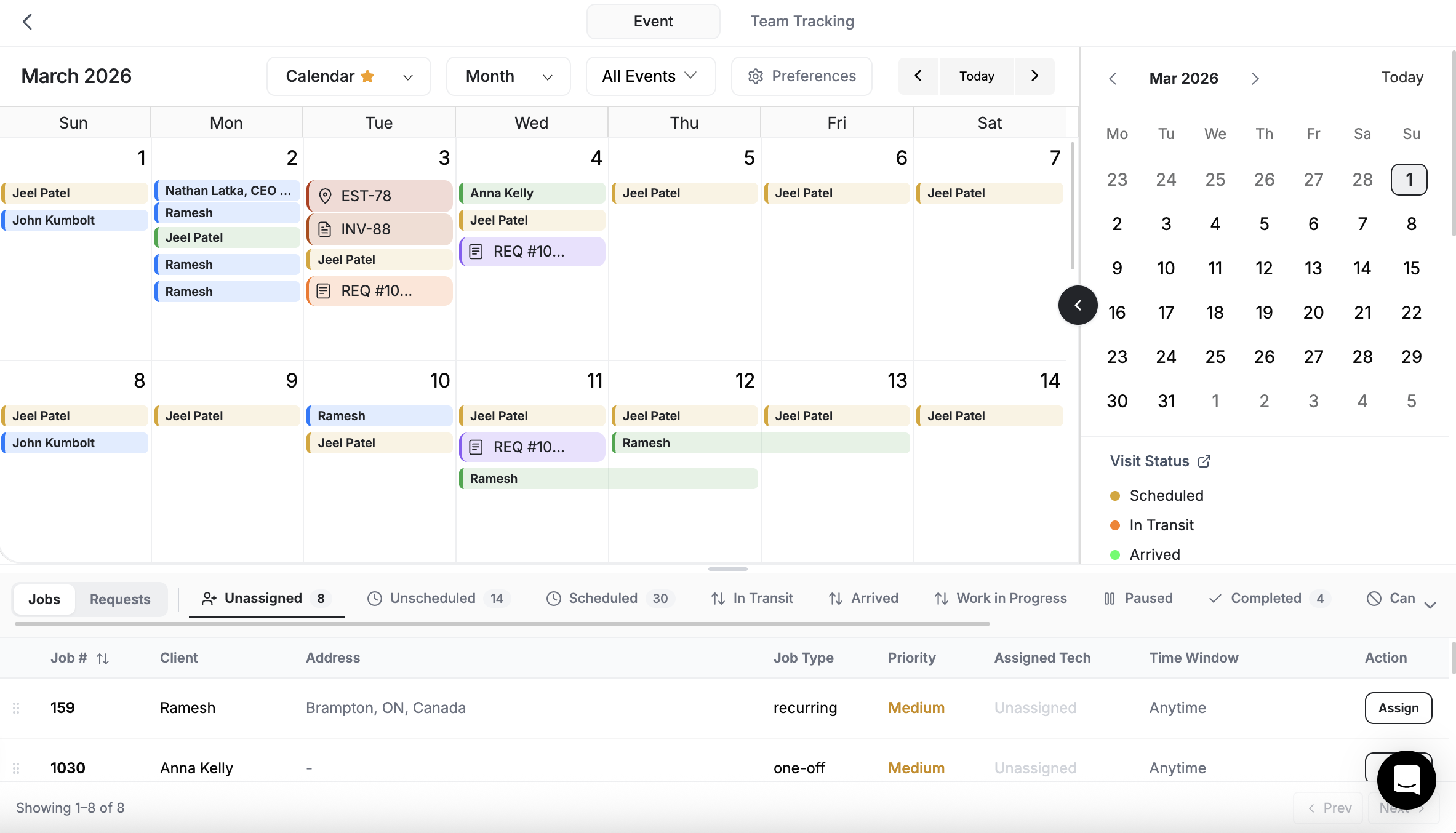
Open Calendar from the sidebar. The Event tab contains scheduling and dispatch views, while Team Tracking contains route-planning tools. Live GPS tracking is a separate Team Location destination in the sidebar.
Start with the Command Centre
The fastest way to work with your calendar is through FieldCamp's AI Command Centre. Open it with Cmd+/ (Mac) or Ctrl+/ (Windows) and tell it what you need:
- "Show me today's schedule" — see all visits and assignments for today
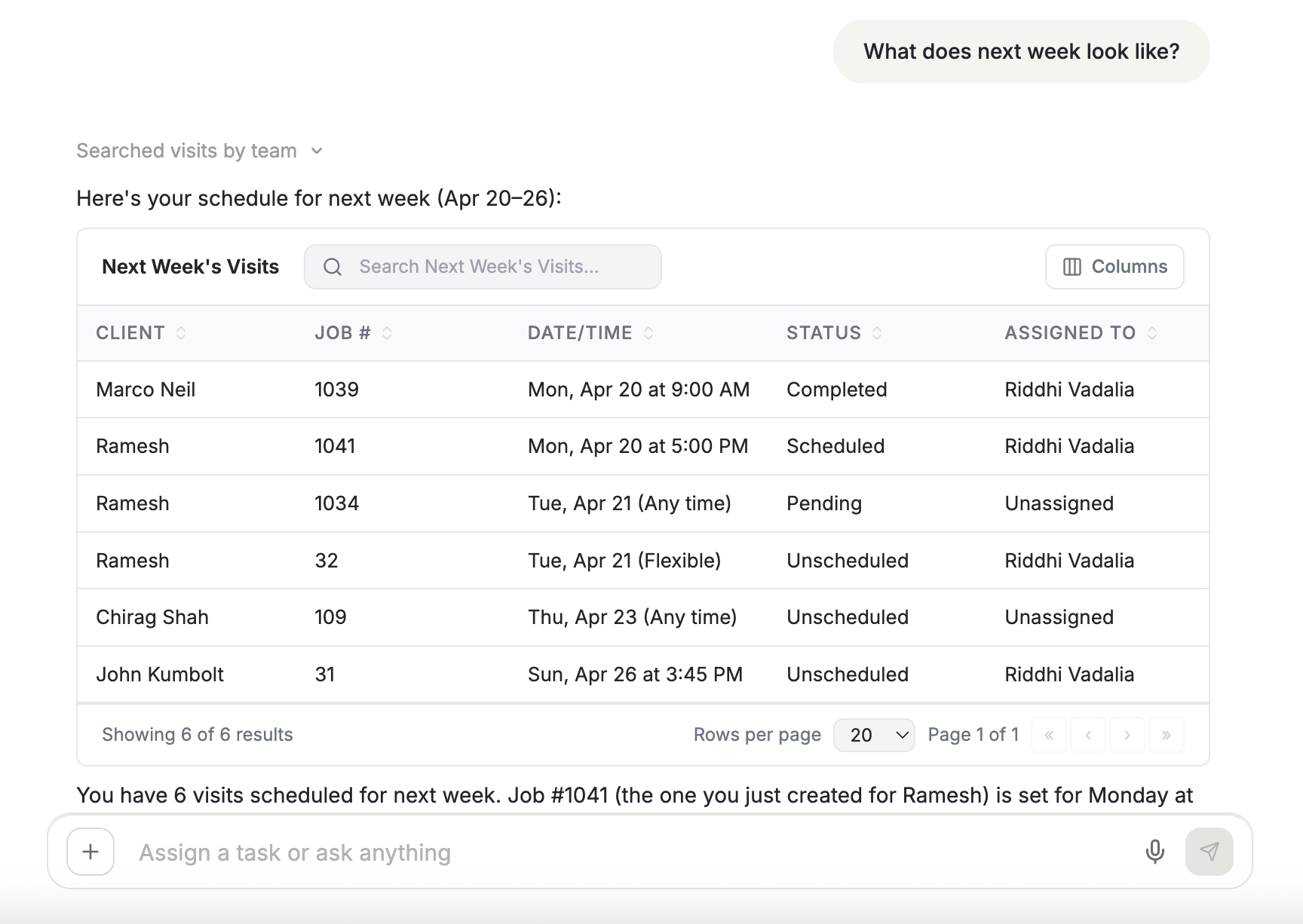
- "What does next week look like?" — get a workload summary for the week ahead
- "Who's available tomorrow afternoon?" — find open technician slots
- "Schedule a visit for Johnson Plumbing on Thursday at 2pm" — create and assign in one step
- "Move all of Carlos's jobs to Susan" — bulk reassign when someone calls in sick
The AI understands your calendar context and can read, create, move, and reassign work without you ever touching a dropdown. For everything the Command Centre can do across FieldCamp, see the AI Skills guide.
Four Calendar Views
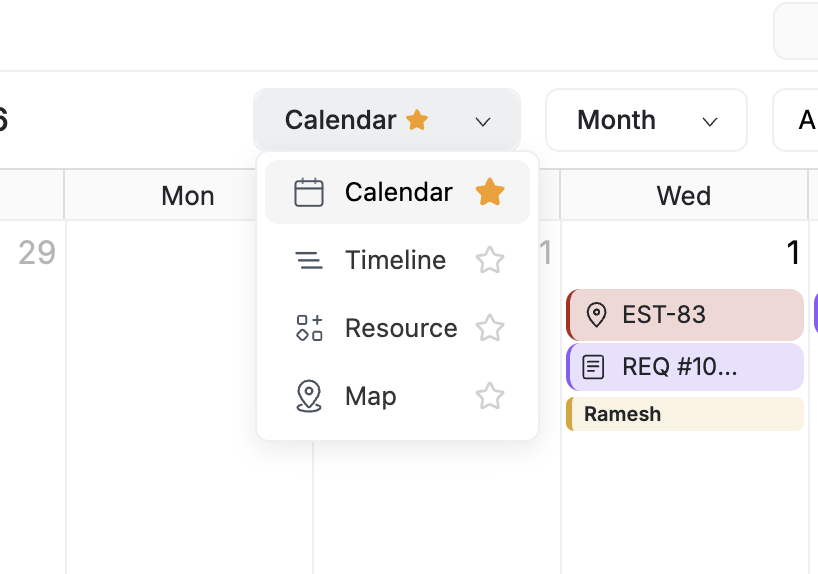
The Event tab offers four distinct views, each designed for a different operational need. You switch between them using the dropdown in the toolbar.
| View | Best For | Key Feature |
|---|---|---|
| Calendar | Weekly and monthly planning | Month, week, and day grids — click to create, drag to reschedule |
| Timeline | Daily dispatch across your team | Horizontal Gantt chart with swim lanes per technician |
| Resource | Side-by-side technician comparison | Vertical columns — one per tech — showing their full day |
| Map | Geographic planning and routing | Job markers on Google Maps with technician locations |
All four views stay in sync — a change in one is instantly reflected in the others. Learn when and how to use each view in Calendar Views.
The Right Rail
Along the right side of the Event calendar sits a context panel that follows what you're doing:
- Mini calendar — jump to any date without leaving the view
- Legend — the color key for visit statuses, visit types, and team members (plus invoice status, task category, and request stage in Calendar mode)
- Today's upcoming — a mini agenda of the next visits; tap one to open it
- Visit details — click any visit chip and the rail shows its status, client, job number, time, address, and assigned team
- Tech Peek, AI Review, Reschedule, Fix Day, Cover Tech — the dispatch panels, covered in Job Tray and Dispatch
- Weather forecast — a 5-day outlook for your business location when the weather preference is on
Every visual indicator on the visit chips themselves — priority pulses, the out-of-zone red dot, AI-suggestion ghosts, and more — is explained in Reading the Visit Chips.
The Job Tray
At the bottom of the calendar sits the Job Tray, a panel that holds all work waiting to be dispatched. It has two modes:
- Visits — tabs for Unassigned, Scheduled, In Progress, Completed, On Hold, Alerts, and Cancelled
- Requests — tabs for New Request, Unscheduled, Overdue, and more
Drag a job from the tray onto the calendar to assign it to a technician and time slot. The full dispatch workflow — including conflict detection, sick-day coverage, lead holds, and AI-powered suggestions — is covered in Job Tray and Dispatch.

Route Optimization
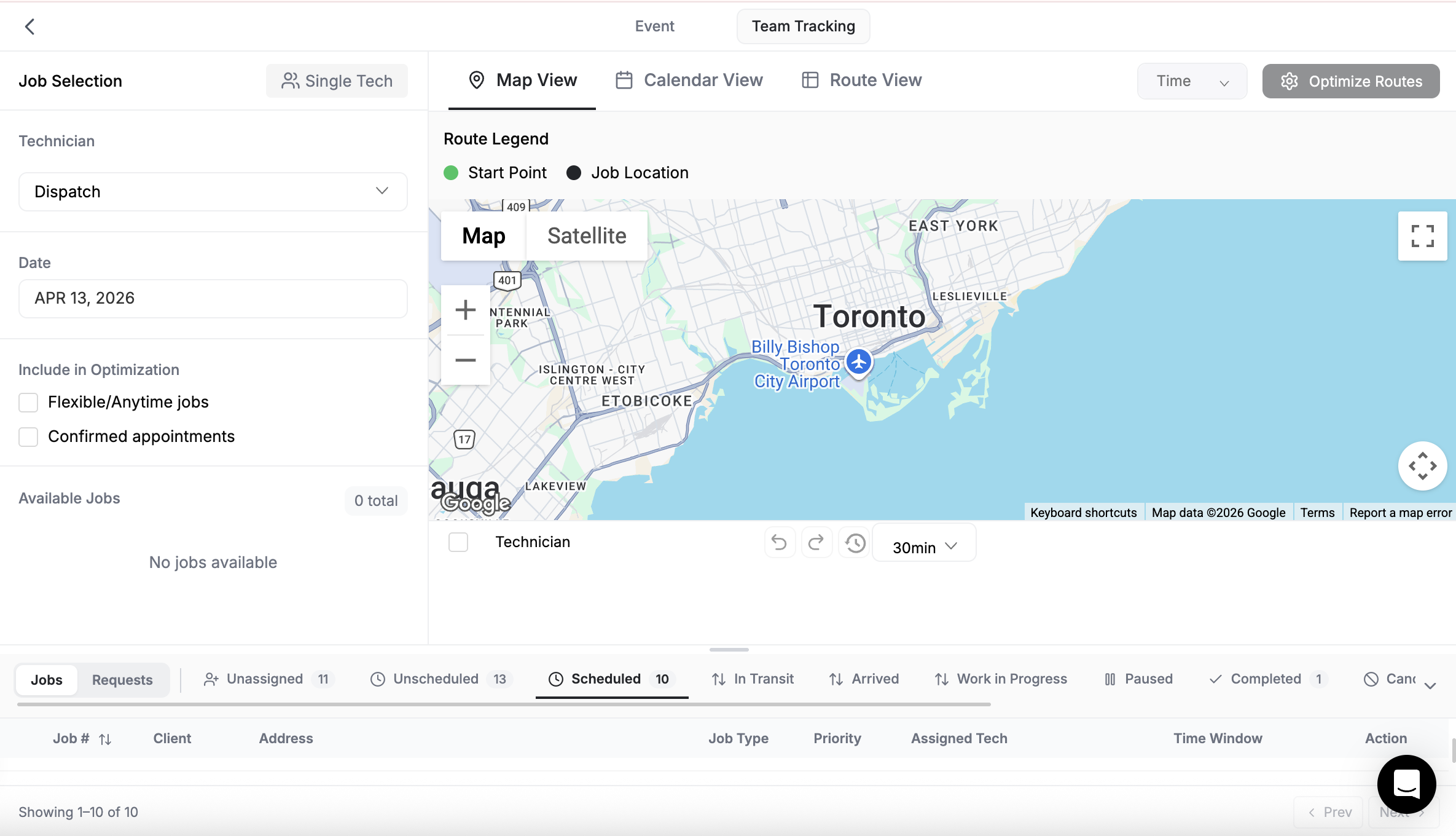
Switch to the Team Tracking tab to access route optimization. Select a technician and a date, and FieldCamp calculates the most efficient order for their stops — minimizing drive time and maximizing jobs per day.
You can compare the original route against the optimized one side by side, manually reorder stops, and share a route link technicians can follow on their phone. Full details in Route Optimization.
Live Team Tracking
Select Team Location directly in the sidebar to open live GPS tracking. See who's moving, who's idle, and where everyone is right now, then review movement history and daily analytics for a team member.
Learn how to set it up and use it in Live Team Tracking.
Calendar Sync
FieldCamp connects to Google Calendar and Outlook Calendar with two-way sync — visits created in FieldCamp appear on your external calendar and vice versa. Set this up in Calendar Sync and Preferences.
Permissions
What you see on the calendar depends on your role:
- Admins and Dispatchers see all technicians and can assign, reassign, and optimize routes
- Technicians see their own schedule and can update job status
- Limited roles see only what their permission level allows
If a team member can't see the calendar or certain jobs, check their role and permissions under Settings > Team.
Related Articles
Creating Invoices from Jobs | FieldCamp
Generate invoices from completed jobs in FieldCamp. Line items, labor hours, and materials carry over so you can bill field service customers quickly.
Calendar Views | FieldCamp
Use FieldCamp Calendar, Timeline, Resource, and Map views — read every chip indicator, use Find a gap, daily metrics, printing, filters, and keyboard shortcuts.