 FieldCamp
Calendar Sync & Preferences | FieldCamp
Connect FieldCamp to Google Calendar or Outlook with two-way sync. Customize event colors, labels, and dispatcher display settings for your field service team.
Under the hood — see how Visits work in the FieldCamp data model: the fields they hold, how they connect to your other records, and how to customize them.
FieldCamp syncs with the calendars your team already uses — Google Calendar and Microsoft Outlook — so visits, jobs, and events flow both ways without manual copying. This guide covers how to connect your external calendars, what gets synced, and how to customize your calendar display preferences.
Start with the Command Centre
Open the Command Centre with Cmd+/ (Mac) or Ctrl+/ (Windows) and manage your calendar connections with plain language:
- "Sync my calendar with Google" — starts the Google Calendar connection flow
- "Show my calendar integrations" — see what's currently connected
- "What's on my Google Calendar this week?" — pull external events into view
For everything the Command Centre can do, see the AI Skills guide.
Google Calendar Sync
How to Connect
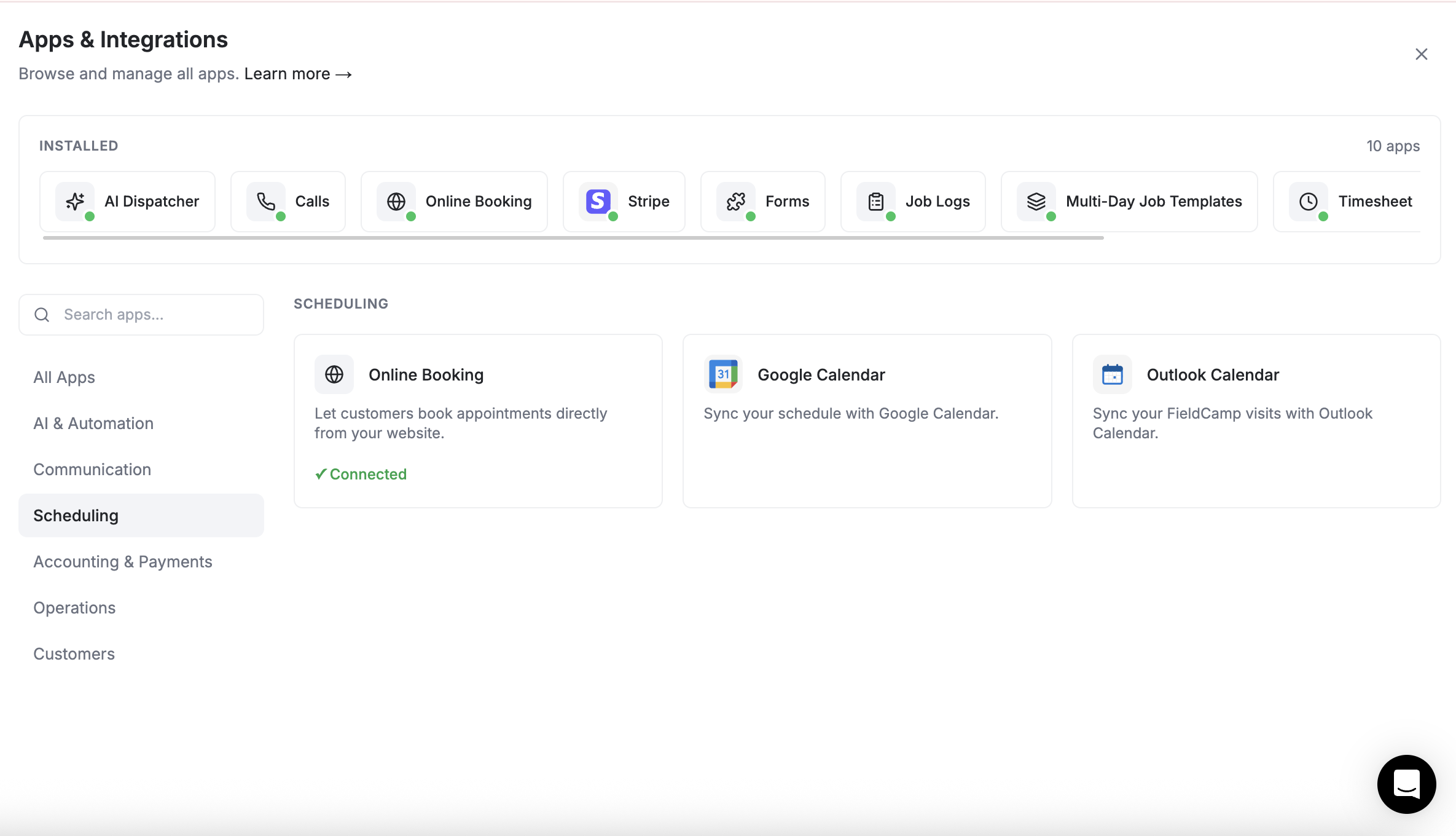
- Go to Settings > Apps & Integrations, then select the Scheduling category
- Click Connect
- Sign in with your Google account and grant FieldCamp permission
- Choose your sync preferences (see below)
- Click Save
What Gets Synced
| Direction | What Syncs |
|---|---|
| FieldCamp to Google | Scheduled visits appear as events on your Google Calendar with client name, address, and time |
| Google to FieldCamp | Events created in Google Calendar appear on your FieldCamp calendar as blocked time |
Sync is two-way — changes made on either side update the other. If you reschedule a visit in FieldCamp, the Google Calendar event moves automatically. If you delete an event in Google, the corresponding block is removed in FieldCamp.
Only the team member who connects their Google account will see synced events. Each technician or dispatcher connects their own calendar individually.
Outlook Calendar Sync
How to Connect
- Go to Settings > Integrations > Outlook Calendar
- Click Connect
- Sign in with your Microsoft account and authorize access
- Choose what to sync:
- Visits — scheduled field work
- Invoices — payment-related dates
- Estimates — proposal deadlines
- Events — internal calendar events
- Click Save
What Gets Synced
| Direction | What Syncs |
|---|---|
| FieldCamp to Outlook | Selected items (visits, invoices, estimates, events) appear on your Outlook calendar |
| Outlook to FieldCamp | Events from Outlook appear as time blocks on your FieldCamp calendar |
Outlook sync is also bidirectional — reschedule in one place and it updates in the other.
Sync Features Comparison
| Feature | Google Calendar | Outlook Calendar |
|---|---|---|
| Two-way sync | Yes | Yes |
| Visit sync | Yes | Yes |
| Invoice date sync | No | Yes |
| Estimate date sync | No | Yes |
| Internal event sync | No | Yes |
| Per-user connection | Yes | Yes |
Calendar Preferences
All display preferences live in the Preferences dialog — open it from the button at the right end of the calendar toolbar.
Event Colors
FieldCamp color-codes events on the calendar to give you instant visual context. In Preferences, under Color coding, choose to color events by:
- Status — each job and visit status has a distinct color (e.g., blue for Scheduled, green for Completed, yellow for In Progress)
- Type — color by the kind of visit (one-off, recurring, multi-day, first visit)
- Team — each team member gets a unique color (set custom colors under Team Member Colors) so you can see who's assigned at a glance
The color mode is a company-level setting — every dispatcher on the account reads the same palette.
Event Card Layout
Choose what appears on each visit chip and what waits in the hover details instead: every field has a Card and a Hover checkbox, rows drag to reorder, and one field can be marked as the highlight. Quick presets (Dispatcher, Technician, Owner, Minimal) set sensible combinations in one click. The full option list — including row density, hidden weekends, and the weather overlay — is covered in Calendar Views.
Display Settings
- Hide non-technicians — keep office staff out of the Timeline and Resource lanes
- Show full names — full names instead of short ones on lanes and chips
- Show weather — weather pills on day headers plus a 5-day forecast panel in the right rail
- Week display — pick the week start day and which days are visible
- Default view — star your favourite view in the toolbar's view dropdown; the calendar opens there every time you sign in
Except for the company-level color mode, display preferences are saved per user — each dispatcher or admin can configure their own view without affecting anyone else's setup.
Troubleshooting Sync Issues
If events aren't syncing as expected:
- Check the connection status — go to Settings > Integrations and confirm the calendar shows as Connected
- Re-authorize — if the connection expired, disconnect and reconnect your account
- Check sync direction — make sure two-way sync is enabled in your preferences
- Allow processing time — sync can take up to a few minutes for changes to propagate
Related Articles
Live Team Tracking | FieldCamp
Track your field team in real time with GPS on an interactive map. View live locations, movement history, daily analytics, and team status at a glance.
Timesheet overview | FieldCamp
Understand FieldCamp Verified Timesheets — how the ledger is built from clock events, geofences and visit activity, who can see it, and what each tab does.