 FieldCamp
AI Skills — Chat Commands | FieldCamp
Master FieldCamp's 9 built-in slash commands and custom AI skills. Schedule jobs, dispatch technicians, track invoices, and generate reports from AI chat.
Under the hood — the FieldCamp data model shows how every record connects, how you can customize it, and how it maps to your trade.
Your AI Toolkit
The Command Centre comes with 9 built-in slash commands that handle the tasks you do every day. Type / in the chat to see them all, or just describe what you need in plain language — the AI figures out the rest.
This is what makes FieldCamp different. While other field service tools make you click through forms and menus, FieldCamp lets you run your business by typing what you want.
You do not need to memorize slash commands. Typing "Show me today's schedule" works just as well as /today. Slash commands are shortcuts, not requirements.
Schedule Commands
These commands help you manage your day from start to finish.
/today — Your Daily Briefing
Type /today to see everything on your plate:
- Today's scheduled visits and jobs
- Priority items that need attention
- Team member availability
- Any overdue tasks from yesterday
Example: You open FieldCamp in the morning and type /today. The AI shows you that you have 6 visits scheduled, Mike has a conflict at 2pm, and there is one overdue invoice from last week.
You can also ask naturally: "What does my day look like?" or "Show me today's schedule."
/arrive — Check In at a Job Site
Type /arrive when you get to a job site. The AI logs your arrival time and updates the visit status to In Progress.
Example: A technician arrives at the Smith Residence for an HVAC repair. They type /arrive and the system records 9:15am as the arrival time. The dispatcher sees the status update on their calendar in real time.
/complete — Mark a Visit as Done
Type /complete when you finish work at a site. The AI marks the visit as Completed, logs the departure time, and asks if you want to add any notes or photos.
Example: After finishing the repair, the technician types /complete. The AI confirms the visit is closed and asks "Would you like to add any notes about the work performed?" The technician types "Replaced compressor and recharged refrigerant. System running normally."
/eod — End of Day Summary
Type /eod at the end of your workday. The AI gives you:
- A summary of what you accomplished today
- Total hours worked
- Any visits that were not completed
- A preview of tomorrow's schedule
Example: At 5pm, a dispatcher types /eod. The AI responds: "Today: 8 jobs completed, 2 rescheduled to tomorrow. Team logged 42 hours total. Tomorrow: 7 jobs scheduled, starting with the Henderson installation at 8am."
Job Commands
These commands handle creating and assigning work.
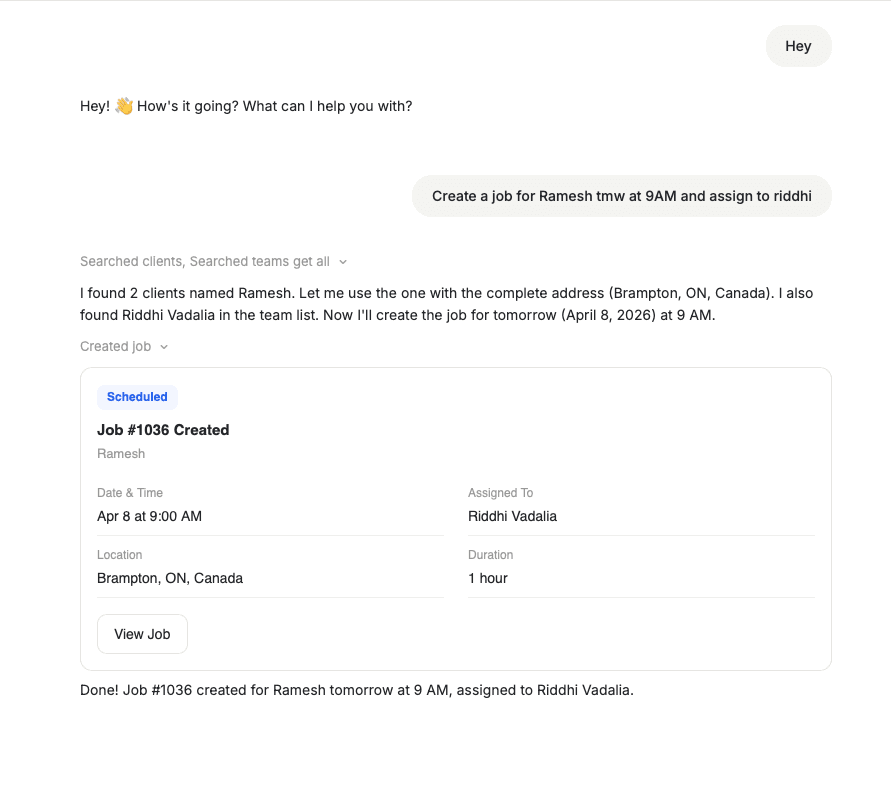
/newjob — Create a Job Conversationally
Type /newjob and the AI walks you through creating a job step by step. It asks for:
- Which client is this for?
- What type of job? (repair, installation, maintenance, etc.)
- When should it be scheduled?
- Where is the job location?
- Description of the work needed
- Priority level
Example: You type /newjob. The AI asks "Which client is this job for?" You type "Henderson Plumbing." The AI finds the client and asks "What type of job?" You say "Emergency pipe repair." It continues asking questions until the job is fully created and scheduled.
You can also skip the guided flow entirely: "Create a new emergency plumbing job for Henderson at 123 Oak Street, tomorrow at 9am, high priority" — and the AI creates it in one step.
/dispatch — Find the Best Technician
Type /dispatch and the AI finds the best available team member for a job based on:
- Skills that match the job type
- Current location and travel time
- Availability on the scheduled date
- Current workload
Example: You type /dispatch for the Henderson pipe repair. The AI responds: "Mike Thompson is the best match. He has plumbing certification, is 15 minutes from the job site, and has an open slot at 9am. Should I assign him?"
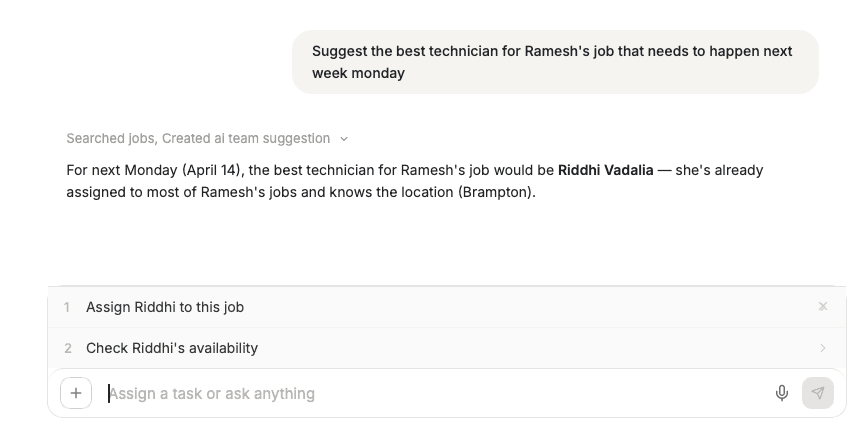
You can also say: "Who should I send to the Henderson job?" or "Find me an available plumber for tomorrow morning."
The /dispatch command works best when your team members have skills and start addresses configured in Settings. See Adding and Managing Team Members for setup details.
Billing Commands
/overdue — Chase Overdue Invoices
Type /overdue to see all invoices past their due date. The AI shows:
- A list of overdue invoices with amounts and days overdue
- The total outstanding balance
- Suggested follow-up actions (send reminder, call client, escalate)
Example: You type /overdue. The AI responds: "You have 4 overdue invoices totaling $3,850. The oldest is Invoice #1082 for Smith Residence ($1,200, 28 days overdue). Would you like me to send payment reminders to all of them?"
You can also ask: "Show me unpaid invoices" or "Which clients owe us money?"
Reports and Dashboards
/dashboard — Business KPIs at a Glance
Type /dashboard to see your key performance indicators:
- Jobs completed this week/month
- Revenue collected vs outstanding
- Team utilization and performance
- Customer satisfaction trends
Example: You type /dashboard. The AI displays a visual dashboard showing: 45 jobs completed this month (up 12% from last month), $28,500 in revenue collected, $4,200 outstanding, and Mike Thompson leading the team with 15 completed jobs.
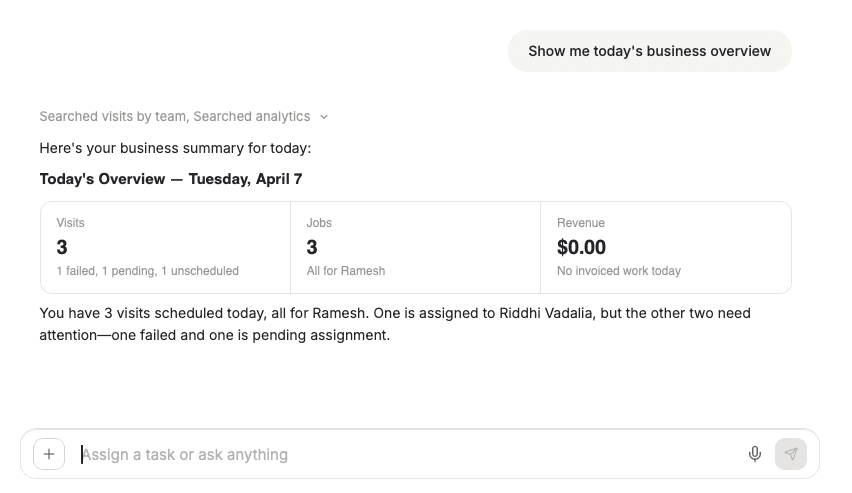
You can drill deeper: "Show me revenue by service type" or "Compare this month to last month."
Custom Skills
/skill-creator — Build Your Own Commands
Type /skill-creator to create a custom slash command for any task you repeat. The AI walks you through defining what the skill does, what inputs it needs, and what output it produces.
Examples of custom skills you could build:
/weekly-report— generates a formatted weekly business summary/morning-brief— shows today's schedule with weather and traffic/client-health— shows a client's complete history and outstanding balance/team-standup— summarizes each team member's status and upcoming work
Example: You type /skill-creator and say "I want a skill that shows me all jobs in a zip code with their status." The AI creates /jobs-by-area and you can use it anytime.
Custom skills appear in the slash commands menu with a purple badge. Built-in commands show a green badge.
Natural Language — No Commands Needed
Slash commands are shortcuts, but you never need them. The Command Centre understands plain language for everything:
| Instead of this command... | You can type... |
|---|---|
/today | "What's on my schedule today?" |
/newjob | "Create a plumbing job for Henderson tomorrow at 9am" |
/dispatch | "Who should I send to the AC repair on Oak Street?" |
/overdue | "Show me invoices that haven't been paid" |
/dashboard | "How is the business doing this month?" |
/complete | "Mark the Smith visit as done" |
/eod | "Give me an end of day summary" |
The AI understands context too. If you just finished creating a job, you can say "Now assign it to Mike" without repeating the job details.
Commands by Role
Different roles use different commands most often:
Dispatchers and Office Managers:
/todayto plan the day/dispatchto assign jobs to the right technician/newjobto create jobs from incoming calls/overdueto follow up on unpaid invoices
Field Technicians:
/todayto see their assigned visits/arriveto check in at each job site/completeto close out visits/eodto wrap up the day
Business Owners:
/dashboardto monitor business performance/overdueto keep cash flow healthy/skill-creatorto build custom reports and workflows
Related Articles
- Command Centre — AI Chat
- Quick Start — Set Up Your Business
- Key Concepts in FieldCamp
- Workflow — From Lead to Payment
- Adding and Managing Team Members
FAQ's
Do I need to use slash commands or can I just type normally?
You can always just type what you need in plain language. Slash commands are shortcuts for speed, not requirements. Typing "Show me today's schedule" and typing /today produce the same result. Use whichever feels more natural to you.
Can I edit or delete a custom skill after creating it?
Yes. Type /skill-creator and ask to edit an existing skill by name, or go to Settings > AI Skills to manage all your custom skills. You can update the name, description, and behavior of any custom skill at any time.
Which slash commands are available to Field Technicians?
Home is available to authenticated users when chat is enabled. A technician's role still limits the records, actions, slash commands, and custom skills the Command Centre can use; do not change a technician to Admin only to expose the chat page.
Are slash commands case-sensitive?
No. /Today, /TODAY, and /today all work the same way. The AI is not case-sensitive for commands or natural language input.
Command Centre — AI Chat | FieldCamp
Manage your field service business with AI chat. Create jobs, dispatch technicians, check invoices, and get reports using natural language in FieldCamp.
Universal Search | FieldCamp
Use FieldCamp's universal search to instantly find clients, jobs, invoices, and estimates or create new records without navigating through sidebar menus.