 FieldCamp
Invoice Views & Analytics | FieldCamp
Switch between table, kanban, and analytics views for invoices in FieldCamp. Track revenue, outstanding balances, overdue payments, and collection trends.
Under the hood — see how Estimates & Invoices work in the FieldCamp data model: the fields they hold, how they connect to your other records, and how to customize them.
FieldCamp gives you three ways to view your invoices: a sortable table, a drag-and-drop kanban board, and an analytics dashboard. Switch between them using the view icons on the right side of the Invoices screen.
The Fastest Way: Ask the Command Centre
Open the Command Centre and ask for the view you need:
- "Show me all overdue invoices"
- "How much revenue did we collect this month?"
- "List unpaid invoices for ABC Property Management"
The Command Centre filters and displays the results instantly. See AI Skills for more examples.
Table View

The default table displays every invoice with these columns:
| Column | What it shows |
|---|---|
| Invoice # | Unique identifier (e.g., INV-2024-0001) |
| Title | Internal description of the work |
| Customer | Client name (links to their profile) |
| Date | When the invoice was created |
| Due Date | Payment deadline |
| Total | Full amount including tax |
| Delivery Status | Draft or Sent |
| Payment Status | Unpaid, Partial, or Paid |
Filtering and Sorting
Use the filters at the top to narrow results:
- Payment Status -- Unpaid, Paid, or Partially Paid, which is how the filter labels Partial
- Date range -- This week, this month, or custom
- Client -- Filter by a specific client
- Delivery Status -- Draft or Sent. There is no Overdue filter value
- Amount -- Sort by highest or lowest value
You can also use Universal Search to find any invoice by number, client name, or description.
Kanban View

The kanban board organizes invoices as cards in payment-status columns:
- Paid -- Fully collected
- Partial -- Some payment received, balance remaining. The filter dropdown calls this Partially Paid
- Unpaid -- No payment yet
Drag and drop a card between columns to update its payment status. This view helps you see exactly where your money is at a glance.
Analytics Dashboard
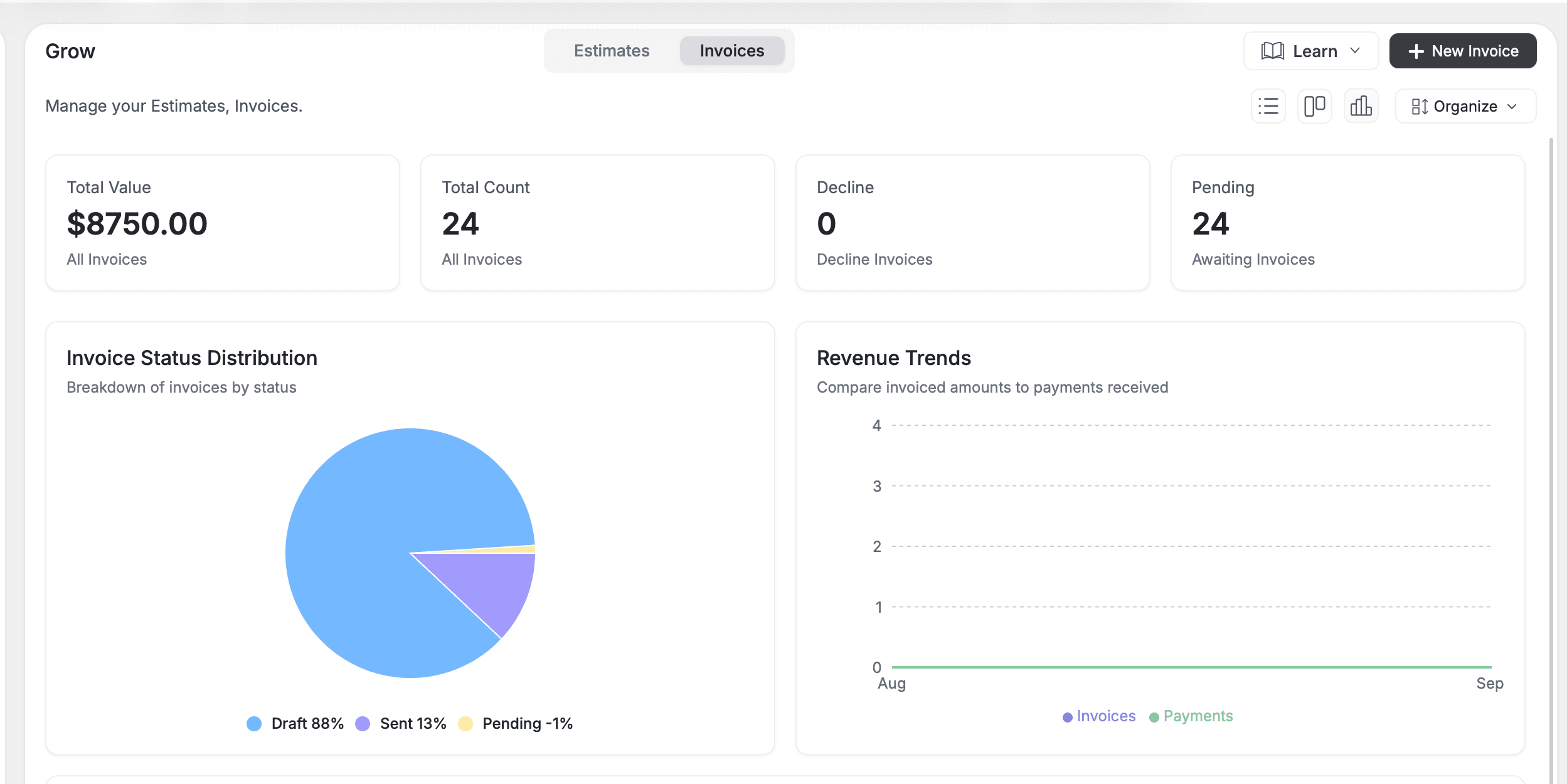
The analytics view gives you a financial snapshot of your invoicing performance.
Top Metrics
| Metric | What it measures |
|---|---|
| Total Value | Combined dollar amount of all invoices |
| Total Count | Number of invoices created |
| Paid | Invoices fully collected |
| Pending | Invoices awaiting payment |
Charts
Invoice Status Distribution -- A pie chart breaking down your invoices by status. Quickly see the ratio of paid to unpaid to overdue.
Revenue Trends -- A bar or line chart comparing invoiced amounts to payments received over time. Use this to track cash flow and identify collection gaps.
Invoice Amount by Status -- A graph showing the total dollar value grouped by status -- Draft, Sent, Awaiting Response, Approved, and Declined. Spot where revenue is stuck in your billing pipeline.
Check the analytics dashboard at the end of each week. If overdue invoices are climbing, use the Command Centre to send payment reminders in bulk -- just say "Send reminders for all overdue invoices."
Exporting Invoices
From the table view, select invoices and click Export to download a CSV or Excel file. The export includes all visible columns -- useful for accounting reconciliation, tax filing, or importing into external tools like QuickBooks.
Pair invoice analytics with Estimate Views and Analytics to get a complete picture of your sales pipeline -- from quote to cash.
Related Articles
- Creating Invoices — build and send invoices to clients
- Estimate Views and Analytics — track your estimate pipeline
- Payments Overview — manage payments, deposits, and collections
- Analytics Overview — business-wide dashboards and reports
- Connect Stripe — accept online payments from clients
Creating Invoices | FieldCamp
Create invoices in FieldCamp from jobs, estimates, or from scratch. Add line items, apply tax rates, send by email, track payments, and get paid faster.
Configure line item columns | FieldCamp
Turn on dynamic line items in FieldCamp and build your own line-item columns — built-in fields, product mappings, relations, formula columns and section naming.