 FieldCamp
Universal Search | FieldCamp
Use FieldCamp's universal search to instantly find clients, jobs, invoices, and estimates or create new records without navigating through sidebar menus.
Under the hood — the FieldCamp data model shows how every record connects, how you can customize it, and how it maps to your trade.
Overview
FieldCamp's universal search (press Cmd+K on Mac or Ctrl+K on Windows) is a quick-access tool that combines powerful search with instant action shortcuts. Find any client, job, or invoice and jump to it instantly from anywhere in the application.
Looking for more than search? The Command Centre goes beyond search — you can create records, run reports, dispatch technicians, and manage your entire business using natural language. Universal search finds things; the Command Centre does things.
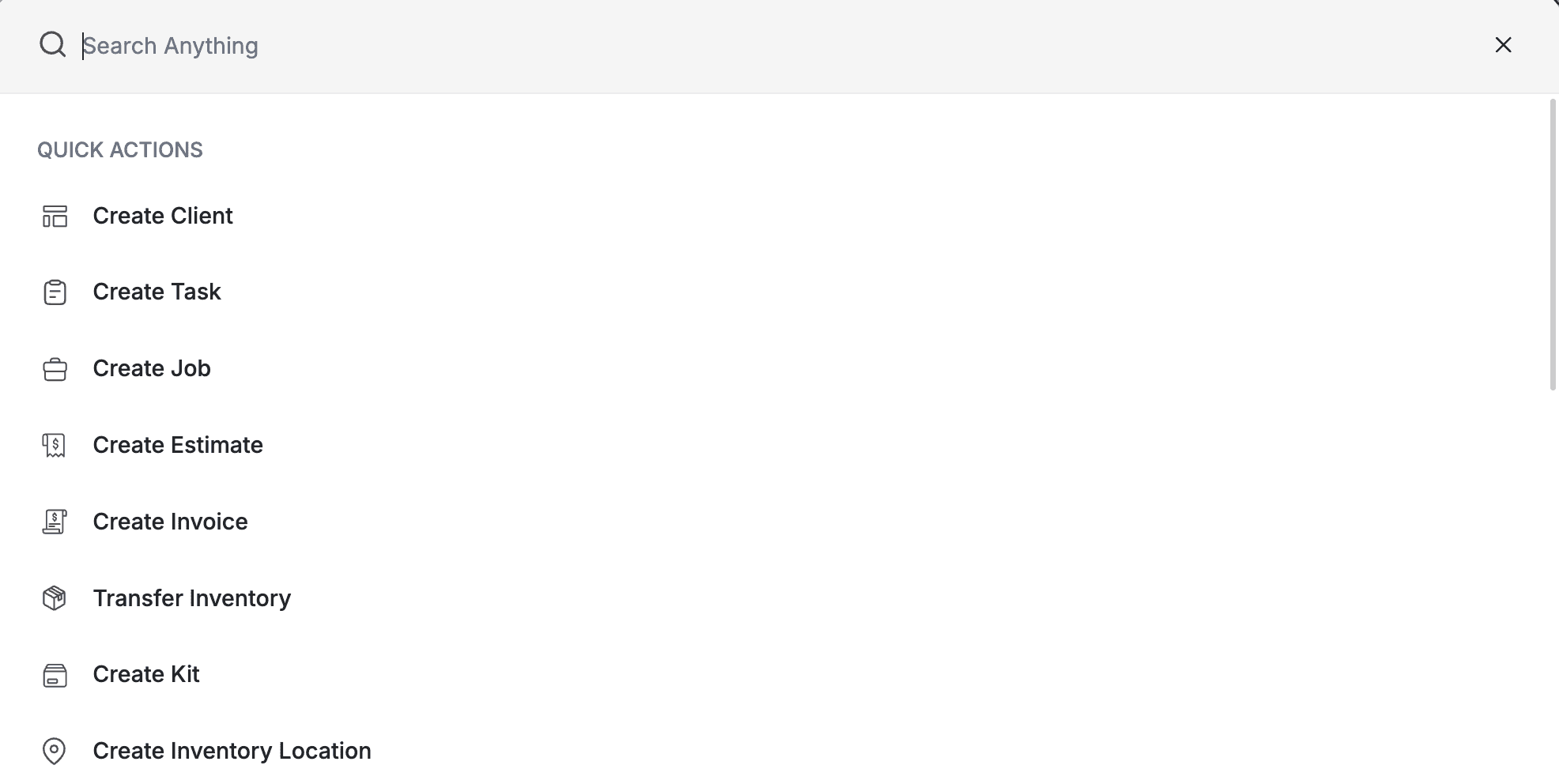
Accessing Command Key Search
Press ⌘K (Mac) or Ctrl+K (Windows) from any screen in FieldCamp to open the search overlay. The search box appears instantly with your cursor ready to type, allowing immediate search or action selection.
Search Functionality
Universal Search Capabilities
The search bar accepts any keyword or phrase to find information across your entire FieldCamp database. Simply start typing and results appear in real-time below the search box.
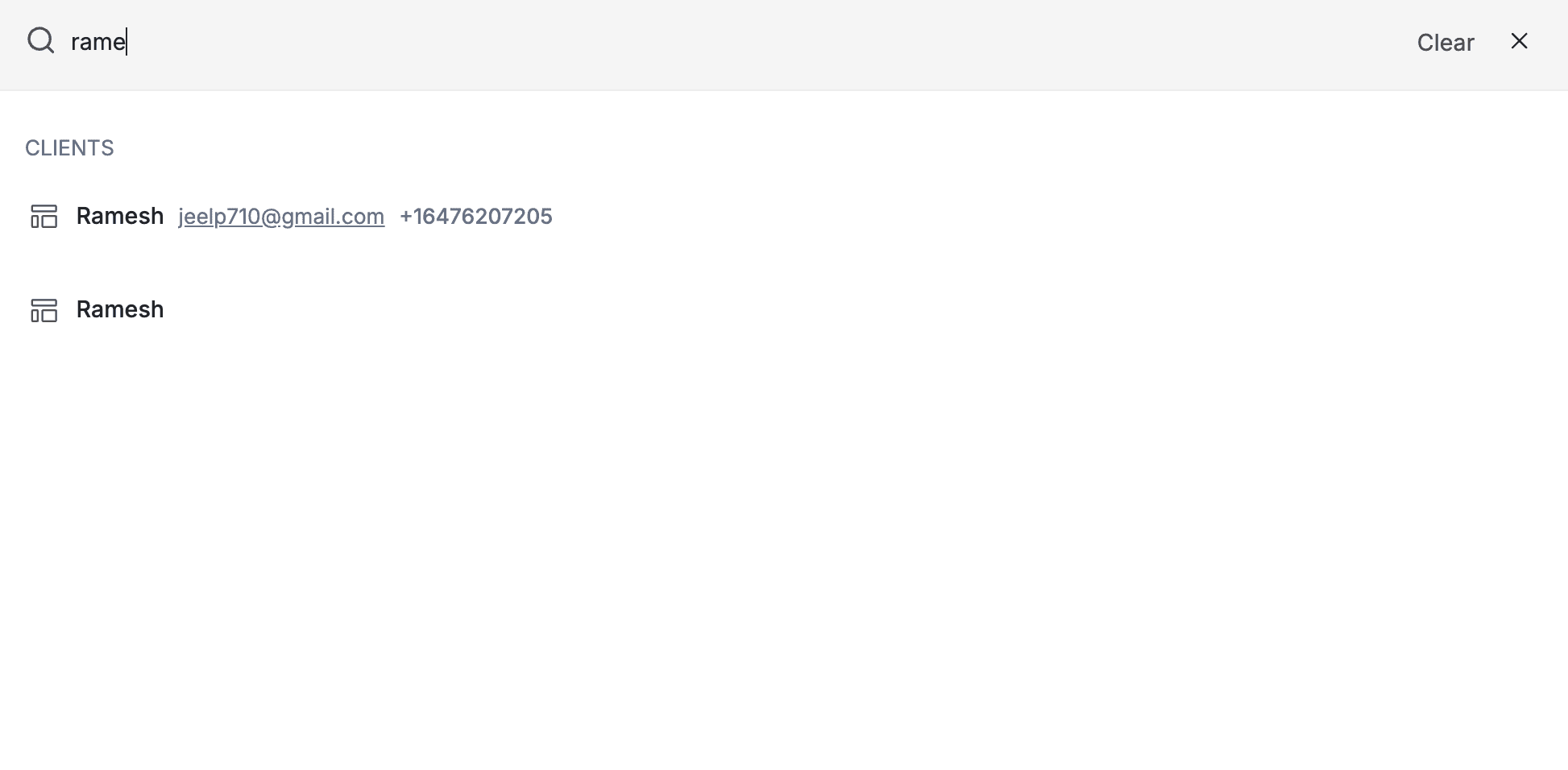
What You Can Search:
-
Client names and contact information
-
Job numbers and descriptions
-
Invoice numbers and amounts
-
Estimate references
-
Task descriptions
-
Inventory items and SKUs
-
Team member names
-
Service addresses
-
Phone numbers and emails
Search Results Display
Results are organized by category for easy scanning. Each result shows relevant context like client name for jobs, amounts for invoices, or status indicators for tasks. Click any result to navigate directly to that record, opening the full details in the appropriate module.
Smart Search Features
The search understands partial matches and common variations. Type "john" to find "Johnson", "Johnny", or "John Smith". Search recognizes different formats, finding phone numbers whether you include dashes or not.
Opening the search with an empty box shows the Quick Actions menu, not a list of recent searches. Universal search does not keep a search history.
Quick Actions Menu
Understanding Quick Actions
When you open Command Key Search without typing anything, the Quick Actions menu displays. If a query returns nothing you get a plain "No results" message instead, not Quick Actions. Most of these shortcuts take you straight to the right module or page. Only Create Client and Create Job open a pop-up over your current screen.
You only see an action your role has permission to run.
Available Quick Actions
-
Opens the new client form instantly, as a pop-up
-
All fields ready for immediate data entry
-
Saves directly from the pop-up without leaving current screen
Create Task
-
Opens the Tasks page, where you create the task
-
Assign to team members from dropdown
-
Set priority and due dates on the task itself
Create Request
-
Opens the Requests list
-
Start the new request from there
-
Opens the job creation pop-up
-
Client field includes search functionality
-
Calendar picker integrated in the pop-up
-
Opens the new estimate page
-
Add services and products from existing catalog
-
Email directly from creation screen
-
Opens the new invoice page
-
Add line items and apply taxes
-
Process payment or send for later
-
Opens the Inventory module
-
Move stock between locations from there
Create Kit
-
Opens Products & Services
-
Bundle multiple items together and set kit pricing there
Create Inventory Location
-
Opens the warehouse settings page, on the Locations view
-
Add new warehouses or vehicles from there
Add Team Member
-
Opens Team Management, on the member details view
-
Invite the person and set their role there
Open Settings
- Opens Settings, on the General page
Workflow Efficiency Tips
Using Search for Navigation
Instead of clicking through menus to find a specific client, press ⌘K and type their name. The client record appears in results within milliseconds. This method works for any record type, reducing navigation time by 70%.
Quick Creation Workflow
When on a call with a new client, press ⌘K and select "Create Client" to capture their information without interrupting the conversation. The form opens over your current screen, maintaining context while you work.
Combining Search and Actions
Search for a client first, then use Quick Actions to create a related job. Universal search keeps no history, so type the client name again on the job form.
Keyboard Shortcuts Within Command Search
Navigation Shortcuts:
-
Arrow Keys: Navigate through results, or through the Quick Actions list when the box is empty
-
Enter: Open the selected result or run the selected action
-
Escape: Close search overlay
These are the only keys the search overlay handles. There are no number-key shortcuts, no Tab switching, and no open-in-new-tab modifier. Universal search also has no prefix operators — type the plain name, number, or amount you are looking for.
Pro Tips:
-
Make Cmd+K your primary navigation method to save hours weekly
-
Train new team members on universal search first for faster adoption
-
Use Quick Actions during client calls for real-time data entry
-
For actions beyond search (creating jobs, dispatching, reports), use the Command Centre
Remember: Universal search runs the same query across every module, so it returns the same results no matter which screen you open it from.
Related Articles
AI Skills — Chat Commands | FieldCamp
Master FieldCamp's 9 built-in slash commands and custom AI skills. Schedule jobs, dispatch technicians, track invoices, and generate reports from AI chat.
FieldCamp Roles & Permissions: Who Can See What
Control access in FieldCamp with 4 roles: Admin, Dispatcher, Field Tech Pro, Field Tech Lite. See what each role can view, create, edit, and delete.