 FieldCamp
Navigating FieldCamp — Interface Guide
Learn how to navigate FieldCamp's sidebar, workspace sections, page layout, keyboard shortcuts, and conditional menu items based on your role and plan.
Under the hood — the FieldCamp data model shows how every record connects, how you can customize it, and how it maps to your trade.
The FieldCamp Sidebar
The sidebar is your main navigation tool in FieldCamp. It appears on the left side of every page and is organized into sections that group related modules together.
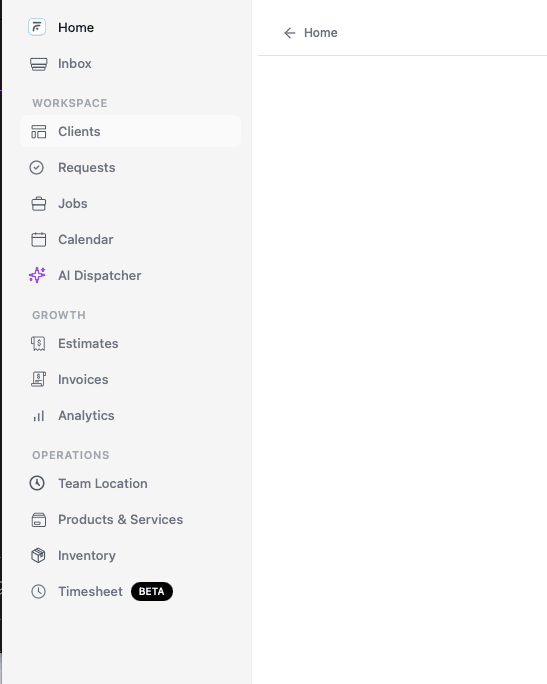
Tip: The sidebar automatically adjusts based on your role and permissions, your plan, and which add-ons you have enabled. If you don't see a module listed below, your role may not have access to it or it may require a higher plan or an add-on.
Top-Level Items
Command Centre (Home)
Command Centre is FieldCamp's AI chat assistant and your primary way to manage the business. Ask questions, create jobs, dispatch technicians, check invoices, and get reports — all by typing in plain language. This is the first screen you see after logging in. It supports 9 built-in slash commands and custom AI skills. Learn more in Command Centre — AI Chat and AI Skills.
Visibility: Home is available to authenticated users when chat is enabled. Your role still limits which records and actions you can use.
Inbox
Inbox is your omnichannel customer-conversation workspace. Use folders, connected channels, handlers, and saved views to triage and reply to messages. See the Inbox overview for the current layout.
Front Office AI
Front Office AI opens FieldCamp's AI assistants. Its AI CSR tab configures AI CSR, which answers customers by chat, SMS, WhatsApp and email, and has four tabs: Agent, Knowledge, Rules, and Settings. Only account owners and admins see this item, and only they can open the page. See Set up AI CSR.
AI CSR doesn't answer phone calls. For AI voice agents that answer and place phone calls, built in the separate FieldCamp Voice app, see the AI Receptionist voice agents docs.
Agents
Agents is where you browse, build, and manage AI agents. Only account owners and admins see this item.
WORKSPACE Section
The WORKSPACE section contains the modules you use every day to manage your operations:
-
Clients — Your customer database. Add, view, and manage all client records, properties, and service history. See Key Concepts for details.
-
Requests — Incoming service inquiries. Track requests through customizable pipeline stages and convert them to jobs or estimates.
-
Jobs — Scheduled work. Create, assign, and track jobs from start to completion.
-
Calendar — Visual scheduling with four views: Calendar, Timeline, Map, and Resource. See all your team's jobs and availability.
AI Dispatcher is no longer a sidebar item. It is configured at Settings > Automation > AI Dispatcher, and its suggestions appear where you dispatch — on the Calendar and on jobs. Connecting and activating the add-on is still a two-step setup in Apps & Integrations. See AI Dispatcher inside FieldCamp and the Add-ons Guide.
GROWTH Section
The GROWTH section contains your financial and reporting tools:
-
Estimates — Create and send professional price quotes to clients.
-
Invoices — Bill customers for completed work. Connect Stripe for online payments.
-
Analytics — Dashboards and reports showing business performance, revenue trends, and team productivity.
OPERATIONS Section
The OPERATIONS section contains tools for managing your field operations:
-
Team Location — Real-time team tracking on a map. See technician locations and movement history. Requires the Pro plan or higher and the Team Location Calendar permission.
-
Products & Services — Define the line items you add to jobs, estimates, and invoices.
-
Inventory — Track stock levels, manage warehouses, and create purchase orders.
-
Timesheet — Log and review team member working hours, resolve exceptions, and run payroll. Requires the Timesheet add-on (currently in Beta). This item only appears when the add-on is enabled. Administrators and dispatchers open the ledger; field technicians open My day instead. See Timesheet overview.
-
Visits — Track individual site visits within jobs — arrival, departure, and work performed.
Conditional Sidebar Items
Some sidebar items only appear under certain conditions:
Item
Condition
Home
Shown when chat is enabled; can be hidden in a personal sidebar layout
Team Location
Pro plan or higher + Team Location Calendar permission
Timesheet
Timesheet add-on enabled (Beta)
Custom Objects
Only if custom objects have been configured
Front Office AI and Agents
Account Owners, Admins, and Super Admins only
Tip: Missing a sidebar item? Three things to check: (1) your user role, (2) your plan, (3) whether the required add-on is enabled.
If you expect to see an item but it's missing, check your plan, your role, and whether the required add-on is enabled.
Custom Objects
If your account has Custom Objects configured, they appear in their own section at the bottom of the sidebar. Custom objects let you track data unique to your business that doesn't fit into the standard modules. Configure them in Settings → Custom Objects.
Bottom of the Sidebar
- Profile — Click your name at the bottom to access your profile, or click the gear icon to open Settings.
Customize the sidebar
Each user can choose which accessible items appear, change their order, and organize them into categories.
- Click your profile at the bottom of the sidebar.
- Select Customize sidebar.
- Use the eye control to show or hide an item.
- Drag an item to reorder it or move it into another category.
- Use the pencil beside a category to rename it, or select Add category to create one.
- Save the layout.
The editor cannot reveal a page that your role, plan, or add-on access does not allow. Hidden or inaccessible items remain permission-gated.
Workspace owners and Super Admins can use Editing to switch between My sidebar and Workspace default. The workspace default becomes the baseline for team members, while a team member's personal layout can still customize that baseline. Other users edit only their personal sidebar.
Select Reset to default to remove your personal ordering and hidden-item choices and return to the workspace baseline. Resetting the workspace default returns it to the system layout.
Page Layout
Most pages in FieldCamp follow a consistent layout:
-
Left sidebar — Navigation (always visible)
-
Main content area — The module you are currently viewing
-
Detail panel — Opens on the right when you click a record (client, job, invoice, etc.) to view or edit its details
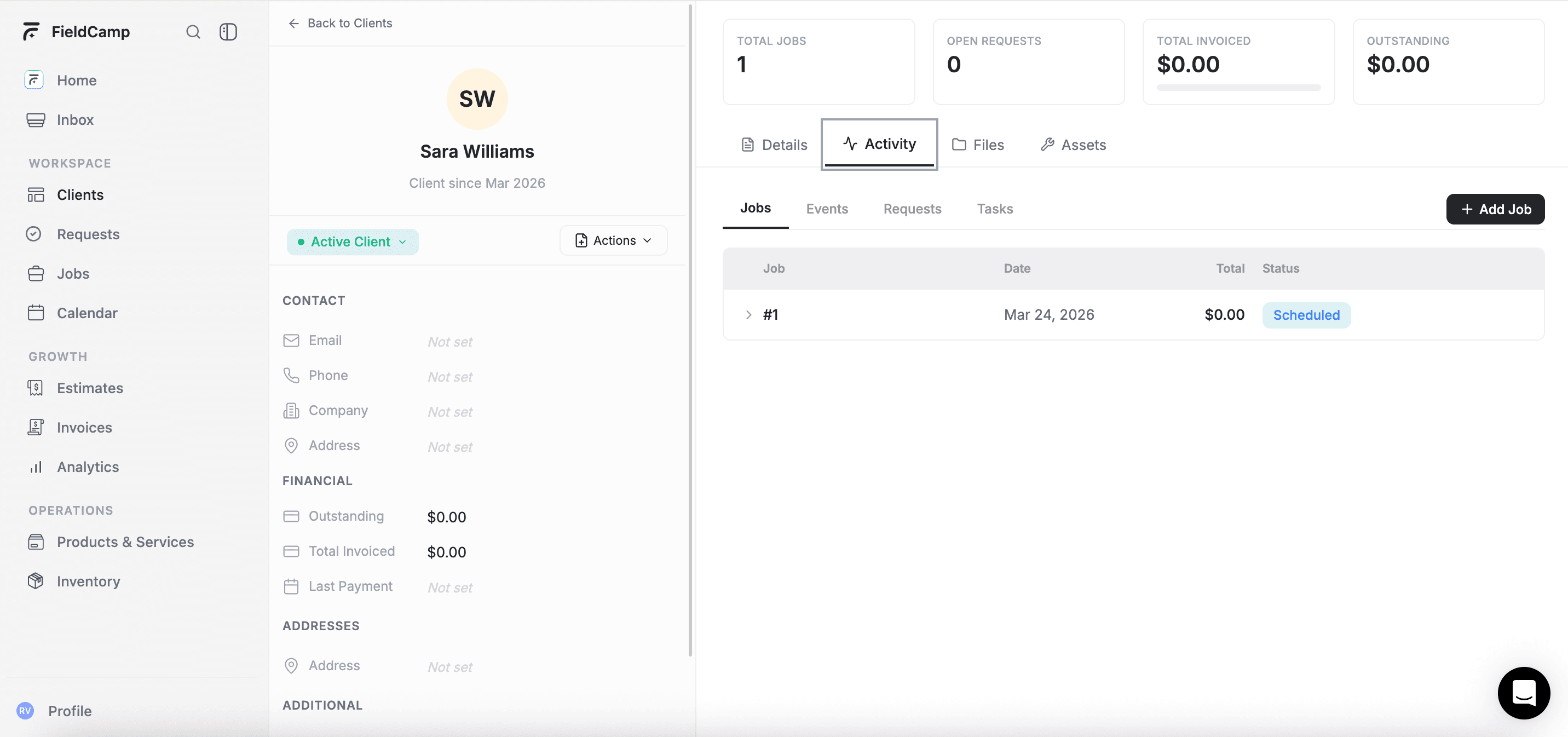
Tables support sorting by clicking column headers, filtering by clicking the filter icon, and searching by typing in the search bar at the top of each table.
Keyboard Shortcuts
Press ⌘K (Mac) or Ctrl+K (Windows) to open the universal search palette, where you can search for any module, client, job, or action by name.
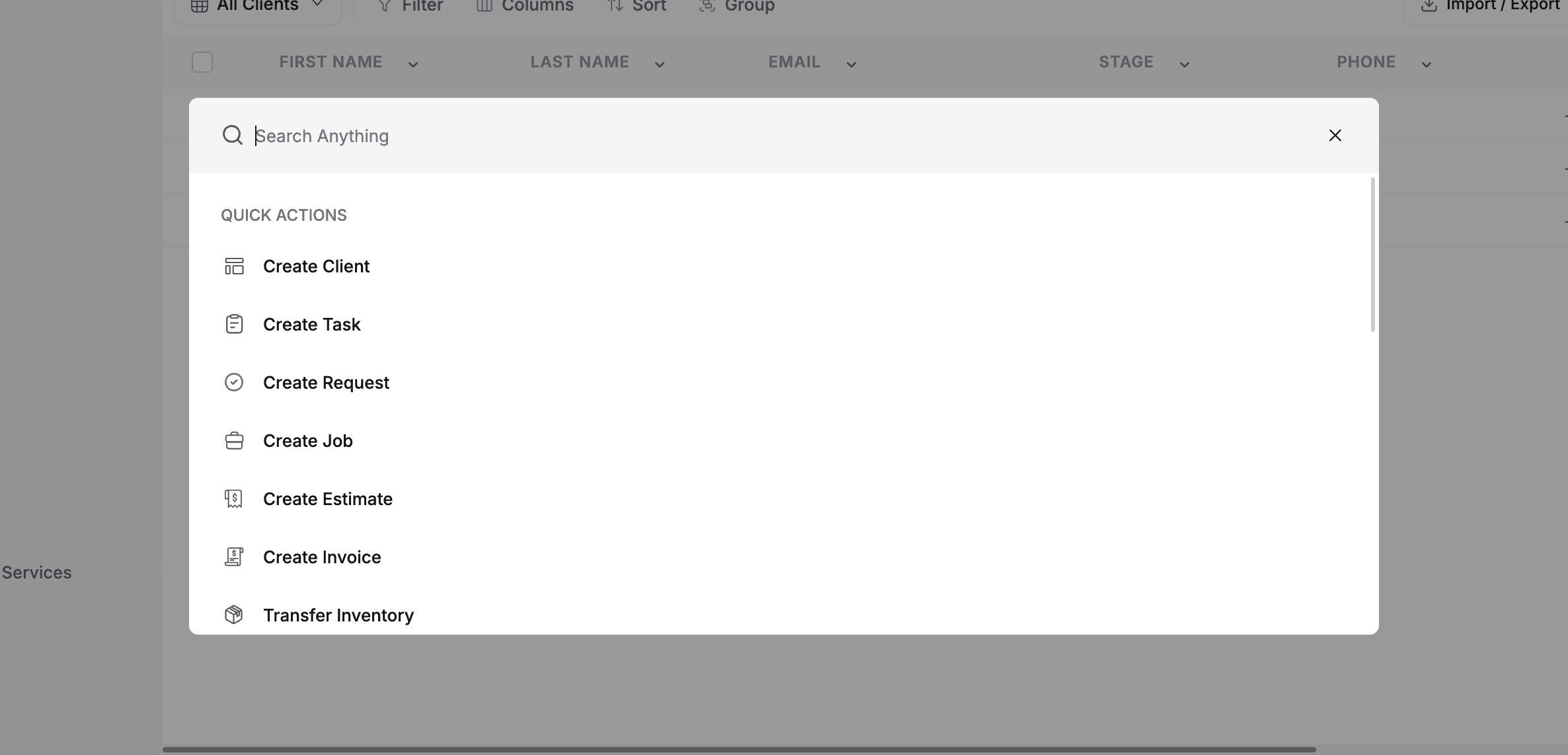
Important: The ⌘K universal search is available to any role with access to at least one searchable module — Clients, Jobs, Visits, Requests, Estimates, Invoices, Team, Products, Tasks, Inventory, Inbox, or Forms — plus Account Owners, Admins, Super Admins, and Dispatchers. Both Field Technician roles qualify. Only a role with every one of those modules switched off has no search.
Related articles
-
Command Centre — AI Chat — everything the AI chat can do
-
AI Skills — Chat Commands — all 9 slash commands explained
-
Key Concepts in FieldCamp — understand what each module does
-
Roles & Permissions — why some sidebar items may be hidden
-
Troubleshooting — fixes for common issues like missing sidebar items
FAQ's
Why can't I see certain items in my FieldCamp sidebar?
Your role, plan, enabled add-ons, and saved sidebar layout control what appears. Home is available to authenticated users when chat is enabled, but it can be hidden in a personal layout. Team Location requires the Pro plan and its Calendar permission, and Timesheet requires the Timesheet add-on. AI Dispatcher is not a sidebar item — configure it at Settings > Automation > AI Dispatcher. If an expected item is missing, check those gates and open Customize sidebar before asking an administrator to review your role.
How do I open the search bar in FieldCamp?
Press ⌘K on Mac or Ctrl+K on Windows to open the universal search palette. From there, you can search for a client, job, invoice, or module and jump to it. The shortcut is available to any role with access to at least one searchable module — Clients, Jobs, Visits, Requests, Estimates, Invoices, Team, Products, Tasks, Inventory, Inbox, or Forms — plus Account Owners, Admins, Super Admins, and Dispatchers. Both Field Technician roles qualify. A role with every one of those modules switched off has no search.
What's the difference between the WORKSPACE, GROWTH, and OPERATIONS sections?
These are the default categories FieldCamp uses to group related modules. WORKSPACE contains day-to-day records and scheduling, GROWTH contains financial and reporting tools, and OPERATIONS contains field-management tools. You can rename categories, create new ones, and move accessible items between them from Customize sidebar.
Can I customize or rearrange the FieldCamp sidebar?
Yes. Open your profile menu and select Customize sidebar. You can show or hide accessible items, drag them into a different order or category, rename categories, and create your own categories. Workspace owners and Super Admins can also edit the Workspace default; other users can save a personal layout.
Key Concepts — Core Building Blocks | FieldCamp
Understand FieldCamp's core building blocks: Command Centre, Clients, Jobs, Estimates, Invoices, Calendar, Pipelines, Analytics, and AI-powered add-ons.
Command Centre — AI Chat | FieldCamp
Manage your field service business with AI chat. Create jobs, dispatch technicians, check invoices, and get reports using natural language in FieldCamp.