 FieldCamp
Converting Requests to Jobs | FieldCamp
Turn qualified service requests into scheduled jobs in FieldCamp with one click. Client info, address, line items, and job description carry over automatically.
Under the hood — see how Jobs work in the FieldCamp data model: the fields they hold, how they connect to your other records, and how to customize them.
When a service request is qualified and the work is ready to schedule, you convert it into a job. This moves the request from your sales pipeline into active job management, where it gets a schedule, a team, and a place on the calendar.
The Fastest Way: Ask the Command Centre
Open the Command Centre and describe the conversion:
- "Convert request 45 to a job and schedule it for next Tuesday"
- "Turn the Smith Residence drain cleaning request into a job"
- "Create a job from request 112 and assign it to Mike's team"
The Command Centre pulls the request details, creates the job, and lets you confirm the schedule and team before saving.
The Command Centre carries over all request details automatically. You only need to specify what is new -- the schedule, the team, or any line items.
When to Convert a Request
Convert a request to a job when:
- The customer has confirmed they want the work done
- You have enough information to schedule (address, scope, timing)
- Any required estimates or approvals are complete
- The request has moved through your pipeline stages to a "ready" state
Not every request becomes a job. Some are declined, some need follow-up, and some convert to estimates first.
How to Convert
From the Request Detail Page
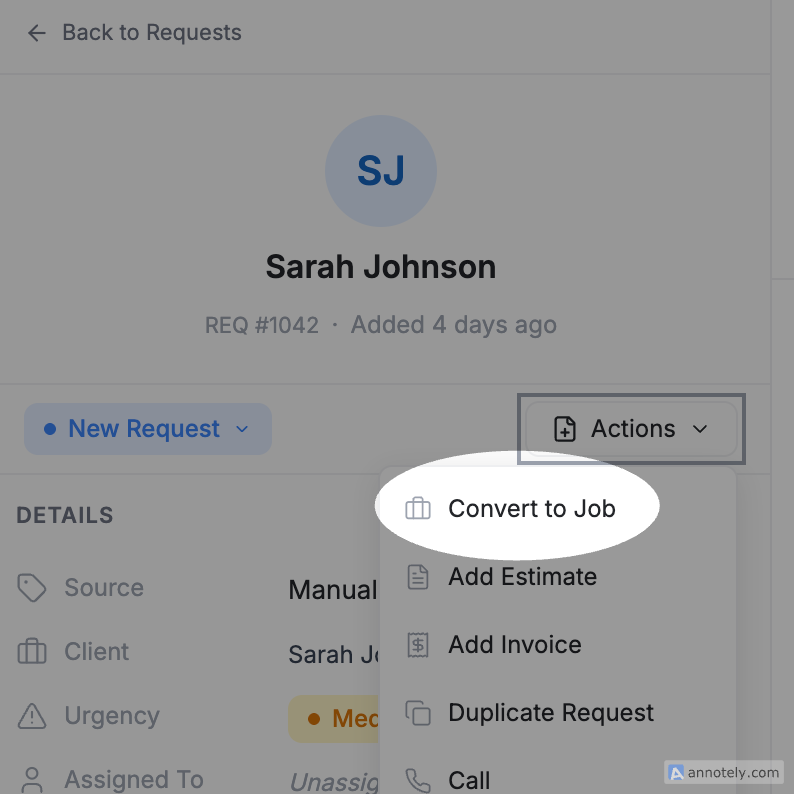
- Open the request you want to convert from the requests list or the pipeline board
- Click Actions → Convert to Job
- FieldCamp opens the job creation form, pre-filled with the request's data
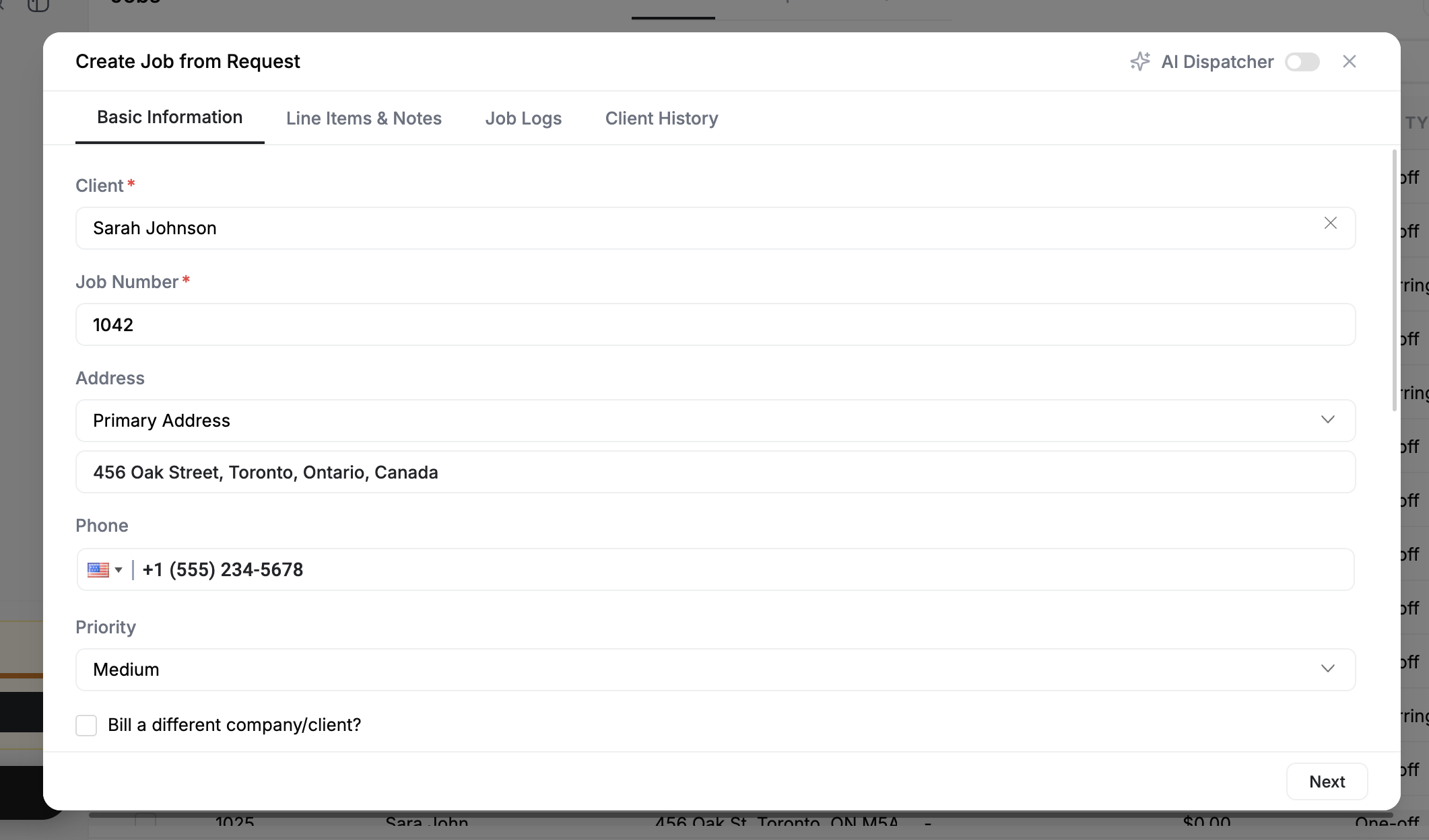
- Review and adjust the details (see below)
- Click Create to save the job
What Carries Over
When you convert, FieldCamp transfers the following from the request to the new job:
| Carried Over | Details |
|---|---|
| Client information | Name, email, phone number |
| Service address | Street, city, state, zip |
| Description | The original request description and notes |
| Custom properties | Any custom fields you added to the request |
| Attachments | Photos or documents uploaded to the request |
What You Configure
The conversion form asks you to fill in job-specific details that did not exist on the request:
- Job type -- One-time or recurring
- Schedule -- Date, time, and duration for the first visit
- Team assignment -- Which technician or crew handles the work
- Line items -- Services and products with pricing
- Priority -- Emergency, High, Normal, or Low
What Happens to the Request
After conversion, the original request updates automatically:
- Its status changes to reflect that it has been converted
- A link to the new job appears on the request record
- The request remains in your history for reporting and pipeline analytics
- It no longer appears in active pipeline views
You can still view the original request from the client's detail page or from the job's record.
Converting a request does not delete it. The request stays in your records with a "Converted" status, giving you a complete audit trail from initial inquiry to completed work.
Related Articles
Custom Job Log Templates | FieldCamp
Create custom job log templates in FieldCamp to track miles, expenses, labor hours, and any other field service costs. Reuse templates across jobs and teams.
Converting Estimates to Jobs | FieldCamp
Convert approved estimates into scheduled jobs in FieldCamp with one click. Client details, line items, pricing, and deposits carry over automatically.