 FieldCamp
Multi-Day Jobs | FieldCamp
Schedule, manage, and track jobs that span multiple consecutive days in FieldCamp with unified crew commitments, calendar blocks, and profitability tracking.
Under the hood — see how Jobs work in the FieldCamp data model: the fields they hold, how they connect to your other records, and how to customize them.
Many field service jobs — insulation installs, renovations, commercial projects — take more than one day. FieldCamp's Multi-Day Job feature lets you schedule work across consecutive days as a single unified block, keeping crews committed, calendars accurate, and profitability tracked as one project.
Create Multi-Day Jobs with AI
Open the Command Centre and describe what you need:
- "Book a 3-day spray foam job for Smith Residence starting Monday, assign Spray Crew A"
- "Schedule a 5-day warehouse insulation project at 100 Industrial Blvd next week"
- "Create a 4-day retrofit project for City Hospital and let AI find the best crew"
The AI finds a window where your chosen crew is free for all consecutive days, creates the job, and blocks the calendar. See AI Skills for more examples.
What Is a Multi-Day Job?
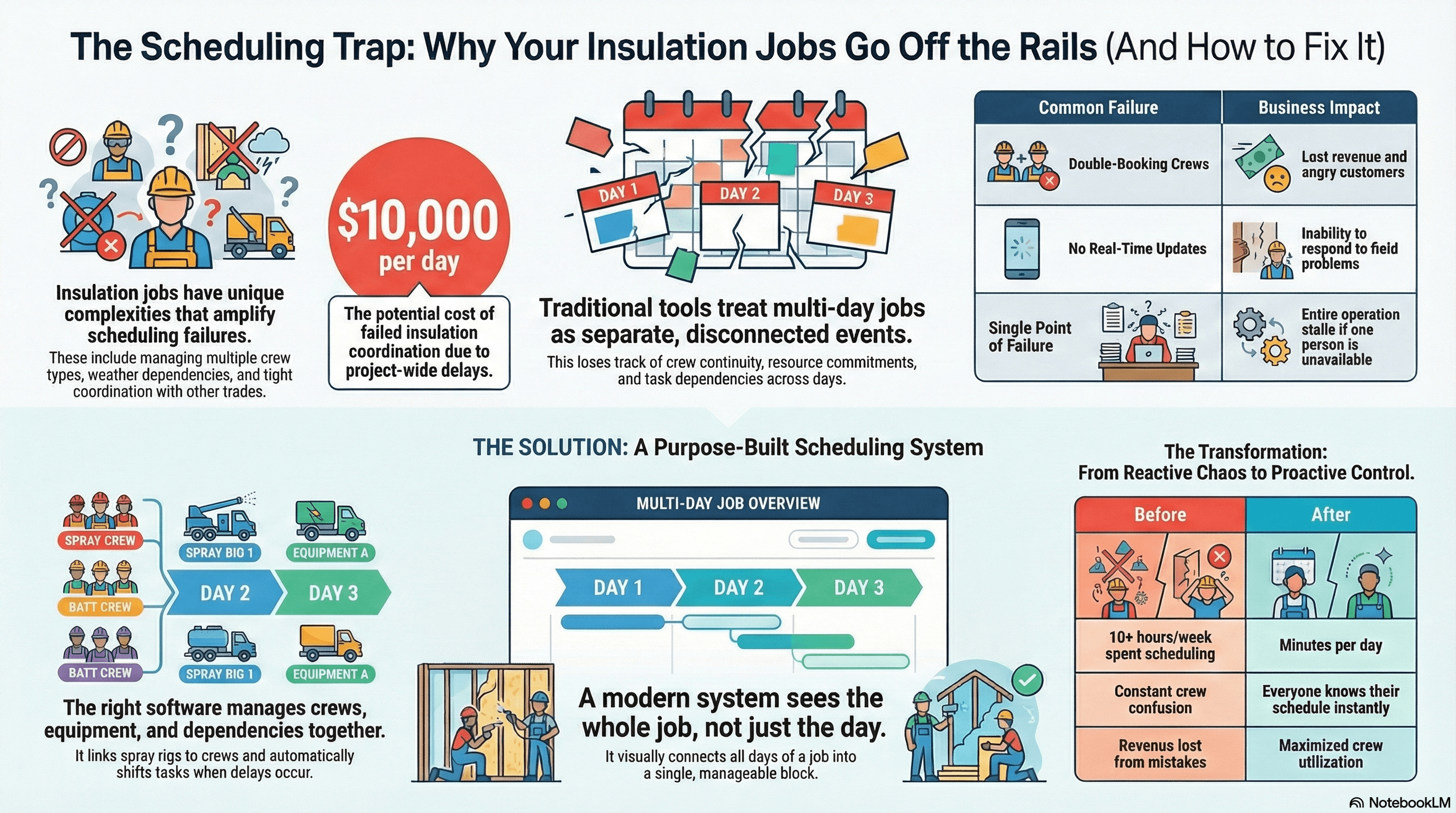
A multi-day job is a single job that spans two or more consecutive calendar days. Each day has its own purpose, but they are all part of one project.
Example: A commercial HVAC installation for City Hospital takes three days:
| Day | Work | Duration | Crew |
|---|---|---|---|
| Day 1 — Demolition | Remove old equipment, prep the site | 6 hours | Spray Crew A |
| Day 2 — Installation | Install new HVAC units, run ductwork | 8 hours | Spray Crew A |
| Day 3 — Testing | System testing, calibration, customer walkthrough | 4 hours | Spray Crew A |
FieldCamp treats this as one connected commitment:
- Visits are auto-created for each day, tracking daily progress independently
- Crews are locked for the entire duration — no accidental double-booking mid-project
- Calendar displays a connected block across all scheduled days, same color, linked by job number
- Rescheduling moves the entire block together by default
When to Use Multi-Day Jobs
| Scenario | Use Multi-Day Job? | Better Alternative |
|---|---|---|
| Same crew, same site, consecutive days | Yes | — |
| Same client, different weeks | No | Separate jobs or recurring visits |
| Different crews each day | No | Separate linked jobs |
| Non-consecutive days | No | Multiple single-day jobs |
| Inspection callbacks | No | New visit on the original job |
| Same work repeated on a schedule | No | Recurring job |
Multi-Day vs Recurring Jobs
This is a common question. The key difference is purpose:
- Multi-day = one project, multiple consecutive days. The work progresses day to day (demolition then installation then testing).
- Recurring = same work repeated on a schedule. Each visit is independent and identical (monthly filter change, weekly cleaning).
| Aspect | Multi-Day Job | Recurring Job |
|---|---|---|
| Purpose | One project, multiple consecutive days | Repeated service over time |
| Schedule | Day 1, Day 2, Day 3... | Weekly, monthly, quarterly... |
| Example | 3-day spray foam install | Monthly HVAC maintenance |
| Crew | Same crew, all days | Can vary per visit |
| Day names | Each day has a label (Prep, Install, Test) | All visits have the same description |
| Billing | One invoice for the entire job | Invoice per visit or period |
| Calendar look | Single connected block | Separate repeating events |
| Template | Multi-day template pre-configures each day | Recurring schedule sets the frequency |
Not sure which to use? If the work builds on the previous day (Day 2 depends on Day 1 being done), it is a multi-day job. If each visit is the same standalone service, it is a recurring job.
Multi-Day Templates
Templates save common multi-day patterns so you do not configure each day from scratch every time.
Example: Your company does a lot of 3-day HVAC installs. Instead of manually setting up Day 1 (demolition, 6 hours), Day 2 (installation, 8 hours), Day 3 (testing, 4 hours) for every job, you create a template called "3-Day HVAC Install" that pre-configures everything. When a new job comes in, select the template and the structure is ready.
What a Template Defines
| Setting | What It Controls | Example |
|---|---|---|
| Template name | How you find and select it | "Full Home Spray Foam (3-Day)" |
| Number of days | How many consecutive days | 3 |
| Day labels | What each day is called | "Prep & Masking," "Application," "Cleanup & Inspection" |
| Required skills per day | Which skills the crew needs for each day | Day 1: Removal & Prep; Day 2: Spray Foam - Closed Cell; Day 3: Lead Installer |
| Description | When to use this template | "Homes 2,500+ sq ft, mixed application" |
Setting Up Templates
- Go to Settings → Job Templates
- Click + Create Template
- Fill in the template name, description, and default duration
- Configure each day: add a label and required skills
- Click Save Template
For a full walkthrough with screenshots, see Scheduling Multi-Day Jobs Step by Step.
Multi-day templates require the Multi-Day Templates add-on to be enabled. Go to Settings → Add-ons to activate it. After enabling, the Job Templates option appears in your Settings sidebar.
Key Concepts
Crew Commitment
When you assign a crew to a multi-day job, they become unavailable for other work during the full duration. This prevents scheduling conflicts mid-project and keeps everyone clear on who is working where.
The crew stays together for the entire project. If Mike Torres and Sarah Johnson are assigned to a 3-day install, both are blocked for all three days.
Day-by-Day Visits
Even though the job displays as one block, FieldCamp creates individual visits for each day. You can:
- Track arrival and departure times per day
- Log expenses and hours daily in job logs
- Add day-specific notes and observations
- Mark daily progress milestones
- Complete forms and checklists specific to each day's work
Job Continuity
All visits are linked. Reschedule the job and every visit moves. Reassign the crew and every day updates. Cancel the job and all visits cancel. This saves you from making the same change across multiple visits manually.
How Multi-Day Appears on the Calendar
On the calendar, a multi-day job shows as connected blocks across consecutive days:
- All days share the same color
- Each block shows the day label (e.g., "Day 1 — Prep & Masking")
- The job number links all days together
- Hovering over any day shows the full job summary
Multi-Day Jobs and AI Dispatch
The AI scheduling engine handles multi-day jobs with special logic:
- AI checks crew availability across all consecutive days, not just one day at a time
- If the crew is available Monday through Wednesday but booked Thursday, AI will not suggest a 4-day job starting Monday
- AI considers skills required for each day separately (if Day 2 needs a specialized skill, the crew must include someone with it)
- The AI Dispatcher can plan multi-day assignments as part of its bulk dispatch workflow
Financial Tracking
Multi-day jobs consolidate all cost data into one view:
| Cost Type | How It Is Tracked |
|---|---|
| Labor hours | Sum of all daily hours logged across every visit |
| Labor cost | Total hours multiplied by crew rates |
| Travel/mileage | First day arrival + last day departure |
| Materials & expenses | All expenses across all days |
| Equipment costs | Daily rates multiplied by job duration |
FieldCamp calculates Job Income, Job Cost, and Profit Margin for the entire project. Review the Job Logs section for day-by-day breakdowns.
When it comes time to invoice, you create one invoice for the full multi-day job rather than invoicing each day separately.
Managing Changes
Extend the job — If a 3-day project needs a 4th day, edit the end date. An additional visit is created automatically and the crew commitment updates.
Shorten the job — If work finishes early, remove the extra days. Unneeded visits are cancelled.
Swap a crew member — Edit the crew assignment and all days update. FieldCamp checks for conflicts on the replacement member's schedule.
Reschedule one day — The job moves as a block by default, but you can adjust individual visit times within the job if needed (e.g., Day 2 starts an hour later due to a delivery delay).
Cancel the project — Cancel the job and all associated visits cancel together.
Frequently Asked Questions
What if a multi-day job runs longer than planned? Edit the end date to extend the job. Additional visits are added automatically and crew commitments update.
Can I reschedule just one day? Yes. The job moves as a block by default, but you can adjust individual visit times within the job.
How do crews see multi-day jobs on mobile? Crews see their daily visit with a clear indicator like "Day 2 of 4" and can view the full job schedule from the mobile app.
Can I assign different people to different days? The primary crew covers all days, but you can add or remove individual members on specific visits if one person is only needed for a particular day.
Do I need to enable anything first? Yes. Multi-day jobs require the Multi-Day Templates add-on. See Scheduling Multi-Day Jobs for the full setup process.
Related Articles
Recurring Jobs | FieldCamp
Set up weekly, bi-weekly, monthly, or custom recurring jobs in FieldCamp. Visits are created automatically so your field service schedule stays on track.
Scheduling Multi-Day Jobs | FieldCamp
Step-by-step guide to enabling multi-day templates, setting up team skills, creating job templates, and scheduling multi-day field service jobs in FieldCamp.