 FieldCamp
Converting Estimates to Jobs | FieldCamp
Convert approved estimates into scheduled jobs in FieldCamp with one click. Client details, line items, pricing, and deposits carry over automatically.
Under the hood — see how Jobs work in the FieldCamp data model: the fields they hold, how they connect to your other records, and how to customize them.
Once a customer approves an estimate, the next step is turning it into a real job. FieldCamp makes this a one-click process that carries over the client, line items, pricing, and any deposits already collected.
The Fastest Way: Ask the Command Centre
Open the Command Centre and tell it what you need:
- "Convert the Smith Residence estimate to a job"
- "Turn estimate 78 into a job and schedule it for next Monday"
- "Create a job from the approved ABC Plumbing roof repair estimate"
The Command Centre pulls the estimate details, builds the job, and asks you to confirm the schedule and team assignment.
When to Convert
Convert an estimate to a job when:
- The customer has approved the estimate (signed or confirmed)
- You are ready to schedule the work
- Any required deposits have been collected or are being tracked
You do not need to wait for a deposit to convert. FieldCamp tracks deposit status separately and applies it when you create the invoice later.
Only approved estimates should be converted. If the estimate is still pending, follow up with the customer first. You can resend or revise the estimate from the estimate detail page.
How to Convert
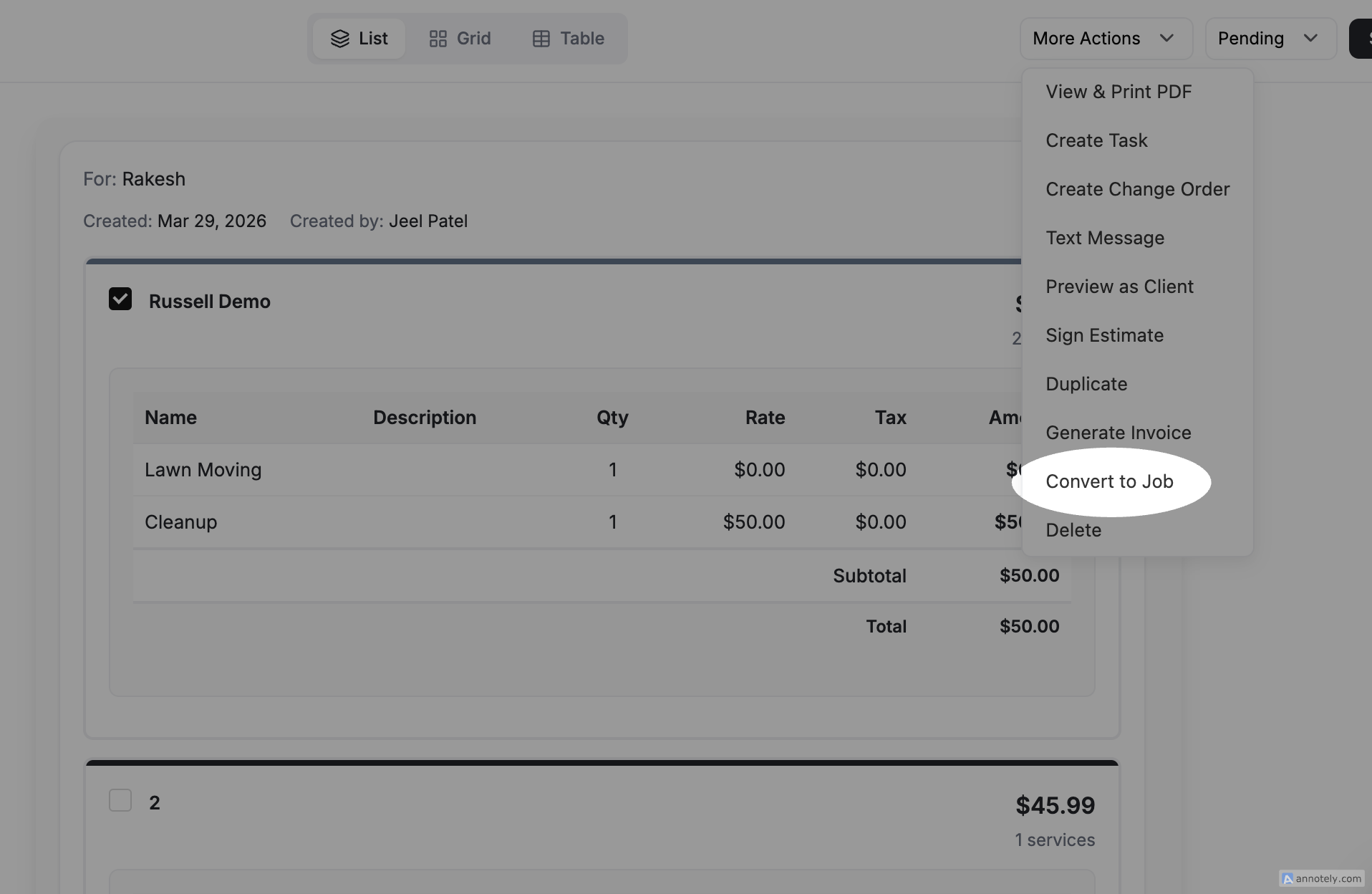
- Open the estimate from the Estimates list or the client's detail page
- Click More Actions → Convert to Job
- FieldCamp opens the job creation form, pre-filled with the estimate's data
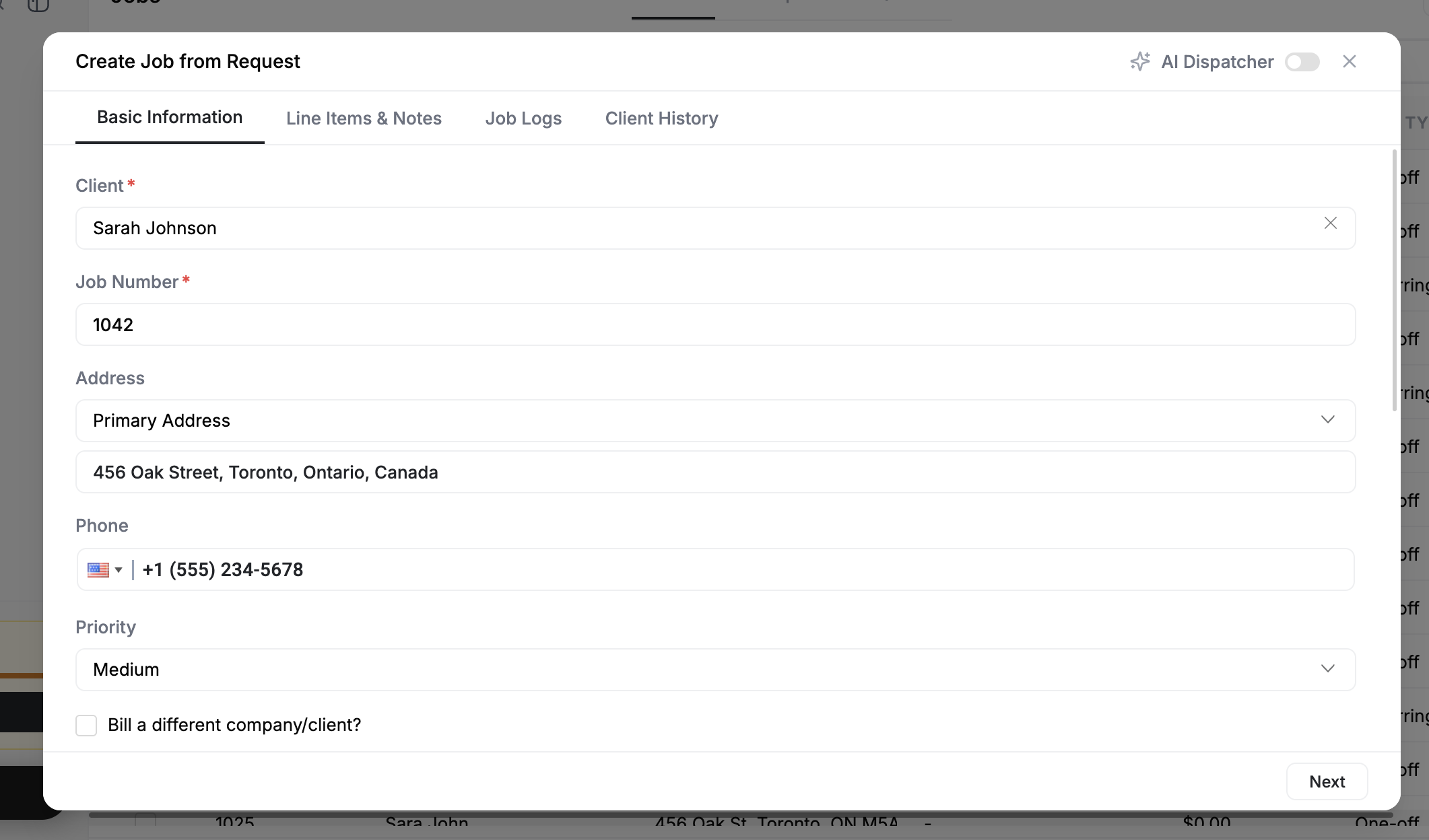
- Add job-specific details: schedule, team assignment, and priority
- Click Create to save the job
What Carries Over
| From the Estimate | Into the Job |
|---|---|
| Client name and contact | Pre-filled in the client field |
| Service address | Copied to the job's location |
| Line items | Services and products with quantities and pricing |
| Total price | Job total matches the approved estimate |
| Deposits collected | Tracked and applied when invoicing |
| Notes and terms | Carried into job instructions |
| Attachments | Photos, plans, and documents transfer to the job |
What You Configure
The estimate does not include scheduling or staffing, so you add those during conversion:
- Schedule -- Pick the date and time for the first visit
- Job type -- One-time or recurring
- Team -- Assign technicians with the right skills
- Priority -- Set based on urgency
- Additional line items -- Add anything not on the original estimate if the scope changed
How Deposits Work After Conversion
If the customer paid a deposit on the estimate, that amount is tracked on the job record. When you create an invoice from the completed job, FieldCamp:
- Lists the full amount of work done
- Shows the deposit as a credit
- Calculates the remaining balance the customer owes
This means no manual math and no risk of double-charging. For more on deposits, see Deposits: Request, Collect, and Apply.
What Happens to the Estimate
After conversion:
- The estimate status updates to show it has been converted
- A link to the new job appears on the estimate record
- The estimate stays in your history for reporting and auditing
- It no longer appears in your active estimates list
You can view the original estimate anytime from the job's Assets tab or the client's detail page. The estimate is never deleted.
Related Articles
Converting Requests to Jobs | FieldCamp
Turn qualified service requests into scheduled jobs in FieldCamp with one click. Client info, address, line items, and job description carry over automatically.
Creating Invoices from Jobs | FieldCamp
Generate invoices from completed jobs in FieldCamp. Line items, labor hours, and materials carry over so you can bill field service customers quickly.