 FieldCamp
Deposits & Partial Payments | FieldCamp
Add deposits to estimates in FieldCamp, collect partial payments via Stripe or manually, and apply them to invoices automatically. Track deposit status easily.
Under the hood — see how Estimates & Invoices work in the FieldCamp data model: the fields they hold, how they connect to your other records, and how to customize them.
Deposits let you collect partial payment before work starts. Add a deposit to an estimate, collect it via Stripe or record a manual payment, and FieldCamp tracks what has been paid and what is still owed. When the estimate becomes a job and then an invoice, collected deposits carry through automatically.
AI-powered deposits: Open the Command Centre and type "Add a 30% deposit to the Smith Residence estimate" or "What deposits are outstanding?" See AI Skills for more examples.
What Is a Deposit?
A deposit is an upfront partial payment you collect before starting work. It protects your business by securing client commitment and helps cover material costs. Common examples:
- 50% deposit on a $4,000 kitchen remodel
- Fixed $200 deposit for a landscaping project
- 25% deposit on a commercial HVAC installation
Deposits are always created on estimates. They follow the document through the entire pipeline -- estimate to job to invoice -- so you never re-enter anything.
The Deposit Flow
Here is how deposits move through FieldCamp:
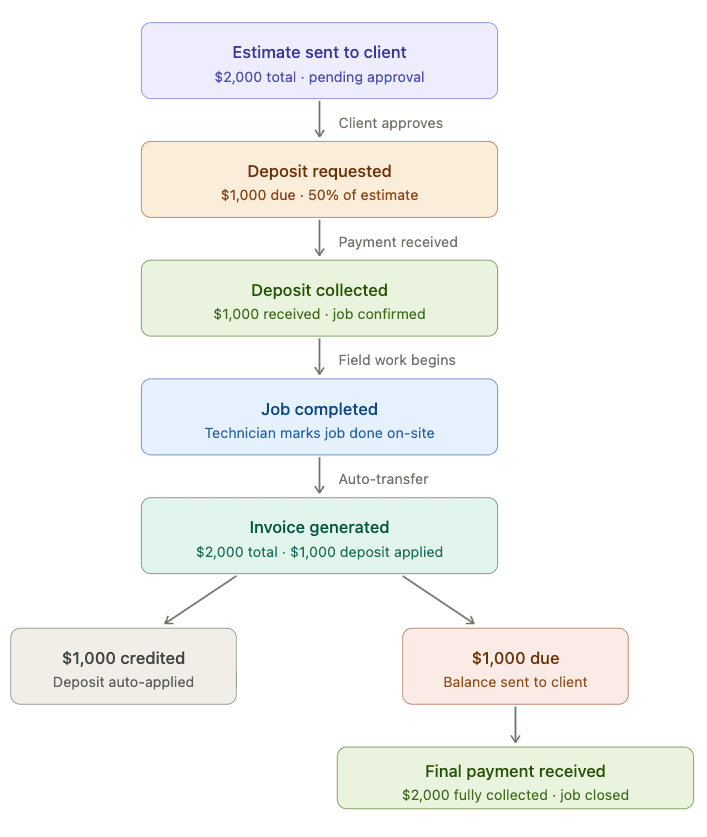
Add deposit to estimate > Send to client > Client pays deposit > Approve estimate > Convert to job > Create invoice > Deposit auto-applied > Client pays remaining balance
Adding a Deposit to an Estimate
- Open an existing estimate or create a new one from Estimates > + Add Estimate.
- In the estimate editor, find the Deposit section in the price summary area.
- Click to open the Deposit Modal.
- Choose the deposit type:
| Type | How it works | Example |
|---|---|---|
| Percentage | Enter a percentage of the estimate total; the dollar amount calculates automatically | 50% of $2,000 = $1,000 |
| Fixed amount | Enter a specific dollar amount; the percentage calculates automatically | $500 on a $2,000 estimate = 25% |
- Set a deposit due date -- this is when the deposit should be paid by.
- Click Save.
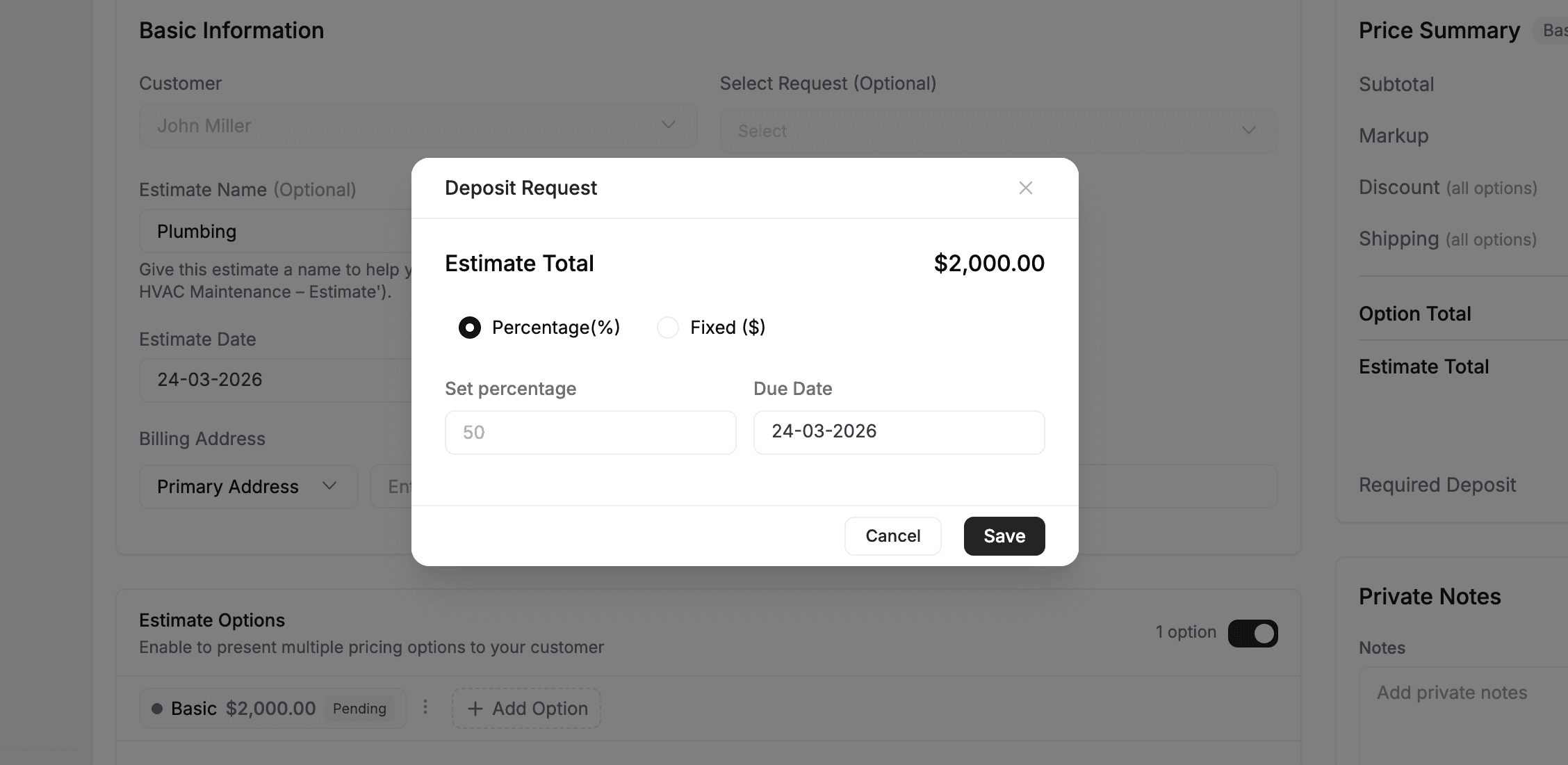
The deposit now appears in the estimate's price summary. When you send the estimate to the client, they see the required deposit amount and due date.
Multi-option estimates: If your estimate has multiple pricing options, the deposit recalculates dynamically based on whichever option the client selects. A 50% deposit on a $2,000 option shows $1,000; the same estimate's $3,000 option shows $1,500.
Collecting a Deposit Payment
Once a deposit is set, you can collect it two ways:
Option 1 -- Client Pays Online via Stripe
If you have Stripe connected, clients can pay the deposit directly from the estimate they receive by email. The client clicks Pay Deposit, enters card details on the Stripe checkout page, and the payment is recorded automatically in FieldCamp.
Option 2 -- Record a Manual Payment
For cash, check, bank transfer, or any other offline method:
- Open the estimate.
- Click the Collect Deposit button (only appears when a balance remains).
- The Record Payment modal opens.
- Enter the payment amount, select the payment method, and add any notes.
- Click Record Payment.
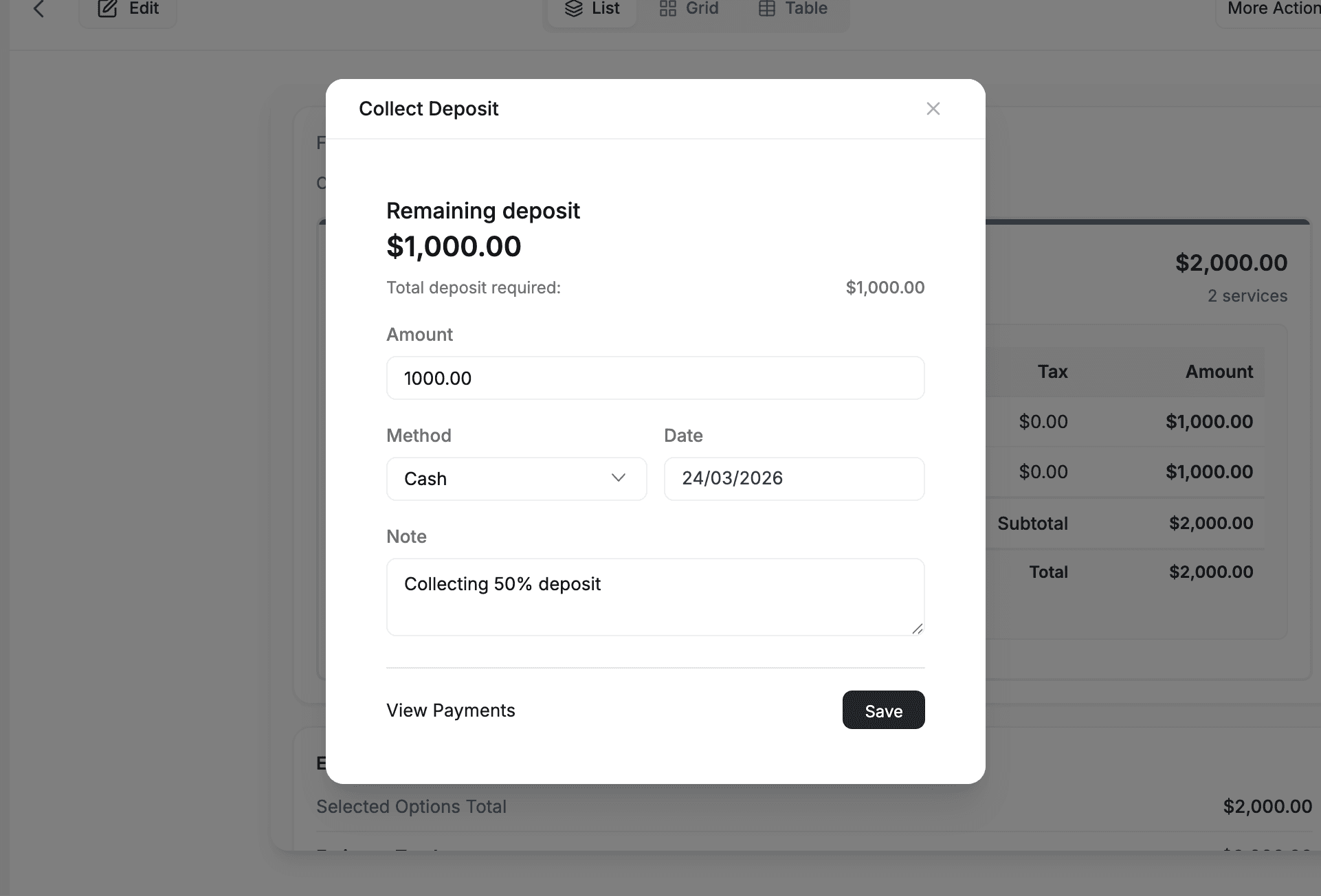
Partial deposits: Clients can pay in installments. If the required deposit is $1,000, a client could pay $500 now and $500 later. FieldCamp tracks each payment separately and updates the status accordingly.
Deposit Payment Status
Every deposit shows one of three statuses that update automatically:
| Status | Meaning |
|---|---|
| Unpaid | Deposit added to the estimate but no payments received yet |
| Partial | Some payments received, but the full deposit amount has not been collected |
| Paid | The full deposit amount has been collected |
You can view deposit payment history at any time by opening the estimate. It shows the total collected and the remaining balance.
How Deposits Transfer to Invoices
This is the most important part. When you convert an approved estimate into a job and then create an invoice, FieldCamp automatically:
- Transfers all collected deposit payments to the new invoice.
- Creates payment history entries on the invoice for each transferred payment.
- Reduces the invoice balance so the client only owes the remaining amount.
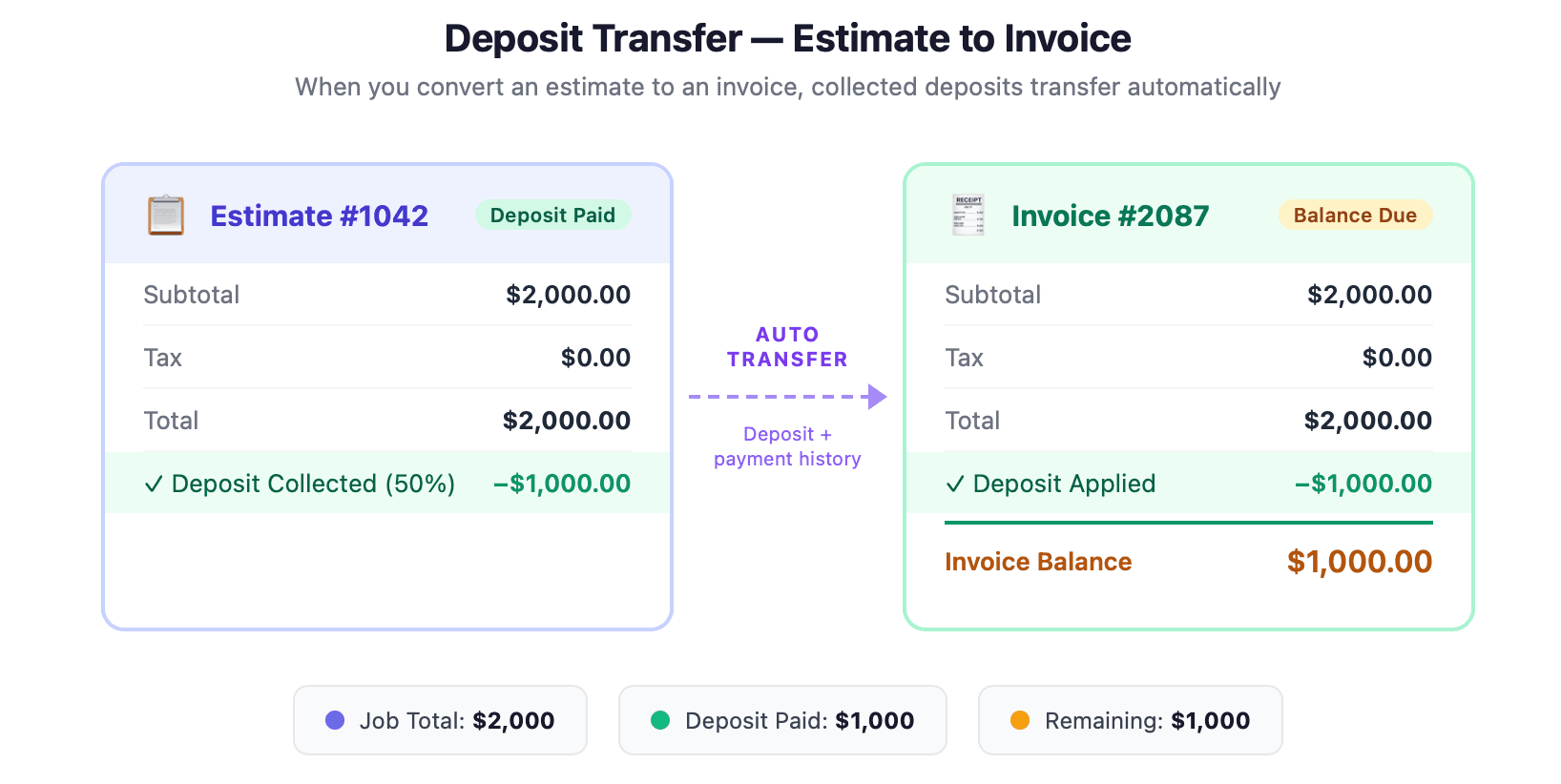
Example: You send an estimate for $2,000 with a 50% deposit ($1,000). The client pays the $1,000 deposit. You approve the estimate, convert it to a job, and create an invoice. The invoice shows a total of $2,000 with $1,000 already paid (from the deposit), leaving a balance of $1,000.
You cannot add a deposit directly to an invoice. Deposits are always created on estimates and flow through to invoices automatically. The transfer is handled by FieldCamp -- you do not need to re-enter anything.
How Deposits Appear on Documents
Deposits appear in the price summary section of estimates and invoices, both on screen and in PDF exports.
| Document | What shows |
|---|---|
| Estimate (before payment) | Required Deposit line with amount and due date below the total |
| Estimate (after payment) | Total Collected and Remaining to Collect |
| Invoice | Full total, then an Invoice Balance line showing what the client still owes after deposits are applied |
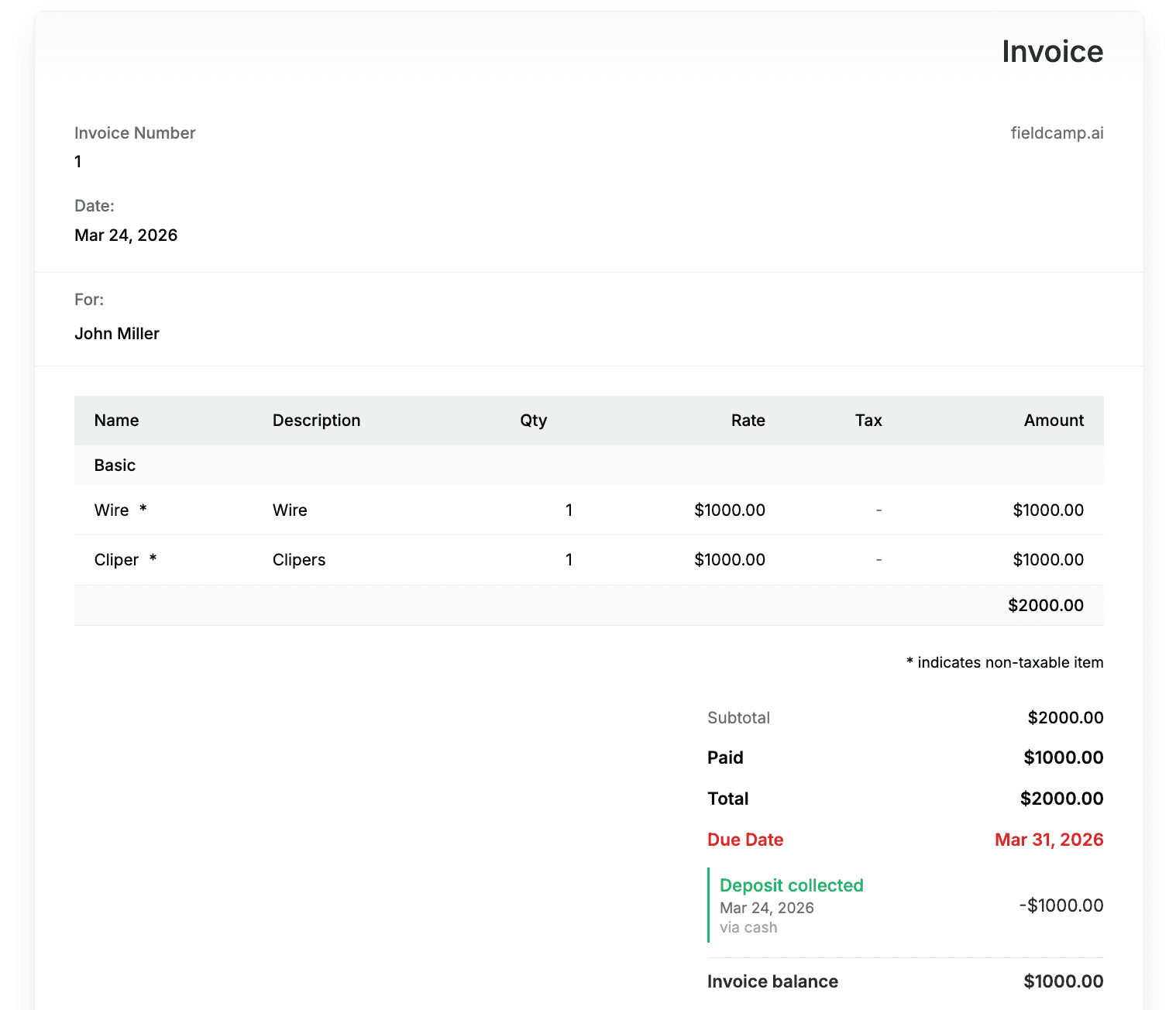
To control whether deposits appear on your document templates, go to Settings > Document Templates, select your estimate template, and toggle the Deposit setting on or off.
Editing and Removing Deposits
Editing a Deposit
You can change a deposit's amount, type, or due date as long as it has not been used by an invoice yet. Open the estimate, click the deposit section, make your changes, and save.
If the deposit has already been applied to an invoice, it becomes locked. This prevents inconsistencies between the estimate and invoice records.
Removing a Deposit
Open the estimate's deposit settings and clear the deposit fields. This removes the deposit requirement. If payments have already been collected, those payment records are preserved in the history.
Deleting a Deposit Payment
You can delete a deposit payment recorded in error, but only if that payment has not been applied to an invoice. Once applied, it is locked to protect the invoice's payment record.
Frequently Asked Questions
Can I add a deposit directly to an invoice? No. Deposits are always added to estimates. The deposit flows through to the job and invoice automatically when you convert the estimate.
What happens if the client overpays the deposit? FieldCamp prevents deposit payments from exceeding the required amount. If the deposit is $500, a payment of $600 will be rejected.
Can I change the deposit after the client has partially paid? Yes, as long as the deposit has not been applied to an invoice. If the new amount is less than what was already collected, the status shows as Paid.
Do deposits work with QuickBooks, Xero, or Wave? Yes. Deposit payments transfer to invoices, and when invoices sync to your accounting software, the deposit payments are included in the invoice's payment record.
Is there a minimum deposit for Stripe payments? Yes. Stripe requires a minimum of $0.50 per transaction. You can still record a manual payment for any amount.
Related Articles
- Payments Overview -- how payments work in FieldCamp
- Connect Stripe -- accept online card payments
- Client Payment Methods -- store and manage cards on client profiles
- Creating Estimates -- build estimates and add deposits
- Creating Invoices -- convert estimates to invoices with deposits applied
- Command Centre -- manage deposits with plain language
Connect Stripe | FieldCamp
Connect Stripe to FieldCamp to accept online card payments on invoices. Customers pay with one click. Includes the Stripe and FieldCamp fees that apply.
Client Payment Methods | FieldCamp
Store and manage credit cards on client profiles in FieldCamp. Add cards, set a default, remove old ones, and keep payment methods ready for auto-pay.