 FieldCamp
Managing Tasks | FieldCamp
Create, assign, and track internal tasks linked to clients, jobs, estimates, or invoices. Set due dates, reminders, and priorities to keep your team on schedule.
Under the hood — see how Customers work in the FieldCamp data model: the fields they hold, how they connect to your other records, and how to customize them.
Tasks in FieldCamp are internal to-dos that keep your team organized. You can link them to clients, jobs, estimates, or invoices, assign them to specific team members, set due dates with reminders, and track completion — all from the Inbox.
AI-first tasks: Open the Command Centre and type "Create a task to follow up with Smith Residence next Monday" or "Show me my overdue tasks." The AI creates and manages tasks instantly.
Where to Find Tasks
Tasks use their own Tasks page. Open it from Home or Global Search. Older Inbox > Tasks links redirect to the current page.
You can also find tasks linked to specific records:
| Location | What It Shows |
|---|---|
| Tasks page | All tasks assigned to you and your team |
| Client detail > Activity tab | Tasks linked to that client |
| Job detail > Assets tab | Tasks linked to that job |
Task Organization
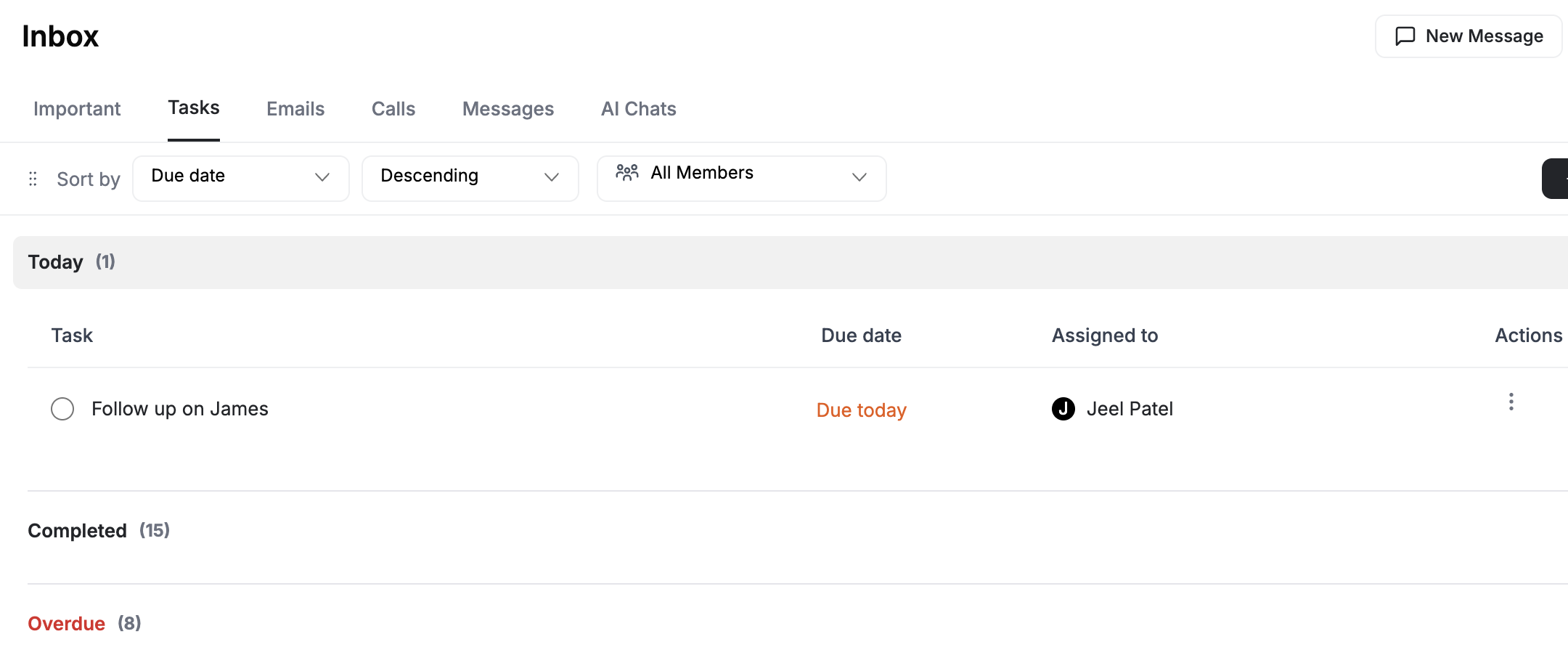
FieldCamp automatically groups tasks by their due date:
| Group | Description |
|---|---|
| Overdue (red) | Past the due date — needs immediate attention |
| Today | Due by end of day |
| This Week | Due during the current week |
| Upcoming | Scheduled for the future |
Creating a Task
- Click Add Task on the Tasks page
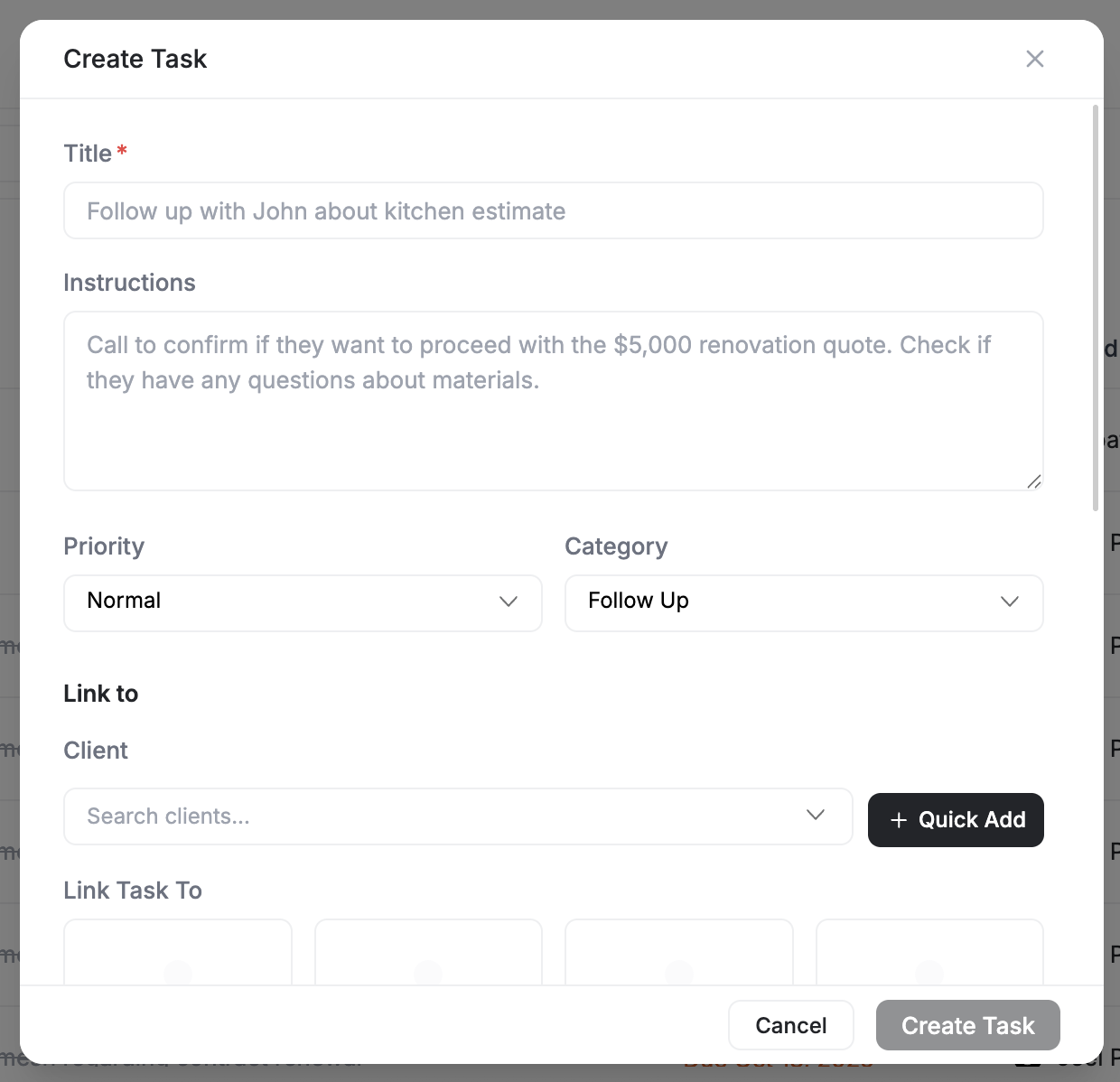
- Fill in the task details:
| Field | Required | Description |
|---|---|---|
| Title | Yes | A clear, actionable name (start with a verb: "Call," "Visit," "Email") |
| Instructions | No | Additional details or notes for the assignee |
| Priority | No | Normal, High, or Urgent |
| Category | No | Work type like "Follow Up," "Inspection," or a custom label |
| Link to | No | Connect to a Client, Job, Estimate, or Invoice |
| Assign to | No | Pick a team member from the dropdown |
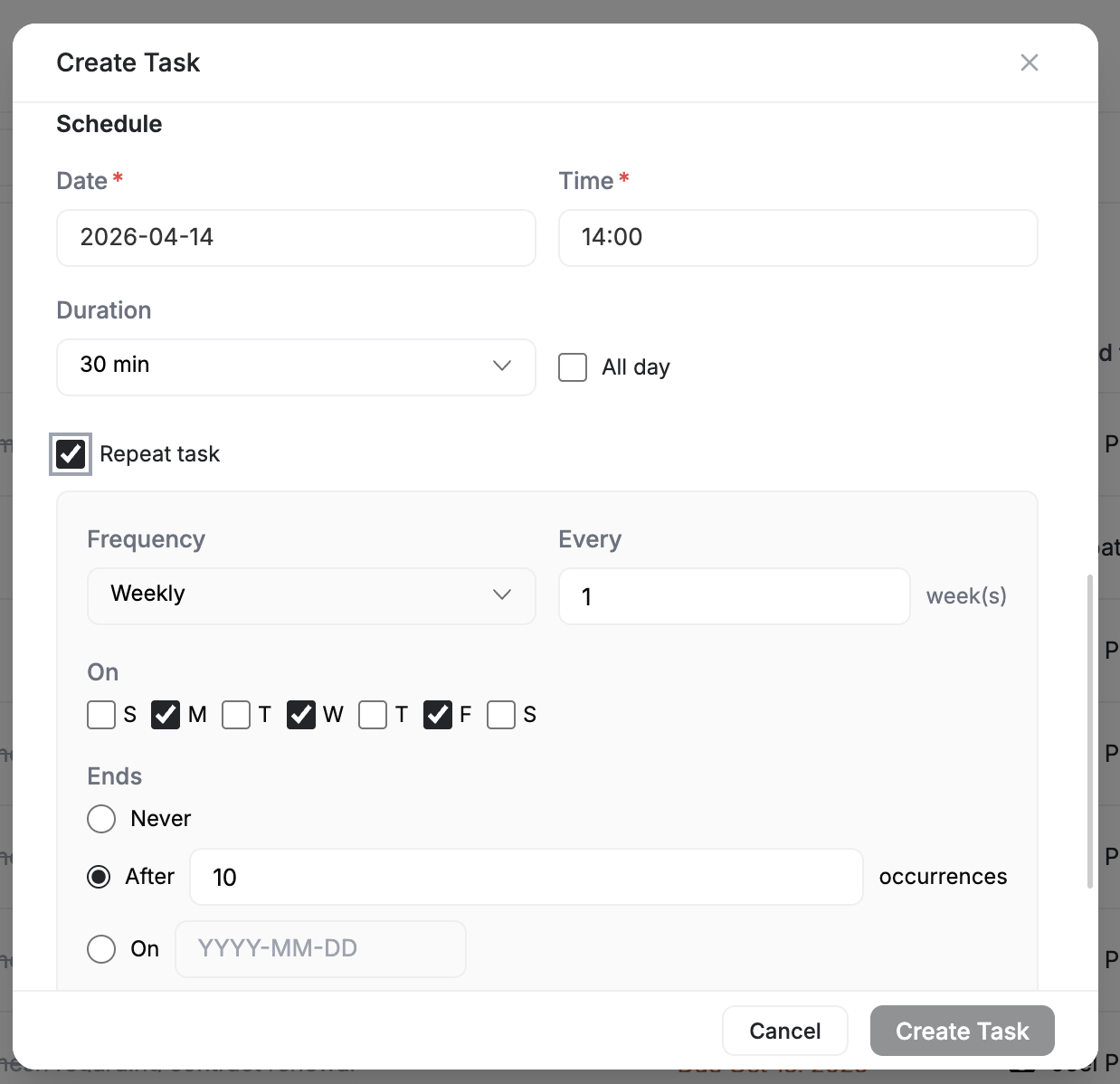
| Schedule | No | Set date, time, and duration — or mark as "All day" or "Repeat" |
| Reminder | No | 1 day, 1 hour, 30 min, 15 min, or 5 min before — via Email, Push, or SMS |
- Click Create Task
The task appears in the appropriate timeline group based on its due date.
Tip: Check the "Email the team" box when assigning a task to notify the team member immediately.
Completing Tasks
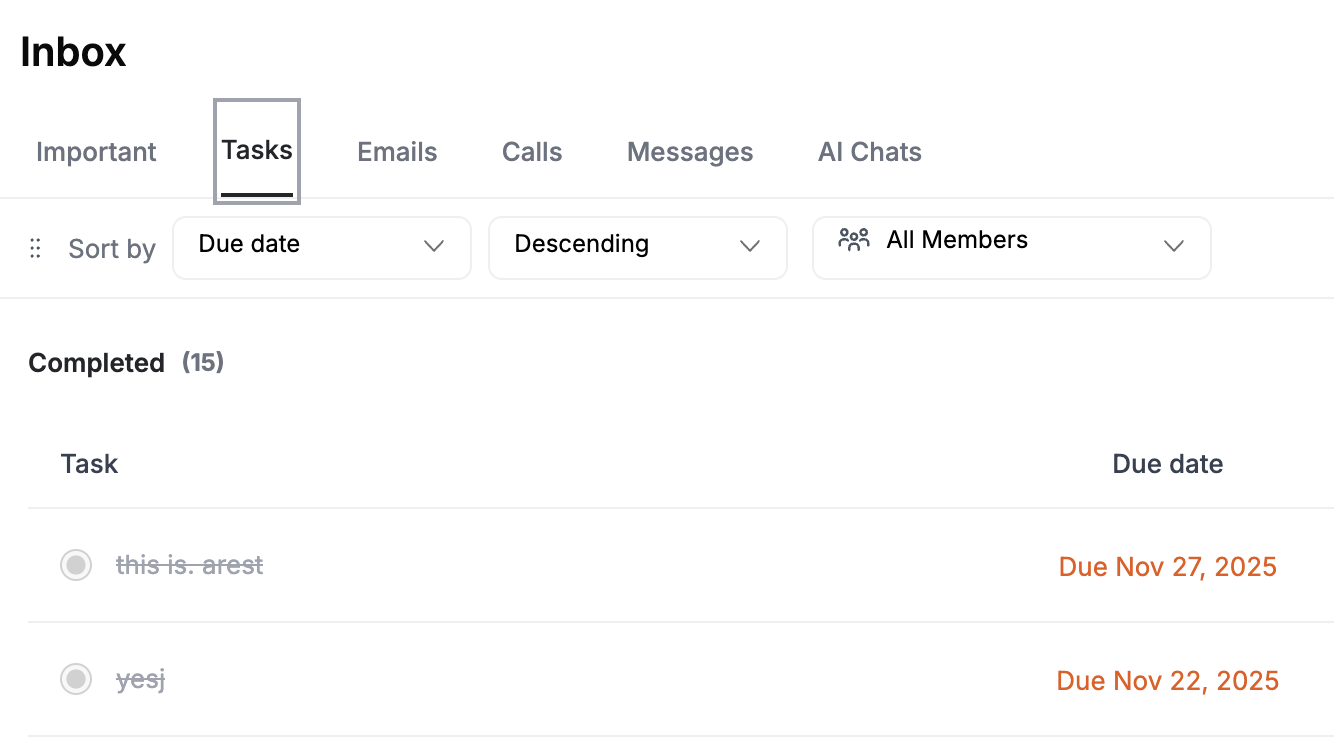
- Open the Tasks page
- Click the circle icon to the left of the task title
The task text shows a strikethrough and moves to your completed list. A confirmation message appears: "Task marked complete."
Task Status Indicators
| Indicator | Meaning |
|---|---|
| Empty circle | Pending |
| Strikethrough text | Completed |
| Red text | Overdue |
Filtering and Sorting
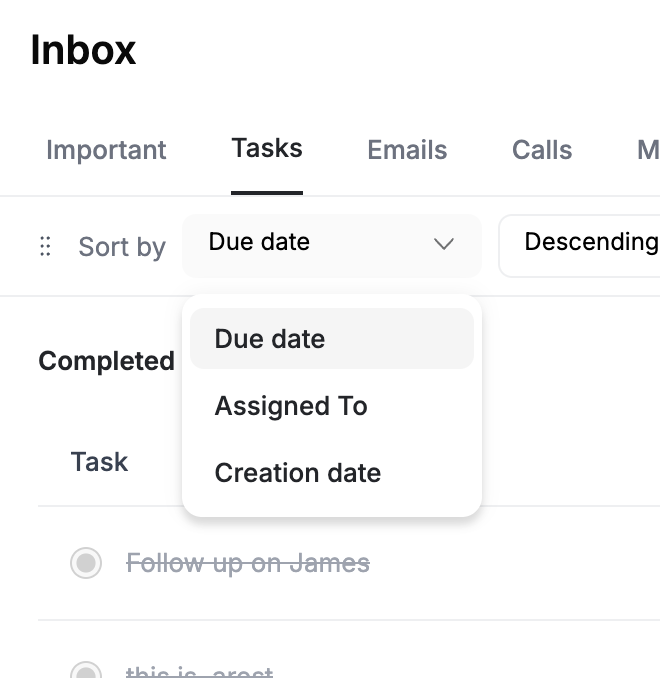
- Sort by: Due date, creation date, assignee (ascending or descending)
- Filter by: Team member or All
Use these controls to focus on what matters most — your overdue items, a specific team member's workload, or upcoming deadlines.
Role Permissions
| Role | What They Can Do |
|---|---|
| Admin | View, create, edit, delete, and assign any task to anyone |
| Dispatcher | Manage and assign tasks within their team; edit team or own tasks; delete or reassign own tasks |
| Technician | View and complete tasks assigned to them; create personal reminders; cannot assign tasks to others |
Recurring Tasks
For work that repeats on a schedule — like monthly maintenance or weekly follow-ups:
- Create a new task
- In the Schedule section, select Repeat task
- Set the frequency (daily, weekly, monthly)
- Assign to the team member responsible
FieldCamp automatically creates the next instance when the current one is completed or its due date passes.
Common Task Examples
| Task | Title | Link To | Priority |
|---|---|---|---|
| Follow up on estimate | "Follow up on Johnson estimate #4021" | Estimate | Normal |
| Recurring maintenance | "Monthly HVAC filter check at 456 Oak St" | Job | Normal |
| Urgent repair callback | "Call back Smith — water leak in basement" | Client | Urgent |
Troubleshooting
| Issue | Solution |
|---|---|
| Task not visible | Reset filters to All Tasks, expand all timeline sections, clear the search field |
| Cannot delete a task | Only admins and the task creator can delete; mark as complete instead, or contact your admin |
| No email notification | Check spam/junk folder; verify "Email the team" was selected when the task was created |
| Cannot assign to a user | Technicians cannot assign to others; dispatchers can only assign within their team; verify the recipient is active |
Best Practices
- Check the Today and Overdue groups first thing each morning
- Start task titles with action verbs so the next step is immediately clear
- Link tasks to the related client or job so context is one click away
- Use reminders for time-sensitive tasks — a push notification 15 minutes before keeps things on track
- Review and close completed tasks at the end of each workday to keep the list clean
Related Articles
- Inbox Overview — How the unified inbox works
- Client Detail Page — See tasks linked to a client
- Job Management — Track work and link tasks to jobs
- Command Centre — Create and manage tasks with AI
- Roles & Permissions — Who can do what with tasks
Two-Way Text Messaging | FieldCamp
Send and receive two-way SMS and MMS in FieldCamp. Manage texts, A2P 10DLC compliance, STOP/HELP keywords, templates, and delivery status.
Communication Records | FieldCamp
Every email, call, and text message is automatically logged on the client record. View, filter, and review the full communication history from one page.