 FieldCamp
Communication Records | FieldCamp
Every email, call, and text message is automatically logged on the client record. View, filter, and review the full communication history from one page.
Under the hood — see how Customers work in the FieldCamp data model: the fields they hold, how they connect to your other records, and how to customize them.
FieldCamp automatically logs every email, phone call, and text message on the client's record. When you open a client's detail page, the full communication history is right there — no manual note-taking, no searching through separate inboxes, and no lost context.
AI shortcut: Open the Command Centre and type "Show me all communication with Smith Residence" to pull up the full history instantly.
Where to Find Communication Records
- Click Clients in the left sidebar
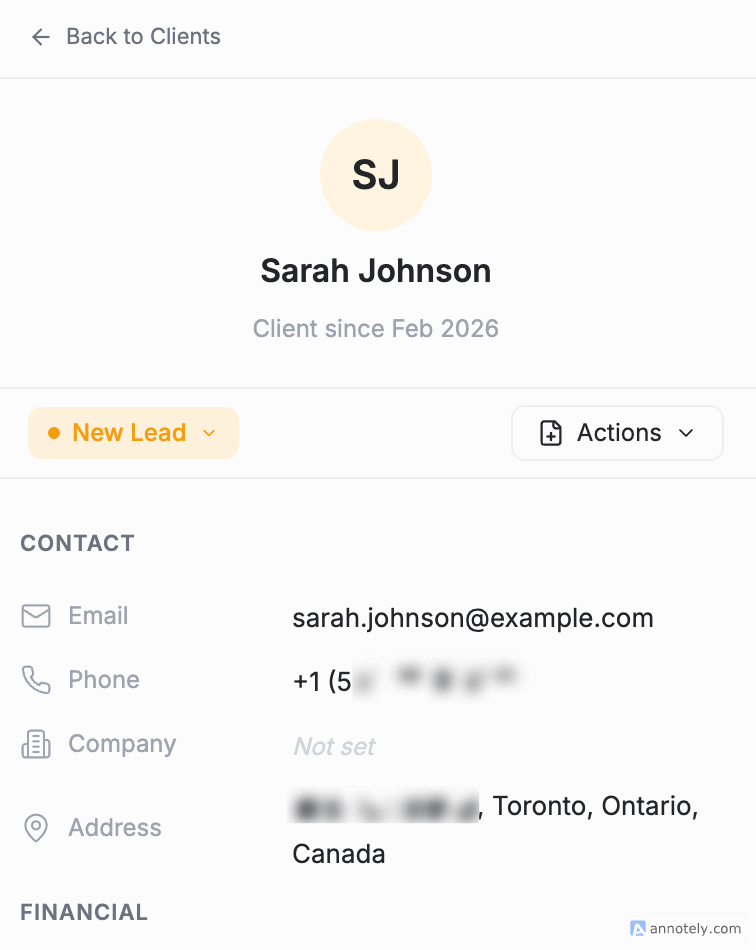
- Click on a client's name to open their detail page
- You will see dedicated tabs for each communication type:
| Tab | What It Shows |
|---|---|
| Emails | All email threads sent to and received from the client |
| Calls | Call history, recordings, transcriptions, and AI summaries |
| Messages | SMS conversation threads |
| Activity | A combined timeline of jobs, tasks, events, and key actions |
How Communication Gets Linked
FieldCamp matches communication to clients automatically:
- Emails are matched by the email address on the client record
- Calls are matched by the phone number on file
- Text messages are matched by the phone number on file
When an email, call, or text comes from an unknown address or number, you can link it to an existing client or create a new client record directly from the Inbox. Once linked, the full conversation history appears on the client's record.
Viewing Email History
- Open a client's detail page
- Click the Emails tab
Each email thread shows the sender, subject, preview text, read/unread status, attachment indicator, and timestamp. Click any thread to read the full conversation, reply, or forward.
You can compose a new email to the client directly from this tab — click Compose and the recipient is pre-filled.
The Emails tab is only visible to admin users with email history permissions. If you do not see this tab, check with your administrator.
Viewing Call History
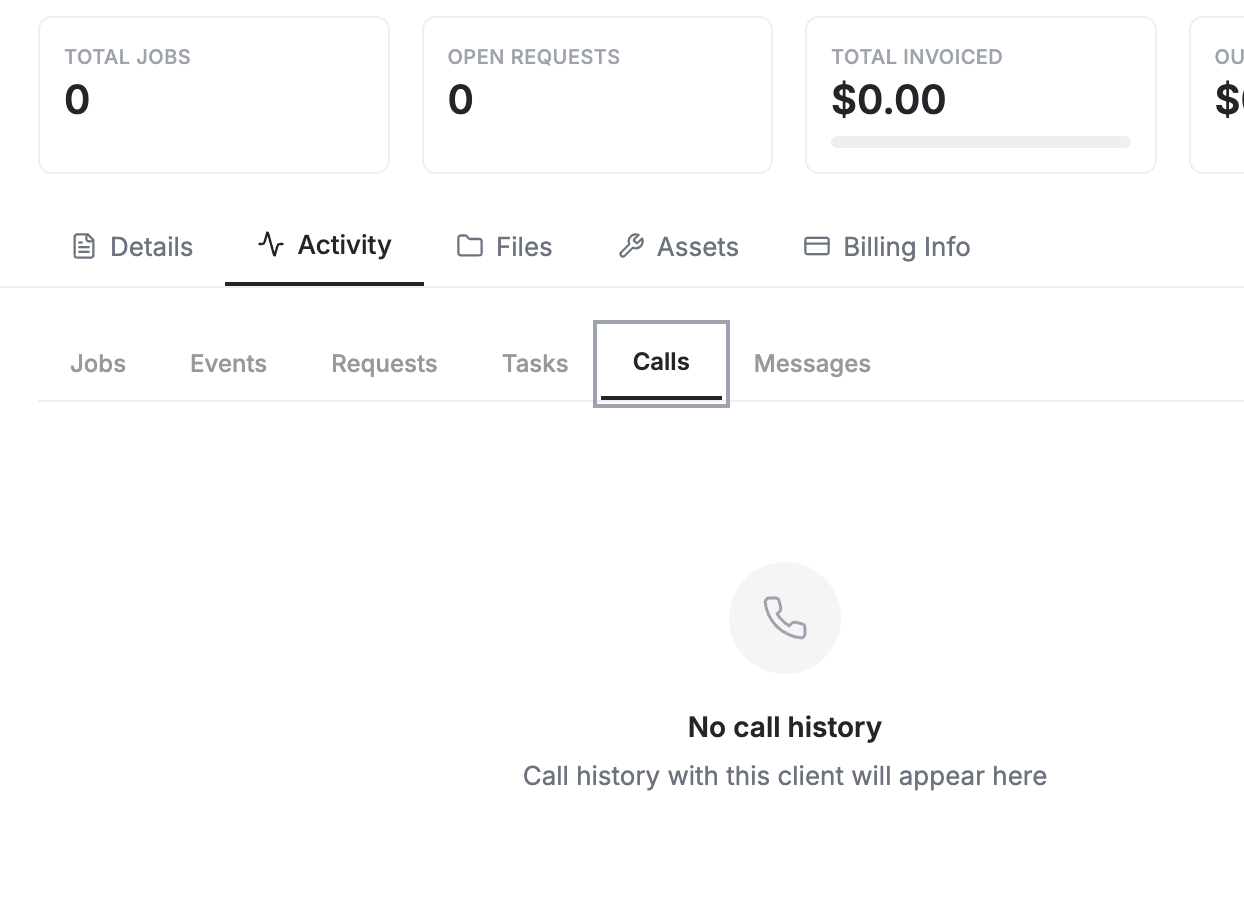
- Open a client's detail page
- Click the Activity tab or find calls in the communication tabs
Each call entry shows the direction (inbound, outbound, or missed), duration, timestamp, and caller information. Click any call to:
- Play the recording — listen to the full conversation
- Read the transcription — see the complete text of the call
- Review the AI summary — key points, sentiment, and action items
Viewing Message History
- Open a client's detail page
- Click the Messages tab (or find messages in the Activity tab)
Each SMS thread shows the conversation in chronological order with delivery status for each message. You can reply directly from the client's record.
Filtering Communication
On the client's detail page, you can narrow down what you see:
- By type — switch between the Emails, Calls, and Messages tabs to focus on one channel
- By date — scroll through the timeline or use the Activity tab to find interactions in a specific period
- By keyword — use the search function within each tab to locate specific conversations
How Communication Ties to Jobs and Visits
When a client has active jobs or visits, the communication record provides context for every interaction:
- An email thread about a quote can be traced back to the estimate and the job it became
- A call recording from a service visit is available alongside the visit details
- A text message confirming an appointment connects to the scheduled job
The Activity tab on the client's detail page shows jobs, visits, tasks, and communication events on a single timeline so you can see the full picture.
Why This Matters
- New team members can review the complete history with a client before their first interaction
- Dispatchers can check what was discussed on the last call before scheduling a follow-up
- Admins have a complete audit trail of every client interaction
- No information is lost — everything is logged automatically, even if the team member who handled the original conversation is unavailable
Best Practices
- Link unknown callers and emailers to client records immediately so the history stays complete
- Use the client's Emails tab to compose messages rather than your personal email — this keeps the thread linked
- After a phone call, check the AI summary for action items and create a follow-up task from the same screen
- Encourage your team to make calls and send texts through FieldCamp rather than personal phones so everything is logged
Related Articles
- Email Management — Manage all client emails from the unified inbox
- Calls — Setup & Usage — Make calls and review recordings
- Two-Way Text Messaging — Send and receive SMS from FieldCamp
- Client Detail Page — Full overview of what the client record contains
- AI Summaries — AI-generated snapshots of client records
Managing Tasks | FieldCamp
Create, assign, and track internal tasks linked to clients, jobs, estimates, or invoices. Set due dates, reminders, and priorities to keep your team on schedule.
Analytics Overview | FieldCamp
Understand FieldCamp Analytics, choose the right tab, adjust the six-month date range, explore metrics, and download existing files from report history.