 FieldCamp
Connect Stripe | FieldCamp
Connect Stripe to FieldCamp to accept online card payments on invoices. Customers pay with one click. Includes the Stripe and FieldCamp fees that apply.
Under the hood — see how Estimates & Invoices work in the FieldCamp data model: the fields they hold, how they connect to your other records, and how to customize them.
Stripe lets your clients pay invoices online with a credit card. You connect once, and every invoice you send includes a secure Pay Now link. Clients click, enter their card, and you get paid -- no checks, no cash, no chasing.
AI-powered setup: Open the Command Centre and type "Connect Stripe" to jump straight to the integration page. See AI Skills for more examples.
What Stripe Enables
Once Stripe is connected, you unlock these capabilities:
| Capability | What it means |
|---|---|
| Online card payments | Clients pay invoices with a credit or debit card from the email you send |
| Automatic payment recording | FieldCamp marks the invoice as Paid the moment Stripe confirms the transaction |
| Deposit collection | Clients pay deposits online directly from estimates |
| Saved payment cards | Store cards on client profiles for faster future payments |
| Auto-pay for recurring work | Charge a client's default card automatically when invoices are generated for recurring jobs |
| Payment receipts | Stripe sends confirmation receipts to your clients automatically |
Fees on Online Payments
Two fees come out of every online payment before the money reaches your bank:
| Fee | Charged by | Amount |
|---|---|---|
| Processing fee | Stripe | Stripe's standard rate for your country and card type -- see stripe.com/pricing |
| Platform fee | FieldCamp | 0.5% of the payment |
Both are deducted by Stripe on the way to your payout, so a $100 invoice paid by card arrives as roughly $96 in your bank. The invoice in FieldCamp still shows the full $100 -- the fees are taken from the payout, not subtracted from the invoice, so the amount you send to your accounting software is the gross total.
How to Connect Stripe
Step 1 -- Open Apps & Integrations
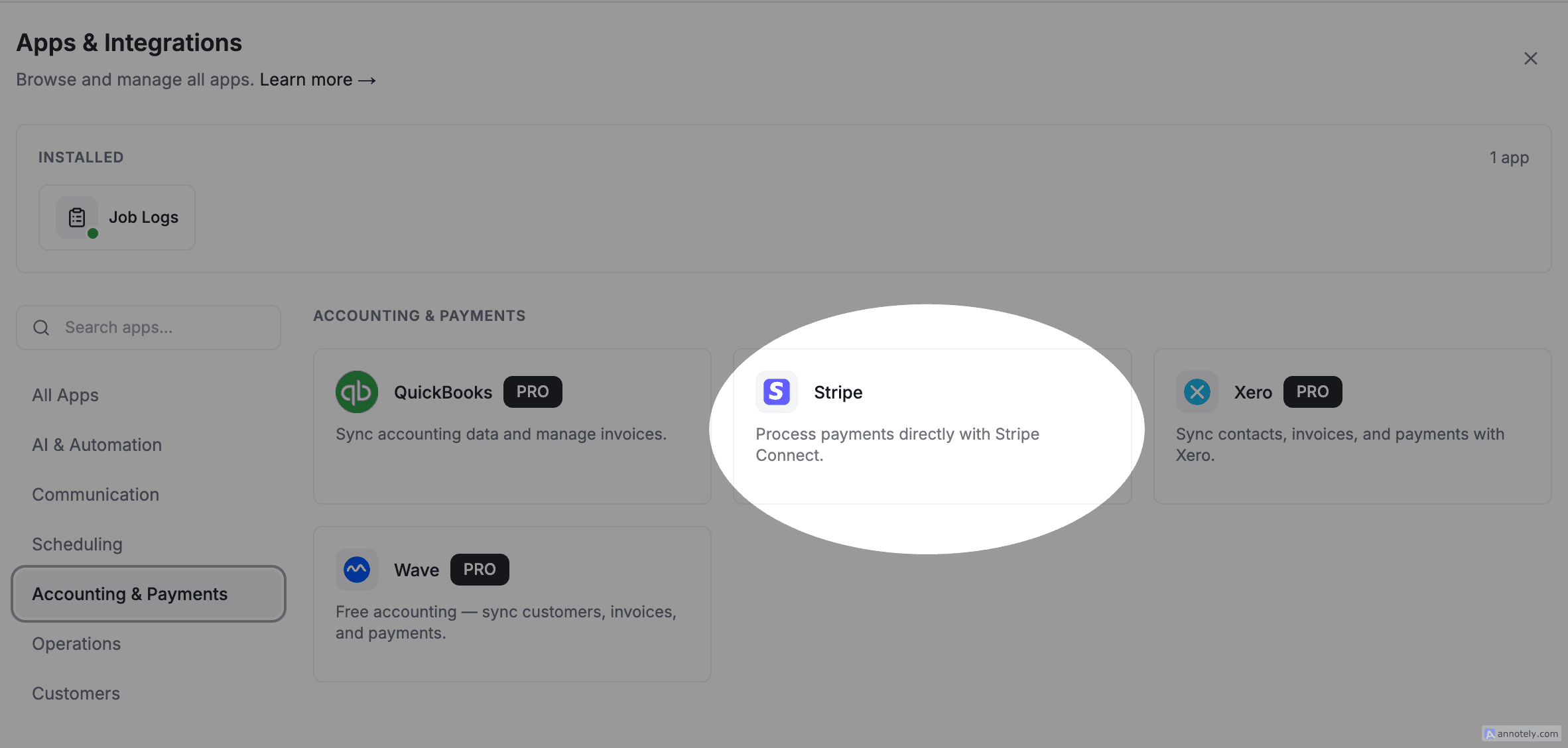
Go to Settings > Apps & Integrations.
Step 2 -- Click Connect on Stripe
Find the Stripe card and click Connect. You are redirected to Stripe's onboarding page.
Step 3 -- Sign In or Create a Stripe Account
If you already have a Stripe account, sign in. If not, Stripe walks you through creating one -- it takes about 5 minutes.
Step 4 -- Complete Verification
Stripe asks for your business details and a bank account for payouts. Fill in the required fields and submit.
Step 5 -- Return to FieldCamp
After completing Stripe's onboarding, you are redirected back to FieldCamp. Stripe now shows as Connected in your integrations page. You are ready to accept online payments.
How a Stripe Payment Works
Here is the payment flow from start to finish:
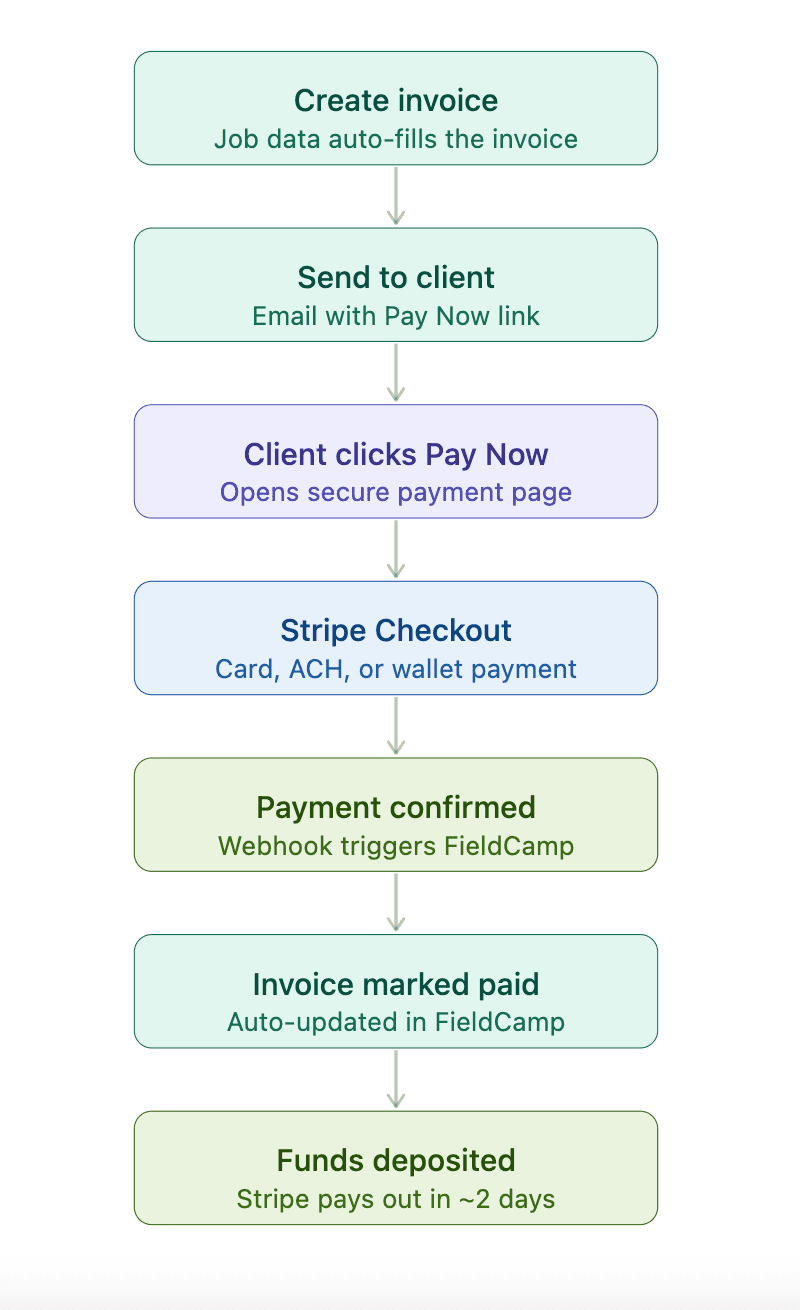
- You create an invoice in FieldCamp and send it to the client.
- The client receives an email with a Pay Now button.
- The client clicks the button, enters card details on a secure Stripe checkout page, and submits.
- Stripe processes the payment and notifies FieldCamp.
- FieldCamp automatically marks the invoice as Paid.
- Funds are deposited into your bank account on Stripe's payout schedule (typically 2 business days).
Invoice Payment Statuses
Once Stripe is connected, FieldCamp tracks every invoice automatically:
| Status | Meaning |
|---|---|
| Unpaid | Invoice sent, no payment received |
| Partial | Some payment received (e.g., a deposit was applied). The filter dropdown calls this Partially Paid |
| Paid | Full amount collected |
| Overdue | Past due date, still unpaid. This is worked out from the due date, not stored on the invoice |
You can view a complete payment history on every invoice from the invoice detail view.
If you also connect an accounting tool (QuickBooks, Xero, or Wave), payment records sync to your accounting software automatically.
Disconnecting Stripe
- Go to Settings > Apps & Integrations.
- Find Stripe and click Disconnect.
After disconnecting, invoices no longer include a Pay Now link. Previously collected payments and their records are preserved.
Troubleshooting
| Problem | What to check |
|---|---|
| Payments not processing | Verify your Stripe account is fully activated (not in onboarding or test mode) |
| Client sees an error when paying | Ask them to try a different card or contact their bank |
| Invoice shows no Pay Now button | Confirm Stripe is connected in Settings > Apps & Integrations |
| Minimum amount error | Stripe requires a minimum of $0.50 per transaction |
For more help, see Troubleshooting -- Common Issues & Fixes.
Refunds
FieldCamp does not process refunds directly. To refund a payment:
- Log in to your Stripe Dashboard at dashboard.stripe.com.
- Find the payment and issue a refund.
- Stripe returns the funds to the client's card.
After issuing a refund in Stripe, manually adjust the invoice payment record in FieldCamp if needed.
Frequently Asked Questions
Does FieldCamp charge a fee on top of Stripe? Yes. FieldCamp charges 0.5% of each payment collected through Stripe, on top of Stripe's own processing rate. Both are deducted before the payout reaches your bank; the invoice total in FieldCamp is unchanged. This applies to payments made from a Pay Now link and to cards charged automatically.
Can clients save their card for future payments? Yes. When Stripe is connected, you can store cards on client profiles for faster payments and auto-pay.
How long until Stripe payments reach my bank? Stripe's standard payout schedule is 2-3 business days. You can view and adjust your schedule in the Stripe Dashboard. New accounts may have a longer initial delay while Stripe verifies your business.
Related Articles
- Payments Overview -- how payments work in FieldCamp
- Deposits & Partial Payments -- collect upfront payments on estimates
- Client Payment Methods -- store and manage cards on client profiles
- Auto-Pay & Recurring Payments -- charge clients automatically
- Accounting Integrations -- sync with QuickBooks, Xero, or Wave
- Command Centre -- manage payments with plain language
Payments Overview | FieldCamp
Accept online payments, collect deposits, and set up auto-pay in FieldCamp. Stripe integration, manual recording, and AI-powered payment tracking in one place.
Deposits & Partial Payments | FieldCamp
Add deposits to estimates in FieldCamp, collect partial payments via Stripe or manually, and apply them to invoices automatically. Track deposit status easily.