 FieldCamp
Calls — Setup & Usage | FieldCamp
Set up FieldCamp Twilio voice calls, SMS, dynamic FCM-to-number routing, voicemail greetings, business hours, and AI call summaries.
Under the hood — see how Customers work in the FieldCamp data model: the fields they hold, how they connect to your other records, and how to customize them.
FieldCamp Calls turns your browser into a full business phone system powered by Twilio. With the FieldCamp Twilio voice calls add-on you can make and receive calls, route inbound traffic dynamically across multiple numbers, record conversations with localized consent prompts, and get AI-generated summaries linked to the right client record. It lives inside the FieldCamp Inbox alongside email, SMS, and tasks.
AI-first calling: Open the Command Centre and type "Call Sarah Johnson" or "Show me missed calls from this week." The AI dials the number or pulls up your call history instantly.
What You Need Before Starting
- Admin access in FieldCamp — only admins can configure phone services. See roles and permissions.
- Twilio account — sign up at twilio.com if you do not have one.
- Modern browser with a working microphone (Chrome, Firefox, Safari, or Edge).
- Stable internet connection of at least 1 Mbps up/down per concurrent call.
- Calls add-on installed from the add-ons catalog.
Setting Up the Calls Add-on
Enable the Calls add-on
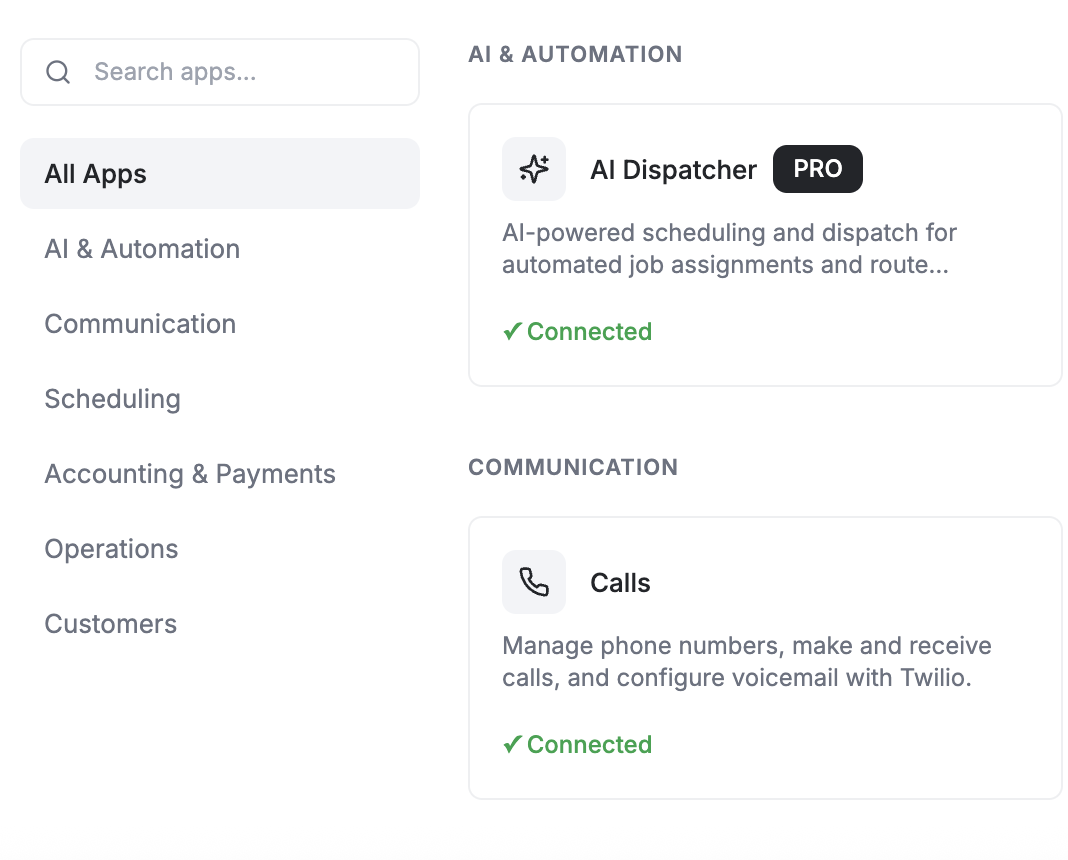
Go to Settings > Apps & Integrations, find the Calls card, and click Install. You will see "Calls connected successfully" and be redirected to the Calls Management page. For the current catalog, see Apps & Integrations.
Connect Twilio
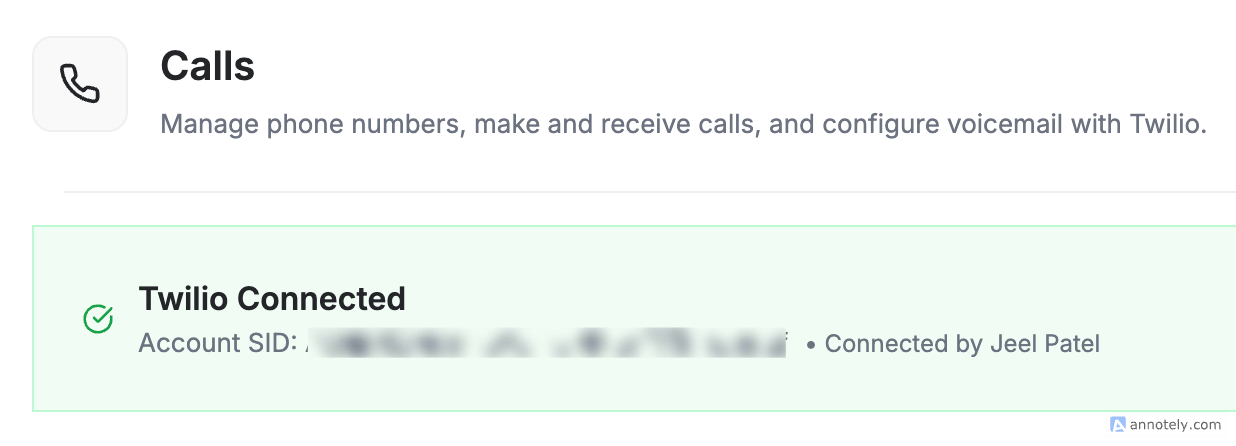
On the Calls Management page click Setup Twilio Account, then copy your Account SID and Auth Token from twilio.com/console. Paste both into FieldCamp and click Validate Credentials.
Purchase a phone number
Click Add Phone Number > Buy New Number, select country, area code, and capabilities (Voice, SMS, or both), then Purchase. The number appears in your list immediately.
Configure per-number settings
For each number, set a friendly name, recording preference, voicemail greeting, business hours, and call-forwarding rules. See Configure Number Settings below.
Configure Number Settings
Each Twilio number you purchase becomes a fully independent inbound endpoint. Click Configure on any number to set the following:
| Setting | What It Does |
|---|---|
| Set as Primary | Default caller ID for outbound calls when no specific number is chosen |
| Friendly Name | Internal label such as "Sales — Phoenix" or "Dispatch — Night Shift" |
| Recording | Records calls on this number; plays a localized consent notice to callers |
| Voicemail Greeting | Record in-browser or upload an audio file (MP3/WAV, under 5 MB) |
| Business Hours | Define active windows by day and timezone |
| Call Forwarding | Route after-hours or overflow calls to another number |
Voicemail Greeting — Record vs. Upload
You have two ways to set up a voicemail greeting:
- Record in-browser — Click Record Greeting, grant microphone access, and capture up to 60 seconds. You can preview and re-record before saving.
- Upload audio file — Click Upload Greeting and select an MP3 or WAV file. Use this for professionally produced greetings.
Keep greetings under 20 seconds. Mention your business name, hours, and how callers can get faster help (text, online booking, etc.).
Business Hours Rules
Business hours determine when a number rings your team versus going straight to voicemail or a forwarding number.
- Open the number's settings and toggle on Business Hours.
- Set the timezone — this is critical for multi-region teams.
- For each weekday, set open and close times, or mark the day Closed.
- Choose what happens outside hours: Voicemail or Forward to number.
Call Forwarding Per Number
Call forwarding lets you point a single number to a backup destination (mobile, answering service, or another Twilio number) without losing the recording or AI summary workflow.
- Always forward — every inbound call routes to the forwarding number.
- Forward when busy — used when your team is on other calls.
- Forward after hours — pairs with Business Hours.
- Forward on no answer — rings the FieldCamp client for a configurable number of seconds, then forwards.
Forwarded calls answered on an external device are not recorded or transcribed by FieldCamp. Only calls answered inside the FieldCamp browser client are captured end-to-end.
Dynamic FCM-to-Number Routing
FieldCamp uses Firebase Cloud Messaging (FCM) to deliver inbound call notifications to the right device. Recent releases introduced dynamic FCM-to-number routing, where each Twilio number is linked to a specific pushCredentialSid so calls light up only the team members who own that line.
How it works:
- When you purchase or claim a number, FieldCamp registers it against your Twilio Push Credential and stores the mapping in the number's settings.
- When a call comes in, Twilio uses the dynamic
pushCredentialSidto send the VoIP push to the correct subset of devices — not your entire org. - If multiple users share a number, all of their browsers ring simultaneously and the first to answer takes the call.
- If you change ownership of a number, FieldCamp regenerates the credential binding automatically — no manual TwiML edits required.
You do not need to configure FCM credentials manually. FieldCamp provisions and rotates the pushCredentialSid per number behind the scenes. If notifications stop arriving on a device, click Re-sync push on the number's settings page.
Making Calls
From the Inbox
- Click Inbox in the left sidebar.
- Click the Calls tab.
- Click the Call button in the top-right corner.
- Select your Caller ID from the dropdown if you have multiple numbers.
- Enter the phone number (any format with country code) and click Call.
From a Client Profile
- Open a client's detail page — see the client detail page actions menu.
- Click the Call dropdown at the top-right.
- Select the number to call the client.
All calls made from a client profile are automatically linked to that client's record and visible in the communication records timeline. For an overview of every channel that lands in this view, see client calls, emails and SMS.
During a Call
The call widget shows caller name, number, and duration. You can:
- Mute / Unmute your microphone
- Hold the call (plays default hold music)
- End Call to disconnect
- Drag the widget to reposition it on screen
Receiving Calls
When an incoming call arrives:
- A browser notification appears with the caller's information.
- Click the green Accept button to answer.
- Click the red Decline button to send to voicemail.
- Or ignore — it goes to voicemail automatically after the no-answer timeout.
Make sure browser notifications are enabled and microphone permissions are granted. On first use, click Allow at the browser prompt and wait for the widget to show "Phone active."
To have an AI voice agent answer calls, use a call flow whose AI step uses a published FieldCamp Voice agent. The AI Receptionist quickstart walks through building your first agent, and how voice agents work with FieldCamp explains how the call flow hands off the call and continues on the outcome.
Call History, Transcriptions, and AI Summaries
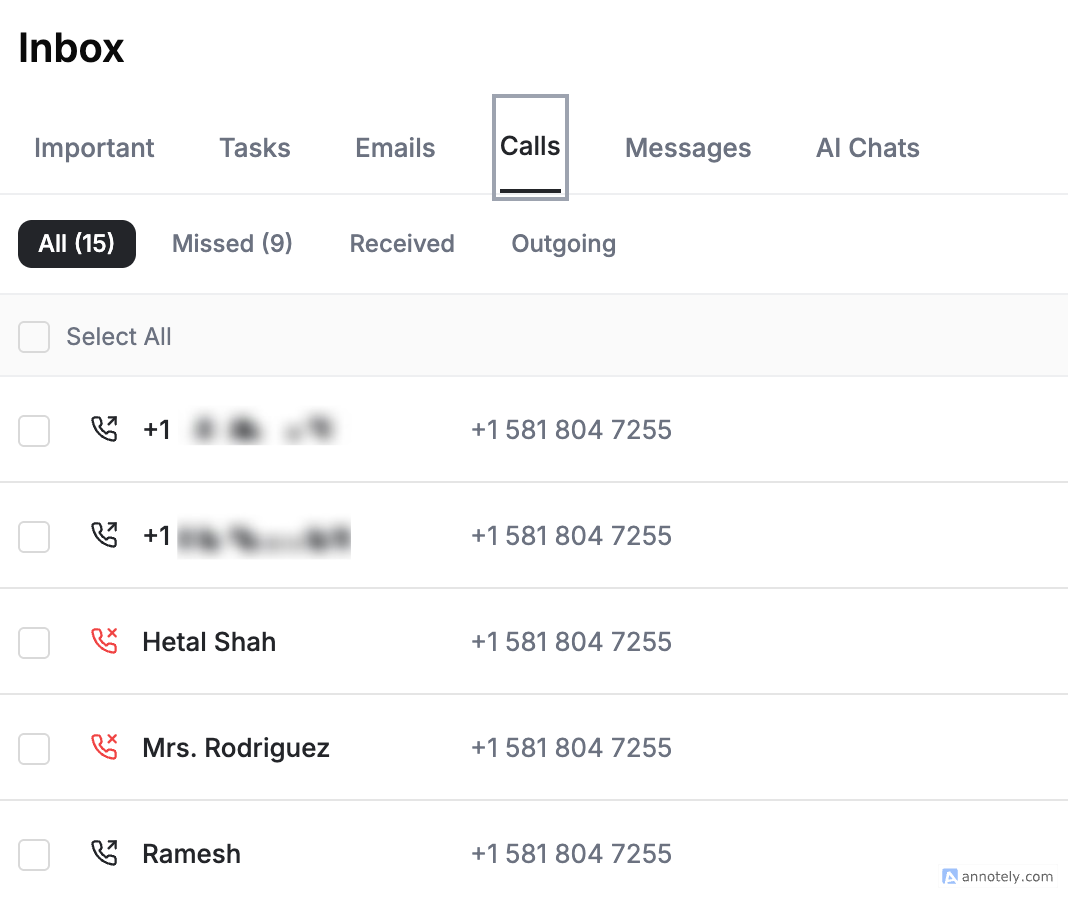
Open Calls and select History to see every call. Each entry shows caller, timestamp, duration, and direction. Use the filter bar to narrow to Missed, Received, Outgoing, or All.

Click any call to expand:
- Recording playback with adjustable speed
- Full transcription of the conversation
- AI Summary — key points, sentiment, and action items
- Call metadata — duration, timestamps, linked client
For the separate standalone AI Dispatcher product, see Standalone AI Dispatcher: Review call recordings and summaries.
Improve with AI
If a transcription contains background noise, accents, or technical jargon that the default model missed, click Improve with AI. This re-runs the recording through an enhanced model and rewrites both the transcript and the summary. The original is preserved in the call's revision history. Use this on important sales calls or disputed conversations. AI actions like this consume AI credits from your workspace balance.
Recording Consent and Localization
When recording is enabled on a number, FieldCamp plays an automatic consent prompt at the start of every call. This prompt is localized to the caller's region:
- US/CA callers hear an English consent notice that aligns with two-party-consent state laws.
- UK/EU callers hear a GDPR-aligned notice in English.
- Other regions default to the language configured on your company profile in FieldCamp settings.
You can override the default prompt by uploading a custom recording in Number Settings > Recording > Consent Prompt.
Recording laws vary by jurisdiction. Confirm that the automatic consent prompt meets your local legal requirements before relying on it. Two-party-consent states (e.g., California, Florida) require all parties to consent.
Voicemails
Voicemails appear in Calls > History with a voicemail icon. For each voicemail you can:
- Play the recording and read the transcription
- View the AI summary
- Call back, send a text, or create a follow-up task — see managing tasks
Client Linking and Unknown Numbers
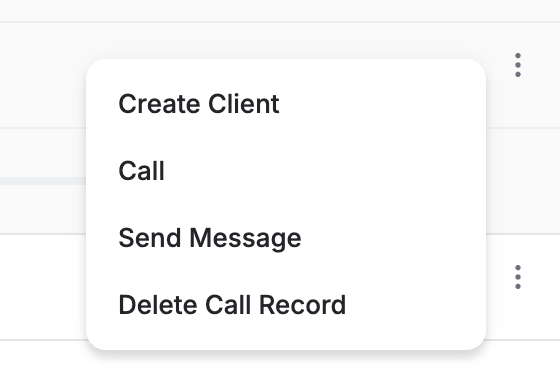
FieldCamp automatically links calls to clients using the phone number on file. If a call comes from an unknown number, click the call, choose Create Client, fill in the details, and save — the client creation flow only requires a name and one contact field. The call is now linked.
Charges and Compliance
- Twilio charges apply for numbers (monthly), calls (per minute), and SMS (per message). Monitor usage in the Twilio Console.
- US 10DLC compliance is required for business SMS on US local numbers. Register your brand and campaign in Twilio before sending — full steps in A2P 10DLC and toll-free verification. See two-way text messaging for the full SMS flow.
- Recording consent prompts are auto-played as described above.
Troubleshooting
| Issue | Solution |
|---|---|
| No phone numbers available | Purchase a Twilio number with Voice/SMS capability in Settings > Apps & Integrations > Calls |
| Microphone blocked | Click Enable Microphone, check browser permissions, refresh |
| Twilio validation fails | Double-check Account SID and Auth Token, remove extra spaces |
| Inbound calls not ringing a specific device | Click Re-sync push on the number's settings — re-binds the pushCredentialSid |
| Voicemail greeting upload fails | File must be MP3 or WAV, under 5 MB, mono or stereo, 8–48 kHz |
| SMS not sending in the US | Confirm 10DLC brand + campaign approval in Twilio |
| Forwarded call missing recording | Calls answered on external devices cannot be recorded — answer in-browser to capture |
For broader integration issues, see the FieldCamp troubleshooting guide.
FAQs
Can I run multiple numbers with different greetings and hours? Yes. Each Twilio number you purchase has its own friendly name, voicemail greeting, business hours, forwarding rules, and recording settings — fully independent of the others.
How do I change which devices ring for a number? Reassign the number's owners under Number Settings. FieldCamp regenerates the FCM credential binding automatically.
Can I record only some calls? Yes — toggle recording per number, not per call. If you need granular control, create one always-recorded number for sales and one never-recorded number for sensitive conversations.
Is the AI summary editable? The original summary is read-only, but Improve with AI rewrites it using an enhanced model and preserves the original in revision history.
Best Practices
- Use a headset for the best audio quality
- Review AI summaries after important calls and create follow-up tasks immediately
- Set friendly names so dispatchers can identify lines at a glance
- Keep voicemail greetings under 20 seconds with a clear next step
- Test inbound and outbound calls with a teammate before launching to clients
Related articles
AI Email Composer | FieldCamp
Draft professional client emails in seconds using FieldCamp's AI. The Email Canvas reads client history and job details to generate context-aware messages.
Two-Way Text Messaging | FieldCamp
Send and receive two-way SMS and MMS in FieldCamp. Manage texts, A2P 10DLC compliance, STOP/HELP keywords, templates, and delivery status.