 FieldCamp
Auto-Pay & Recurring Payments | FieldCamp
How the Automatic Payment setting on a recurring job works in FieldCamp, and why no card is ever charged on your billing schedule.
Under the hood — see how Estimates & Invoices work in the FieldCamp data model: the fields they hold, how they connect to your other records, and how to customize them.
Automatic Payment is a setting on a recurring job that records your intention to charge the client's saved card each billing period. See the Payments overview for how payments fit into the broader workflow.
Automatic charging is not active. FieldCamp saves the setting and generates the invoice on your schedule, but it never charges the card on that schedule. You still collect each invoice yourself: send the Pay Now link, charge the client's saved card on demand, or record the payment by hand.
How Auto-Pay Works
When Automatic Payment is enabled on a recurring job, this is what actually happens each billing period:
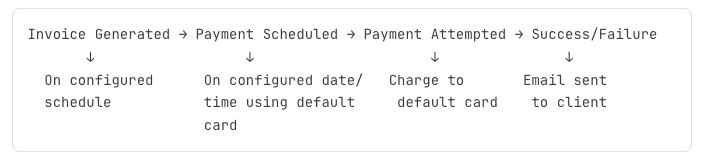
- An invoice is generated on your configured schedule.
- The invoice is emailed to the client. Automatically send invoice to customer is on by default, so clear that checkbox in the invoice settings if you do not want it sent.
- No card is charged. The invoice normally stays unpaid until you or the client acts on it.
- If the job's linked estimate had a deposit collected and not yet used, FieldCamp applies it to the new invoice. That invoice can therefore arrive already part-paid or fully paid.
- Collect the balance through the Pay Now link, by charging the saved card on demand, or by recording the payment manually.
Because no charge is attempted on the schedule, there is nothing to retry and no failed-payment state to manage.
The send checkbox is worded differently on some schedules. Once When Job is Closed reads "Automatically send invoice when job is closed", and Custom Configuration uses the plural "Automatically send invoices to customer". All of them are on by default.
Auto-Pay On or Off
Automatic Payment is a single toggle inside the recurring job's invoice settings. It is only shown when the client already has a saved card. With no saved card the whole section is hidden -- there is no toggle to switch on.
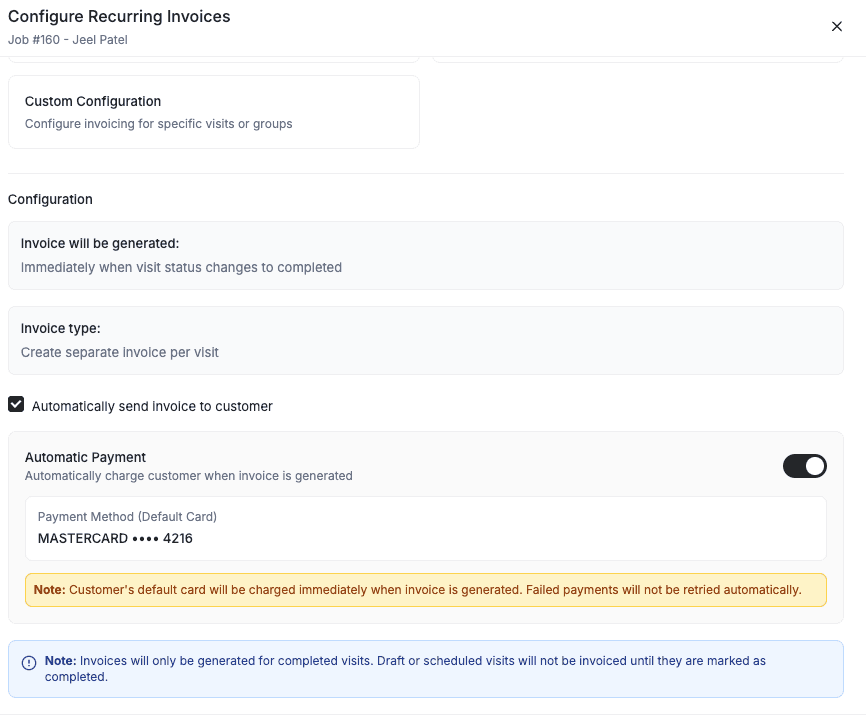
Toggle on -- the setting is saved on the job. The in-app description reads "Automatically charge customer when invoice is generated", but no charge is taken today. Turning it on is safe; it simply has no effect on collection yet.
Best for:
- Subscription services (monthly maintenance plans)
- Predictable recurring work (weekly lawn care at a fixed price)
- Long-term contracts where clients expect automated billing
- Reducing accounts receivable and collection effort
With the toggle on, the modal shows a yellow note: "Note: Customer's default card will be charged immediately when invoice is generated. Failed payments will not be retried automatically." Ignore it. The charging code is switched off, so nothing is charged and nothing fails. A "Recurring Payment Failed Notification" workflow template is seeded as well, but nothing can trigger it, because no auto-payment attempt is ever made or recorded.
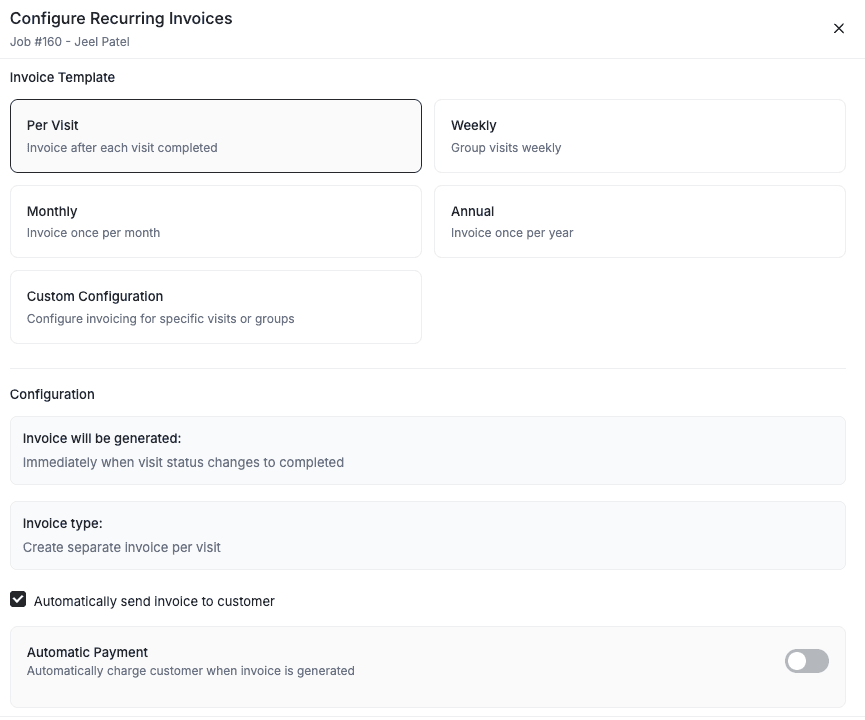
Toggle off -- FieldCamp generates the invoice and emails it (unless you cleared Automatically send invoice to customer), but takes no payment. The client pays manually through the Pay Now link.
Best for:
- Variable-price jobs where the final amount changes
- Clients who prefer to control when payments are taken
- New clients where you want to build trust before enabling auto-pay
How Often Is an Invoice Generated?
This is how often an invoice is created for the recurring job. Each one has to be collected by you.
The first control in Configure Invoice Settings is Billing Type -- Visit based or Fixed price. Your choice decides which schedules are offered.
Visit-Based Billing
| Invoice schedule | When the invoice is generated | Example |
|---|---|---|
| Per Visit | After each visit is marked complete | Lawn care completed Monday -- invoice created Monday |
| Weekly | Once per week on your chosen day | Every Monday for all visits that week |
| Monthly | Once per month on your chosen day | 15th of each month for all visits that month |
| Annual | Once per year on your chosen date | January 15th for all visits that year |
| Custom Configuration | Per your configured schedule for each group | Group 1: Per Visit; Group 2: monthly on the 1st |
Only completed visits trigger visit-based invoicing. Draft or scheduled visits are not invoiced until marked complete. See Job & Visit Statuses for the full lifecycle. Fixed-price invoices are different — they are generated on your schedule regardless of visit status.
Fixed-Price Billing
| Billing schedule | When the invoice is generated | Example |
|---|---|---|
| Weekly | Every week on your chosen day | Every Monday at the same fixed amount |
| Monthly | Every month on your chosen day | 1st of each month at the same amount |
| Annual | Once per year on your chosen date | January 1st for the annual service fee |
| Once When Job is Closed | A single invoice when you close the job | One invoice when the project finishes |
Grouped and fixed-price invoices are produced by an hourly background job, so they appear at the top of an hour on your chosen day rather than at a set time of day.
Invoices Outside the Schedule
Two things create an invoice without waiting for the schedule:
| Trigger | What happens |
|---|---|
| Bill now | A job action that invoices the visits already delivered, right now, without ending the job or disturbing its schedule |
| Ending, closing or cancelling the job | The job's pending visits are invoiced immediately instead of on the scheduled day. You are asked whether to generate that invoice or skip the billing |
Real-World Examples
Weekly lawn care, Per Visit billing: Three visits per week (Monday, Wednesday, Friday). Each visit generates an invoice. Result: up to 3 invoices per week, each collected by you.
Monthly pest control, fixed price: $300 per month, invoiced on the 1st. FieldCamp generates the $300 invoice on the 1st of each month. Result: 1 predictable invoice per month, collected by you.
Custom configuration: First service visit invoiced immediately (Per Visit). Follow-up visits invoiced monthly on the 15th. Result: 1 immediate invoice plus 1 monthly invoice.
Setting Up Automatic Payment
Save the client's card first
Open the client profile, go to Payment Methods, and select Add Card. This needs Stripe connected. Do it before you open the job: the job screen only loads the client's cards when invoicing is switched on, so a card added while the job is already open will not appear until you reload the page.
Open the recurring job
Navigate to the recurring job you want to configure. For multi-day work, see Multi-Day Jobs.
Turn on invoice generation
In the job's schedule settings, switch on Automatic Invoice Generation, then select Configure Invoice Settings. Choose the Billing Type first -- Visit based offers Per Visit, Weekly, Monthly, Annual and Custom Configuration; Fixed price offers Weekly, Monthly, Annual and Once When Job is Closed.
Turn on Automatic Payment
Scroll to the Automatic Payment section and switch it on. The section is only there when the client has a saved card. The card it names is the client's Stripe default, which is simply the card added most recently.
Save twice
Save Configuration only closes the modal and holds your choices on screen. Nothing is stored until you save the Schedule section and confirm the Update job schedule? dialog with Update Schedule. Invoices are still generated on schedule, and you still collect each one yourself.
Collecting the Payment
Because nothing is charged automatically, every generated invoice needs to be collected. Your options:
| Option | What to do |
|---|---|
| Pay Now link | Send the invoice with its Pay Now link so the client pays by card. Requires Stripe to be connected. |
| Charge the saved card | Charge the client's stored card yourself, whenever you want. On the Dynamic invoice view use Charge saved card; on the Classic invoice open Record Payment and choose the Charge Saved Card method. Requires Stripe and a saved card. |
| Record Payment | Accept cash, check, or bank transfer, then use Record Payment on the invoice to log it |
| Collect a deposit | Take part of the amount upfront as a deposit |
| Chase it with a workflow | Use Workflows to create a task or send a reminder when an invoice stays unpaid. See Workflow Examples for ready-made automations. |
Payments you take through the Pay Now link, by charging the saved card, or by recording them by hand appear on the invoice as normal. There is no separate activity log for the Automatic Payment setting, because it never creates a charge of its own.
Turning Automatic Payment On or Off
Turn it on
- Add a card on the client profile if there is not one already. Without a saved card the section is not shown at all.
- Open the recurring job.
- Switch on Automatic Invoice Generation and select Configure Invoice Settings.
- Switch on Automatic Payment.
- Select Save Configuration, then save the Schedule section and confirm with Update Schedule.
Turn it off
- Open the recurring job.
- Select Configure Invoice Settings.
- Switch Automatic Payment off.
- Select Save Configuration, then save the Schedule section and confirm with Update Schedule.
Either way, invoices keep generating on your schedule and collection stays manual. Invoices already generated are not affected.
Related FieldCamp Tools
Required to take any online payment
Store and remove client cards
Collect upfront before recurring work starts
Create, customize, and reconcile invoices
Troubleshooting
The card was never charged. That is expected. Automatic charging is not active. The setting is saved, the invoice is generated, and you collect the payment yourself.
No invoice was generated on the expected date. Check that Automatic Invoice Generation is on and that the schedule in Configure Invoice Settings matches what you expect. For visit-based billing, only completed visits are invoiced, so confirm the visit was marked complete. Grouped and fixed-price invoices run on an hourly background job, so allow until the end of the hour on your chosen day.
I cannot find the Automatic Payment section. The client has no saved card. The whole section is hidden until one is added -- there is no toggle waiting to be switched on. Add a card on the client profile, then reload the job page.
The schedule will not save: "Customer has no saved payment method. Cannot enable automatic payments." This job already had Automatic Payment saved, and the client's card was deleted afterwards. In that state the section is hidden, so you cannot switch the setting off either, and the save stays blocked. Add a card back on the client profile and the save goes through.
The Automatic Payment section is missing on the Dynamic job detail view. It never appears there, so use the Classic job detail view to reach the setting.
A client's card was replaced. The new card becomes the client's default in Stripe, but the job still stores the old card's id and is not refreshed on its own. Nothing is charged today, so billing is unaffected -- but to point the job at the current card, re-open Configure Invoice Settings, switch Automatic Payment off and on again, then save.
The invoice arrived already paid or part-paid. A deposit collected on the job's linked estimate is applied to the recurring invoice automatically when it is generated.
Frequently Asked Questions
Does FieldCamp charge my client's card automatically? No. The Automatic Payment setting is saved on the job, but no card is charged on your billing schedule. You can charge a saved card yourself at any time from the invoice.
How often will an invoice be generated? It depends on your invoice schedule. Per Visit billing creates an invoice after each completed visit. Weekly, monthly, or annual billing creates one invoice per that period. Check your recurring job setup for specifics.
Should I still turn Automatic Payment on? You can. It records your intention and is safe to leave on, but it has no effect on collection today.
Why does it ask for a saved card? The section only appears once the client has a saved payment method. With no card there is no toggle at all.
Which card would be used, and how do I change it? The card is the client's Stripe default. There is no way to mark a card as Default in FieldCamp -- the client's Payment Methods list only has Add Card and Delete, and the card added most recently becomes the default. To change it, delete the cards you do not want and re-add the one you do.
How do I get paid on a recurring job? Send the invoice with its Pay Now link, charge the client's saved card from the invoice, or record the payment manually once you receive it. Connect Stripe to accept card payments online.
Do I need to do anything when the invoice is generated? Yes. Send it or collect it. Automatically send invoice to customer is on by default, so FieldCamp emails it for you unless you cleared that checkbox, but the invoice stays unpaid until payment is taken.
Related articles
Client Payment Methods | FieldCamp
Store and manage credit cards on client profiles in FieldCamp. Add cards, set a default, remove old ones, and keep payment methods ready for auto-pay.
Products & Services Overview | FieldCamp
Understand how products and services work in FieldCamp. Build your price book, add line items to jobs, estimates, and invoices, and enable online booking.