 FieldCamp
Request Detail Page | FieldCamp
View and manage every detail of a service request — client info, schedule, line items, notes, and conversion actions — from the FieldCamp request detail page.
Under the hood — see how Requests work in the FieldCamp data model: the fields they hold, how they connect to your other records, and how to customize them.
Opening a Request
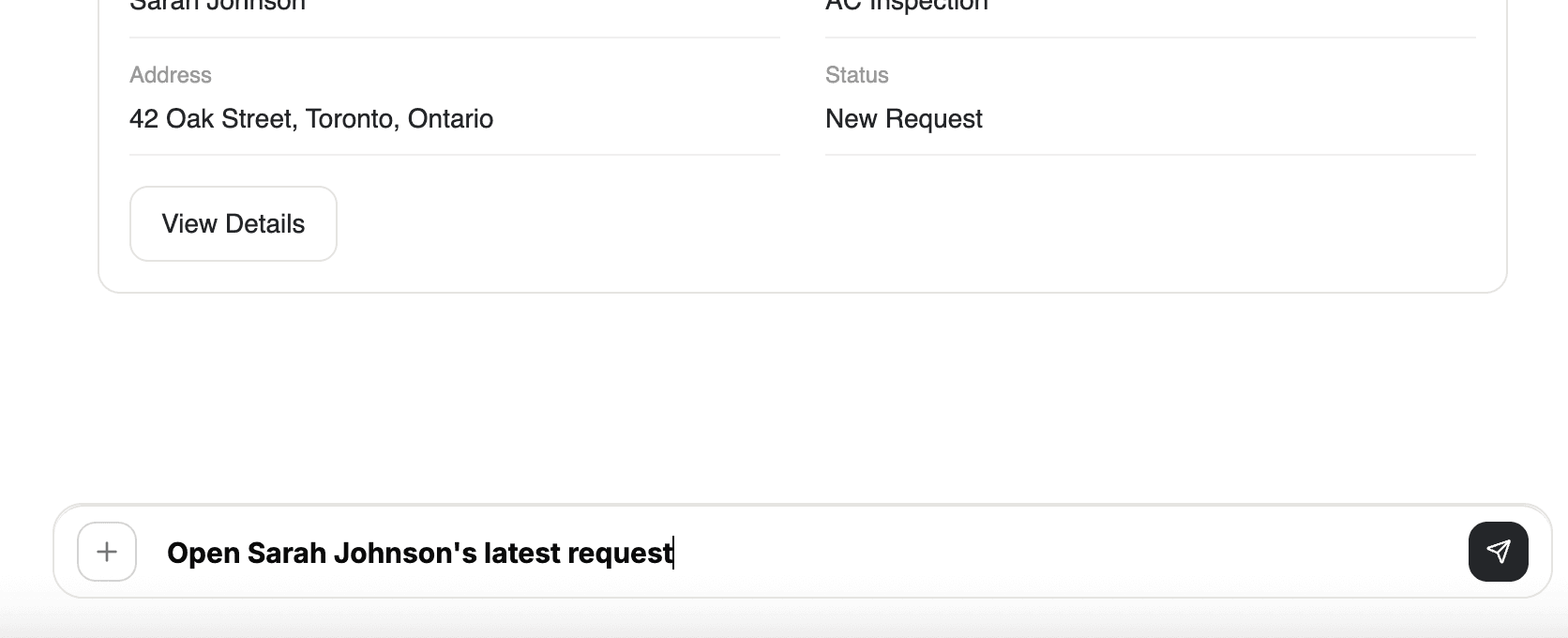
Click any request in the request list or pipeline kanban to open its detail page. You can also use the Command Centre:
- "Show me request 45"
- "Open Sarah Johnson's latest request"
- "What's the status of REQ-0032?"
Page Layout
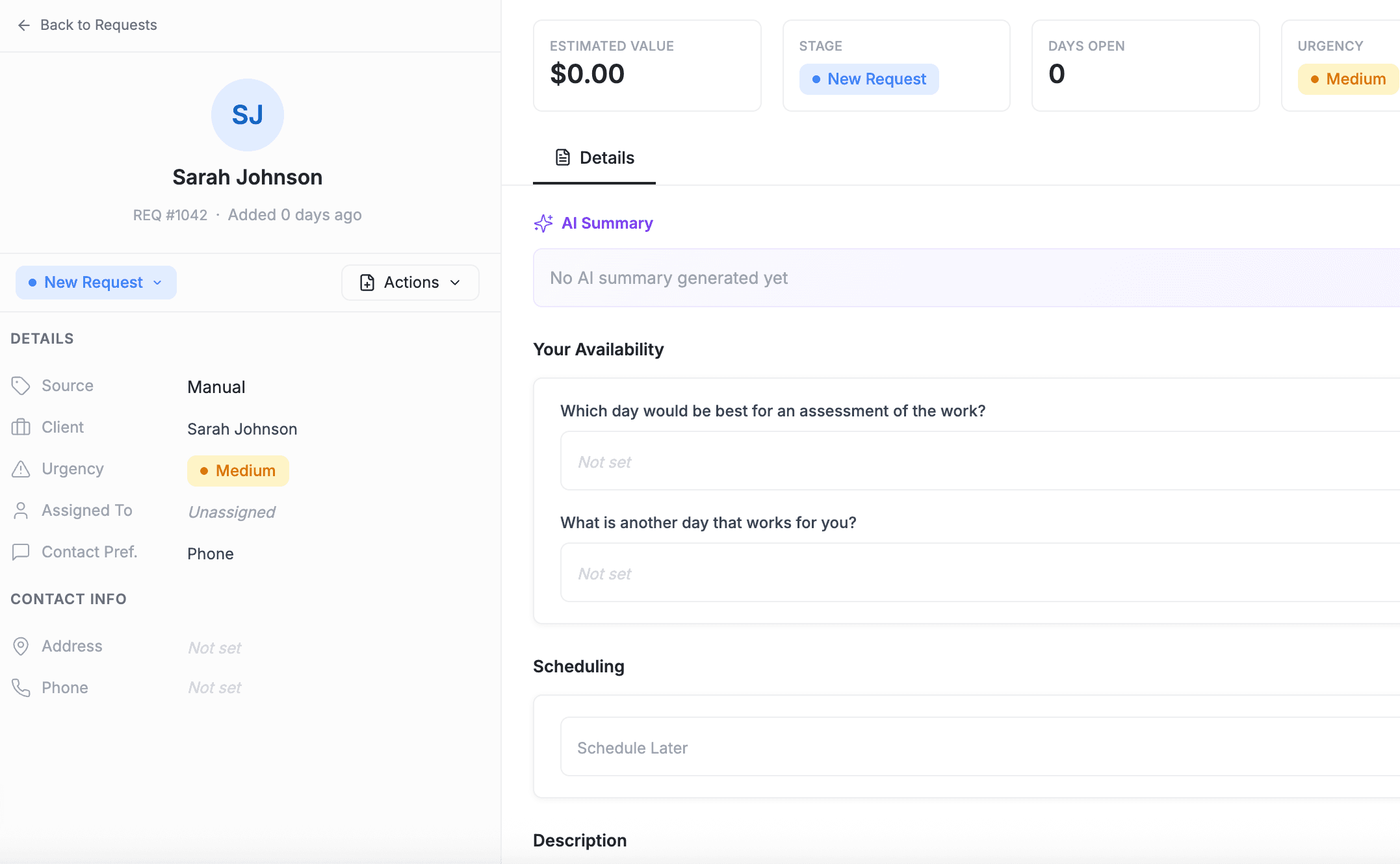
The request detail page is organized into a sidebar on the right and content sections in the main area.
Sidebar Fields
The sidebar shows key request metadata at a glance:
| Field | Description |
|---|---|
| Request Number | Auto-generated identifier (e.g., REQ-001) |
| Stage | Current pipeline stage with color indicator |
| Client | Linked client name — click to open the client record |
| Source | Where the request came from (Manual, Online Booking) |
| Urgency | Priority level (Low, Medium, High, Critical) |
| Assigned To | Team member(s) responsible for this request |
| Created Date | When the request was first created |
| Preferred Contact | Customer's preferred contact method |
Content Sections
The main area contains the following sections:
Details — Stage, request number, and preferred contact method.
Contact — Client email, phone, and service address.
Schedule — Start and end dates/times, best day for assessment, and backup assessment date. Shows "Schedule Later" or "Any Time" if the customer was flexible.
Line Items — Products or services with quantity, unit rate, total, per-item tax, and discounts. These carry over when you convert the request to a job or estimate.
Requirements — The customer's description of what they need. This is the free-text field your team or the customer filled in during creation.
Notes — Internal notes visible only to your team. Add follow-up reminders, context from phone calls, or details from site visits here.
Additional Information — Custom properties and fields configured for your account.
Tags — Categorization tags for grouping and filtering requests.
AI Summary
FieldCamp generates an AI summary on the request detail page that highlights the key information — what the customer needs, current stage, and next steps. This gives your team instant context without reading through all the notes and details.
AI Summary pulls from the request's requirements, notes, and stage history to give you a quick overview. It updates as the request progresses through the pipeline.
Actions You Can Take
From the request detail page, you can:
Change Stage
Click the stage badge in the sidebar to move the request to a different pipeline stage. Stage transitions follow the rules configured in Pipeline Configuration.
Convert to Job
Creates a new job pre-filled with the request's client, address, description, line items, and custom fields. See Converting Requests for full details.
Convert to Estimate
Creates a new estimate pre-filled with client info and line items, ready to send to the customer.
Convert to Invoice
Creates an invoice directly — useful for simple, pre-agreed work where quoting is not needed.
Edit
Update any field on the request — client, schedule, requirements, line items, urgency, or assigned team.
Delete
Permanently remove the request. A confirmation dialog appears before deletion. Requires the appropriate permission level.
Conversion does not delete the request. When you convert a request to a job, estimate, or invoice, the request stays in your system at the "Converted" stage as a historical record. You can always go back and review it.
AI-First: Manage Requests from Chat
Use the Command Centre to work with request details without leaving the chat:
- "Add a note to request 45: spoke with customer, confirmed Tuesday inspection"
- "Change request 32 to Inspection Scheduled"
- "What line items are on Sarah Johnson's request?"
- "Convert request 45 to a job and schedule it for Tuesday"
See AI Skills for all available request commands.
Permissions matter. What you can see and do on the request detail page depends on your role. Field techs may only see assigned requests. Admins have full access including delete.
Related Articles
- Creating and Tracking Requests — how requests are created and managed
- Sales Pipeline Kanban — the visual pipeline board
- Converting Requests — turn requests into jobs, estimates, or invoices
- How to Schedule Jobs — what happens after conversion
- Creating and Managing Estimates — estimates created from requests
Creating & Tracking Requests | FieldCamp
Create service requests manually, via AI chat, or from online bookings. Track, filter, and manage every incoming inquiry in FieldCamp's request pipeline.
Sales Pipeline & Kanban | FieldCamp
Manage service requests on FieldCamp's visual kanban board. Drag and drop requests between pipeline stages to track leads from initial inquiry to conversion.