 FieldCamp
AI Dispatcher Inside FieldCamp
Use AI Dispatcher as an add-on inside FieldCamp to auto-assign jobs to technicians based on skills, location, and availability — no separate app needed.
Under the hood — see how Jobs work in the FieldCamp data model: the fields they hold, how they connect to your other records, and how to customize them.
AI Dispatcher is available in two ways: as a standalone app at dispatcher.fieldcamp.ai or as an add-on inside FieldCamp. This article covers the add-on — how to enable it, what it does, and how it fits into your existing FieldCamp workflow.
Enabling AI Dispatcher
- Go to Settings → Apps & Integrations
- Find AI Dispatcher under the add-ons section
- Click Enable
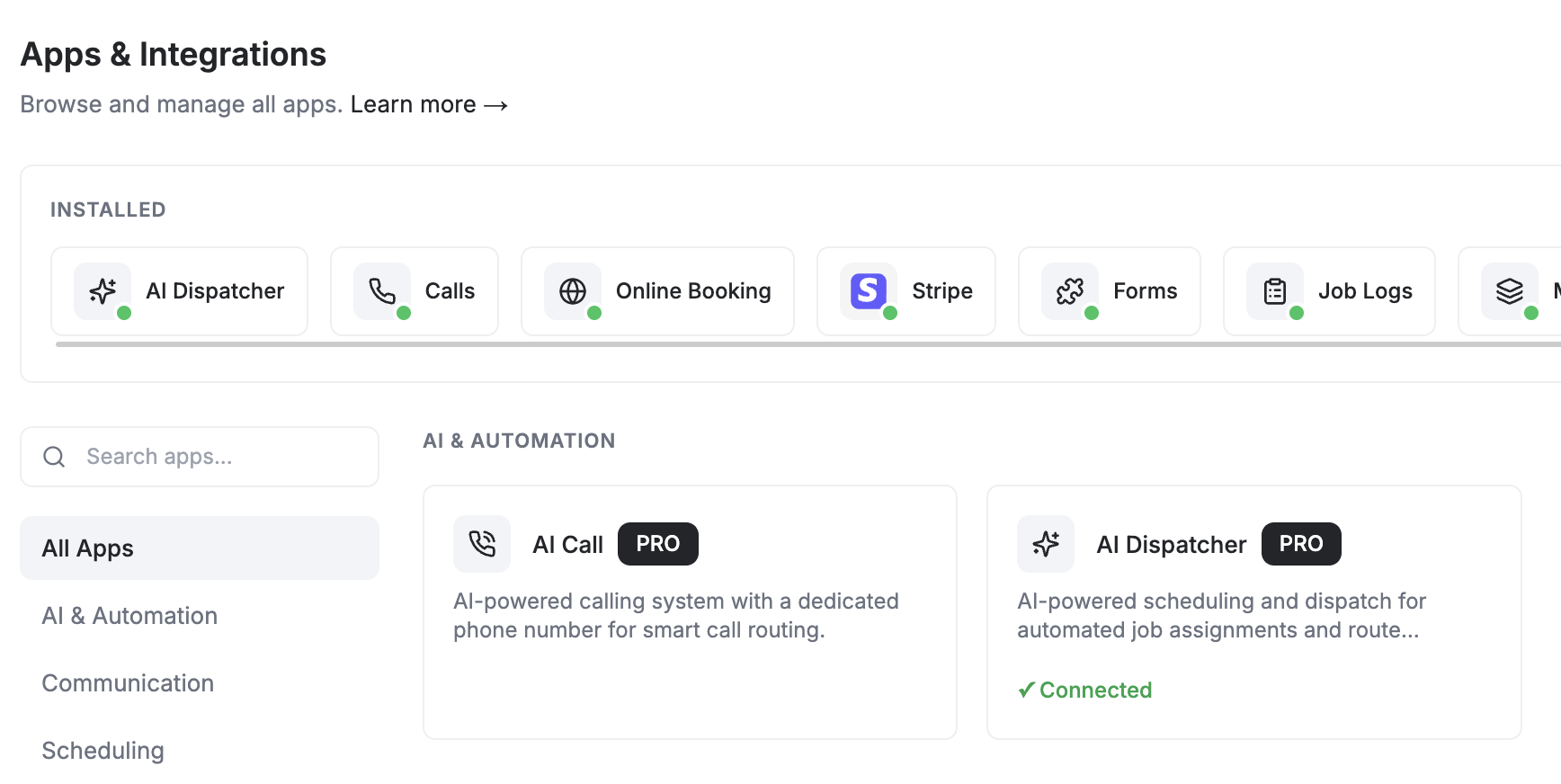
Once enabled, AI Dispatcher integrates directly into your job creation and calendar workflow. You don't need a separate login or app.
AI Dispatcher uses credits. Each dispatch suggestion consumes credits from your monthly allocation. See Plans & Pricing for credit details.
How It Works Inside FieldCamp
During Job Creation
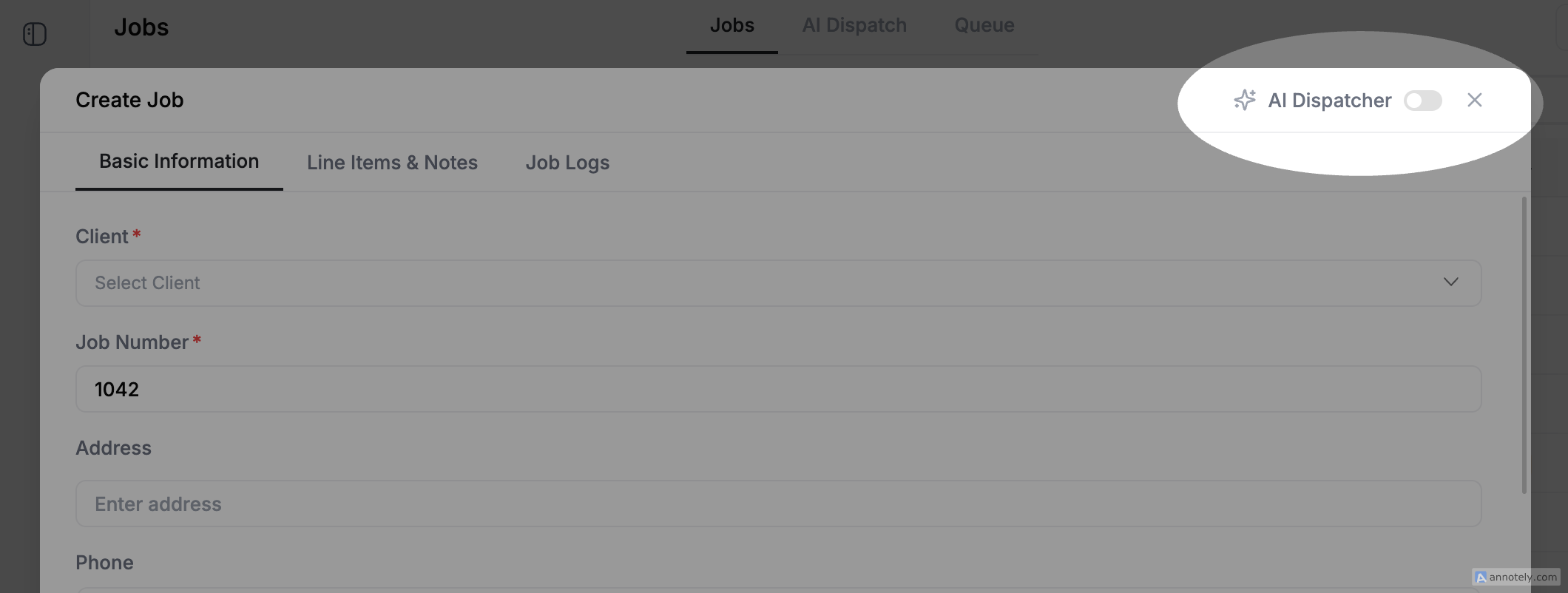
When you create a job, you'll see an "AI Dispatch" toggle at the top of the form. Turn it on and AI Dispatcher will:
- Analyze all available technicians
- Match required skills to technician profiles
- Calculate travel time from each tech's current location
- Check availability and workload
- Suggest the best technician and time slot
You can accept the suggestion or choose a different technician manually.
On the Calendar
The dispatch calendar shows AI suggestions as a banner when there are unassigned jobs. The suggestions include:
- Recommended technician — who's the best fit
- Confidence score — how strong the match is
- Reasoning — why this technician was chosen (skills, proximity, availability)
You can accept, reject, or modify the suggestion directly from the calendar.
In the Job Tray
Unassigned jobs in the Job Tray can be dispatched in bulk. Select multiple jobs → click Dispatch → AI assigns them all at once, optimizing across your entire team.
What AI Considers
| Factor | How It's Used |
|---|---|
| Skills | Only technicians with ALL required skills are considered |
| Location | Minimizes travel time from previous job or home base |
| Availability | Respects business hours, days off, and existing bookings |
| Workload | Balances jobs across the team — avoids overloading one person |
| Priority | High-priority jobs (work orders) get assigned first |
| Customer preference | Preferred technician gets priority if available |
AI Dispatcher Settings
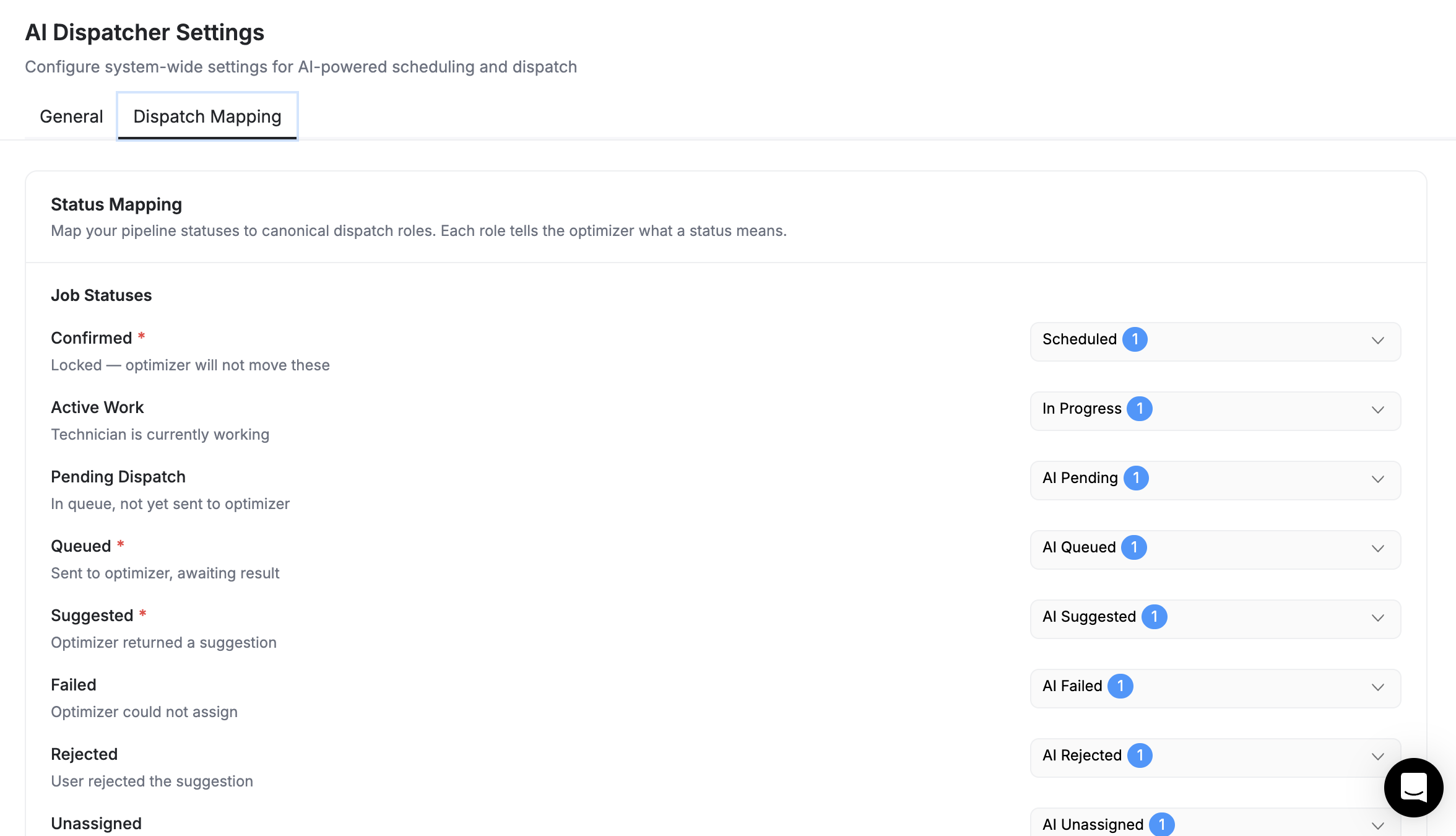
Configure how AI Dispatch works in Settings → AI Dispatcher:
- Dispatch Mode — Immediate (assigns right away) or Queue (holds for your review)
- Max Drive Time — Maximum acceptable travel time between jobs
- Overtime — Allow or prevent assignments that push past shift end
- Capacity — Max jobs per technician per day
For per-technician settings, go to Settings → Team Management → edit a team member:
- Assignable to Jobs — toggle on/off for AI dispatch
- Max Jobs Per Day — override the global default
- Skills — what work this technician can do
- Vehicle Routing Profile — affects drive time calculations
Standalone vs Inside FieldCamp
| Feature | Inside FieldCamp | Standalone App |
|---|---|---|
| Access | Add-on in your existing app | dispatcher.fieldcamp.ai |
| Job creation | Create jobs + dispatch in one flow | Jobs sync from FieldCamp or CSV |
| Live Dispatch map | Calendar + Job Tray | Full map with timeline |
| Dispatch Assistants | Not available | AI agents that auto-dispatch |
| Analytics | FieldCamp Analytics | Dedicated dispatch analytics |
| Multi-day travel | Basic scheduling | Advanced route chaining |
| Best for | Teams using full FieldCamp suite | Dispatch-focused teams |
Both use the same AI engine. The standalone app offers more advanced dispatch features (live map, agents, connectors). If you outgrow the add-on, you can switch to standalone without losing data. See AI Dispatcher vs FieldCamp for a full comparison.
Using the Command Centre
You can dispatch jobs from the Command Centre too:
- "Assign the best technician for the Smith Residence job" — AI picks and assigns
- "Who's available tomorrow afternoon?" — checks team availability
- "Dispatch all unassigned jobs for today" — bulk dispatch
See AI Skills for all available commands.
Related Articles
AI Job Scheduling | FieldCamp
Use FieldCamp's AI to find the best time slot, match the right technician, and reduce travel costs — schedule field service jobs in seconds instead of minutes.
Dispatch equipment settings | FieldCamp
Create and manage FieldCamp dispatch equipment records, including quantities, categories, transfer settings, depot addresses, and job type presets.