 FieldCamp
Multi-Day Travel & Route Planning | AI Dispatcher
Set up multi-day travel for technicians who work across cities for days at a time. AI Dispatcher chains routes across days so techs spend less time driving and more time working.
The Problem with Going Home Every Night
Most dispatch tools assume every technician drives home at the end of the day. That works fine for local operations, but it destroys productivity for teams that cover large territories.
Example without multi-day travel:
A tech based in Dortmund has jobs in Hamburg on Monday and Berlin on Tuesday.
- Monday: 3 hours driving to Hamburg, works, 3 hours driving home. 6 hours on the road.
- Tuesday: 4.5 hours to Berlin, works, 4.5 hours home. 9 hours on the road.
- Total: 15 hours of driving for maybe 10 hours of actual work.
That is 60% windshield time. Every other dispatch tool on the market -- Salesforce, ServiceMax, Route4Me -- works this way. They do not account for technicians staying overnight near their jobs.
How Day Chaining Works
AI Dispatcher plans multi-day trips as one continuous route instead of treating each day as a separate round trip.
Here is what changes:
- Day 1's last job location becomes Day 2's starting point. If a tech finishes their last job in Tampa on Monday, the AI plans Tuesday's route starting from Tampa -- not from their home base in Orlando.
- Jobs are clustered by region. The AI groups nearby jobs together so your tech handles everything in one area before moving to the next.
- The entire trip is planned as one route. Whether it is a 5-day or 14-day trip, the AI optimizes the full sequence of jobs across all days.
- Hotels are positioned between high-density work days. The tech stays near tomorrow's first job, not near today's last job (unless they are the same area).
Same example with day chaining:
Dortmund to Hamburg (stay overnight) to Berlin (stay overnight) to Bremen to home.
- Total driving: about 13.5 hours over the week
- Saved 6.5 hours compared to going home every night
- That is roughly 1.3 extra productive days per week
Setting Up Multi-Day Travel
There are two places to configure this: global settings that apply to your operation, and per-technician settings for individual team members.
Global Settings (Settings > AI Dispatcher)
Go to Settings > AI Dispatcher to find the Shift and Travel section:
-
Require Return Home By Shift End -- Turn this off for multi-day travel. When it is off, technicians can stay overnight near their last job instead of driving home at the end of every day. When it is on, the AI always plans a return trip home before the shift ends.
-
Max Drive Time -- The maximum driving time the AI allows between any two consecutive jobs (for example, 60 minutes). If the only way to reach the next job takes longer than this limit, the AI flags it as a travel conflict. Lower values keep routes tighter. Higher values give the AI more flexibility for spread-out service areas.
-
Routing Priority Weight -- Controls how much the AI prioritizes shorter routes versus other factors like workload balance and skills. A higher weight means the AI works harder to minimize driving, even if it means slightly less balanced workloads.
Per-Technician Settings (Settings > Team Members)
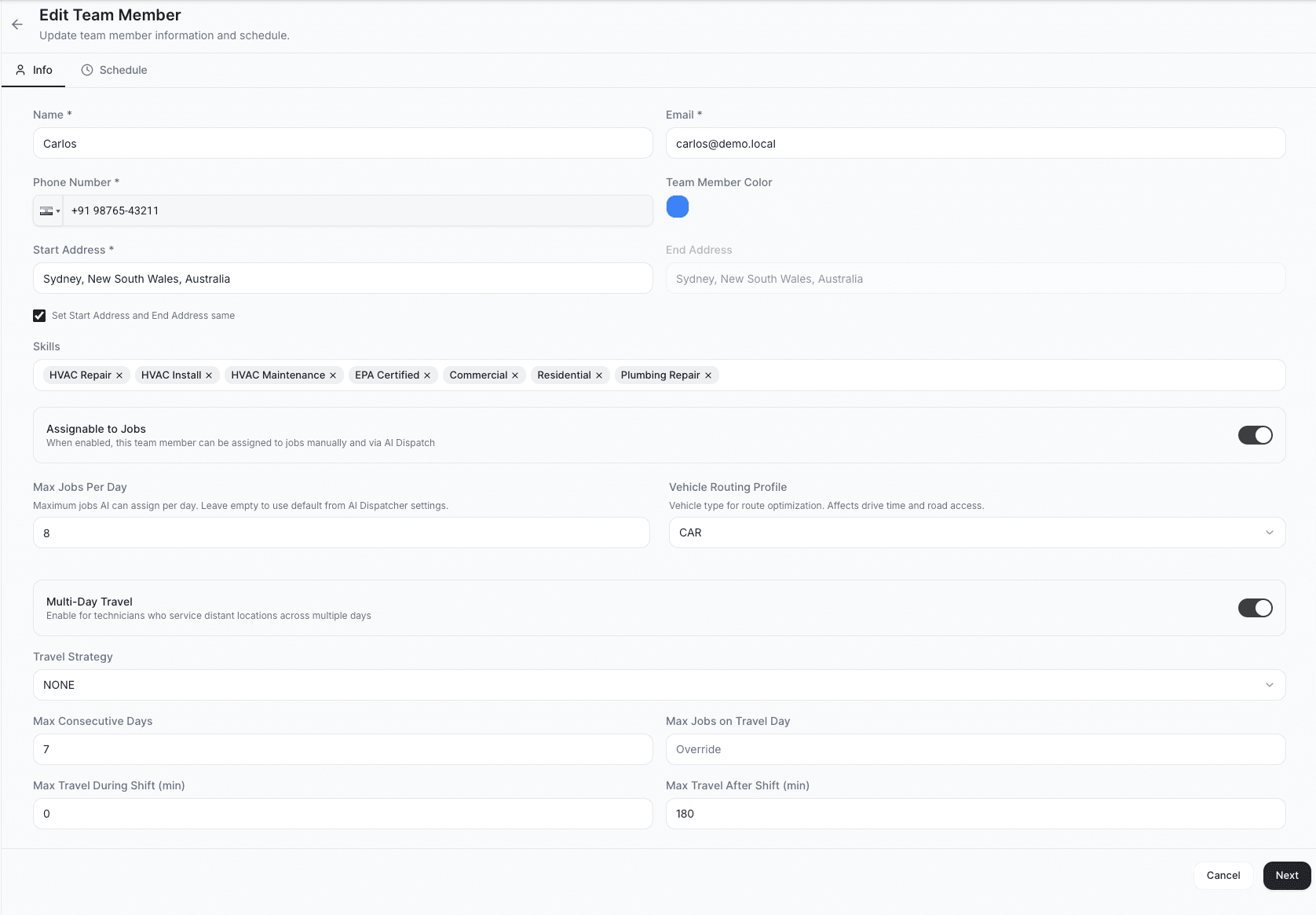
Not every technician travels for multiple days. Some techs are local and go home every night. Others are on the road for a week or more. You configure this individually:
- Go to Settings > Team Members
- Click Edit on the technician's profile
- Find the multi-day travel section:
-
Multi-Day Travel -- Enable or disable per technician. When enabled, the AI plans multi-day routes for this person. When disabled, the AI always returns them home at the end of each day.
-
Max Days Away -- How many consecutive days a technician can be on the road before the AI schedules them to return home. For example, set this to 5 for a Monday-to-Friday travel schedule, or 14 for technicians who do two-week road trips.
Start with shorter max-days-away settings and increase based on what your team is comfortable with. A tech who is used to 3-day trips may not want to jump straight to 14 days on the road.
A Real-World Example
Here is how a full week might look for a traveling HVAC technician based in Orlando:
| Day | Location | What Happens |
|---|---|---|
| Monday | Orlando to Tampa | Drives to Tampa (1.5h), completes 3 jobs, stays overnight |
| Tuesday | Tampa | Completes 4 jobs in the Tampa area, stays overnight |
| Wednesday | Tampa to Jacksonville | Drives to Jacksonville (3.5h), completes 2 jobs, stays overnight |
| Thursday | Jacksonville | Completes 4 jobs, stays overnight |
| Friday | Jacksonville to Orlando | Completes 1 morning job, drives home (2h) |
Total driving for the week: about 7 hours.
Without day chaining, the same jobs would require the tech to drive home to Orlando every night and back out every morning -- roughly 20+ hours of driving for the same work. That is an extra 13 hours wasted in the truck.
When to Use Multi-Day Travel
Multi-day travel is valuable when:
- Your technicians cover a large geographic area spanning multiple cities
- Jobs are clustered in regions that are too far for a daily round trip
- You want to reduce fuel costs and windshield time significantly
- Your techs are comfortable staying overnight near job sites
You probably do not need it if:
- All your jobs are within a 60-minute radius of your office or tech home bases
- Your techs handle only local, same-day work
- Your team structure does not support overnight travel
Tips for Getting Started
- Enable it for one or two techs first. See how the AI plans their routes before rolling it out to the full team.
- Set realistic max days away. Talk to your techs about how long they are willing to travel before coming home.
- Turn off "Require Return Home By Shift End" for traveling techs. This is the key setting that unlocks day chaining.
- Keep technician home addresses accurate. The AI needs the correct starting point to plan the first and last legs of each trip.
- Review the planned route before confirming. Check the Live Dispatch Map to make sure the multi-day route makes geographic sense.
Related Articles
- Service Areas & Zones
- Capacity & Workload Limits
- Handling Conflicts & Overlaps
- Live Dispatch Map & Timeline
- How AI Dispatcher Works Under the Hood
Further Reading
- How AI Reduces Drive Time -- Strategies and data behind AI-optimized routing for field teams
- Multi-Day Scheduling -- Planning across multiple days for better technician utilization
- Time Window Optimization -- Balancing customer appointment windows with route efficiency
Skills, Equipment & Tags | AI Dispatcher
Set up skills, equipment, and tags so AI Dispatcher only sends qualified technicians to each job. Real examples from HVAC, grease trap, and telematics industries.
Capacity Planning & Workload | AI Dispatcher
Set up capacity limits, business hours, overtime rules, and workload balancing. Monitor utilization, billable hours, and on-time performance to keep your team productive.