 FieldCamp
Connectors & Integrations | AI Dispatcher
Connect your existing field service tools to AI Dispatcher. Jobs sync automatically, dispatch suggestions flow back. Works with Jobber, ServiceTrade, Housecall Pro, and more.
Works With Your Existing Tools
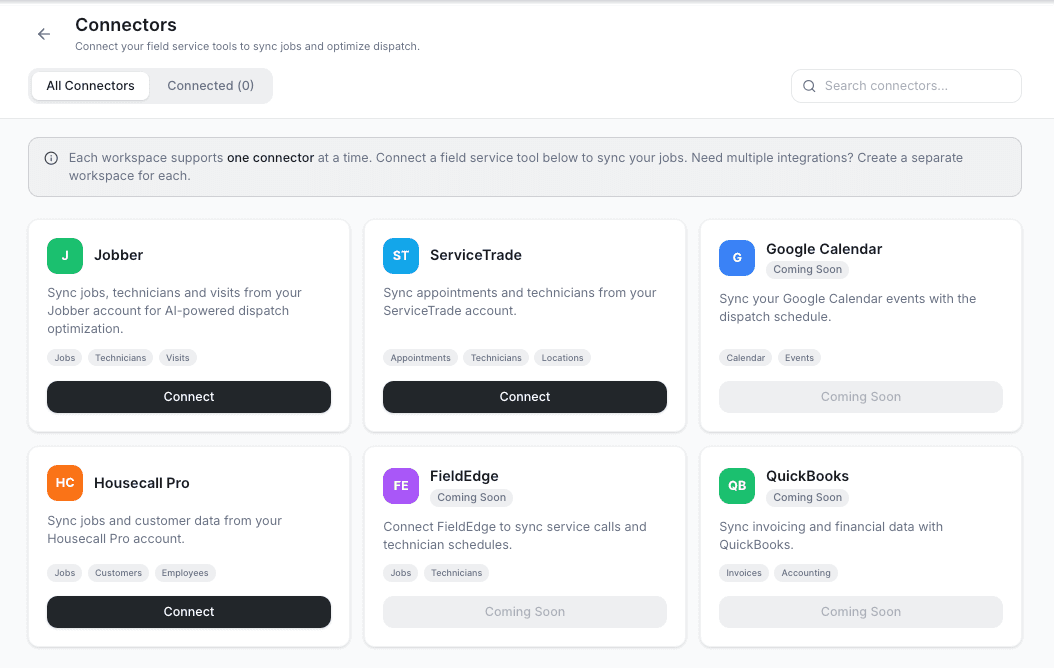
You do not need to rip out your current software to use AI Dispatcher. It connects to the tools you already use -- your jobs sync in, the dispatcher figures out the best assignments, and the suggestions flow back to your platform.
Connect and go. That is the idea.
If you already use FieldCamp, the AI Dispatcher add-on syncs your existing jobs and technicians automatically. No manual data migration needed.
Available Connectors
AI Dispatcher connects to the most popular field service and business tools:
| Tool | What Syncs |
|---|---|
| FieldCamp | Full two-way sync -- jobs, technicians, skills, schedules, and assignments |
| Jobber | Jobs and customer information |
| ServiceTrade | Jobs, locations, and technician data |
| Google Calendar | Technician availability and scheduled appointments |
| Housecall Pro | Jobs and team schedules |
| FieldEdge | Jobs and dispatch information |
| QuickBooks | Customer records and job billing data |
All connectors live in Settings > Apps & Integrations. Click the tile for your tool, sign in, and the sync starts automatically.
How Connecting Works
The process is the same for every tool:
- Go to Settings > Apps & Integrations in AI Dispatcher
- Find your tool and click Connect
- Sign in with your existing account credentials
- Jobs start syncing -- typically within seconds
Once connected, new jobs appear in AI Dispatcher automatically. You do not need to re-enter anything. When you accept a dispatch suggestion, the assignment syncs back to your original tool.
The FieldCamp Connector
If you use FieldCamp as your field service platform, the integration is the deepest:
- Same login -- Use your FieldCamp credentials to sign in to AI Dispatcher. No separate account needed.
- Everything syncs -- Jobs, technicians, skills, availability, working hours, and service areas stay in sync automatically.
- Two-way assignments -- When you accept or reject a dispatch suggestion, it updates your FieldCamp calendar immediately.
- Real-time updates -- Changes in FieldCamp (new job, schedule change, technician update) appear in AI Dispatcher within seconds.
Uploading Jobs Without a Connector
If your tool does not have a connector yet -- or you want to try AI Dispatcher before connecting anything -- you can upload your jobs from a spreadsheet.
This is useful for:
- Testing with your real data before committing to a full integration
- One-time bulk uploads when migrating from another system
- Standalone use without connecting any other software
See Importing Jobs from a Spreadsheet for templates and instructions.
What AI Dispatcher Needs to Work Well
Regardless of how you connect, AI Dispatcher works best with complete information:
About your jobs: What the job is, where the customer is located, how long it should take, what skills are needed, and any time preferences the customer has.
About your team: Who is available, what they are qualified to do, where they are based, what hours they work, and how many jobs they can handle in a day.
You do not need every detail on day one -- the dispatcher works with whatever you have. But the more complete your data, the better the suggestions.
Related Articles
- What is AI Dispatcher?
- AI Dispatcher vs FieldCamp
- Importing Jobs from a Spreadsheet
- FieldCamp Apps and Integrations — all available connectors and add-ons in FieldCamp
Workspaces | AI Dispatcher
Create and manage AI Dispatcher workspaces, set a name, slug and timezone, and understand what stays scoped to each workspace.
Business Schedule & Working Hours | FieldCamp
Configure your company's weekly working hours and date-specific exceptions so AI Dispatcher only suggests jobs when your business is open.