 FieldCamp
Job Types, Priorities & Readiness | AI Dispatcher
Learn how to create jobs in AI Dispatcher with the right type, priority, duration, and skills. Understand readiness status and how priority affects dispatch order.
Creating a Job
Click Create Job on the Jobs page to open the job form. Each job needs the following fields:
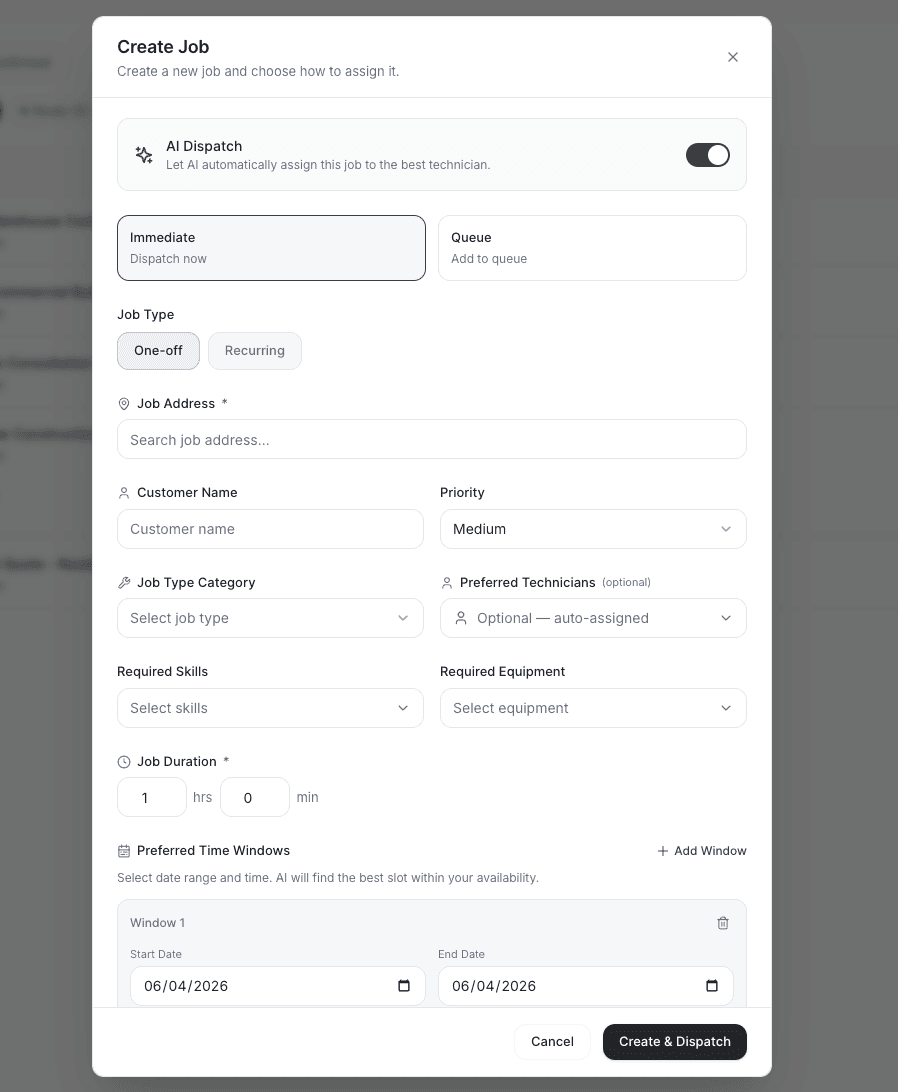
- Title -- short description of the work (e.g., "AC Unit Repair" or "Annual Furnace Tune-Up")
- Address -- service location; AI uses this to calculate travel time between jobs
- Type -- One-off or Recurring (see below)
- Priority -- Low, Medium, High, or Crucial
- Duration -- estimated time on site in hours
- Required Skills -- skills the assigned technician must have (e.g., HVAC Repair, EPA Certified)
Jobs without an address cannot be dispatched. AI Dispatcher needs a valid location to calculate travel times and route efficiency.
Job Types
- One-off -- a single visit. The job is complete once the visit is done.
- Recurring -- repeating work on a schedule (weekly, biweekly, monthly). Each occurrence creates a separate visit under the same job.
Choose Recurring for maintenance contracts, routine inspections, or any work that repeats on a fixed cadence.
Priority Levels
Priority controls where a job lands in the dispatch queue. AI Dispatcher processes higher-priority jobs first. To understand the strategy behind this, see our guide on priority-based AI dispatching.
| Priority | Response Time | Behavior |
|---|---|---|
| Crucial | Immediate | AI assigns the nearest qualified technician and may bump lower-priority work |
| High | 24-48 hours | Scheduled ahead of Medium and Low jobs |
| Medium | Standard | Default priority for most jobs |
| Low | Flexible | Preventive maintenance, follow-ups. Fills remaining capacity after higher-priority work |
Reserve Crucial for genuine emergencies -- safety hazards, property damage, or complete system failures. Overusing it reduces its effectiveness.
Readiness Status
Every job shows a readiness indicator that tells you whether it can be dispatched:
| Status | Meaning | Can Dispatch? |
|---|---|---|
| Ready | All required information is complete | Yes -- send to AI dispatch immediately |
| Warnings | Optional fields are missing (e.g., no duration estimate) | Yes -- but suggestions may be less accurate |
| Issues | Critical data is missing (e.g., no address or no required skills) | No -- resolve issues first |
Fix any Issues before submitting a job for dispatch. Warnings are worth addressing but will not block assignment.
Job ID and Tracking
Each job receives an auto-generated ID (e.g., JOB-25). Use this ID to search, filter, and reference jobs across the app. Every job contains one or more visits underneath it -- the actual scheduled appointments your technicians complete.
Filtering and Views
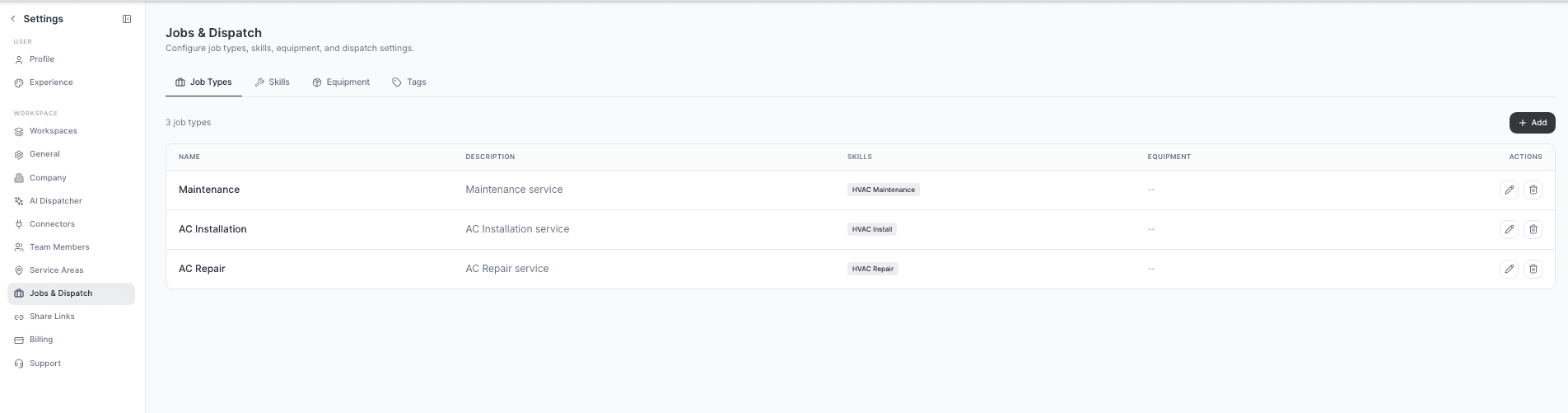
The Jobs page has three tabs to organize your workflow:
| Tab | Contents |
|---|---|
| Queue | Unassigned jobs waiting for dispatch |
| AI Dispatched | Jobs where AI has suggested a technician (pending your review) |
| Confirmed | Accepted assignments locked into technician schedules |
Use the search bar and filters to narrow by priority, type, readiness, or date range.
Best Practices
- Set accurate durations -- overestimating wastes capacity; underestimating causes schedule conflicts
- Tag all required skills -- AI can only match what you specify
- Fill the address completely -- include city, state, and zip for accurate travel calculations
- Use Recurring for repeat work -- avoids creating duplicate jobs manually each cycle
Related Articles
- Submitting a Job for AI Dispatch
- Importing Jobs via CSV
- Accepting or Rejecting AI Dispatch Suggestions
- Understanding Capacity Planning
- Configuring Skills & Capabilities
Further Reading
- Priority-Based AI Dispatching — How priority levels influence dispatch order and technician selection
Capacity Planning & Workload | AI Dispatcher
Set up capacity limits, business hours, overtime rules, and workload balancing. Monitor utilization, billable hours, and on-time performance to keep your team productive.
Importing Jobs via CSV | AI Dispatcher
Bulk import jobs and technicians into AI Dispatcher using CSV files. Learn the required column format, upload steps, and how to export your data for backup.