 FieldCamp
Daily Insights and Forecasting | AI Dispatcher
Get end-of-day audits, tomorrow's capacity forecast, and recurring operational summaries — without running reports or scanning multiple screens.
Know What Happened and What Is Coming
At the end of a busy day, it is hard to know if anything slipped through. And in the morning, you want to know if tomorrow has enough techs before the phone starts ringing.
Three agents handle this: EOD Reconciliation audits the end of today, Capacity Forecast previews tomorrow, and Ops Analyst produces recurring summaries on whatever schedule you choose.
EOD Reconciliation
What It Does
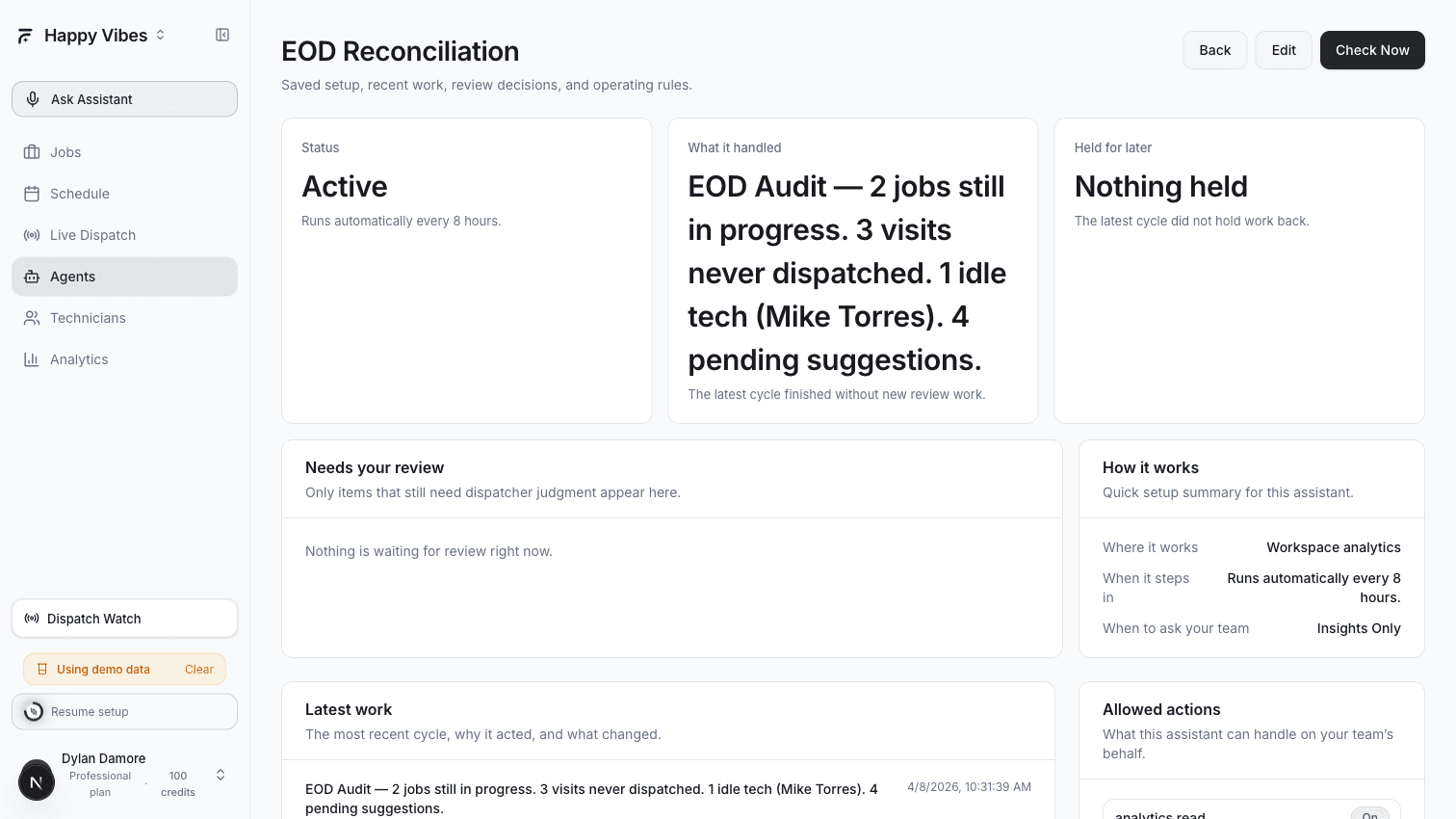
EOD Reconciliation runs 30 minutes before shift end and scans for unfinished business:
| What It Finds | Why It Matters |
|---|---|
| In-progress jobs that did not complete | Technician may have left the site without closing the job |
| Visits that were never dispatched | Created today but nobody assigned them |
| Technicians with zero completions | May indicate a no-show, training day, or data entry issue |
| AI suggestions nobody acted on | Dispatch ran but nobody reviewed the results |
Setting It Up
- Go to Agents > Playbooks
- Find EOD Reconciliation and click Select
- The default schedule is set to run once per shift (every 8 hours). Adjust if your team runs shorter or longer shifts.
- Save and activate
What You See
After each run, you get a summary like:
End of Day Audit — April 7, 2026
- 2 jobs still in progress (JOB-042, JOB-057)
- 3 visits created today were never dispatched
- 1 technician (Mike Torres) had 0 completed visits
- 4 AI suggestions from this morning still pending review
Tomorrow's carry-over: 5 items need attention before the day starts.
This summary appears in the agent's run history and in the Dispatch Watch panel if anything critical is found.
EOD Reconciliation is most valuable when you run it consistently. After a few days, you will start to see patterns — maybe certain job types always end up incomplete, or one technician consistently forgets to close jobs in the app.
Capacity Forecast
What It Does
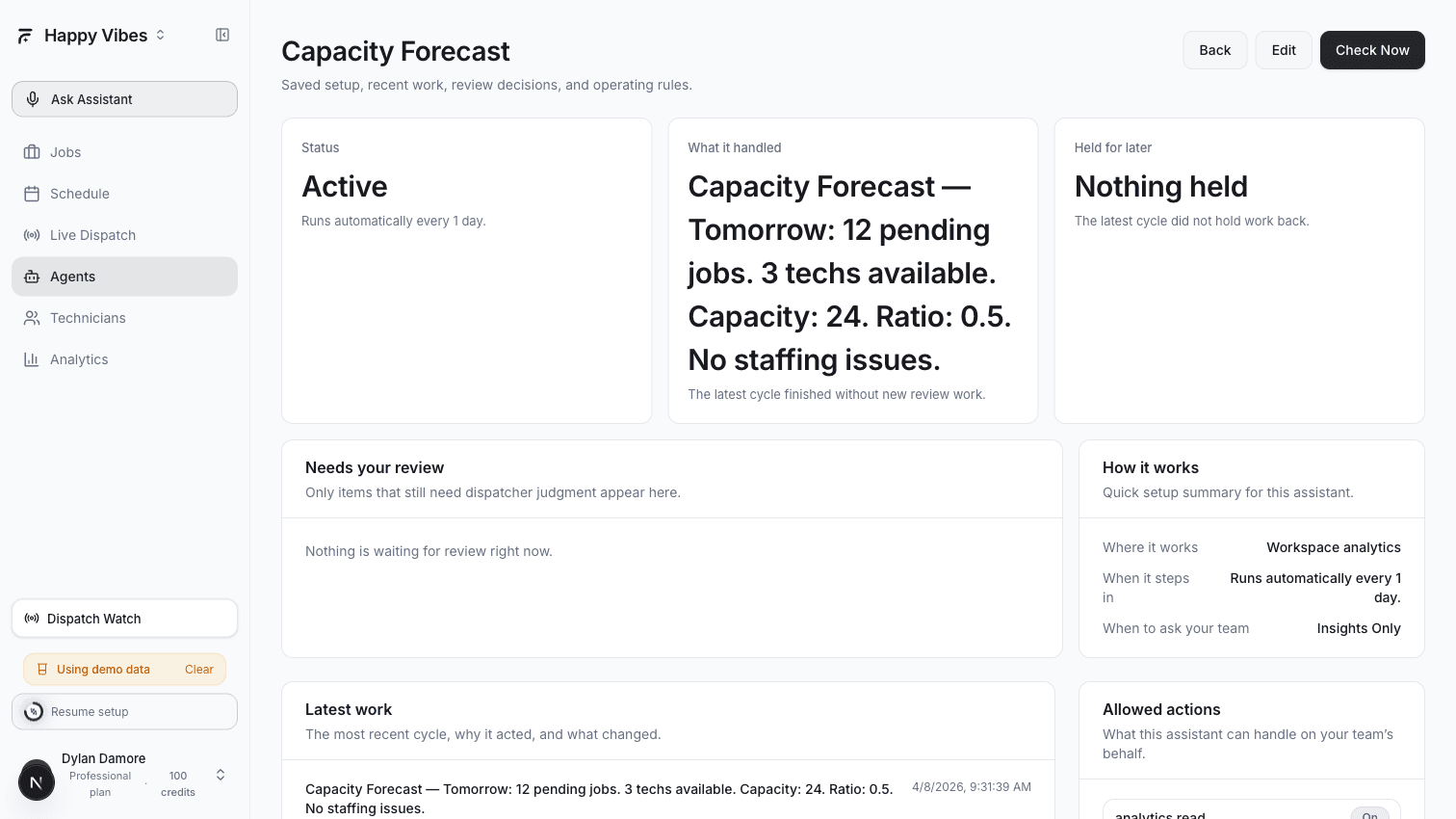
Capacity Forecast runs once daily (typically early morning) and compares tomorrow's workload against your available team:
| What It Checks | What It Tells You |
|---|---|
| Pending jobs for tomorrow | How many visits are scheduled or waiting for dispatch |
| Available technicians | Who is on shift tomorrow based on their weekly schedule |
| Total capacity | Sum of each tech's max jobs per day |
| Job-per-tech ratio | Demand divided by capacity — above 1.0 means you are understaffed |
| Skill coverage | Are there jobs requiring skills that no available tech has? |
Setting It Up
- Go to Agents > Playbooks
- Find Capacity Forecast and click Select
- The default schedule is once daily (every 24 hours). It runs based on your workspace timezone.
- Save and activate
What You See
A morning summary like:
Capacity Forecast — April 8, 2026
- 12 pending jobs for tomorrow
- 3 technicians available (Mike Torres, Sarah Kim, Alex Chen)
- Total capacity: 24 jobs (8 per tech)
- Job-per-tech ratio: 0.5 — you have room for more work
- Skill coverage: All required skills covered
No staffing issues detected.
Or when there is a problem:
Capacity Forecast — April 8, 2026
- 28 pending jobs for tomorrow
- 2 technicians available (Sarah Kim, Alex Chen) — Mike Torres is off
- Total capacity: 16 jobs
- Job-per-tech ratio: 1.75 — understaffed
- Skill gap: 3 jobs require "Commercial HVAC" but no available tech has that skill
Consider: Open overtime slots, activate on-call technicians, or defer lower-priority jobs.
Capacity Forecast works best when your technicians have accurate availability schedules and max-jobs-per-day settings. If a tech's profile says they can handle 8 jobs but they realistically do 5, the forecast will overestimate capacity.
Ops Analyst
What It Does
Ops Analyst produces recurring operational summaries so managers do not have to scan multiple dispatch screens to understand what changed. It pulls together:
- How many jobs were dispatched vs scheduled
- Current suggestion status (pending, accepted, rejected)
- Team member count and availability
- Connected FSM integration status
- Recommended next actions
Setting It Up
- Go to Agents > Playbooks
- Find Ops Analyst and click Select
- Configure the schedule — default is hourly, but many teams set it to once or twice daily
- Save and activate
What You See
A summary tailored to your operation:
Operations Summary — April 7, 2026, 5:00 PM
- 18 jobs dispatched today, 15 accepted, 2 rejected, 1 pending review
- Avg confidence score: 82%
- 3 technicians active, all above 70% utilization
- 2 unassigned jobs remaining — both require "Electrical License" (consider assigning manually)
Recommended: Review the 2 unassigned electrical jobs before end of day.
Ops Analyst uses AI to analyze your data and generate natural-language summaries. If you have the LLM Planner enabled in the agent's configuration, summaries include actionable recommendations. Without it, you get factual counts and metrics only.
Combining All Three
For a complete operational picture, run all three:
| Agent | When It Runs | What It Covers |
|---|---|---|
| Capacity Forecast | Early morning (6am) | Is tomorrow staffed correctly? |
| Ops Analyst | Midday + end of day | What is happening right now? |
| EOD Reconciliation | 30 min before shift end | What fell through today? |
Morning: Capacity Forecast tells you if tomorrow is a problem before you are in the middle of it.
Midday: Ops Analyst gives you a pulse check without leaving your current screen.
End of day: EOD Reconciliation catches anything unfinished so you do not carry surprises into tomorrow.
Plan Requirements
| Plan | EOD Reconciliation | Capacity Forecast | Ops Analyst |
|---|---|---|---|
| Free | Not available | Not available | Not available |
| Starter | Yes | Yes | Yes |
| Professional | Yes | Yes | Yes |
| Enterprise | Yes | Yes | Yes |
All three are Operational Insight agents available on Starter and above.
Related Articles
Never Miss a Suggestion | AI Dispatcher
Plan Review auto-approves safe dispatch suggestions so they do not pile up. Stale Work Detector catches jobs stuck in pending, suggestions nobody acted on, and rejected visits that were never re-dispatched.
Voice Assistant | AI Dispatcher
Talk to your dispatch board. Ask questions, dispatch jobs, check technician status, and manage your schedule using voice commands — hands-free from any page.