 FieldCamp
Importing Jobs via CSV | AI Dispatcher
Bulk import jobs and technicians into AI Dispatcher using CSV files. Learn the required column format, upload steps, and how to export your data for backup.
Overview
Use CSV import to add jobs or technicians in bulk instead of creating them one at a time. This is useful when migrating from another system, loading a batch of new work orders, or setting up a demo environment with real data.
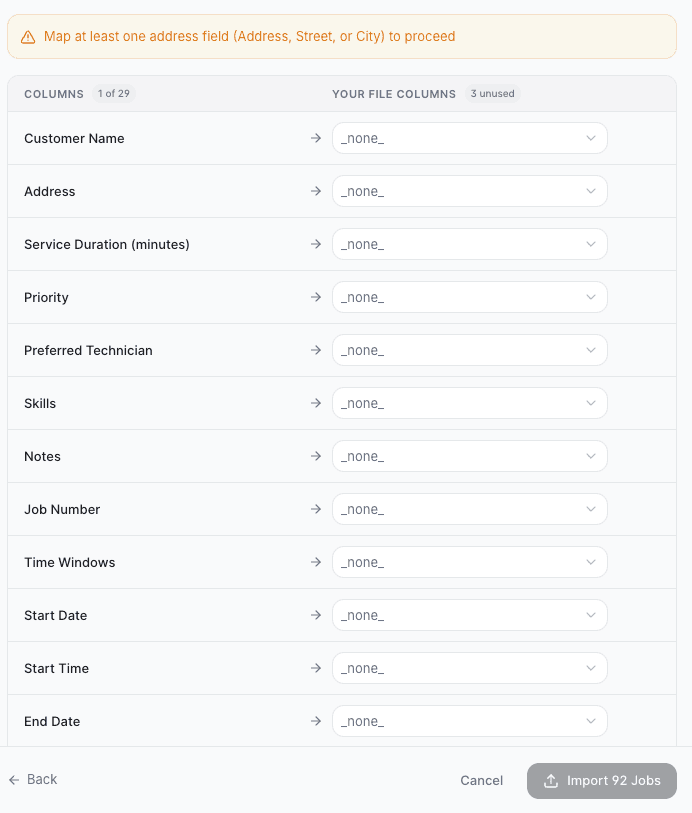
Importing Jobs
- Go to the Jobs page
- Click Import CSV in the top-right toolbar
- Select your CSV file and upload it
- Map columns to job fields if prompted
- Review the preview and confirm the import
Required CSV Columns
Your CSV should include these columns (headers must match or be mapped during import):
- Title -- job name or description
- Address -- full service address including city, state, and zip
- Type --
One-offorRecurring - Priority --
Low,Medium,High, orCrucial - Duration -- estimated hours (e.g.,
2or1.5) - Skills Required -- comma-separated list (e.g.,
HVAC Repair, EPA Certified)
Jobs imported without an address will show an Issues readiness status and cannot be dispatched until the address is added.
Example CSV
Title,Address,Type,Priority,Duration,Skills Required
AC Unit Repair,"123 Main St, Austin, TX 78701",One-off,High,2,"HVAC Repair, EPA Certified"
Annual Furnace Tune-Up,"456 Oak Ave, Austin, TX 78704",Recurring,Low,1,Maintenance
Electrical Panel Upgrade,"789 Pine Rd, Austin, TX 78702",One-off,Medium,4,"Electrical, Panel Upgrade"
Importing Technicians
You can also import technicians via CSV from the Technicians page. Click Import CSV and upload a file with technician details including name, phone, skills, and availability.
This is especially helpful when onboarding an entire team at once rather than adding each person individually.
Exporting Data
Both the Jobs and Technicians pages offer an Export CSV button. Use it to:
- Back up your data before making bulk changes
- Share job lists with stakeholders outside the app
- Audit assignments in a spreadsheet
Exported files include all visible columns and respect any active filters.
Tips for Clean Imports
- Validate addresses -- incomplete addresses cause dispatch issues
- Use consistent skill names --
HVAC Repairandhvac repairmay be treated as different skills - Check for duplicates -- the system does not automatically deduplicate imported records
- Start small -- import 5-10 rows first to verify your column mapping before loading hundreds
Related Articles
Job Types, Priorities & Readiness | AI Dispatcher
Learn how to create jobs in AI Dispatcher with the right type, priority, duration, and skills. Understand readiness status and how priority affects dispatch order.
Submitting a Job for AI Dispatch | FieldCamp AI Dispatcher
Learn how to submit jobs from the Queue tab for AI-powered technician assignment. See how AI analyzes skills, travel time, availability, and workload.