 FieldCamp
Accepting or Rejecting AI Dispatch Suggestions
Learn how to accept, reject, or batch-process AI dispatch suggestions, use Auto Mode for hands-free approvals, and how rejection history improves future recommendations.
Acting on AI Suggestions
After reviewing AI suggestions on the AI Dispatched tab, you need to accept or reject each one. Your decisions confirm the technician assignments and move jobs through the dispatch pipeline.
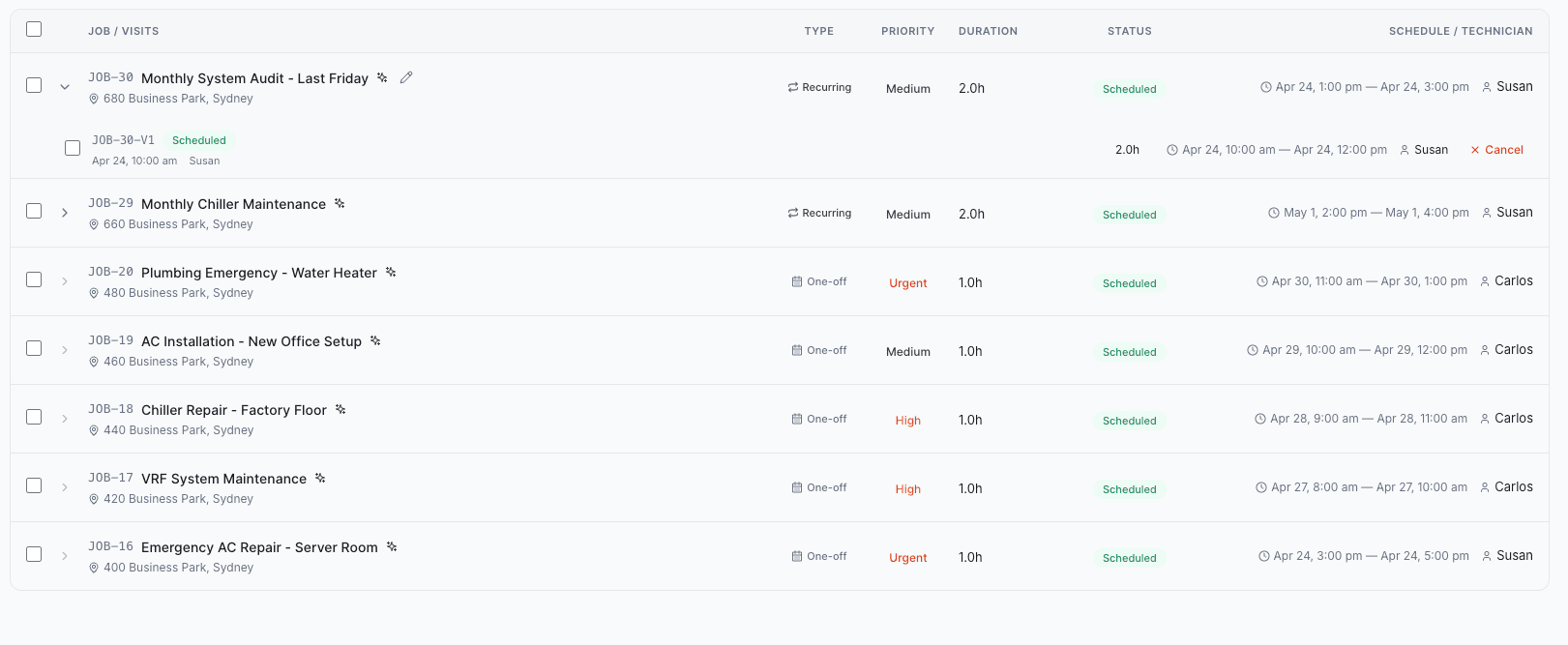
Accepting a Suggestion
Click Accept on a suggestion card to confirm the AI's recommended assignment. When you accept:
- The job moves from the AI Dispatched tab to the Confirmed tab
- The technician receives a notification with job details, time, and location
- The customer gets an automated confirmation with the scheduled arrival window
- The job appears as a confirmed block on the Live Dispatch timeline
Accept suggestions when the confidence score is strong, the reasoning checks out, and there are no conflicts or overlaps flagged on the card.
Rejecting a Suggestion
Click Reject to send the job back to the Queue for re-optimization. The AI will generate a new suggestion using updated schedule data, potentially recommending a different technician or time slot.
A voice agent can also accept or reject a suggestion while the caller is on the line. See Book and dispatch jobs during a call in the FieldCamp Voice docs.
When you reject, the system prompts you for a reason. Common rejection reasons include:
- Skills mismatch -- the technician lacks a required certification
- Time conflict -- the suggested time does not work for the customer or technician
- Workload concerns -- the technician is already at capacity
- Customer preference -- the customer requested a specific technician
- Route inefficiency -- the assignment creates unnecessary backtracking
Always provide an accurate rejection reason. The AI uses your rejection history to avoid repeating the same mistakes. For example, if you consistently reject a technician for a certain job type, the AI learns to stop suggesting them for similar work.
Batch Actions
When you have multiple suggestions waiting, use batch actions to process them efficiently:
- Approve selected -- select multiple high-confidence suggestions and approve them all at once
- Reject selected -- reject a group of suboptimal suggestions and send them back to the Queue together
Batch actions are especially useful during morning planning when overnight jobs have generated a queue of suggestions. Sort by confidence, select the top group, and approve in one click.
Rejection History and AI Learning
The AI Dispatcher tracks your rejection patterns and adjusts future suggestions accordingly. Over time:
- Technicians repeatedly rejected for certain job types stop being suggested for those jobs
- Time slots you consistently reject get deprioritized
- Routing patterns you correct (such as avoiding certain neighborhoods for specific technicians) get incorporated into future calculations
This feedback loop means the AI gets more accurate the more you use it. The first week of suggestions may need more manual correction, but accuracy improves steadily as the system learns your preferences.
Auto Mode
If you trust the AI's judgment for routine assignments, enable Auto Mode in your dispatch settings. With Auto Mode active:
- Suggestions above a configurable confidence threshold (default 85%) are automatically accepted
- Suggestions below the threshold still require manual review
- Critical conflicts such as time overlaps or impossible travel are never auto-accepted, regardless of confidence score
- You receive a summary notification of auto-accepted jobs so you can audit if needed
Auto Mode works best for businesses with well-configured technician skills and consistent job types. If your team handles highly variable or specialized work, manual review gives you more control over assignments.
Auto Mode does not bypass your guardrails. Jobs with missing information, flagged conflicts, or sub-threshold confidence still land in your review queue.
Best Practices
- Process suggestions promptly -- unreviewed suggestions block the AI from optimizing around confirmed assignments
- Use batch approve for 85%+ confidence -- saves time without sacrificing quality
- Provide specific rejection reasons -- vague feedback ("other") does not help the AI learn
- Review Auto Mode results weekly -- check the summary to confirm auto-accepted jobs are meeting your standards
- Monitor the Live Dispatch page after bulk approvals to verify the day's schedule looks balanced
Related Articles
Reviewing AI Dispatch Suggestions
Learn how to review AI-generated technician assignments on the AI Dispatched tab, interpret confidence scores, and expand reasoning details before approving.
Handling Schedule Conflicts and Overlaps in AI Dispatcher
Understand how FieldCamp detects time overlaps, insufficient travel time, and time window deviations, and learn how to resolve each conflict type before dispatching.