 FieldCamp
Understanding the Schedule View | FieldCamp AI Dispatcher
Navigate the weekly schedule calendar in AI Dispatcher. View visits with time, location, duration, and travel time. Switch between Calendar, 1-hour, and Full views.
Schedule Page Overview
The Schedule page shows your team's weekly calendar with all confirmed and pending visits in one place. Open it from the Schedule tab in AI Dispatcher at dispatcher.fieldcamp.ai.
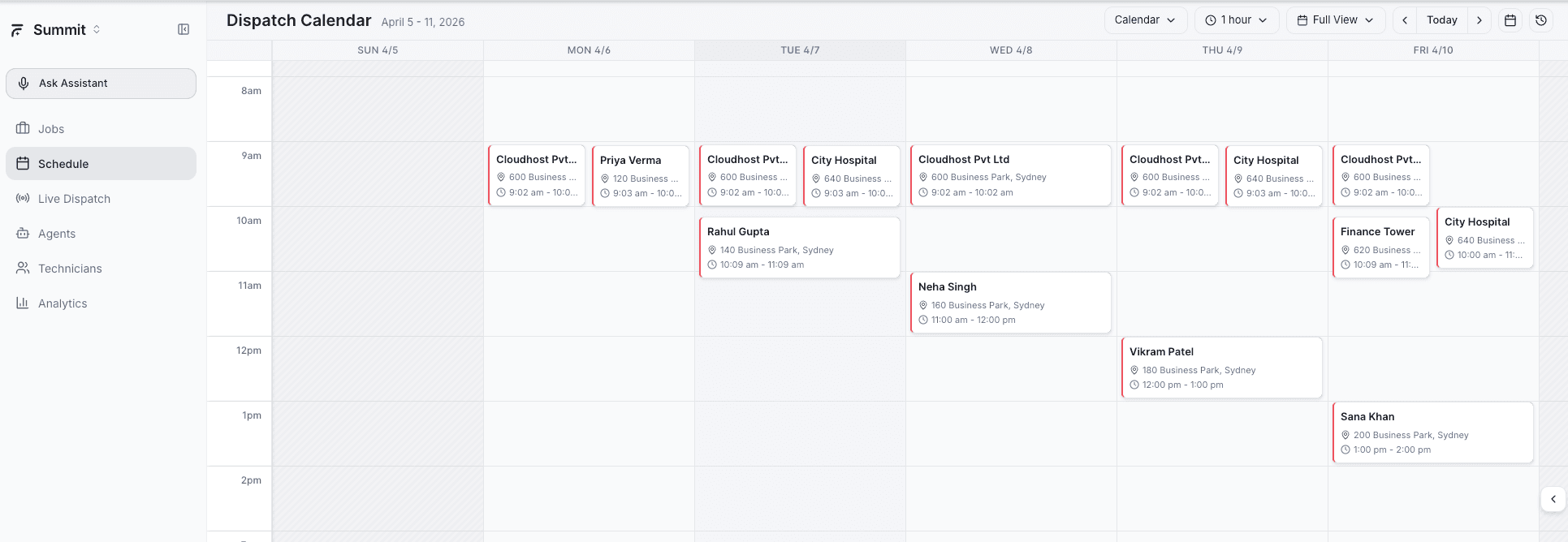
This is where you see the result of dispatching — every visit laid out across the week so you can verify coverage, spot gaps, and catch conflicts before they become problems.
The Schedule page shows visits that have already been assigned or suggested. To dispatch new jobs and generate AI suggestions, use the Live Dispatch page instead.
What Each Visit Shows
Every visit card on the calendar displays:
- Customer name — Who the visit is for
- Address — The job site location
- Time range — Scheduled start and end time (e.g., 9:00 AM - 11:00 AM)
- Duration — How long the visit is expected to take
- Travel time — Estimated drive time from the previous stop or the technician's home location
This gives you everything you need at a glance to understand what each technician is doing, where they are going, and how long it will take.
View Options
Three view modes are available from the toolbar at the top of the calendar:
Calendar (Default)
The standard weekly view with days as columns and time slots as rows. Each technician's visits appear as blocks on the timeline. This is the best view for getting an overview of the entire week across your team.
1-Hour Blocks
Compresses the time axis into 1-hour increments, making it easier to see scheduling density at a glance. Useful when you have many short visits and want to see how tightly packed each day is without scrolling through a long timeline.
Full View
Expands the calendar to show the complete 24-hour day from 12:00 AM to 11:59 PM. Use this when you have early-morning or late-evening visits that fall outside standard business hours.
Navigating the Calendar
- Today button — Jumps back to the current week, centered on today's date
- Week arrows — Move forward or backward one week at a time using the left and right arrow buttons
- Date picker — Click the calendar icon to jump to a specific date
Schedule Views Beyond the Calendar
The Schedule page isn't just a weekly calendar — it also offers a Timeline view and a Map view:
- Timeline — shows each technician as a row with their jobs as blocks on a horizontal timeline. Great for seeing who's busy when and spotting gaps in the day.
- Map — shows all jobs and routes on a map with driving directions between stops. Useful for checking if routes make geographic sense and spotting inefficient back-and-forth driving.
Switch between views using the tabs at the top of the Schedule page. All views show the same data — just different ways of looking at your team's schedule.
The Schedule page shows all visits — both AI-dispatched and manually assigned. Changes made anywhere in AI Dispatcher (accepting suggestions, manual assignments, drag-and-drop rescheduling) are reflected here automatically.
Tips for Using the Schedule View
- Check for gaps — If you see large empty blocks in a technician's day, they may be underutilized. Consider dispatching additional jobs to fill those windows.
- Watch travel times — Long travel times between visits may indicate suboptimal routing. The Analytics Dashboard tracks average service duration to help you benchmark.
- Use Full View for overnight work — If your team handles after-hours emergencies or overnight maintenance, Full View ensures you see every visit without anything hidden outside business hours.
- Compare with Live Dispatch — Toggle between Schedule and Live Dispatch to see which jobs are still waiting for assignment versus already on the calendar.
Related Articles
Voice Assistant | AI Dispatcher
Talk to your dispatch board. Ask questions, dispatch jobs, check technician status, and manage your schedule using voice commands — hands-free from any page.
Analytics Dashboard | FieldCamp AI Dispatcher
Track dispatch performance with real-time metrics, trend charts, and activity logs. Monitor dispatch rate, response time, and visit status breakdowns.