 FieldCamp
Sign Up for AI Dispatcher | FieldCamp AI Dispatcher
Access AI Dispatcher as a standalone app at dispatcher.fieldcamp.ai or enable it as an add-on inside FieldCamp. Dispatch credits are included when you create your account.
Signing Up and Getting Access
There are two ways to access AI Dispatcher — as a standalone app or as an add-on inside FieldCamp. Both use the same AI engine and share your account with shared login credentials. Choose the path that fits your workflow, or use both.
Option 1: Standalone App (dispatcher.fieldcamp.ai)
The standalone app is a dedicated dispatch workspace at dispatcher.fieldcamp.ai. It has its own dashboard with six focused pages for managing jobs, technicians, and AI-powered dispatch.
To sign up or log in:
- Go to dispatcher.fieldcamp.ai/login
- New users — Click Sign Up and create your account. If you already have a FieldCamp account, use the same email to link them automatically with shared login credentials.
- Existing users — Log in with your FieldCamp credentials. Your accounts are linked automatically so you do not need a separate password.
- After login, you land on the Jobs page where you can start adding jobs and technicians.
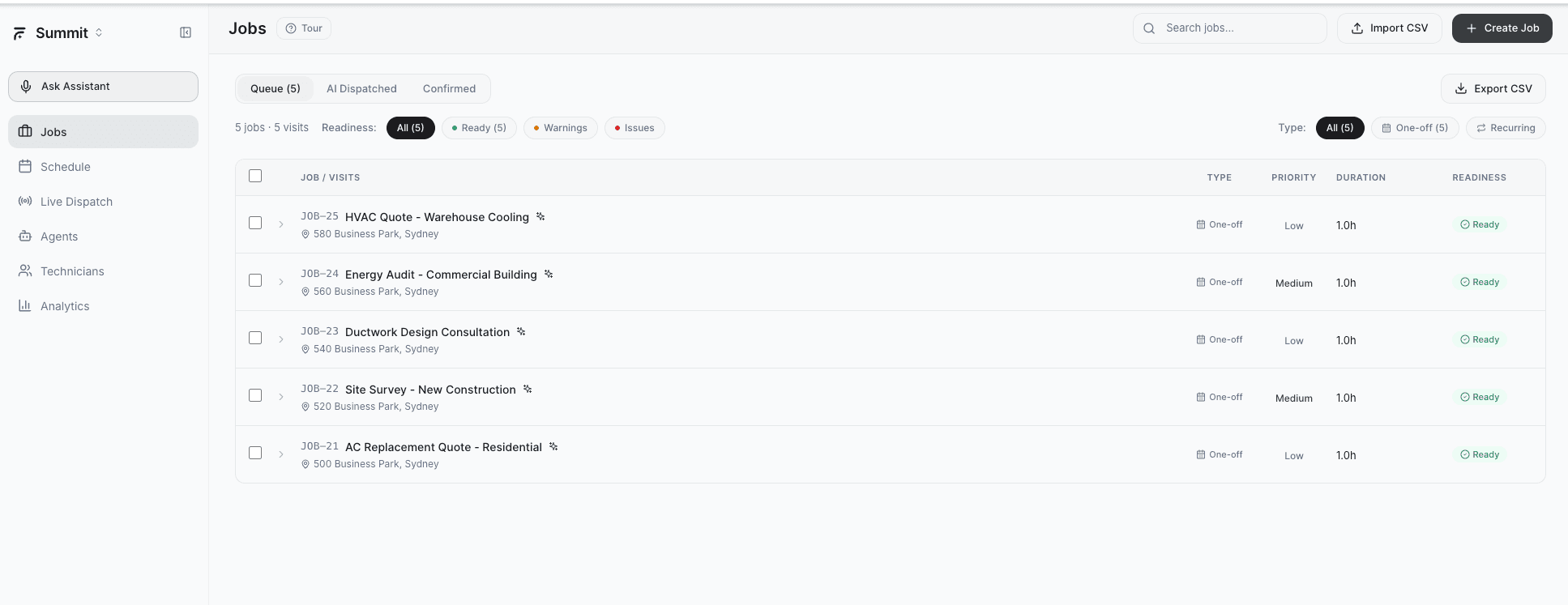
AI Dispatcher uses the same login as FieldCamp. If you already have an account at app.fieldcamp.ai, the same email and password works at dispatcher.fieldcamp.ai — no separate registration required.
Option 2: Inside FieldCamp (app.fieldcamp.ai)
If you already use FieldCamp for job management, you can enable AI Dispatcher as an add-on without leaving your existing workflow.
To enable the add-on:
- Log in to app.fieldcamp.ai
- Navigate to Settings → Apps & Integrations
- Find AI Dispatcher in the list of available add-ons
- Click Enable to activate it for your workspace
Once enabled, AI dispatch suggestions appear directly within your job and calendar views. For a comparison of both access methods, see Standalone vs Inside FieldCamp.
Getting started credits
Dispatch credits are included when you create your account:
- Credits are included when you create your account
- Each AI dispatch suggestion consumes credits when the engine generates a recommendation
- Usage tracking is available in the app so you can monitor your remaining balance
- Upgrade options are available as your dispatch volume grows
After You Log In
Once you have access, the recommended setup path is:
- Add your technicians — Define team members with their skills, service areas, and working hours
- Configure skills — Set up the skill categories that match your service types
- Create or import jobs — Add jobs manually or import from CSV
- Submit for dispatch — Let the AI engine generate your first recommendations
You can start generating AI dispatch suggestions within minutes of signing up. Add at least one technician and one job, then submit for dispatch to see the AI in action.
Troubleshooting Access
Cannot log in at dispatcher.fieldcamp.ai?
- Verify you are using the correct email associated with your FieldCamp account
- Try resetting your password — the reset applies to both FieldCamp and AI Dispatcher since they share the same login
- Clear your browser cookies and try again
AI Dispatcher add-on not visible in FieldCamp?
- Navigate to Settings → Apps & Integrations and check that your account role has permission to enable add-ons
- Contact your workspace admin if the option is not available
Session expired?
- Go back to dispatcher.fieldcamp.ai/login and log in again
- For the in-app version, refresh your FieldCamp session at app.fieldcamp.ai
Related Articles
- What is AI Dispatcher?
- Workspaces — how the container for your team, jobs and settings is set up
- API Access — the token external tools use
- Standalone vs Inside FieldCamp
- Setting Up Your Team — Configuring Technicians
- Submitting a Job for AI Dispatch
- FieldCamp Job Management — how jobs work inside FieldCamp before dispatching
What is AI Dispatcher? | FieldCamp AI Dispatcher
AI Dispatcher automatically matches jobs to the right technicians using skills, location, and availability. The only tool with multi-day route chaining, capacity-based dispatching, and hierarchical skill matching.
Standalone vs Inside FieldCamp | AI Dispatcher
Compare AI Dispatcher as a standalone app at dispatcher.fieldcamp.ai versus the integrated add-on inside FieldCamp. Same AI engine, different workflow options.