 FieldCamp
Automate Daily Dispatch | AI Dispatcher
Stop manually assigning jobs every morning. Set up the Dispatch Run or Autopilot agent to automatically match jobs to technicians on a schedule — with or without human review.
Stop Assigning Jobs by Hand
If your morning routine involves staring at a list of jobs, figuring out which tech is closest, who has the right skills, and who has room in their schedule — that is exactly the work these two agents replace.
Dispatch Run triggers AI dispatch on a schedule so you do not have to remember to click the button. Autopilot Dispatch goes one step further — it runs dispatch, reviews the results, and auto-accepts the safe assignments without you touching anything.
Which One Should You Use?
| Dispatch Run | Autopilot Dispatch | |
|---|---|---|
| Runs dispatch automatically | Yes | Yes |
| Reviews suggestions for you | No — you review | Yes — auto-reviews |
| Accepts safe assignments | No — you decide | Yes — auto-accepts high-confidence matches |
| Escalates exceptions | No — all suggestions wait for you | Yes — only flags skill mismatches or routing conflicts |
| Best for | Teams getting started with automation | Teams ready for hands-off dispatching |
Start with Dispatch Run if you want to ease into automation. Move to Autopilot once you trust the AI suggestions.
Setting Up Dispatch Run
Dispatch Run watches for pending jobs and triggers AI dispatch on a fixed schedule.
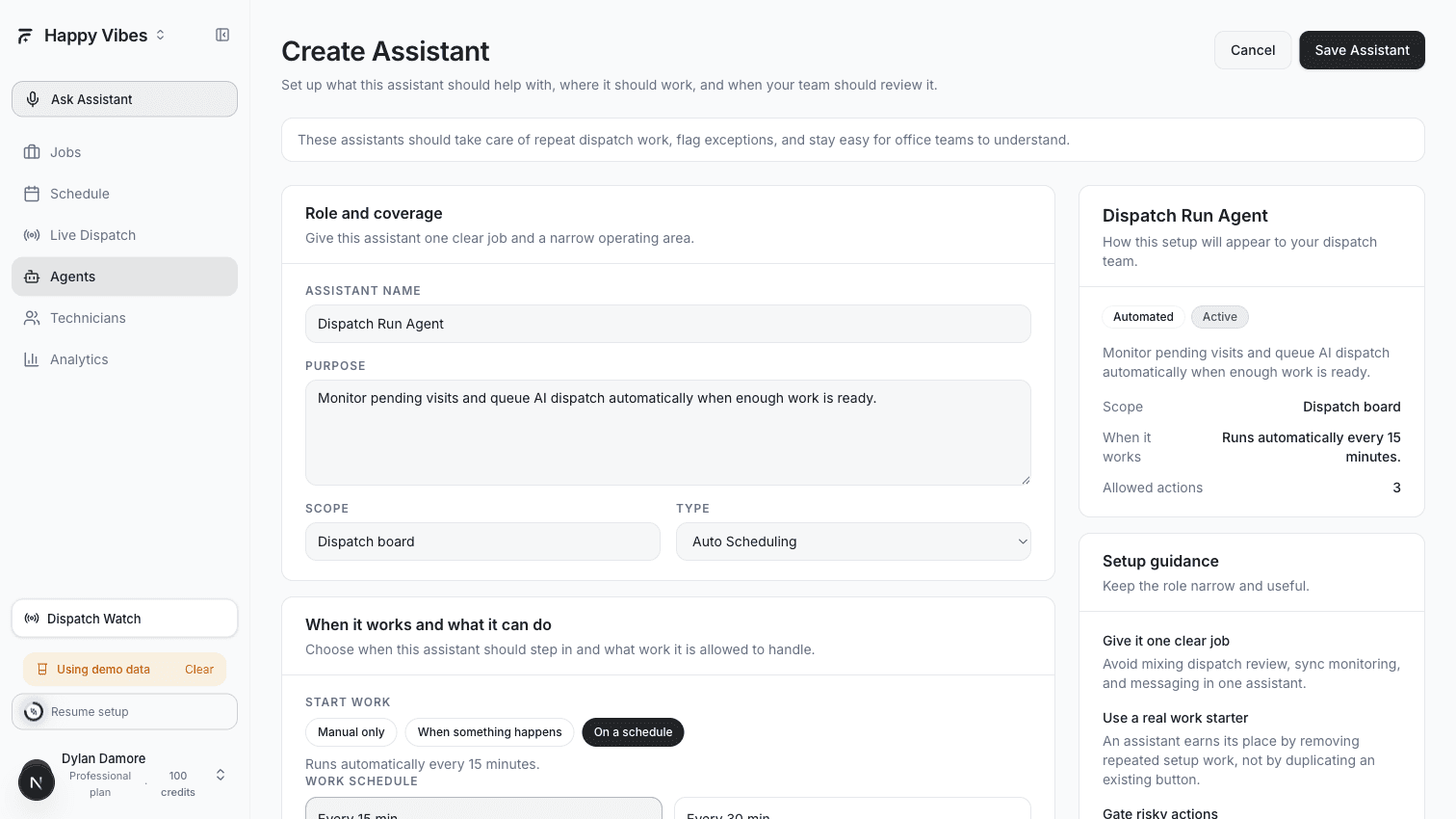
Step by Step
- Go to Agents > Playbooks
- Find the Dispatch Run Agent card and click Select
- Configure these settings:
| Setting | What It Does | Recommended |
|---|---|---|
| Schedule interval | How often the agent checks for pending jobs | Every 15 minutes |
| Minimum pending visits | How many unassigned jobs must be waiting before the agent triggers dispatch | 3 |
| Max batch size | Maximum number of jobs to dispatch in one run | 100 |
| Planning horizon | How far ahead the AI looks when planning assignments | 48 hours |
- Set the agent to Draft and click Create
- Watch the run history for a few days to verify the results
- When satisfied, switch to Active
What Happens When It Runs
Every 15 minutes (or your chosen interval), the agent:
- Counts how many jobs are waiting for assignment
- If the count meets your minimum threshold, it triggers AI dispatch
- The AI engine scores every available technician against every pending job
- Suggestions appear on your dispatch board for review
- You accept or reject each suggestion
Dispatch Run does not accept suggestions on your behalf. It only automates the "trigger dispatch" step. You still review and approve every assignment. This makes it a safe first step into automation.
Setting Up Autopilot Dispatch
Autopilot does everything Dispatch Run does, plus it reviews the results and auto-accepts assignments that meet your safety criteria.
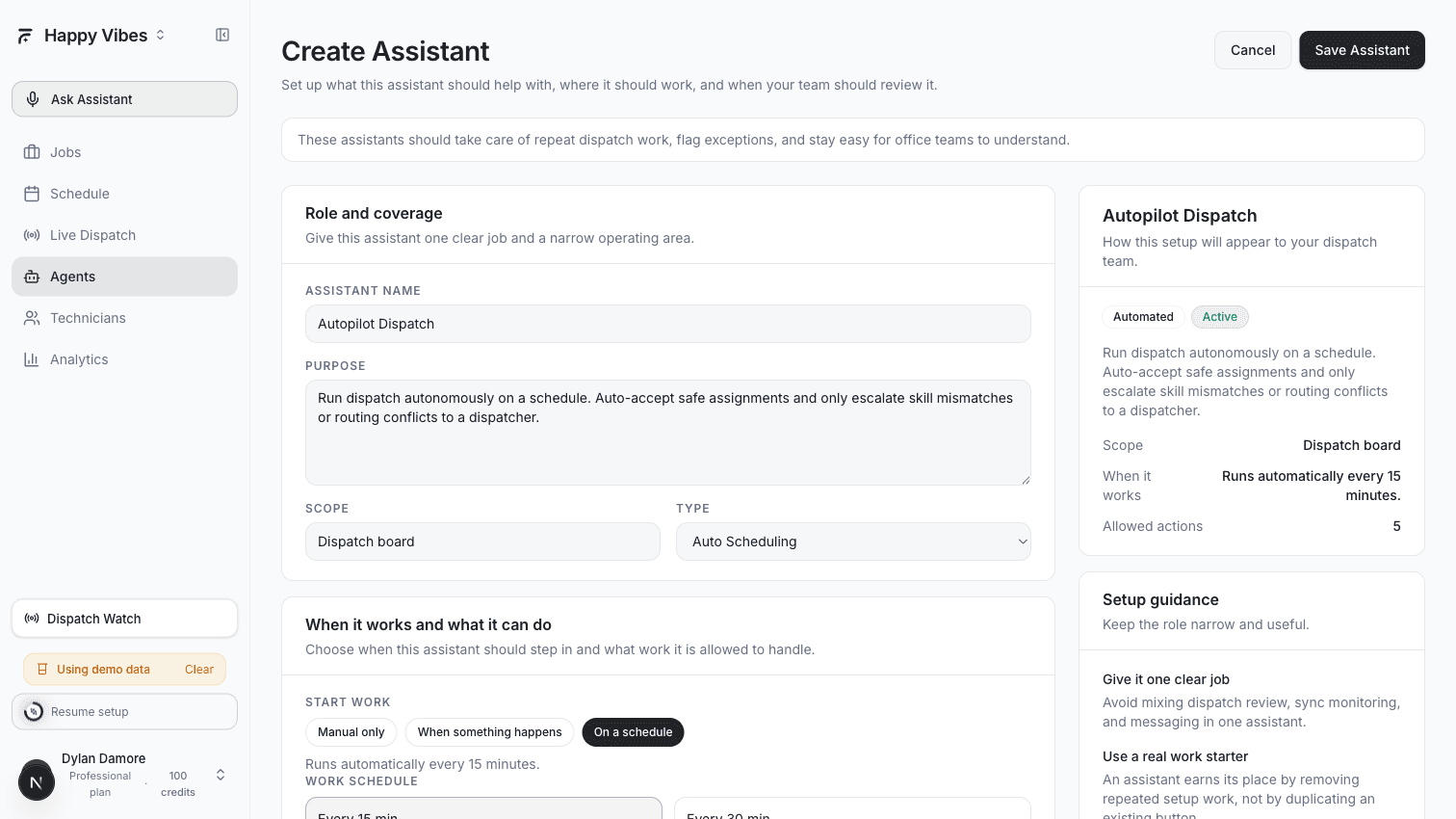
Step by Step
- Go to Agents > Playbooks
- Find the Autopilot Dispatch card and click Select
- Configure these settings:
| Setting | What It Does | Recommended |
|---|---|---|
| Schedule interval | How often it checks for pending jobs | Every 15 minutes |
| Confidence threshold | Minimum confidence score to auto-accept (0-100) | 70 |
| Require skills match | Only auto-accept if the technician has the required skills | Yes |
| Max travel delta | Maximum extra drive time (minutes) compared to the optimal route | 20 minutes |
| Auto-approve safe | Automatically accept suggestions that pass all safety checks | Yes |
- Set the agent to Draft first
- Monitor the Attention Center — Autopilot puts anything it could not handle there
- When confident, switch to Active
What Happens When It Runs
Every 15 minutes, the agent:
- Checks for pending jobs (same as Dispatch Run)
- Triggers AI dispatch if enough jobs are waiting
- Reviews every suggestion against your safety criteria:
- Does the technician have the required skills? → If no, escalate
- Is the confidence score above your threshold? → If no, escalate
- Is the extra travel time within your limit? → If no, escalate
- Does it conflict with an existing assignment? → If yes, escalate
- Auto-accepts suggestions that pass all checks
- Escalates anything uncertain to the Attention Center for your review
The Attention Center
When Autopilot cannot confidently handle an assignment, it appears in the Dispatch Watch panel (the Attention Center) in the bottom-left of your sidebar. You will see:
- Which job was flagged
- Why it was escalated (low confidence, skill mismatch, routing conflict)
- Suggested action
- Accept or Reject buttons
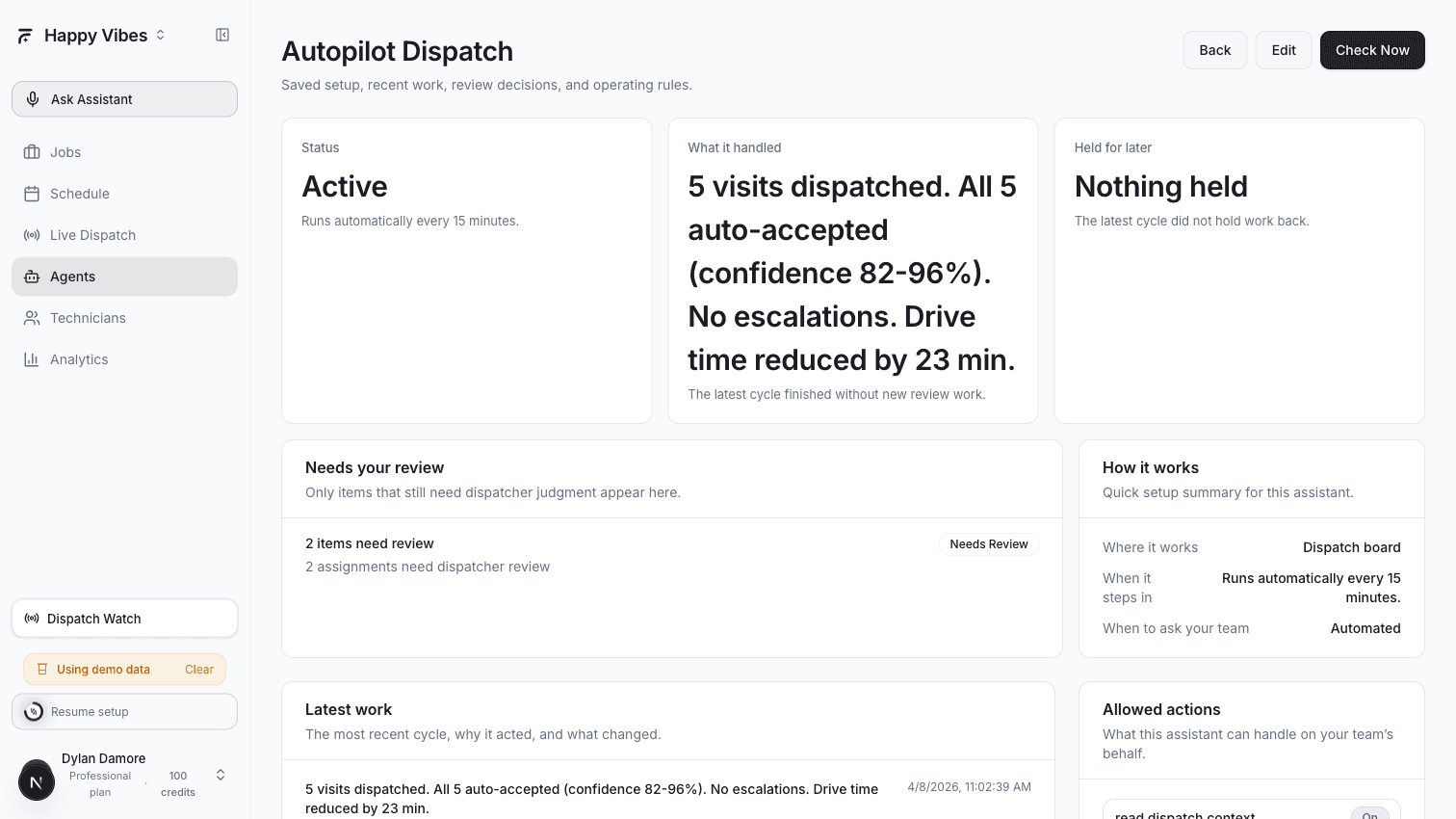
Autopilot is designed to handle the 80% of routine assignments that do not need human judgment. The 20% that do — skill edge cases, new customer locations, unusual job types — still come to you. The goal is not to replace dispatchers. It is to free them from repetitive work.
Tips for Success
Start conservative. Set the confidence threshold to 80 for the first week. Lower it to 70 once you see the AI is making good choices.
Check the Attention Center daily. Even with Autopilot running, review escalated items before they become stale.
Watch the run history. Every agent run is logged with a summary. Look for patterns — if the same type of job keeps getting escalated, you might need to update technician skills or adjust the confidence threshold.
Use Dispatch Run as training wheels. Run it for two weeks, review the suggestions, build trust in the AI. Then switch to Autopilot with the confidence threshold set high. Lower it gradually.
Plan Requirements
| Plan | Dispatch Run | Autopilot |
|---|---|---|
| Free | Yes (5 runs/day) | Yes (5 runs/day) |
| Starter | Yes (50 runs/day) | Yes (50 runs/day) |
| Professional | Yes (200 runs/day) | Yes (200 runs/day) |
| Enterprise | Unlimited | Unlimited |
Both agents are available on every plan. The difference is how many times per day they can run.
Related Articles
Dispatch Assistants (AI Agents) | FieldCamp AI Dispatcher
Create AI dispatch assistants that automatically assign jobs on a schedule or after updates. Configure playbooks, guardrails, and monitoring to keep humans in the loop.
Handle Late Jobs and Cancellations | AI Dispatcher
When a technician runs late or a customer cancels, the Dispatch Recovery and Gap Filler agents detect the disruption and recommend the best recovery move automatically.