 FieldCamp
Live Dispatch Map and Timeline View
Use the Live Dispatch page to view technician locations on a map, manage job assignments on a timeline, and track real-time performance metrics across your team.
Your Dispatch Command Center
The Live Dispatch page is the central hub for managing your field operations in real time. It combines a live map, a technician timeline, unassigned jobs, and performance metrics into a single view so you can make informed dispatch decisions without switching between screens.
Access it at Dispatch in the left sidebar, or go directly to dispatcher.fieldcamp.ai/dashboard/dispatch.
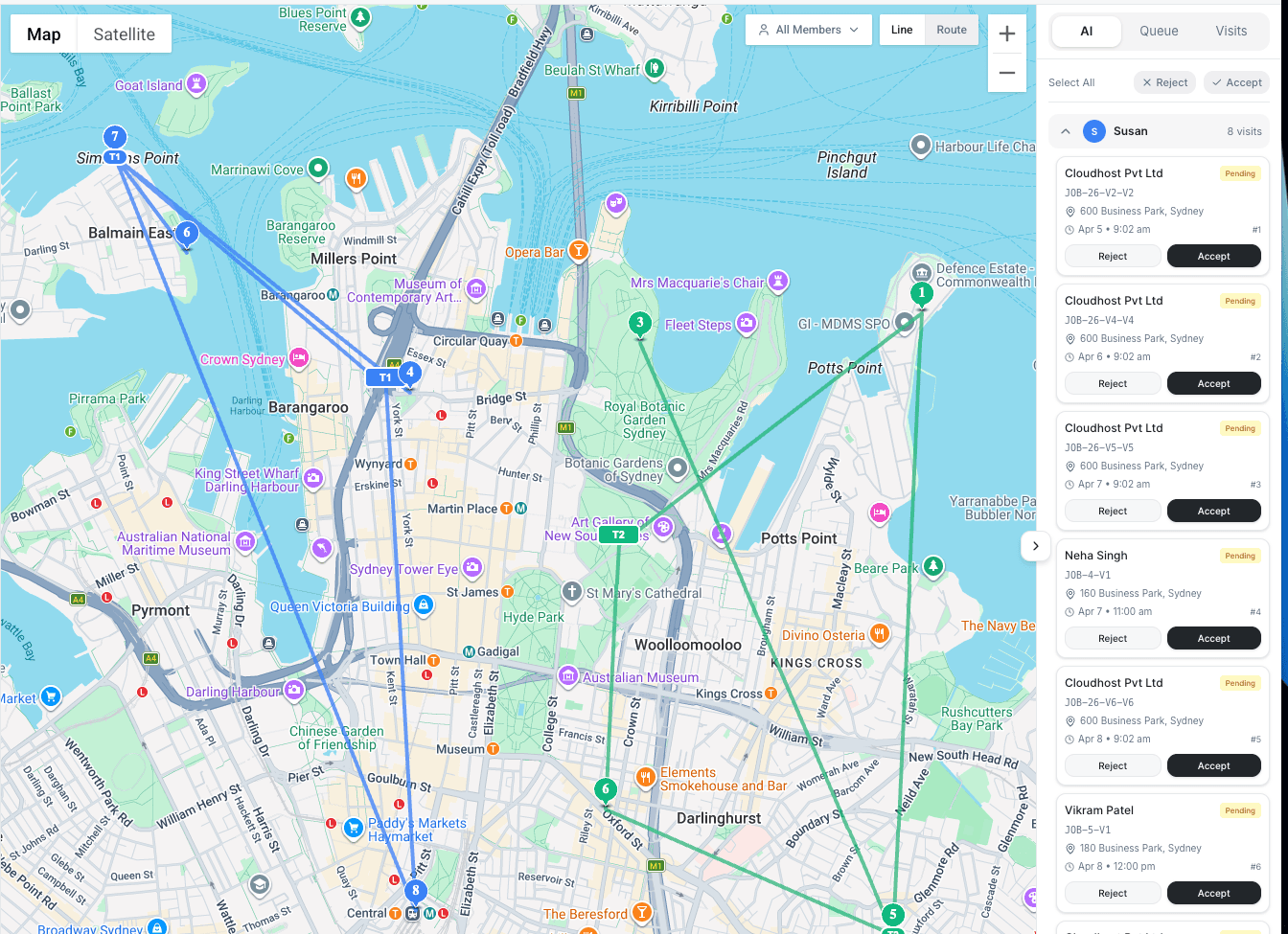
Header Metrics
The top of the Live Dispatch page displays five key numbers that give you an instant snapshot of the day:
| Metric | What It Shows |
|---|---|
| Jobs Today | Total number of jobs scheduled for the current day |
| Assigned | Jobs that have a technician confirmed |
| Unassigned | Jobs still waiting for assignment (these appear in the unassigned panel below) |
| Technicians | Total team members on shift today |
| Available | Technicians who have open capacity for additional work |
These numbers update in real time as you assign, complete, or reschedule jobs throughout the day.
Performance Bar
Below the header metrics, a performance bar tracks operational efficiency across five indicators:
| Indicator | What It Tracks |
|---|---|
| Completed X/Y | How many jobs are finished out of the total scheduled |
| Billable Xh | Total billable hours logged so far |
| Est. Drive Xh | Estimated total driving time across all technicians |
| On-Time X% | Percentage of jobs where the technician arrived within the scheduled window |
| Avg Util X% | Average utilization across all active technicians |
The performance bar refreshes as jobs are completed. Use the On-Time percentage to spot emerging delays early in the day, and Avg Util to identify technicians who have room for additional jobs.
Map View
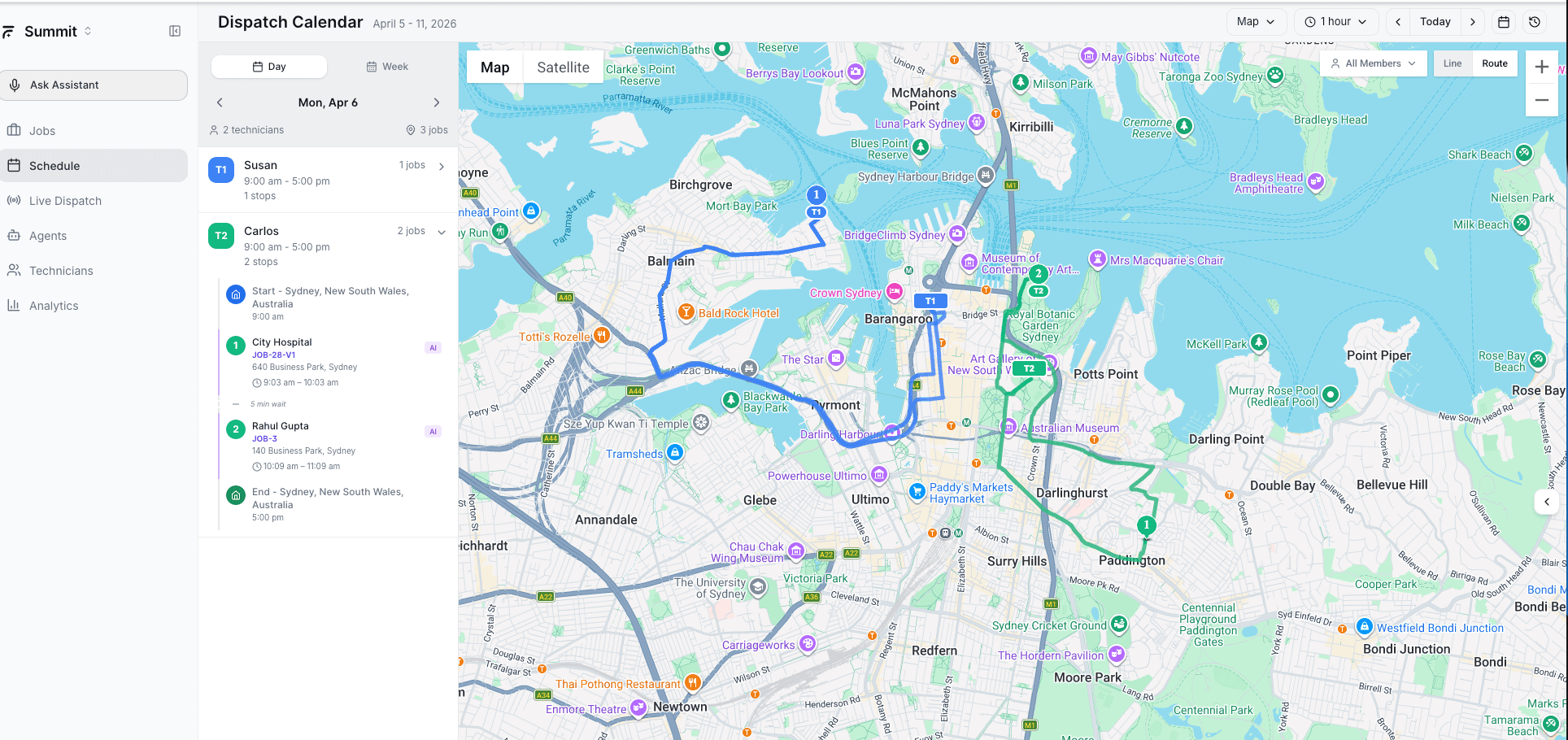
The default view shows a map on the left side of the screen with three layers of information:
| Layer | Description |
|---|---|
| Technician locations | Each technician appears as a pin showing their current or last-known position |
| Job locations | Unassigned and assigned jobs display as markers color-coded by status |
| Routes | When you select a technician, their planned route for the day draws on the map with estimated drive times between stops |
The map helps you visually confirm whether AI suggestions make geographic sense. If the AI recommends a technician for a job across town when someone closer is available, you can spot that immediately. To understand how the AI optimizes these routes, see our article on AI route optimization.
Timeline View
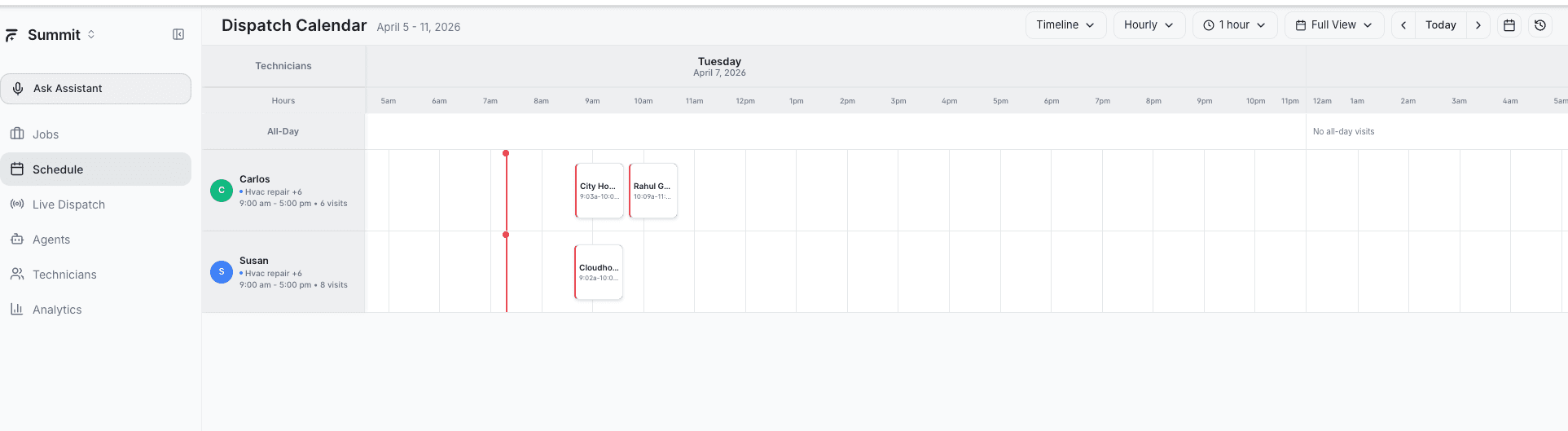
Switch to the Timeline tab to see a horizontal timeline for every technician on shift. Each row includes:
| Column | Details |
|---|---|
| Name and avatar | Technician's identity |
| Skills | Tags showing certifications and specialties |
| Schedule | Working hours for the day (for example, 9a-5p) |
| Job count | Number of assigned jobs |
| Availability status | Available, On Job, On Break, or Unavailable |
| Utilization % | How much of their scheduled hours are filled with jobs |
Assigned jobs appear as blocks on the timeline showing the job time and location. Gaps between blocks represent open slots where new jobs can be scheduled.
Click any job block on the timeline to expand details including customer name, job type, and duration. From there you can reassign, reschedule, or view the full job record.
Use the timeline to quickly identify which technicians have open capacity and which are overloaded. If one row is packed solid while another has large gaps, consider rebalancing workloads before accepting new AI suggestions.
Technician Cards
Each technician row in the Timeline view functions as a card with key information at a glance:
| Field | Description |
|---|---|
| Name | The technician's full name |
| Skills | Matched against configured skills and capabilities in your account |
| Schedule | Their shift hours for the day |
| Job count | Total jobs currently assigned |
| Availability status | Reflects their real-time state |
| Utilization % | Percentage of shift hours filled with scheduled work |
Technicians with utilization above 85% are approaching capacity. Those below 50% may have room for additional assignments.
Unassigned Jobs Panel
Below the map and timeline, the unassigned jobs panel lists every job that does not yet have a technician assigned. Each row shows:
| Field | Description |
|---|---|
| Customer name | The client associated with the job |
| Job ID | Unique job identifier |
| Duration | Estimated time to complete the job |
| Address | The job site location |
These are the jobs that need your attention. You can click any unassigned job to trigger an AI dispatch suggestion, or drag it directly onto a technician's timeline to manually assign it.
When the AI Dispatcher is enabled, it automatically generates suggestions for unassigned jobs. Those suggestions appear in the AI Dispatched tab on the Jobs page for your review.
Next Event Button
The Next Event button in the header advances the view to the next scheduled event in the day. This is useful for:
- Stepping through the day's schedule chronologically
- Jumping to the next job that needs attention
- Reviewing upcoming assignments during morning planning
Each click moves the timeline focus forward to the next start time, completion, or transition.
Tour Feature
First-time users see a guided tour that highlights each section of the Live Dispatch page. The tour walks through:
- Header metrics and what each number represents
- Map controls and technician pins
- Timeline layout and how to read technician rows
- Unassigned jobs panel and assignment options
- Performance bar indicators
You can restart the tour at any time from the help menu.
Best Practices
- Start each day on Live Dispatch -- review header metrics and the unassigned jobs panel before your team begins their shifts
- Use Map view for geographic decisions -- confirm that suggested assignments make sense based on technician proximity
- Use Timeline view for capacity decisions -- spot overloaded or underutilized technicians at a glance
- Monitor the performance bar throughout the day -- watch On-Time percentage for early warning signs of delays. The AI can make real-time schedule adjustments as conditions change
- Process unassigned jobs promptly -- the longer a job sits unassigned, the harder it becomes to fit into an optimized route
- Check conflicts and overlaps before confirming assignments that look tight on the timeline
Related Articles
- Reviewing AI Suggestions
- Accepting or Rejecting AI Dispatch Suggestions
- Handling Conflicts and Overlaps
- Understanding Capacity Planning
- Submitting a Job for AI Dispatch
- Share Links and the driver manifest — publish the day's schedule as a read-only page for the crew
Further Reading
- AI Route Optimization Explained — How AI builds efficient multi-stop routes for your team
- How AI Reduces Drive Time — The techniques behind minimizing travel between jobs
- Real-Time Schedule Adjustments — How the dispatcher adapts to cancellations, delays, and emergencies throughout the day
Setting Up Your Team | AI Dispatcher
Configure technicians in AI Dispatcher with skills, phone numbers, availability, and weekly schedules. Learn how to filter by status and manage your team.
Reviewing AI Dispatch Suggestions
Learn how to review AI-generated technician assignments on the AI Dispatched tab, interpret confidence scores, and expand reasoning details before approving.