 FieldCamp
Submitting a Job for AI Dispatch | FieldCamp AI Dispatcher
Learn how to submit jobs from the Queue tab for AI-powered technician assignment. See how AI analyzes skills, travel time, availability, and workload.
Overview
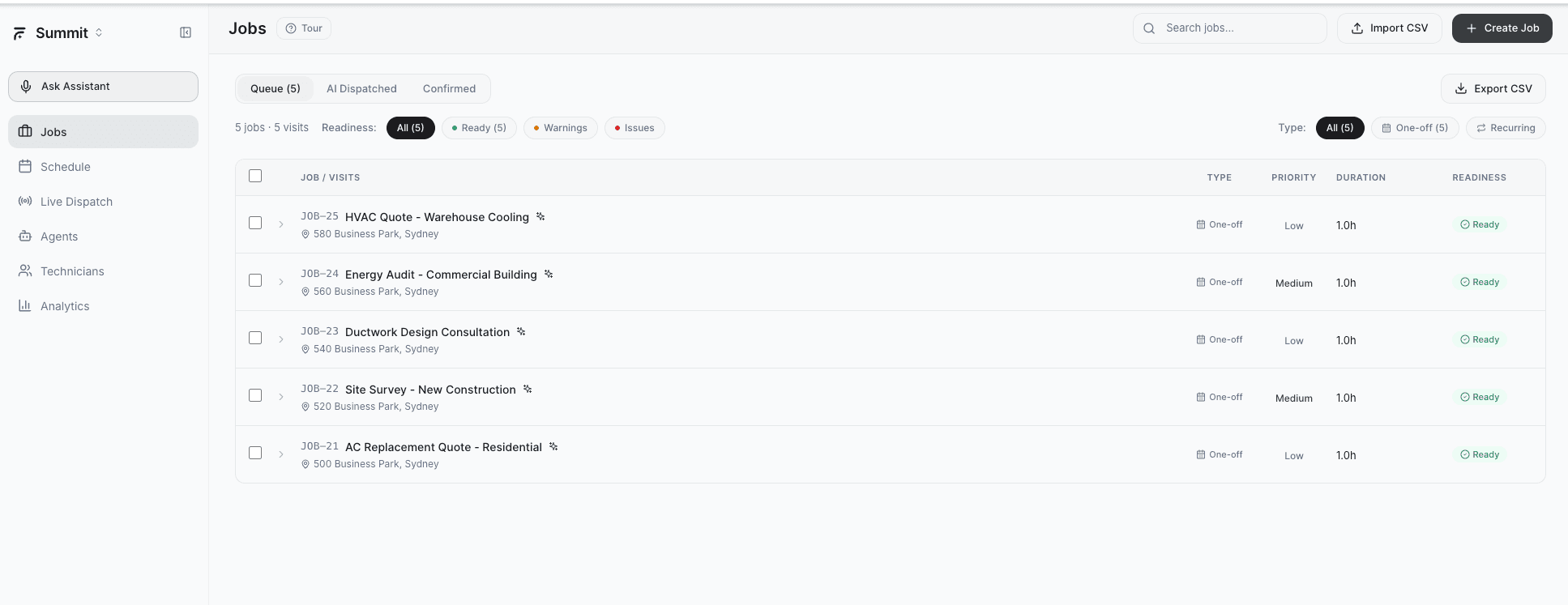
Jobs in the Queue tab on the Jobs page are unassigned and ready for dispatch. Submitting a job sends it to AI Dispatcher, which analyzes your team and suggests the best technician for the work.
How to Submit a Job
- Go to the Jobs page and open the Queue tab
- Find the job you want to dispatch -- confirm its readiness status shows Ready (not Issues)
- Click the job to open its detail view
- Click Dispatch to send it to AI Dispatcher
AI Dispatcher processes the request in seconds and moves the job to the AI Dispatched tab with a suggested technician assignment.
Jobs with an Issues readiness status cannot be dispatched. Fix missing data (address, required skills) before submitting.
What AI Considers
When you submit a job, AI Dispatcher evaluates every available technician against four factors:
- Skills match -- does the technician have all required skills for this job? A technician missing even one required skill is excluded.
- Location and travel time -- how far is the technician from the job site? AI calculates drive time from the tech's current or previous job location.
- Availability -- is the technician working that day? Do they have an open time slot long enough for this job's duration plus travel?
- Workload balance -- how many jobs does the technician already have? AI avoids overloading one person while others have capacity.
These factors combine into a ranked suggestion. The technician who scores highest across all four becomes the primary recommendation.
After Submission
Once AI processes the job, it appears in the AI Dispatched tab as a pending suggestion. From there you can:
- Review the suggestion -- see which technician was recommended and why
- Accept -- locks the assignment into the technician's schedule
- Reject -- dismisses the suggestion; you can re-dispatch or assign manually
For details on reviewing and acting on suggestions, see Accepting or Rejecting AI Dispatch Suggestions.
Dispatching Multiple Jobs
You can submit several jobs from the Queue in sequence. AI Dispatcher accounts for previously suggested (but not yet accepted) assignments when making new recommendations, so it will not double-book a technician who already has a pending suggestion.
When AI Cannot Find a Match
If no technician meets all requirements -- for example, no one has the required skills or everyone is fully booked -- AI Dispatcher flags the job with a warning. See When the AI Dispatcher Cannot Find a Technician for next steps.
Best Practices
- Dispatch Ready jobs only -- fix warnings and issues first for the best suggestions
- Keep technician profiles current -- outdated skills or availability leads to poor matches
- Review suggestions promptly -- pending suggestions hold time slots; delaying review can block other assignments
- Use priority correctly -- Crucial and High priority jobs get dispatched ahead of lower-priority work
Jobs do not only arrive by hand. A booking link lets a customer or partner submit one themselves, and Call Intake shows the jobs the AI created from inbound calls.
Related Articles
Importing Jobs via CSV | AI Dispatcher
Bulk import jobs and technicians into AI Dispatcher using CSV files. Learn the required column format, upload steps, and how to export your data for backup.
Booking Links | AI Dispatcher
Create AI Dispatcher booking links so customers or partners can submit jobs themselves, restricted to chosen dispatch tags, with optional reference fields.