 FieldCamp
Voice Assistant | AI Dispatcher
Talk to your dispatch board. Ask questions, dispatch jobs, check technician status, and manage your schedule using voice commands — hands-free from any page.
Talk to Your Dispatch Board
The Voice Assistant lets you manage dispatch operations using natural conversation. Instead of clicking through screens, you can say things like "dispatch all pending jobs", "where is Mike Torres?", or "what does tomorrow look like?" — and the assistant handles it.
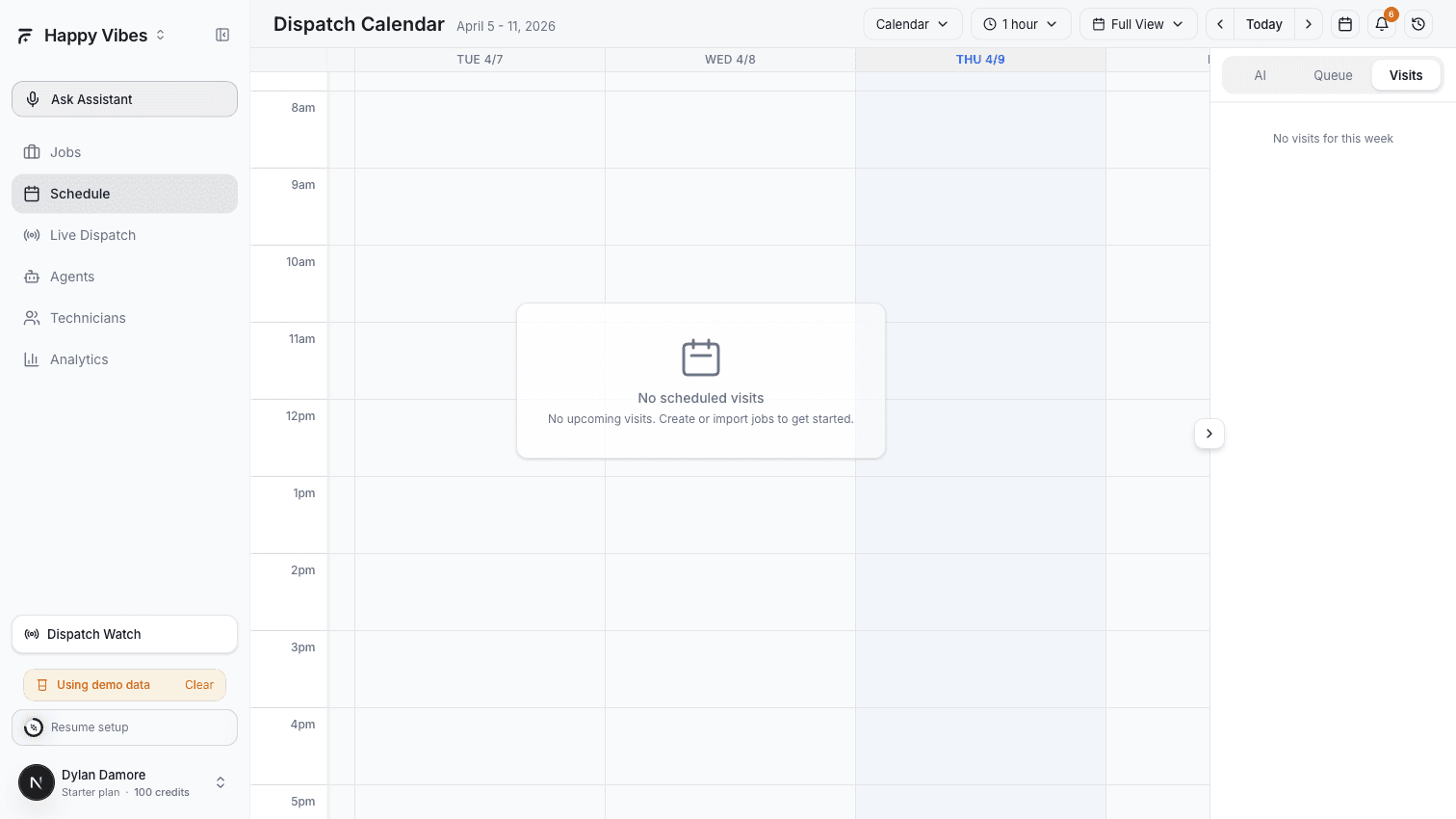
It is available from every page in AI Dispatcher. Click the Ask Assistant button in the sidebar to start.
The Voice Assistant is for your dispatch team. To have an AI voice agent book jobs through AI Dispatcher while a customer is on the phone, see Book and dispatch jobs during a call in the FieldCamp Voice docs.
Getting Started
Starting a Conversation
- Click Ask Assistant in the left sidebar
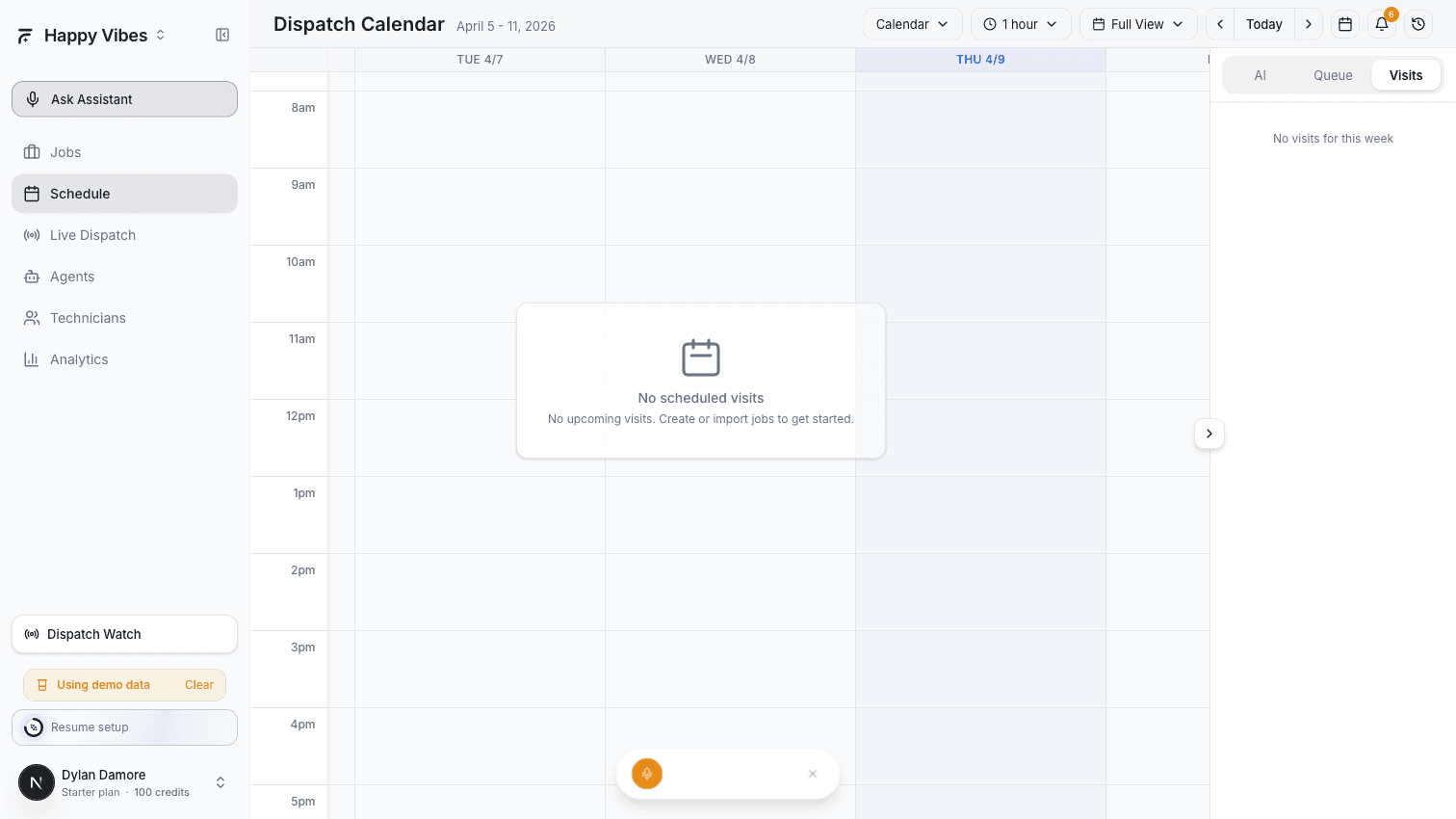
- A flow bar appears at the center of your screen
- Click the microphone icon to start talking, or type your question in the text input
- The assistant listens, processes your request, and responds with voice and text
Quick Suggestions
When you first open the assistant, you will see suggestion chips — common commands you can tap to get started without speaking:
- "Dispatch pending jobs"
- "Show today's summary"
- "Who is running late?"
- "What does tomorrow look like?"
Tap any suggestion to send it immediately.
What You Can Do
The assistant understands 18 commands organized into three categories: actions, information, and management.
Dispatch Actions
These commands change your schedule. The assistant routes them through the same agents and APIs as the UI — nothing bypasses your dispatch workflow.
| Say This | What Happens |
|---|---|
| "Dispatch all pending jobs" | Triggers the Autopilot Dispatch agent to assign all unassigned jobs |
| "Cancel the visit for [customer name]" | Cancels the visit and triggers Gap Filler to find a replacement |
| "Reassign [customer name] to [tech name]" | Moves a visit from one technician to another |
| "Reoptimize the schedule" | Runs the AI solver to re-optimize the entire day |
| "Resync unassigned jobs" | Resets rejected or unassigned jobs so they can be re-dispatched |
| "Accept all suggestions" | Approves all pending AI dispatch suggestions at once |
Information Queries
These commands read data without changing anything. Use them when a customer calls, when you need a quick status check, or when you are away from your desk.
| Say This | What You Get |
|---|---|
| "What's today's summary?" | Total jobs, assigned, unassigned, late, technician count |
| "Where is [tech name]?" | Current job, ETA, remaining jobs for that technician |
| "What's the ETA for [customer name]?" | Estimated arrival time for a specific visit |
| "Who is running late?" | All jobs currently past their scheduled time |
| "What jobs are unassigned?" | All visits with no technician assigned |
| "What does tomorrow look like?" | Tomorrow's job count, available techs, staffing gaps |
| "Show [tech name]'s schedule" | Full list of today's jobs for a specific technician |
| "How did we do this week?" | Weekly stats: jobs completed, on-time rate, utilization |
Management Commands
| Say This | What Happens |
|---|---|
| "Create a job for [customer] at [address]" | Creates a new job with the details you provide |
| "Add a technician named [name]" | Adds a new team member |
| "Mark [tech name] as unavailable" | Takes a technician off the schedule for today or tomorrow |
| "Set up my company" | Starts the onboarding flow to configure company details |
How It Works
The Voice Assistant uses Google Gemini to understand natural language and convert your words into structured actions. Here is what happens behind the scenes:
- You speak — Your browser captures audio and sends it to Gemini
- Gemini understands — The AI identifies what you want (e.g., "dispatch pending jobs" maps to the
dispatch_pending_jobstool) - Action executes — The assistant calls the same APIs and agents that the UI uses. Dispatching goes through Autopilot. Cancellations go through Gap Filler. Queries read from your live data.
- You hear the result — The assistant speaks the response and shows it as text
The Voice Assistant does not bypass any safety controls. Dispatch actions go through the same agent executor with the same approval policies and confidence thresholds. If an action would normally require your review, the voice assistant tells you it has been escalated rather than forcing it through.
Voice vs Text
You do not have to use your voice. The assistant has a text input field where you can type the same commands. This is useful in noisy environments, open offices, or when you prefer typing.
Both voice and text use the same underlying system — the only difference is whether Gemini receives audio or text as input.
Tips for Best Results
Be specific with names. "Cancel the visit for Johnson" works better than "cancel that visit." The assistant matches customer names and technician names against your data.
Use natural language. You do not need to memorize exact commands. "Where is Sarah?" works just as well as "Get the status of technician Sarah Kim."
One request at a time. The assistant handles one command per turn. "Dispatch all jobs and show me tomorrow's forecast" should be two separate requests.
Wait for the response. After speaking, wait for the assistant to finish processing before giving the next command. The waveform animation shows when it is listening vs processing.
Plan Limits
| Plan | Voice Sessions Per Day |
|---|---|
| Free | 5 |
| Starter | 50 |
| Professional | 200 |
| Enterprise | Unlimited |
Each time you start a conversation (click Ask Assistant and begin talking), it counts as one session. Multiple commands within the same session do not count as additional sessions.
Action commands (dispatch, cancel, reassign) consume 1 credit each from your credit balance. Information queries (status checks, summaries) are free.
Troubleshooting
"The assistant is not responding"
- Check that your browser has microphone permission enabled
- Make sure your internet connection is stable (the assistant streams audio in real time)
- Try refreshing the page and clicking Ask Assistant again
"It does not understand what I am saying"
- Speak clearly and at a normal pace
- Use customer names and technician names as they appear in your system
- Try typing the command instead of speaking it
"I see an error about session limits"
Your plan has a daily limit on voice sessions. Upgrade your plan or wait until tomorrow for the limit to reset.
Related Articles
Daily Insights and Forecasting | AI Dispatcher
Get end-of-day audits, tomorrow's capacity forecast, and recurring operational summaries — without running reports or scanning multiple screens.
Understanding the Schedule View | FieldCamp AI Dispatcher
Navigate the weekly schedule calendar in AI Dispatcher. View visits with time, location, duration, and travel time. Switch between Calendar, 1-hour, and Full views.