 FieldCamp
Capacity Planning & Workload | AI Dispatcher
Set up capacity limits, business hours, overtime rules, and workload balancing. Monitor utilization, billable hours, and on-time performance to keep your team productive.
Why Capacity Planning Matters
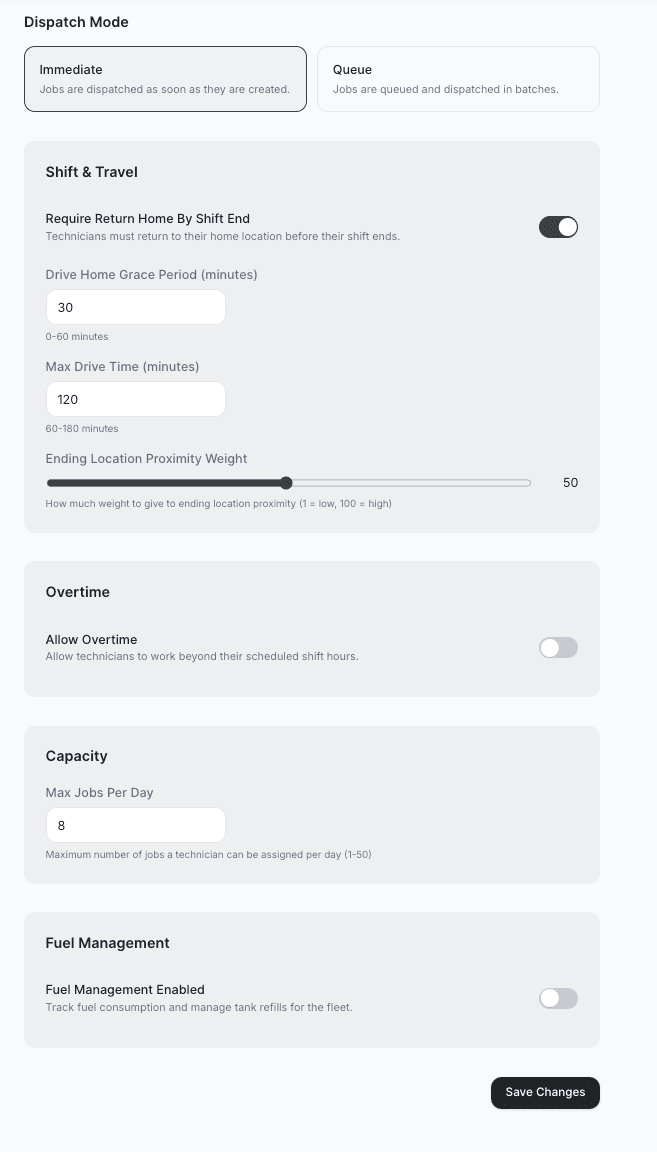
Capacity is not just about how many jobs a technician can handle in a day. It is about keeping your entire operation running smoothly -- the right number of jobs, within working hours, with enough time to do quality work and get home at a reasonable hour.
AI Dispatcher tracks all of this automatically so you do not have to juggle it in your head or on a whiteboard.
Key Metrics
AI Dispatcher tracks four capacity metrics across your team:
| Metric | What It Measures |
|---|---|
| Billable Hours | Total hours of on-site work scheduled for each technician. This is the revenue-generating time your team spends at job sites. |
| Est. Drive Time | Estimated travel time between jobs. High drive time relative to billable hours signals inefficient routing. |
| On-Time % | Percentage of jobs where the technician arrived within the scheduled window. Tracks reliability and schedule accuracy. |
| Avg Utilization | Ratio of scheduled work hours to available hours, shown as a percentage. The target range for most teams is 70-85%. |
Utilization above 90% leaves almost no buffer for emergencies, travel delays, or jobs that run long. Aim for 75-85% to keep your team productive with room to flex. Consistently overloading technicians leads to quality drops and attrition -- learn more about preventing technician burnout.
Utilization Per Technician
The Live Dispatch view shows a utilization percentage on each technician's card. This tells you at a glance who has capacity and who is booked solid.
| Color | Range | Meaning |
|---|---|---|
| Green | Under 75% | Technician has open capacity. Good for accepting new jobs or handling same-day requests. |
| Yellow | 75-90% | Approaching full schedule. Can take one more job depending on duration and travel. |
| Red | Above 90% | At or over capacity. Assigning more work risks schedule conflicts, late arrivals, or overtime. |
When a technician's utilization drops below a threshold, AI Dispatcher shows a low utilization warning on their card. This helps you identify team members who could take on more work -- useful for rebalancing load or filling gaps in the schedule.
Setting Daily Job Limits
Every technician on your team handles a different workload. A residential HVAC tech doing filter changes and tune-ups might handle 6 to 8 jobs in a day. A commercial install specialist working on rooftop units might only manage 2 or 3.
Set the maximum jobs per day for each technician based on what they actually do:
- Open the technician's profile
- Set their daily job limit
- AI Dispatcher will stop assigning jobs to them once they hit that number
For example, a technician with 8 available hours and 2-hour jobs could theoretically handle 4 jobs. But factoring in travel, breaks, and job overruns, setting the max to 3 gives a realistic daily target.
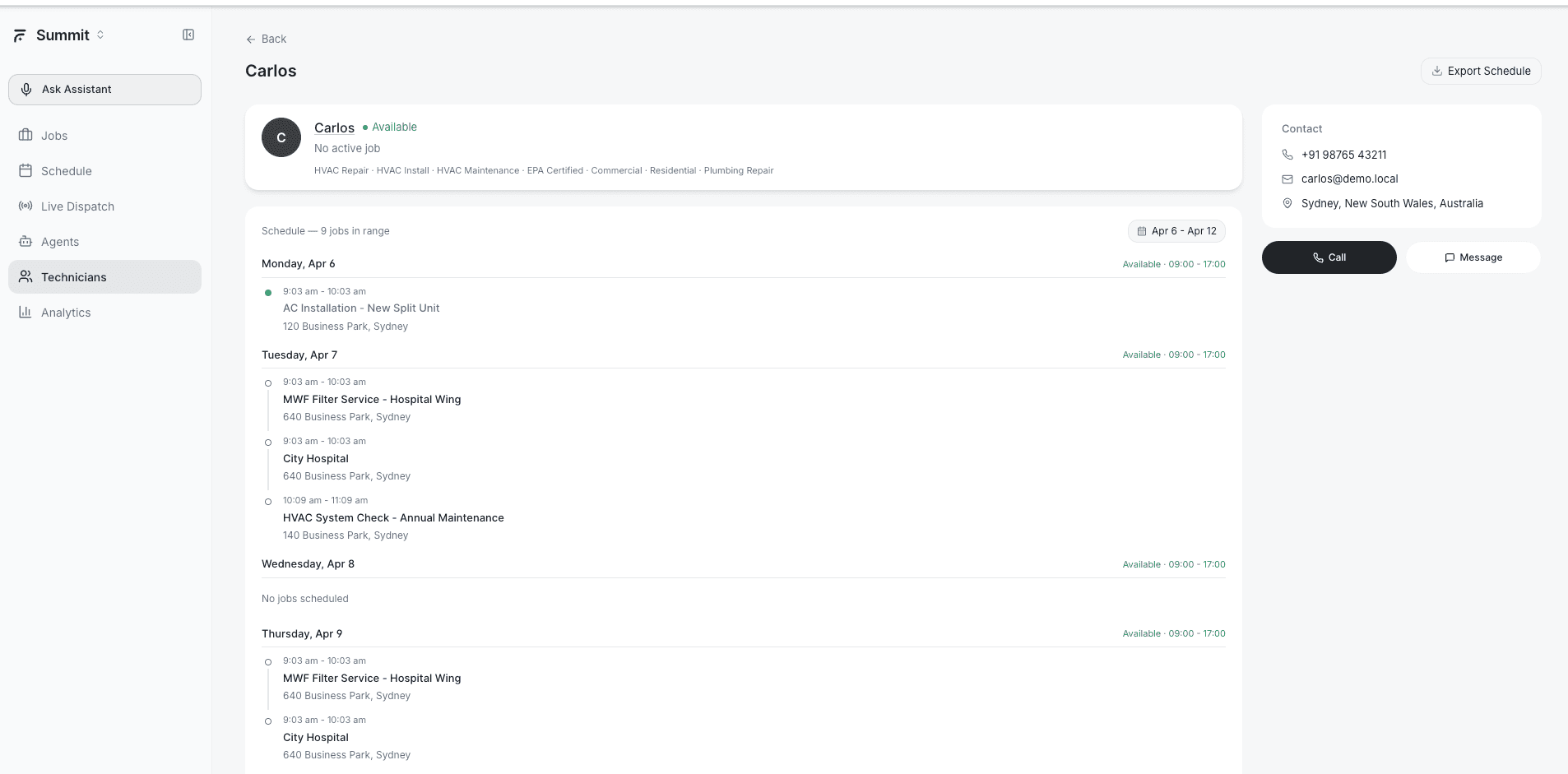
Start conservative. It is much easier to increase the limit after watching real performance for a week than to deal with an overbooked technician stuck in traffic at 6 PM.
Available Hours
Available hours come from each technician's weekly schedule. AI Dispatcher calculates capacity based on these hours minus any time already booked.
If a technician works 8 AM to 5 PM (9 hours) and has 6 hours of jobs plus 1.5 hours of estimated drive time, their remaining capacity is 1.5 hours -- enough for one short job or a buffer for overruns.
Tank and Vehicle Capacity (Waste Hauling, Grease Trap)
For businesses running pump trucks or waste haulers, capacity is not about job count -- it is about how full the tank is.
A grease trap company with a 1,500-gallon vacuum truck cannot keep running jobs once the tank is full. AI Dispatcher tracks tank capacity and routes the truck back to the dump site when it reaches 80-90% full. Then it picks up the next route from there.
This is the same idea for any vehicle with a physical limit: fuel, chemical supply, parts inventory on the truck. Set the capacity, set the threshold, and the dispatcher handles the rest.
Business Hours and Schedules
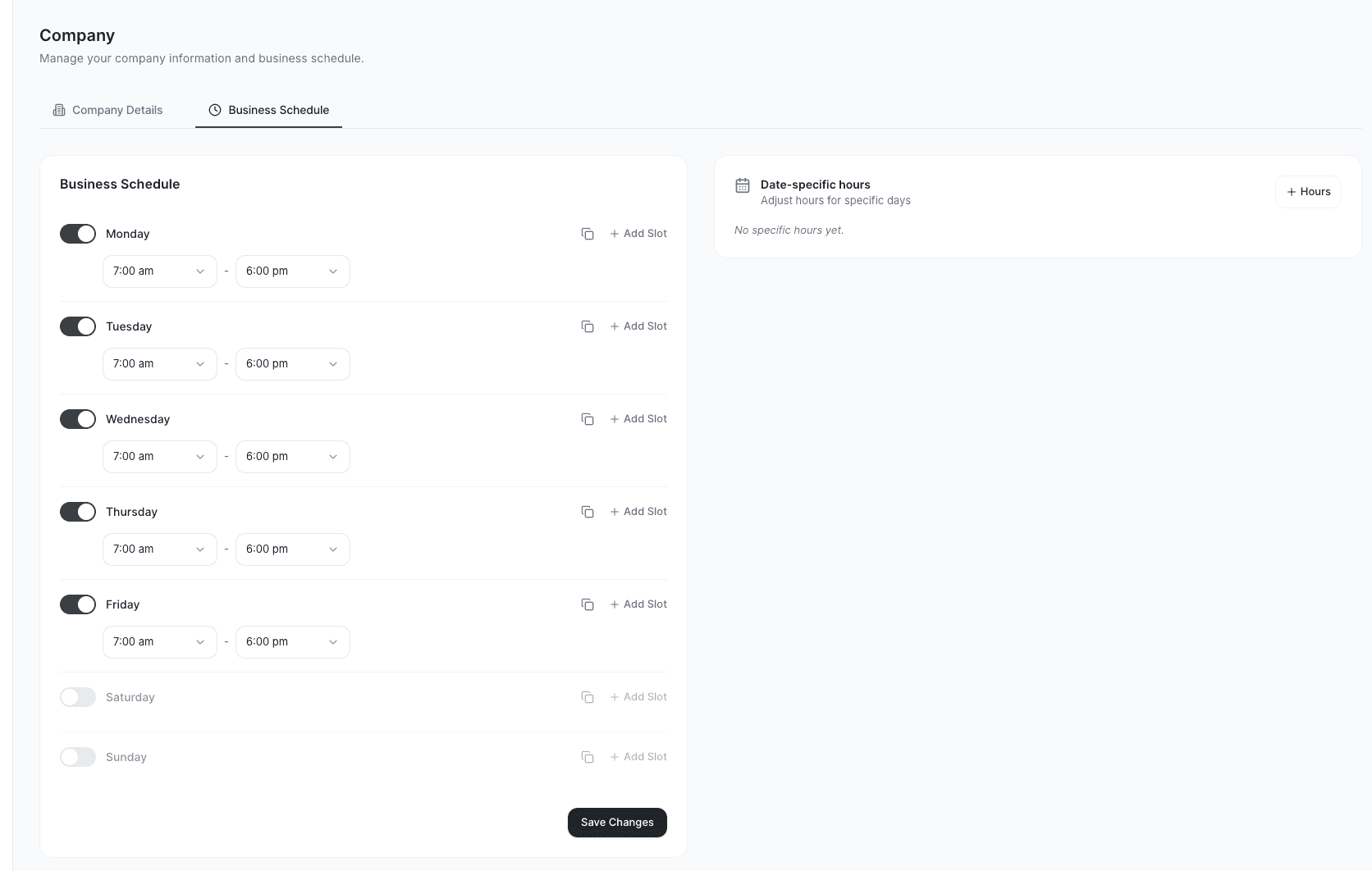
Your team does not work 24/7 (and if they do, their schedules still need boundaries). Set up your business hours so AI Dispatcher only assigns jobs during working time.
Company-Wide Schedule
Set your standard operating hours -- for example:
| Day | Hours |
|---|---|
| Monday -- Friday | 7:00 AM -- 5:00 PM |
| Saturday | 7:00 AM -- 12:00 PM |
| Sunday | Off |
Per-Technician Schedules
Not everyone works the same hours. Some of your team might work a standard five-day week. Others might work four 10-hour days. Set each technician's schedule individually:
- Standard: Monday through Friday, 8 AM to 5 PM
- Compressed: Monday through Thursday, 6 AM to 4:30 PM
- Part-time: Monday, Wednesday, Friday, 9 AM to 3 PM
AI Dispatcher only assigns jobs within each technician's scheduled hours. A job that would start or finish outside their window will not be assigned to them.
Schedule Overrides for Specific Dates
Life happens. Use date-specific overrides for:
- Vacation days -- Mark a technician as unavailable
- Half days -- Reduce hours for a specific date
- Extended hours -- A technician volunteering for overtime on a busy day
- Holidays -- Company-wide closures
Overrides take priority over the weekly schedule. If a technician normally works Mondays but you mark next Monday as unavailable, no jobs will be assigned to them that day.
Overtime Rules
You decide whether AI Dispatcher is allowed to suggest assignments that push a technician past their scheduled end time.
- Overtime allowed: The dispatcher can assign a 4 PM job to a technician who ends at 5 PM, even if the job takes 90 minutes. You will see a flag letting you know it runs into overtime.
- Overtime prevented: The dispatcher will not suggest any assignment that would extend past the technician's scheduled end time. Period.
Common causes of overtime flags:
- Jobs taking longer than estimated, pushing later appointments past end-of-day
- Emergency jobs added in the afternoon that do not fit in remaining hours
- Too many jobs stacked in the schedule with tight gaps between them
Workload Balancing -- Preventing Burnout
Without balancing, the dispatcher might load up your best-located, most-skilled technician with 10 jobs while everyone else sits at 2. That leads to burnout, inconsistent service quality, and unhappy team members.
The workload balance setting controls how aggressively AI Dispatcher spreads work across your team:
- Higher balance: Jobs are distributed more evenly, even if it means slightly longer drive times
- Lower balance: The dispatcher focuses on shortest routes and best skill matches, accepting that some technicians will be busier than others
When dispatching a job, AI Dispatcher factors workload balance into every suggestion:
- Avoids overloaded technicians -- a tech at 90% utilization scores lower than one at 60%, even if both are qualified and nearby
- Fills underutilized schedules first -- techs with low utilization get priority when other factors are comparable
- Respects daily caps -- a technician at their max jobs per day will not receive new suggestions regardless of remaining hours
- Accounts for drive time -- adding a distant job to an already-busy schedule increases effective utilization beyond what billable hours alone show
Find the right balance for your operation. If your team complains about uneven workloads, increase the balance. If they complain about long drives, decrease it.
Using Capacity Data to Improve Operations
Spot Staffing Gaps
If most technicians are regularly in the red zone, your team is under-staffed for current demand. Track weekly utilization trends to decide when to hire.
Improve Route Efficiency
High drive time with moderate billable hours means technicians are spending too much time on the road. Group jobs geographically or adjust service areas per technician.
Optimize Scheduling
Low On-Time % often correlates with overbooked schedules. Reduce max jobs per day or increase duration estimates to build in buffer time.
Rebalance Skills
If HVAC-certified technicians are always in the red while general maintenance techs are green, cross-train your team or hire specialists to match demand.
Tracking How Your Team Is Doing
The Live Dispatch page shows you real-time numbers for each technician:
| Metric | What It Shows |
|---|---|
| How full their day is | Percentage of available time that is booked |
| Jobs assigned vs their limit | How close they are to their daily max |
| Billable time | Time spent on revenue-generating work vs total hours |
| Cost efficiency | Whether your most experienced (and expensive) technicians are working on the right jobs |
Use these numbers to spot:
- Technicians who could take on more work
- Team members who are consistently overloaded before you hear complaints
- Whether your daily limits need adjusting up or down
Quick Reference
| Setting | What It Controls | Set Per Technician? |
|---|---|---|
| Max jobs per day | Daily job limit | Yes |
| Weekly schedule | Regular working days and hours | Yes |
| Date-specific hours | Overrides for vacations, holidays, half days | Yes |
| Workload balance | How evenly jobs are spread across the team | Company-wide |
| Tank/vehicle capacity | Physical limits on trucks and equipment | Yes |
| Overtime rules | Whether jobs can extend past end-of-day | Company-wide |
Best Practices
- Start conservative with daily limits -- Set them lower than you think necessary and increase after a week of real data
- Keep schedules current -- Outdated availability is the number one cause of bad suggestions
- Set realistic max jobs -- Factor in travel and breaks, not just raw hours
- Use date overrides for one-off changes -- Do not change the weekly schedule for a single vacation day
- Review utilization weekly -- Catch trends before they become problems. If one technician is always at 95% and another is at 40%, something needs adjusting
- Watch drive time ratio -- If drive time exceeds 25% of billable hours, revisit job grouping and service zones
- Act on low utilization warnings -- Reassign work or expand that technician's skill set
- Factor in drive time -- A technician who covers a large area needs a lower daily limit than one who works a tight neighborhood
Related Articles
- Setting Up Your Team
- Multi-Day & Travel Setup
- Handling Conflicts & Overlaps
- Submitting a Job for AI Dispatch
- Analytics Dashboard
Further Reading
- Capacity Planning with AI -- Deep dive into how AI balances capacity across field teams
- Workload Balancing with AI -- How AI distributes work evenly across your field team
- Preventing Technician Burnout -- Using data-driven scheduling to protect your team's wellbeing
- Multi-Day Scheduling -- Planning workloads across multiple days for smoother operations
Multi-Day Travel & Route Planning | AI Dispatcher
Set up multi-day travel for technicians who work across cities for days at a time. AI Dispatcher chains routes across days so techs spend less time driving and more time working.
Job Types, Priorities & Readiness | AI Dispatcher
Learn how to create jobs in AI Dispatcher with the right type, priority, duration, and skills. Understand readiness status and how priority affects dispatch order.