 FieldCamp
Setting Up Your Team | AI Dispatcher
Configure technicians in AI Dispatcher with skills, phone numbers, availability, and weekly schedules. Learn how to filter by status and manage your team.
Overview
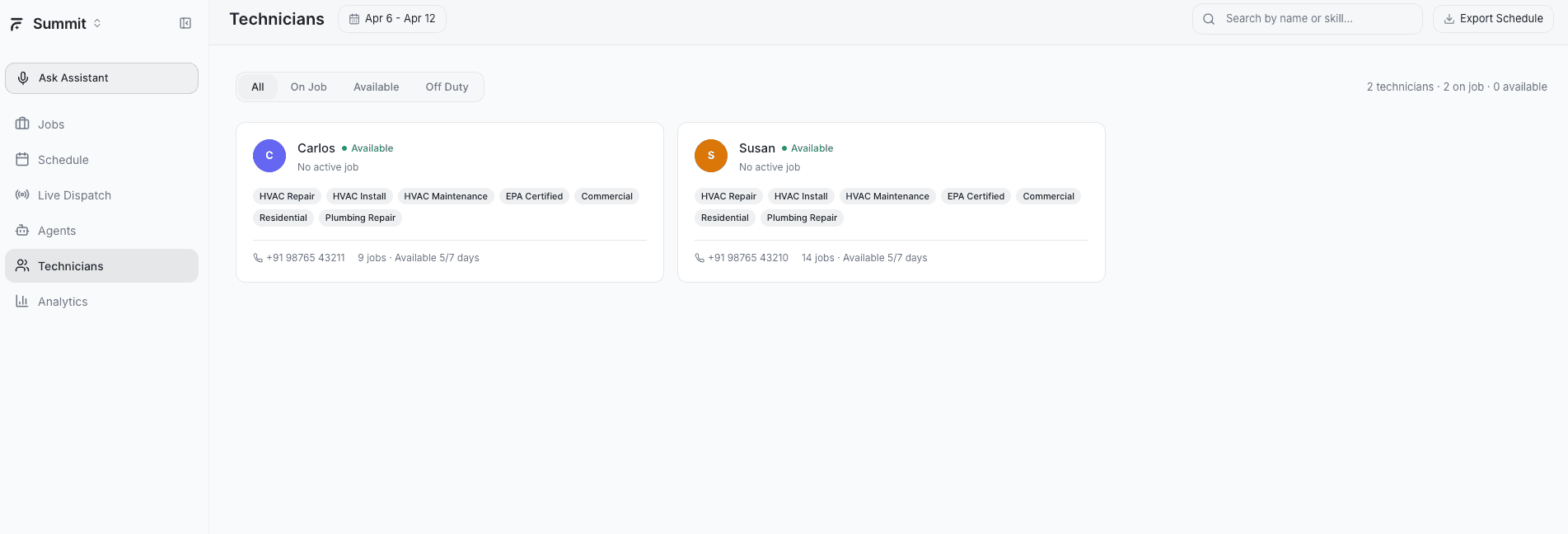
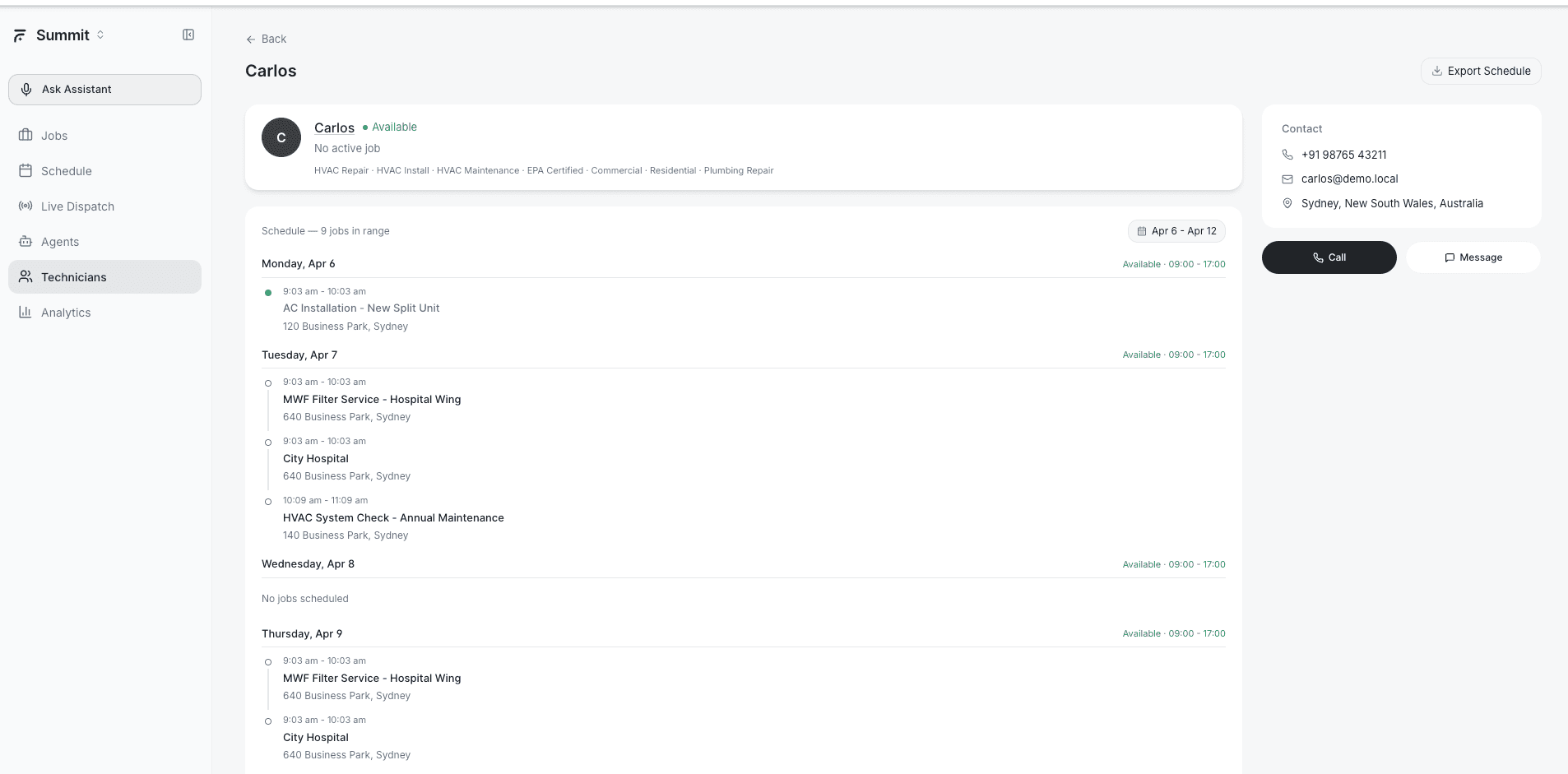
The Technicians page lists every team member available for job assignments. Each technician profile includes their skills, contact info, current job count, and availability status. Keeping this data accurate is essential -- AI Dispatcher uses it to match the right person to every job.
Technician Profile Fields
Each technician has the following information:
- Name -- full name displayed on assignments and schedules
- Phone -- contact number for coordination
- Skills -- badges showing certifications and capabilities (e.g., HVAC Repair, Install, Maintenance, EPA Certified)
- Job Count -- number of jobs currently assigned to this technician
- Availability -- current status and weekly schedule
Skills Badges
Skills appear as badges on each technician's card. AI Dispatcher uses these to filter candidates when a job has required skills.
Common skill badges include:
- HVAC Repair
- Install
- Maintenance
- EPA Certified
- Electrical
- Plumbing
Use consistent skill names across your team. "HVAC Repair" and "hvac repair" may be treated as separate skills. Establish a standard list and stick to it.
Editing a Team Member
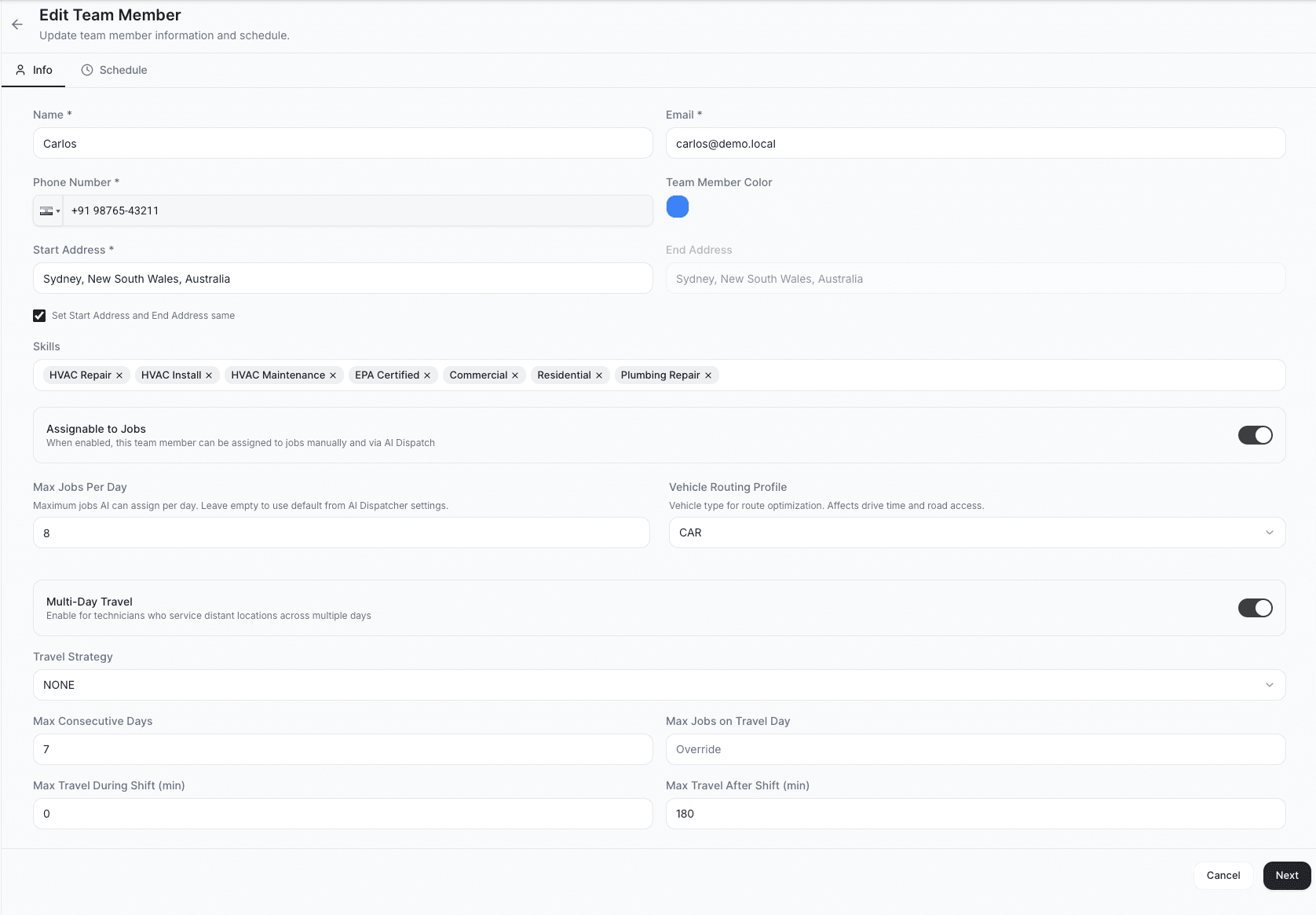
Click the edit button on any technician to update their details — skills, max jobs per day, vehicle routing profile, and multi-day travel settings.
Adding Skills
- Open a technician's profile
- Go to the Skills section
- Add skills by selecting from existing options or typing a new skill name
- Save the profile
A technician can have multiple skills. The more accurately you tag skills, the better AI Dispatcher can match jobs.
Weekly Availability
Each technician has a weekly schedule defining which days and hours they are available for work. AI Dispatcher only assigns jobs during available time slots.
- Set available days and working hours for each day of the week
- Mark days as unavailable for regular days off
- Adjust hours for part-time or split-shift schedules
Keeping weekly availability current prevents AI from suggesting assignments when a technician is off duty.
Availability Status Filters
The Technicians page supports filtering by current status:
- All -- shows every technician regardless of status
- On Job -- currently working an active assignment
- Available -- on duty with open capacity for new jobs
- Off Duty -- not working today (day off, vacation, or outside scheduled hours)
Use these filters to quickly see who can take on new work or identify team members at capacity.
Adding Technicians
Click Add Technician to create a new team member. Fill in their name, phone, skills, and weekly availability. You can also import technicians via CSV for bulk setup.
Best Practices
- Keep skills up to date -- add new certifications as technicians earn them
- Set realistic availability -- overstating hours leads to overbooked schedules
- Review job counts regularly -- uneven distribution may signal a need to adjust skills or availability
- Use consistent naming -- standardize skill names across all profiles so AI matching works correctly
- Update immediately on changes -- if a technician goes on leave or changes hours, update their profile right away
Related Articles
Call Intake | AI Dispatcher
Read the AI Dispatcher Call Intake feed — inbound call transcripts with the AI's category, severity, priority score and the job each call created or updated.
Live Dispatch Map and Timeline View
Use the Live Dispatch page to view technician locations on a map, manage job assignments on a timeline, and track real-time performance metrics across your team.