 FieldCamp
Handle Late Jobs and Cancellations | AI Dispatcher
When a technician runs late or a customer cancels, the Dispatch Recovery and Gap Filler agents detect the disruption and recommend the best recovery move automatically.
When the Day Goes Sideways
You planned the perfect schedule at 7am. By 10am, one tech is stuck on a job that is taking twice as long, and a customer just called to cancel their afternoon appointment. Now you are scrambling to figure out:
- Which downstream jobs are at risk because the tech is running late?
- Who else can take those jobs without creating new conflicts?
- What do you put in the gap left by the cancellation?
Two agents handle this for you: Dispatch Recovery watches for late-running jobs, and Gap Filler responds to cancellations.
Dispatch Recovery Agent
What It Does
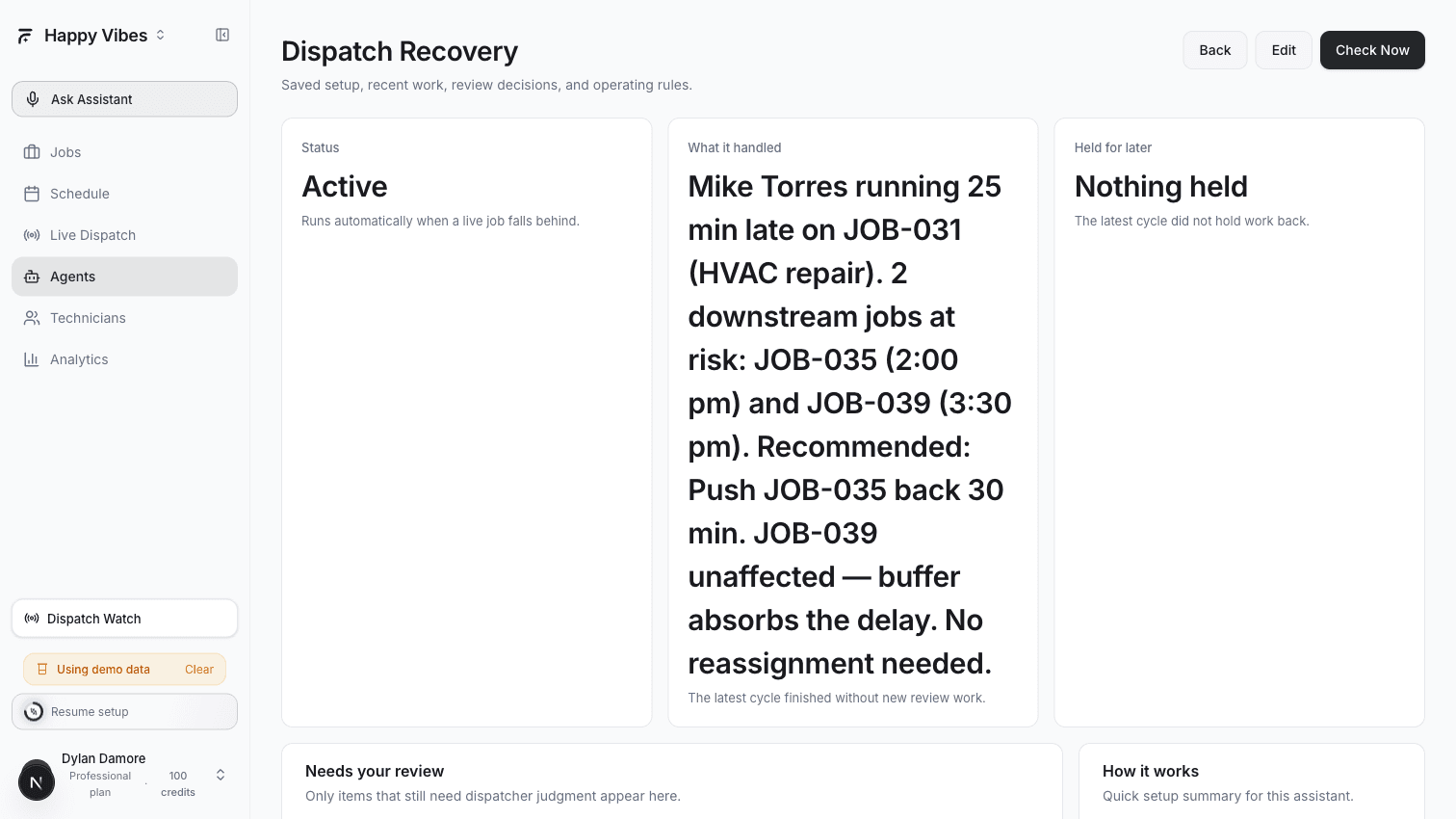
Dispatch Recovery monitors your live schedule for technicians who are falling behind. When a job runs past its expected completion time, the agent:
- Identifies which downstream jobs are now at risk
- Evaluates recovery options (reassign, extend, push back)
- Recommends the least disruptive fix
- Sends the recommendation to you for approval
When It Activates
This agent does not run on a schedule. It triggers on a DISPATCH_RUNNING_LATE event — meaning it wakes up the moment a job exceeds its expected duration by a configurable number of minutes.
Setting It Up
- Go to Agents > Playbooks
- Find the Dispatch Recovery Assistant card and click Select
- Configure:
| Setting | What It Does | Recommended |
|---|---|---|
| Minimum overrun minutes | How far past the expected end time before the agent activates | 15 minutes |
| Auto-handle safe recovery | Let the agent execute simple fixes (like extending a time slot) without approval | No (start with manual approval) |
- Set to Draft, test for a week, then switch to Active
What You See
When Recovery detects a problem, a notification appears in the Dispatch Watch panel:
- The late-running job with current overrun time
- Downstream jobs at risk with their scheduled times
- Recommended action (reassign, extend, or push back)
- Accept or Reject buttons
Recovery prefers the least disruptive option. If extending the current job by 20 minutes fixes everything, it will suggest that over reassigning three downstream jobs to different technicians.
Gap Filler Agent
What It Does
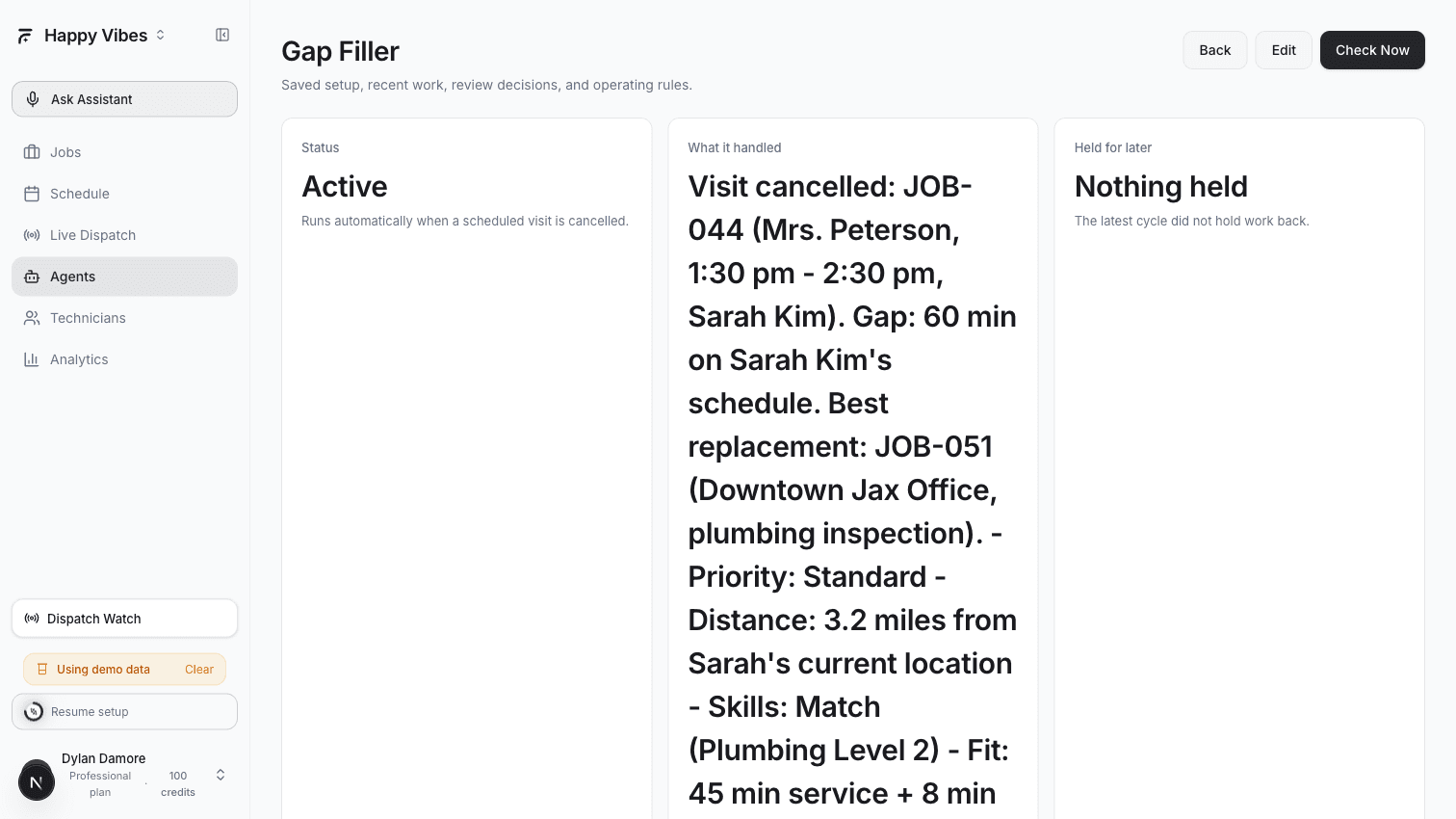
When a visit gets cancelled, Gap Filler immediately looks at your unassigned jobs and scores them to find the best replacement. It considers:
- Priority — Emergency and urgent jobs go first
- Proximity — How close is the unassigned job to the technician's current location
- Skill match — Does the technician have the right certifications
- Gap fit — Does the job fit in the time slot left by the cancellation
When It Activates
Gap Filler triggers on a VISIT_CANCELLED event. The moment a visit is cancelled (from AI Dispatcher, your connected FSM, or via API), the agent wakes up.
Setting It Up
- Go to Agents > Playbooks
- Find the Gap Filler Agent card and click Select
- Configure:
| Setting | What It Does | Recommended |
|---|---|---|
| Auto-fill gaps | Let the agent assign the replacement without approval | No (start with approval required) |
- Save as Draft, then Active when ready
What You See
After a cancellation, the Dispatch Watch panel shows:
- Which visit was cancelled and the time gap it created
- The top-scored replacement job with reasoning (priority, proximity, skills, fit)
- Accept to assign the replacement, or Reject to leave the gap open
How to Cancel a Visit
You can cancel a visit from multiple places in AI Dispatcher:
- Schedule page — Click a visit, then click Cancel
- Jobs page — Open the job detail, find the visit, click Cancel
- Live Dispatch timeline — Right-click a visit block, select Cancel
- Connected FSM — Cancel in Jobber, ServiceTrade, or Housecall Pro and it syncs automatically
Gap Filler activates regardless of where the cancellation happens.
Using Both Together
Recovery and Gap Filler work independently, but they complement each other:
- A tech is running 30 minutes late → Recovery recommends reassigning the last job of the day to another tech
- That reassignment effectively "cancels" the original visit → Gap Filler does not activate because the job was reassigned, not cancelled
- A customer calls to cancel their 2pm appointment → Gap Filler finds a nearby unassigned job to fill the gap
- If the replacement job makes another tech late → Recovery handles that cascade
You do not need to coordinate them. They watch different events and respond independently.
Plan Requirements
| Plan | Dispatch Recovery | Gap Filler |
|---|---|---|
| Free | Not available | Not available |
| Starter | Not available | Not available |
| Professional | Yes | Yes |
| Enterprise | Yes | Yes |
Recovery and Gap Filler are live dispatch agents that require the Professional plan or above. They work with real-time events and need the deeper integration that Professional provides.
Related Articles
Automate Daily Dispatch | AI Dispatcher
Stop manually assigning jobs every morning. Set up the Dispatch Run or Autopilot agent to automatically match jobs to technicians on a schedule — with or without human review.
Never Miss a Suggestion | AI Dispatcher
Plan Review auto-approves safe dispatch suggestions so they do not pile up. Stale Work Detector catches jobs stuck in pending, suggestions nobody acted on, and rejected visits that were never re-dispatched.